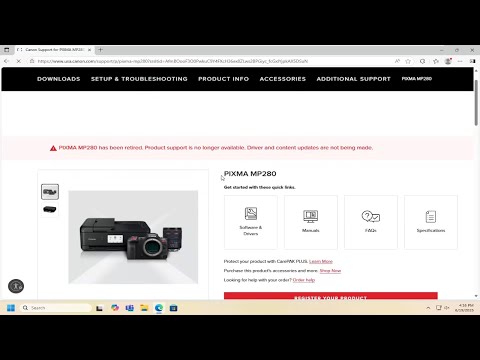
You know, printers can be such a pain sometimes. I mean, they’re super helpful when they work, right? But when your Canon Pixma MP280 starts acting up and you need to install or update the driver on Windows 10… oh boy.
So imagine this: it’s late at night, and you just want to print that one last document. But wait! Your computer doesn’t recognize your trusty old printer. It’s like it’s playing hide-and-seek with your laptop!
Not sure if you’ve been there too, but don’t worry—I’ve got your back. Let’s make this driver installation process less of a headache and more like a walk in the park.
Trust me, once you get through this, you’ll be printing away as easy as pie! Let’s get started and tackle this thing together.
Canon Printer Driver Installation on Windows 10
Sure thing! Let’s go through the process together. Installing a Canon printer driver on Windows 10, especially for something like the Pixma MP280, doesn’t have to be a daunting task. I’ve been there, fiddling with wires and settings when I first got my hands on my own printer. Let’s simplify it step by step.
First off, you need the right driver for your printer model. Think of drivers as little translators that help your devices understand each other. Without them, your computer and printer might as well be speaking different languages.
Step 1: Download the Driver
- Head over to the official Canon website.
- Navigate to their support section.
- Enter “Pixma MP280” in their search bar or find it from a list of models.
- Once there, make sure to select Windows 10 as your operating system.
Step 2: Install the Driver
Once you’ve downloaded the driver setup file, double-click on it to start installation. This should open up an installation wizard that’ll guide you through things.
- You’ll typically click “Next” through several screens—just following their prompts.
- If it asks about connecting the printer during install, hook up your USB cable between the PC and printer when prompted.
If you run into any issues during this process—like I did once when my USB glitch out—make sure everything’s connected properly. A simple unplugging and re-plugging can often fix those stubborn problems!
Troubleshooting Tips:
But let’s say things aren’t going smoothly:
- No Luck Connecting?
Check if Windows Update has installed another generic driver automatically; sometimes they interfere! - Error Messages?
Just rebooting both devices clears up most temporary glitches—it’s amazing how much magic lies in turn-off-turn-on-again tricks! - Lack Of Prints?
Ensure paper isn’t jammed somewhere inside by opening covers carefully (had that embarrassing moment once myself!). Brushes n’ rollers often get hungry too – feed ‘em clean sheets regularly!
“`bash
[Control Panel] > [Devices & Printers] > Look for unnecessary duplicate entries under printers
“`
Well there ya have it—your Canon Pixma MP280 should now be talking happily with Windows 10! 🎉
Remember patience pays particularly while dealing tech teething troublefaces (I swear printers sometimes feel like teenagers!). Happy printing journey!
Canon Printer Driver Download Process
Alright, let’s dive into the process of downloading and installing the driver for your Canon Pixma MP280 printer on a Windows 10 system. You might think this sounds a bit technical, but it’s actually quite straightforward—just follow along.
Step 1: Visit Canon’s Official Website
First things first, you need to get to Canon’s official website. That’s where you’ll find the legitimate software without any nasty surprises. Open your preferred web browser and type in “Canon official site.” Once you’re there, head over to their support section. You’d be surprised how many people waste hours on third-party sites with outdated or incorrect drivers!
Step 2: Search for Your Printer Model
In the support area, look for something like a search box where you can type “Pixma MP280”. Got it? Great! Click on your printer model when it pops up in the results.
Step 3: Select Windows 10 as Your Operating System
Here comes an important part—you need to choose Windows 10 as your operating system. Sometimes websites are sneaky and don’t preselect it correctly for you. So take a second glance and make sure it’s right before proceeding.
Step 4: Download the Driver
You should see an option that says something like “Drivers & Downloads”. Click on that, and look for anything named “driver setup”. Hit download once you’ve found it—it usually comes down pretty fast unless you’re using dial-up internet (hey, some folks still do!).
Step 5: Run the Installation File
Once downloaded, locate the file—probably chilling in your Downloads folder—and double-click to run it. Think of this step like inviting someone over; except in this case you’re inviting new software into your computer’s life.
- User Account Control: If prompted by User Account Control asking if you want to allow changes—just say ‘Yes’. It’s safe since we got our file from Canon directly.
- The Setup Wizard: Don’t worry if words like “setup wizard” pop up—it’s all part of helping guide through smoothly! Just follow along with what they suggest hitting ‘Next’ or ‘Install’ whenever necessary.
- Selecting Connection Type:You’ll be asked how you want stuff connected—a USB cable setup works fine here.’
An Anecdote About Installation Woes!
Oh man… once upon too many times I’ve had friends calling middle-of-the-night panicked because they skipped one tiny thing during installations—not fun! It goes smoother when instructions aren’t skipped blindly rushing onwards hoping everything magically falls together ASAP!
And voilà—your printer oughta become best buds now with Windows family right after installation finishes loading itself neatly!
There ya go—all ready using good ol’ reliable tech works again tomorrow morning printing whatever else needs doing again quick fix sorted already happy tech moments ahead today!
Connecting Canon Pixma Printer to Windows 10
Oh, connecting a new printer can definitely be one of those tasks that gives you mixed feelings—excitement because it’s new, but also a bit of anxiety because technology sometimes likes to test our patience! Anyway, if you’ve got your Canon Pixma MP280 and want to hook it up to Windows 10, you’re in the right place. Let’s keep it simple.
First off, let me highlight a key thing: every printer needs the right driver. Think of drivers as translators that help your computer and printer speak the same language. Without this piece of software, they just won’t get along!
- Driver Installation: Pop over to Canon’s official website. Under support or downloads section search for “Canon Pixma MP280 Driver for Windows 10”. Always pick the latest version available.
- Download and Install: Once you’ve found the driver, download it. Just double-click on the file and follow those instructions you see popping up. It feels just like having someone guide you through cooking but without burning anything!
- Connect Your Printer: Now here’s where we get our hands a bit techy—grab that USB cable that came with your printer and connect it to an open USB port on your pc.
- Add Printer (if needed): Sometimes Windows is quite helpful and does this automatically. If not, head over to Settings > Devices > Printers & Scanners. Hit “Add a Printer” then sit back as Windows hunts for printers nearby.
Troubleshooting Tips: Hey if something goes off track here are some lifesavers:
- If installation fails, try restarting both computer nd printer first.
- If nothing prints after setup is completee ensure paper tray’s properly aligned!
- Your MP280 won’t stay online? Check if USB cable’s securely plugged in!
Well folks—that about wraps things up! Getting through all these steps might seem tricky initially but trust me once everything’s set you’ll wonder why there ever was any fuss!
Hope this helped make things clearer—or at least less chaotic! Got questions? Computer woes aren’t anyone’s favorite story; reach out anytime when gadgets play hard-to-get!
Oh, installing a printer driver can feel like such an adventure, can’t it? Especially with older models like the Canon Pixma MP280. You plug in a shiny new computer running Windows 10 and suddenly realize you need to get this classic piece of tech working again. Been there?
I remember one Saturday afternoon, my neighbor called me over because her printer just wouldn’t connect. She was all set for printing her son’s school project due Monday. The panic in her voice when she explained how stressed out she was—it kind of pulled at my heartstrings. You’d think we were fixing an airplane! But when it comes to kids’ projects, every moment feels crucial, right?
Here’s where things usually head: first step—search online for the driver specific to your model and operating system version. Sounds simple enough, but sometimes it feels like looking for treasure buried somewhere in the depths of the internet abyss.
Once you find that driver on Canon’s official site (you might get distracted by some flashy ads or stray links), download it and run the installation file. It’s about as simple as following on-screen instructions—click ‘Next,’ ‘Agree,’ and all that good stuff until it finishes.
Now, here’s a tiny snag—I mean occurrences—where Windows 10 might give you a pop-up about trusted sources or compatibility issues. Don’t freak out! It’s just Windows being its cautious self.
And voila! Once installed properly, your Canon Pixma should be ready to print away on those cute homework assignments or colorful home projects.
Looking back now, that little victory with my neighbor made us both do a silly dance when we saw the first page come out flawless from that trusty old printer. It’s moments like these where technology bridges generations—even if they require a bit of patience and sleuthing!
Remember though—the next time someone mentions installing drivers—and schedules are tight—know they’re not simply clicking buttons; they might be orchestrating their own mini-adventure filled with emotions and memories sprinkled along this journey called tech-life! Fun times!