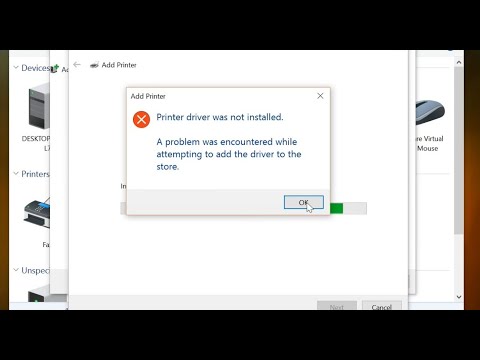
Oh boy, you’re trying to get your Canon G3101 printer up and running on Windows 10, huh? Believe me, I’ve been there. It’s one of those moments. You know the ones—when technology decides it’s got a mind of its own. All you want is to print that document pronto, but instead, you’ve got this pesky driver installation error staring back at you.
I remember this one time, I was in a rush. Had a report due in like… an hour. And bam! My printer decided it wasn’t gonna cooperate. The thing is with drivers—those little bits of software that let your computer chat with your printer—they can be finicky.
You might be wondering what’s even causing this hiccup? Is it your computer playing tricks on you? Maybe it’s Windows acting up or possibly something entirely unexpected. Whatever it is, let’s dig into some friendly advice to get things sorted out for you and that G3101 buddy of yours!
Canon Printer Driver Installation Error
Hey! I see you’re having a bit of trouble with your Canon G3101 printer driver on Windows 10. You’re not alone, this is something many folks bump into. Printer problems can be such a pain, right? Let’s see how we can untangle this mess.
First off, you want to make sure you’ve downloaded the *right* driver. It sounds simple, but trust me—it’s easy to mix up versions or download from sketchy sites. Always grab your drivers from the official Canon website. Why? Because it’s way safer and you’re sure it’s the latest version.
Don’t worry if things still go sideways, it happens more often than you think! Let’s walk through some steps that might help fix this:
- Check Compatibility: First thing’s first: double-check that the driver is compatible with Windows 10. You never know when manufacturers update their stuff.
- Installation Permissions: Make sure you’re running the installation as an administrator. Sometimes Windows won’t let these things through without proper permissions—talk about stubborn!
- Windows Updates: Keep your system updated. An outdated Windows system could cause installation issues because it might lack the necessary components for new drivers.
- Clean Previous Drivers: Remove any existing printer drivers before you try again. Go to ‘Control Panel > Devices and Printers’, find your printer, right-click it and select ‘Remove device.’ Feels good to give it a clean slate!
- Troubleshooter Magic: Run the built-in Windows troubleshooter for printers. Simply search “Printer Troubleshooter” in your settings; quite handy at solving common hiccups.
Here’s something else to check out: If there’s any third-party antivirus software running in the background, try pausing it during installation—it might just be overprotective and block your driver without asking!
After doing all this, if you’re still hitting a wall… I’d say reach out directly to Canon support since sometimes these errors get super oddball-specific.
But don’t lose hope! Stick with these tips—you’ll have that G3101 buzzing away in no time!
Canon Printer Compatibility with Windows 10
Oh, printers. They can be both amazing and a bit of a headache, right? If you’re dealing with a Canon G3101 and struggling to get it working with Windows 10, don’t worry—you’re definitely not alone! A lot of folks have similar hiccups. Let’s see how we can make your printer sing along with your operating system.
First things first, let’s address the driver installation error. Windows 10 was designed to be user-friendly (most of the time!), but when it comes to older models or specific devices like the Canon G3101, there might be compatibility bumps. Here are some pointers that might just save the day:
- Check for Updates: Before diving deep into troubleshooting, make sure your Windows is up-to-date. An update might already include necessary driver support.
- Visit Canon’s Website: Head over to their official website and search for the particular model: Canon G3101. Look for the latest driver that mentions compatibility with Windows 10.
- Installation Process: Once you have downloaded the driver file, double-click it like you would open any other program. Carefully follow each step in their installer.
Now here’s where things sometimes get tricky: Even if you’ve followed those steps perfectly well there’s still a chance you’ll face issues—yeah isn’t technology fun? In such cases it helps turning off your antivirus temporarily during installation as they may mistakenly block parts of installation processes now an’ then.
And if nothing else works this trick often does wonders: try using “Troubleshoot Compatibility” mode on your computer – right-clicking on setup files give ya’ options like running in older versions’ modes!
So go forth armed with these strategies! With patience though sometimes annoying at least we’re one step closer toward making our gadgets behave well together again – after all isn’t working tech truly delightful when finally successful?
Driver Unavailable Error Causes
I’ve faced my fair share of tech hiccups, and let me tell you, there’s nothing quite like grappling with a driver unavailable error. It’s one of those moments that make you want to pull your hair out because everything was working just fine yesterday.
This particular issue can crop up when you’re trying to install drivers for a device, like the Canon G3101, on Windows 10. Here’s what might be causing the issue:
- Compatibility Issues: The driver you’re using might not be fully compatible with Windows 10. This happens when either the driver’s too old or meant for another version of Windows.
- Corrupted Files: Sometimes files get corrupted during download or installation. It’s annoying, but it’s like getting a book with missing pages; frustrating and unhelpful!
- Outdated Software: Your operating system or your printer software could be outdated. Yep, technology likes to remind us how fast it moves by leaving us behind if we don’t update regularly.
- Lack of Permissions: Occasionally, the issue isn’t about files but more about having the right permissions. Imagine trying to unlock a door without a key—it just won’t happen!
- Poor Connection: If it’s an online download, an unstable internet connection might disrupt it. I once had my connection drop right in the middle of downloading something important! So frustrating.
If you’ve been hit by this problem while trying to set up your Canon G3101 on Windows 10, take heart; solutions are available! You could start by ensuring that your operating system is updated. Check Canon’s official site for the latest driver files compatible with Windows 10. Don’t forget—sometimes all it takes is uninstalling and reinstalling the correct drivers.
I know these things might sound technical at first glance but remember: patience is key here. With some persistence and a little guidance, you’ll have that printer up and running in no time! If nothing else works, reaching out for professional help isn’t a bad idea either.
Ah, printer troubles. Who hasn’t been there, right? You set out with the best intentions to print that important document, and your trusty Canon G3101 just throws a fit on you. But hey, don’t get too frustrated; technology can be a bit finicky sometimes.
So you’re trying to install the driver on Windows 10 and running into issues. It’s like your computer and printer decided they aren’t going to play nice today. I remember this one time I was setting up my new printer for an important presentation at work. Everything needed to be perfect: notes printed in color, slides ready… You know the drill. And then bam—installation error! The clock was ticking; I could literally feel my heart racing.
Anyway, let’s try to make some sense of this issue together, shall we? First thing’s first: check your internet connection because sometimes these driver installations rely on downloading additional components from the web. Let’s not forget that we all have moments where our Wi-Fi decides to take a break when we need it most.
Next up, ensure (or at least try!) that you’ve downloaded the correct driver package from Canon’s official website for Windows 10 specifically—not one for another version as those tiny differences can trip things up big time.
If you’ve tried reinstalling and still no luck, maybe it’s worth peeking into the Device Manager on your PC. Sounds technical but think of it as looking under the hood of your car when something’s not working quite right—you don’t have to be an expert mechanic! Sometimes uninstalling any existing traces of the old driver before trying again works wonders.
Oh, and don’t ignore Windows Update either—it seems trivial but keeping everything up-to-date can solve lots of compatibility issues without even realizing it! Updates are like those little repairs you put off until suddenly they turn into something bigger.
Printers might sometimes feel like they have a mind of their own yet approaching problems step by step usually turns out okay—often faster than expected! So hang in there; remember even tech hiccups pass eventually just like most challenges do…