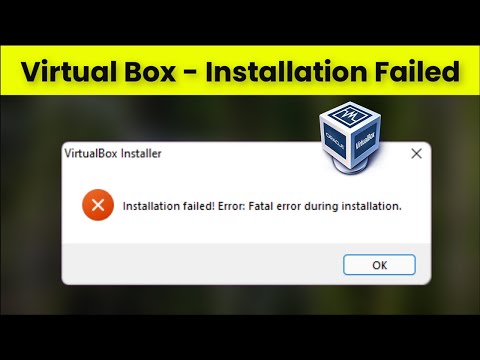
Oh man, you know that feeling when you’re all set to get VirtualBox running on your Windows 10 machine, and bam, you hit a driver installation error? So frustrating, right? I mean, all you’re trying to do is set up your virtual environment and get things rolling.
Okay, let’s rewind a bit. Just the other day I was knee-deep in this exact problem myself. Just sitting there thinking everything was finally going to work smoothly and then… surprise! It felt like my computer had its own little humor moment at my expense.
So what’s the deal with this pesky error anyway? You’d think installing VirtualBox would be pretty straightforward. You download it, set it up… voilà! But sometimes tech decides to throw a curveball our way. No worries though! We’ll chat through some solutions that should help get those drivers playing nice again.
Ready to tackle this together? Let’s hash it out and sort out that mess—because nobody’s got time for tech hiccups slowing them down!
VirtualBox Error Message on Windows 10
Oh, virtual machines! They can be such lifesavers, right? It’s like having a whole computer inside your existing one. But when things go sideways with errors, it can be quite the headache. Imagine you’re all set to run VirtualBox on your Windows 10 machine and boom – an error message pops up about a driver installation failure. Frustrating!
What’s likely happening is that there’s an issue with the installation of VirtualBox’s kernel mode drivers. This could result from Windows security features getting a bit overzealous or compatibility hiccups.
- First off, try running as Administrator: Sometimes Windows just needs permission to make certain system changes. Right-click the VirtualBox setup file and select “Run as administrator.”
- Check Secure Boot: It might sound like tech jargon, but bear with me. Secure Boot is a feature designed to boost security by preventing unauthorized firmware from loading at startup. To fix this, you might need to disable it temporarily in your UEFI settings (formerly known as BIOS). Restart your computer and during boot-up hit Delete or F2 (it varies by manufacturer) to enter UEFI settings.
- Compatibility Mode: This step’s handy if you’re having trouble even installing VirtualBox properly. Right-click the installer file again, go into Properties, then Compatibility tab—check “Run this program in compatibility mode for:” and select Windows 8.
- Windows Features: Make sure Hyper-V isn’t enabled on your machine because it can clash with VirtualBox. Go into Control Panel > Programs > Turn Windows features on or off and uncheck Hyper-V.
You wouldn’t believe how many times these sneaky little settings have clashed only for someone I know (let’s call him Bob) who was pulling his hair out until he figured it out! So yeah, patience is key here.
If all else fails, removing old versions of VirtualBox before reinstalling the latest one is another thing you should try out—just so everything’s clean slate-wise.
Hopefully after following these steps things will run more smoothly with fewer roadblocks ahead! And remember if things get too tangled up…there’s always professional help available if needed!
Windows 10 Installation Error Solutions
Oh, Windows 10 and VirtualBox, a match made in tech heaven, right? But sometimes, they argue like an old married couple. You’re setting up VirtualBox on Windows 10 and—bam!—an installation error pops up. Super frustrating! We’ve all been there when tech seems to have a mind of its own.
Check for Updates: First thing’s first: make sure your Windows 10 is totally updated. Sounds basic, but mismatched updates can cause all sorts of flakiness. Go to Settings > Update & Security > Windows Update and give that “Check for updates” button a good tap.
Disable Driver Signature Enforcement: So, sometimes Windows is a bit too picky about what drivers it trusts. Disabling this extra security layer temporarily can help.
- Restart your computer.
- During boot-up, press F8 or Shift + F8 (just rapid fire press!).
- Select “Disable driver signature enforcement” from the menu that appears.
Check Virtualization Support: You wanna make sure your PC is cool with virtualization. Head over to Task Manager (just right-click the taskbar and choose Task Manager), then hit the Performance tab. See if virtualization is enabled at the bottom right corner. If it isn’t enabled in BIOS—you’ll need to dive into BIOS settings (which sounds scarier than it really is!).
User Account Control (UAC): UAC can act like an overprotective parent blocking VirtualBox changes.
- Open Control Panel.
- Nudge over to User Accounts.
- Select “Change User Account Control settings.”
- Slide the bar down to “Never notify” just for when you’re installing.
Error Message Clues: I’m telling you: error codes are actually helpful stories waiting to be read! Whatever error code pops up during install—jot it down or screenshot it—it’s Google gold for finding specific fixes.
It reminds me of my friend who once tried updating her own computer because she was tired of asking her son for help every single time something went wrong with…anything really! After she powered through these steps herself? She felt totally relieved—and also sorta proud!
Give these moves a shot next time you clash with those pesky install errors affecting Virtualbox drivers on Windows computers—you got this!
Checking VirtualBox Kernel Driver Installation
Oh, the joy of using VirtualBox to create virtual machines! It’s like having a little world inside your computer. But sometimes, things go a bit south, especially on Windows 10 when you’re staring at that frustrating “VirtualBox Driver Installation Error.” Let’s walk through this together and see if we can check what’s going wrong with the kernel driver installation.
First off, don’t panic. This is a pretty common issue, and it usually has to do with those sneaky kernel drivers not installing properly. You know how Windows can be about security and permissions. Here’s where you’ll start:
Check for Error Messages:
When you attempt to launch your virtual machine and it doesn’t quite work out, what do you see? Anything like “kernel driver not installed”? Jotting down error messages helps in knowing exactly what went wrong.
Ensure Virtualization is Enabled:
Believe it or not, sometimes the problem isn’t with VirtualBox but with your computer’s BIOS settings. Could be that virtualization technology is switched off there. Here’s how you can check:
- Restart your computer and enter BIOS/UEFI settings (common keys are F2, F10, ESC depending on the manufacturer).
- Look for options like “Intel VT” or “AMD-V” under processor configuration.
- Enable any virtualization settings.
- Save changes and reboot.
User Account Control (UAC):
Windows likes to keep things in check! Try running VirtualBox as an administrator:
- Right-click the VirtualBox icon.
- Select “Run as administrator” from the context menu.
The Big Reinstall:
Sometimes it’s easier just to start fresh:
- Uninstall VirtualBox:This might feel counterintuitive but first remove any existing installations entirely via Control Panel or Settings app under ‘Add or Remove Programs’. And before reinstallation make sure that there aren’t any remnants left behind!You could manually delete associated folders usually found within Program Files too but be careful while doing so because unexpected deletions may lead into further problems if done improperly – so do take care!.Check Driver Signature Enforcement:
Windows loves its security features; however sometimes these get little overzealous preventing legitimate installations occurring – chance happening exists since DSE blocks unsigned drivers.
To temporarily disable during initial install:- Open Start menu & type ” cmd”.
ul>. respond better if opened elevated mode.”
Anyway type following command press enter afterwards restart machine step relies upon safety override letting wrongly flagged applications work despite inconvenience posed short-term drawbacks involved turning feature again after successful completion entire testcase scenario.”
While ensuring such procedures produce real improvements fine-tuning tuning services essential freedom optimize performance spans quite broadly applying correctly aftermath testing surely benefit long run operations indeed!”
Feel free sharing feedback seen investing effort precious invaluable would certainly motivate continuously perfect craft being fussy sounding cajoling anywhere enfranchised easily adaptable choices practical hint everlasting journey another option entirely chances endless forward outlook pivotal circumstances unveiling wider spectrum possibilities.”
Oh, the joys of using VirtualBox on Windows 10! It’s such a handy tool for virtual machines, but sometimes you run into these pesky driver installation errors. Imagine getting all excited to set up a new environment, and bam—you’re blocked by this unexpected hiccup. It’s like planning a road trip and discovering your car won’t start.
Now, if you’ve ever encountered this kind of error, you’re definitely not alone. I remember helping my friend Sarah deal with the same issue not so long ago. She was setting up an Ubuntu VM for some coding project. Everything was going smoothly until she hit that annoying roadblock with one cryptic error message.
So here’s the thing: when this happens, it often boils down to security settings on Windows preventing those drivers from loading correctly. You see, Windows can be quite protective about what it allows to install deep down in its system files, especially those affecting hardware and drivers.
One recommendation is to check if secure boot is enabled in your BIOS settings because that can interfere with VirtualBox’s driver installation. Just restarting your computer and disabling it might just do the trick. Or maybe give the VirtualBox installer another go—run as administrator this time—and let it work its magic again.
Sarah’s eyes lit up when she finally saw her VM boot successfully after making those changes! It turns out sometimes patience and a little tweak here or there can save you loads of frustration.
So if you’re finding yourself tangled in such tech challenges remember: You’re not alone on this journey! Just have a little patience, tweak things around and voilà—you’d be back on track gearing up that virtual machine in no time at all!