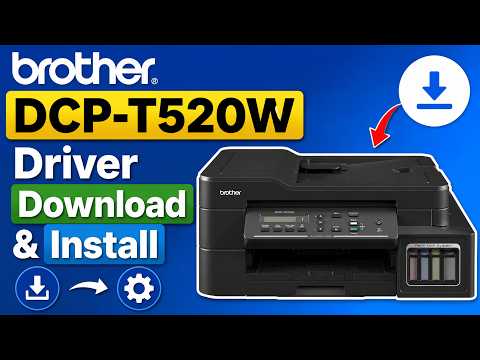
Alright, so you’ve got this shiny Brother DCP-T520W printer sitting on your desk, huh? It looks amazing and you’re all set to start printing those photos of your dog or the kids’ school projects. But wait—without the driver, it’s just a fancy paperweight!
I remember when I first got my printer; I was so eager to get it running that I almost forgot about the driver installation part. Seriously, tech excitement can make you skip steps! Anyway, we’re gonna make this easy-peasy for ya.
Let’s get that driver installed on your Windows 10. It’s like giving life to your new device, and before you know it, you’ll be printing away happily. Ready when you are!
Brother Printer Driver Installation Steps for Windows 10
Installing a printer driver can sometimes feel like trying to solve a puzzle with missing pieces. But no worries—I’ve got you covered! If you’re about to set up your Brother DCP-T520W on Windows 10, let’s make it a breeze together.
First things first: you’ll need the printer driver. You can grab it right from the official Brother website. It’s important because this driver is like the translator between your computer and your printer. Without it, they won’t really understand each other.
- Head over to Brother’s official site and locate their Support page.
- Enter “DCP-T520W” in the search bar.
- Select your operating system: “Windows 10” in our case.
- Download the full driver package recommended by Brother.
Once you’ve got that, pop open the downloaded file. It will guide you through installation—almost like having a friend walking you step-by-step!
Oh, by the way, before kicking off installation: make sure your printer is not just sitting there but actually connected to your network or directly linked via USB cable. Otherwise, it’s as if you’d be talking into an empty room.
- Connect via USB:
Put simply: plug one end into your computer and another into your printer―boom!
Your PC might even start doing its magic and recognize what’s connected. - If Wi-Fi:
Ensure both computer & printer are buddies on same network (Wi-Fi). Instructions appear during install if Wireless Setup applies.
Follow them keenly—you wouldn’t want sneaky typos holding things back! - Diving Into The Installer:
Run through those clicks―yeses/agreements might seem repetitive but vital!
Specify how connection established previously (USB/WiFi). - Sit tight:The installer handles rest while grabbing needed bits & bytes.If stuff doesn’t look great? Restart everything – PC/printer/network may benefit from reset sometimes.
Lastly—and quite crucially—we’re betting endless page alerts when prints go astray against impatience testing errors encountered infrequently… but these tiny details ensure seamless printing journeys ahead!
Brother DCP-T520W Driver Installation on Windows 10
Installing the Brother DCP-T520W driver on a Windows 10 computer can be straightforward. But, you know how these things can sometimes get, just a bit tricky if you’re not familiar with the process. Let me take you through it step by step.
First off, you’ll need to download the right driver. Go to Brother’s official website and head to their support page. It’s tempting to grab drivers from third-party sites because some of them look really clever the way they make it easy, but it’s always safest to stick with the official site for genuine software.
- Search for your model: Use their search function to type in “DCP-T520W”. Once you’ve found your printer model, you’ll see an option for drivers.
- Choose your operating system: Make sure you’re picking software specifically for Windows 10. It’s important as different operating systems might require specific versions.
- Download and run the driver installer: Click on the download link and once it’s finished downloading, open up that file.
Now that you’ve got it downloaded, follow these next steps:
- Run through the setup wizard: Once you open up that driver file, a wizard will pop up guiding you through what needs doing next. Just click ‘Next’ anytime you’re unsure as it’s usually safe unless an unusual request pops up like asking for bank account details—joking! But seriously don’t ever give those out!
- Connect your printer when prompted: Plug in your Brother printer via USB or set it up over Wi-Fi if that’s what you’re after. The setup will give you instructions on connecting via Wi-Fi; typically involves putting in credentials so everything talks nicely together.
After installation completes – assuming all went well – print something small just as a kind of check to confirm things worked out fine.
And there we have it! Remember one time I was helping my cousin hook his printer and he’d given himself every kind of grief by trying fancy tweaks—that’s one trap best avoided! Keep things simple.
By sticking closely with these pointers outlined above during setup phase should lead smooth sailing ahead even if computers aren’t usually friendly creatures towards us some days…they do mean well eventually though (I promise).
Brother DCP-T520W Scanner Driver Download
Getting your Brother DCP-T520W scanner up and running on Windows 10 might feel like trying to solve a never-ending puzzle. But don’t worry! I’m here to walk you through this.
Alright, first things first. You need the right driver for your scanner to work properly. Think of a driver as the translator that helps your device and computer communicate effectively.
Here’s how you can get that done:
1. Visit Brother’s Official Website
Head over to Brother’s official page dedicated to drivers and support. You can find it by searching “Brother Drivers” on your favorite search engine. Once there, just enter “DCP-T520W” in the search box.
2. Download the Correct Driver
You’ll be presented with options, so make sure you choose the one specifically for Windows 10. It’s crucial because each operating system needs its own language, so to speak.
3. Installation Time!
Once downloaded, open the file—usually it’s an .exe file—and follow the prompts on-screen. It’s typically straightforward: click ‘Next,’ agree to terms, choose where you want it installed, etc., till you’re ready.
Here’s a tip: Sometimes Windows Defender or other antivirus software might flag installations as suspicious—it doesn’t mean there’s an actual problem (usually!).
Trouble Connecting?
If after installing you’re having issues getting connected:
- Reboot Your System: It’s like turning something off and on again; it solves more problems than you’d think.
- Check Your Connections: Ensure everything’s plugged in correctly if using USB or connected well over Wi-Fi.
- Dive into Device Manager: By searching your Control Panel for ‘Device Manager,’ ensure there’s no yellow exclamation mark beside your scanner.
And hey! Don’t forget about checking if there are any pending Windows updates—they sometimes carry essential compatibility goodies for devices just like yours.
Remember back when I had this old printer that just wouldn’t cooperate until all its cables were snugly fit? Like every time someone slightly brushed against them—bam! Total disconnect! It was kinda frustrating!
So yeah, take a deep breath—you’ve got this handled now! And soon enough you’ll have that sweet scanner zooming along as smoothly as new sneakers on polished floors.
You know, installing a printer driver can feel like one of those little challenges life throws at you. It’s like trying to piece together a puzzle without all the pieces making sense at first glance. I remember this one time when I was helping my friend get her Brother DCP-T520W up and running on her Windows 10 machine. Oh boy, what an adventure it was!
First off, we had to find the right driver. Always feels like a scavenger hunt, doesn’t it? The trick is heading over to Brother’s official website. You want to download the most recent driver that’s compatible with Windows 10. Kind of like finding the key to unlocking your printer’s full potential.
Once we had that sorted, it came down to connecting everything together. USB cables at hand or going wireless—each choice has its own thrill! She opted for wireless since it seemed less messy…but also because her pet cat loved swatting at any dangling cables.
And then there was that moment—hitting “Install” and holding your breath as the progress bar inches forward ever-so-slowly. Would it work without a hitch? Or would technology have another little surprise waiting around the corner?
Luckily for us, things went smoothly after clicking through a few prompts and letting the installation wizard do its magic—it was almost anticlimactic! We even brewed some coffee while waiting for everything to set up beautifully.
The sheer joy on her face when she printed her first document wirelessly was worth all those minutes spent troubleshooting pop-ups or hunting down “how-to” articles online (which sometimes felt like trying to decode hieroglyphs!). It’s funny how something seemingly mundane can bring about such satisfaction once it’s accomplished!
Anyway yeah, installing drivers isn’t always straightforward—but with patience and maybe some good tunes in the background—it becomes just another small victory in everyday tech life!