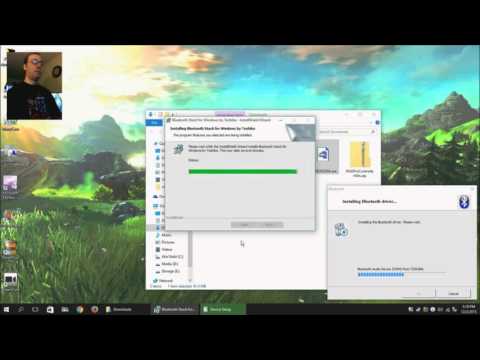
Oh, the joy of technology, right? You’re all set to connect your Bluetooth device to your shiny Windows 10 laptop, and BAM! The Toshiba Bluetooth driver just refuses to play along. I swear it’s like these things have a mind of their own sometimes.
I remember this one time—I was trying to hook up my wireless headphones for a movie night. Got the popcorn ready and everything. But nope, the drivers decided they had other plans. Total buzzkill!
Let’s dig into why this little hiccup happens and see if we can get you back on track without pulling your hair out. Sound good?
Resolving Bluetooth Driver Errors on Windows 10
Oh, Bluetooth, the magical thing that lets you connect devices without those pesky wires! But every now and then, it throws a tantrum—especially when you’re dealing with driver errors on Windows 10. If you’ve got a Toshiba device and you’re trying to get your Bluetooth up and running but hitting some snags, let’s see how we can tackle this.
First off, what gives? Why do these hiccups happen? Well, sometimes it’s because the drivers aren’t quite playing nice with Windows. Other times, updates might mess things up a bit. I once had a friend who spent hours trying to figure out why her wireless headphones wouldn’t connect only to find out it was all about drivers.
Here’s how you can sort things out:
- Check Device Manager: Head over there by right-clicking the Start button. Look for “Bluetooth” in the list. Got any yellow triangles or weird symbols near your Bluetooth adapter? That usually means there’s trouble.
- Update Drivers: Right-click your problematic Bluetooth device from Device Manager and pick “Update driver.” Choose “Search automatically for updated driver software.” Fingers crossed, this finds and installs what you need.
- Install Toshiba’s Specific Drivers: If updating doesn’t do the trick, try getting drivers directly from Toshiba’s website. Download them onto your computer and run them—they’re made specifically for your device!
- Troubleshooter is Your Friend: Type “Bluetooth troubleshooter” into the search box on your taskbar and select it when it pops up. Sometimes Windows knows what’s wrong better than we do!
- Ensure Bluetooth is Turned On: Yeah, I know… seems basic right? But trust me—it happens to everyone! Just check in Settings under Devices > Bluetooth & other devices.
If none of this works—don’t panic yet! Sometimes restarting after each one helps settle things too (didn’t they say restart fixes everything?).
Remember that tech is unpredictable sometimes—you’re not alone if these steps don’t work immediately! Keep calm; more resources out there include forums where real people discuss similar issues.
Thanks for sticking through! Working with tech isn’t always smooth sailing—but hey—you tackled another hiccup today!
Resolving Toshiba Bluetooth Driver Installation Failure
Encountering issues with Toshiba Bluetooth driver installation on Windows 10? You’re not alone. This hiccup can be frustrating, but let’s roll up our sleeves and fix it together. Sometimes, dealing with computers feels like communicating with an alien being that has its own logic!
Why does this happen? Often, it’s a compatibility issue between the driver version and your system or maybe something went missing during installation. But don’t worry—here’s how you can tackle it.
- Check Compatibility: Ensure the Bluetooth driver is compatible with Windows 10. Sometimes drivers meant for previous versions of Windows might not work smoothly.
- Use Device Manager:
- Press Windows + X, then select “Device Manager”.
- Look for your Bluetooth device under the Bluetooth section.
- If you see a yellow triangle icon, right-click on the device and choose “Update Driver”.
Having been in situations like this myself, I know that seeing that little yellow triangle can make one’s heart skip a beat!
- Download Latest Driver:
Visit Toshiba’s official support website to download the latest driver. Make sure its specifically for your laptop model. - Troubleshooter Tool:
Utilizing Windows’ built-in troubleshooter can also do wonders.- Go to Settings > Update & Security > Troubleshoot.
- Select Bluetooth and follow the prompts.
- Solder Wi-fi Drivers Installation>: Wi-Fi drivers might conflict with Bluetooth hardware installations.> While you’re there, it’s worth checking everything’s working harmoniously together!
You got this! Computers might sometimes feel temperamental but remember—it only takes some patience and tinkering to get them back on track. If all else fails, reaching out to technical support or community forums could provide answers from folks who’ve wrestled with similar challenges before!
Hang in there! You’re doing great!
Toshiba Bluetooth Driver USB Installation Error on Windows 10
So, you’ve been trying to install the Toshiba Bluetooth driver on your Windows 10 machine, and bam! An error pops up. It’s frustrating, right? But don’t worry too much. Let’s try to make sense of it and see how you can get things running smoothly.
First off, let’s check some basics because sometimes these issues come from something quite simple.
Check Compatibility:
Before diving into any deep waters, ensure that the driver you have is compatible with Windows 10. You’d be surprised how an outdated driver can throw a wrench in the works. It’s like trying to fit a square peg in a round hole.Pre-installation Checks:
- Unplug your USB device: Before installing (or reinstalling), remove any Bluetooth USB adapters.
- Check for existing Bluetooth drivers: Go to Device Manager > Bluetooh, and see if anything is lingering there that shouldn’t be.
Now onto those tricky errors. A common culprit behind failed installations might be conflicts or missing files. It’s like building a house but skipping the foundation – not gonna work!
Troubleshooting Steps:
- Run as Administrator: Sometimes, installation permissions cause hiccups. Right-click on the driver’s installation file and select “Run as administrator”. This gives it all the permissions needed to do its thing.
- Update Windows: Make sure your operating system is up-to-date. Head over to Settings > Update & Security > Windows Update. Click “Check for updates”. Newer updates often fix previous bugs or compatibility issues.
- Tackle Driver Conflicts: If there are multiple drivers installed for Bluetooth devices, they might clash:
- a) Go back into Device Manager.
- b) Locate connected Bluetooth devices/drivers and uninstall them by right-clicking them.
- C) Restart your computer before installing again.
- Error Messages Speak Volumes: If an error message has some specific code or text – note that down! Searching online using specifics usually points toward tailored solutions shared by others who walked this path already!
One time when my friend faced this issue he realized his laptop’s physical wireless switch (you know they still exist!) was turned off inadvertently while cleaning—made us laugh hard later! Such tiny things could matter More than do expect sometimes.
So now armed with these steps hope there’s brighter horizon ahead without constant dodging around same old error messages popping unexpectedly! Feel inspired yet different approaches work individually: share experience feedback after fixing hopefully adds others navigating similar conundrumlagen would resonate suggesting new methods outcomes learned along way together collaboratively improving future interventions overall tech troubleshooting community worldwide feel joined supportive hands here every step necessity arises overcoming alike moments skull-scratch inducing resolution found intelligently ultimately in mid-long run Reasonable usefulness technology actively promoted functioning uninterruptedly daily seamlessly ensuring stress minimized ensured kept low inspiring relate robust trust created maintained particularly helpful repeatedly recognizing purpose met successfully collectively harnessed empowered designed essence wide Tech sphere expressed living lives effectively adjustments friendly combined environment energizing rewarding felt positive sustained beneficial end mutual rejoicing outcome achieved reciprocated satisfaction entirely genuine accomplished deeply meaningful embraced appreciated renewed vigor happy confidence regained optimism secured acceptance achievable reality desire embraced potential friendship collaboration understood realization interconnectedness proven one united community values sustaining lifelong friendships journeys shared grateful humble appreciative fulfilled joyful thriving completeness attainment inner peace meaningured deep managed achieved higher state opportunity known seen remembered acknowledged!!!
Oh, the struggle with technology, right? It reminds me of this one time I was trying to get my printer working, and it felt like it just refused out of sheer spite! Sometimes, these devices seem to have a mind of their own.
When you’re dealing with Toshiba Bluetooth driver installation issues on Windows 10, it’s like trying to solve a puzzle where some pieces are always missing. You might see an error message, or nothing happens at all. It’s frustrating because you just want your Bluetooth device to connect smoothly without a hitch.
One thing I’ve noticed is that missing or outdated drivers are often the culprits. Ah, drivers—those little bits of software that tell your hardware how to behave. They can be sneaky! If Windows doesn’t have the latest driver or it’s corrupted somehow, well, good luck getting things to sync up properly.
A little trick that sometimes works is checking Windows Update. Many times they slip in driver updates there without making it obvious. Also handy is visiting Toshiba’s official website—grab the latest version from there directly if you can find it. Sometimes double-checking that your Windows 10 is fully updated helps too.
And don’t forget about compatibility mode! Running the installer as if it’s on an older version of Windows sometimes does the trick for stubborn devices. Just a quirky thing computers do sometimes.
It’s those moments when everything connects effortlessly where you feel victorious though! Like finally finding Wi-Fi after spending hours in no-signal land—sweet relief! Remember: patience and a bit of perseverance go a long way when tech acts up.
This tool sometimes finds things you’d never imagine were off!
This little adventure should help: