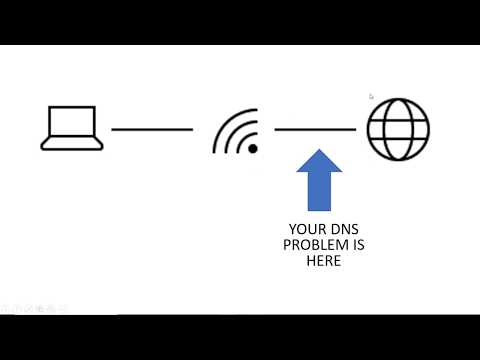
You know that moment when you’re trying to load a webpage, and it just sits there laughing at you? Yeah, we’ve all been there. DNS server issues can really put a damper on your Internet vibes.
Picture this: You’re in the middle of an epic online shopping spree or maybe trying to stream your favorite show. Then boom! Suddenly, nothing loads. Ugh. It’s like your computer decided to go on vacation without telling you.
But hey, don’t worry too much! The whole DNS server not responding thing? There are reasons for that happening, and the fixes aren’t too complicated. Stick around—I’ll break down what’s going on and how you can get back online pronto!
It’s basically like having a little chat with your tech issues over coffee. We’ll get through this together!
DNS Server Not Responding Causes
Ah, the dreaded “DNS Server Not Responding” message. It’s like your computer’s way of giving you the silent treatment, right? Let’s dive into some of the reasons why this might be happening and see if we can shed some light on it.
First up, let me tell you a little story. It was a rainy day, and I was trying to watch my favorite show online. Suddenly, bam! My browser tossed that DNS error at me. I felt like my internet had gone on vacation without telling me…
What could cause this annoying error? There are several culprits:
- Incorrect Network Configuration: Sometimes your computer’s network settings might just misbehave. Things get tangled up when IP addresses or DNS server information isn’t quite right.
- Faulty Router: That little box with all those flashing lights could be acting up. Routers occasionally need a gentle restart—kind of like rebooting your brain after a long day.
- ISP Issues: Your Internet Service Provider (ISP) plays a big role here. If they’re having issues with their DNS servers, it trickles down to you too.
- Firewall or Antivirus Interference: These protective programs sometimes go overboard and block legitimate internet access by mistake. Like being overprotected by someone who thinks they’re doing good but actually aren’t helping at all!
Now imagine you’re troubleshooting these causes:
If there’s an incorrect configuration in your network settings—maybe from accidentally changing something—you may want to reset them back to defaults or manually input the correct details.
As for routers causing mischief? Power off yours for about 30 seconds before turning it back on again; think of it as giving your router a short nap!
Your ISP may affect more than one person. You know how news spreads fast if something breaks in town? Same idea here—they’d usually fix things pretty quick because lots of folks are counting on them…
Speaking about firewall/antivirus situations—these beloved guardians sometimes make mistakes too—try temporarily disabling them while testing connectivity then re-enable later after figuring out whether they’re involved.
Causes of DNS Server Not Responding on Windows 10
Oh, nothing is more annoying than trying to browse the web and getting a “DNS Server Not Responding” message. If you’re on Windows 10 and this happens, it can feel like you’ve hit a brick wall. But don’t worry; let’s unravel some reasons why this might be happening.
Network Configuration Issues: Sometimes, it’s as simple as having your network settings misconfigured. It could be that your computer isn’t properly connected to the DNS server or it’s defaulting to a non-existent one. It’s kind of like asking for directions from someone who doesn’t speak your language!
Router or Modem Glitches: Your router is like the director of traffic for all your internet requests. If it’s acting up—maybe due to overheating or just being grumpy after too many days without a reboot—it can affect DNS communication.
Firewall or Antivirus Interference: These programs are meant to protect you, but sometimes they’re overzealous and block legitimate requests. Imagine them standing there with tiny shields blocking all unknown connections.
ISP Problems: Sometimes, your Internet Service Provider (ISP) has issues beyond your control. Their servers could be down for maintenance or due to technical faults—they’re not invincible either!
To break it down in bite-sized pieces:
- The wrong DNS server address: Check if the IP address settings are correct in Network & Internet Settings.
- Outdated firmware: Like any gadget, routers need updates now and then.
- Cable connections: A slightly loose cable—or one that’s been accidentally yanked—could disrupt connectivity.
I remember once when I kept losing connection over dinner at my favorite café because of poor Wi-Fi signals amplifying “DNS Server Not Responding” errors! It reminds us that technology isn’t foolproof—and that’s okay.
Feel free to try reconnecting internet cables checking configuration settings re-starting devices when encountering these issues—sometimes that’s all it takes reminding everything how special online interaction really is!
DNS Server Not Responding Causes on Windows
Oh no, your computer can’t connect to the internet? That’s super annoying. You might have seen an error saying “DNS Server Not Responding.” It’s like your computer trying to call a friend but not finding their number in the phone book.
So, why is this happening? Basically, DNS (Domain Name System) is what turns web addresses like www.example.com into IP addresses that computers understand. When it’s “not responding,” this translation isn’t happening right. Let’s figure out why.
- Network Issues: Sometimes it’s as simple as a hiccup in your network connection. Maybe the router’s acting up.
- Incorrect DNS Settings: If you’ve manually set an incorrect DNS address or if there was an update that changed it.
- Firewall or Security Software: Sometimes these programs think they’re protecting you by blocking access.
- ISP Problems: Your Internet Service Provider could be experiencing issues with their DNS servers.
- Your Router Needs a Restart: Shockingly often this old trick works! The router might need a fresh start to clear bugs.
Imagine having a busy freeway into town and suddenly there’s roadwork blocking all lanes. Similarly, with DNS problems, traffic gets stuck!
A personal story here: Once my nephew tried for hours to get online for his favorite game night but kept getting this error. Panic mode! But it turned out he’d been playing around and changed some settings unknowingly.
Troubleshooting Tips:
- If you face this issue, try restarting your modem and router first—just unplug them for about ten seconds then plug back in!
- If that doesn’t help change your DNS server address to something reliable like Google’s (8.8.8.8).
Remember sometimes it’s external factors beyond our control but trying these few things usually sets things straight again!
Ah, the dreaded “DNS Server Not Responding” message. It’s one of those things that’s like a ghost haunting your internet experience. You’re happily browsing or maybe trying to stream the latest episode of your favorite show, and boom—the screen freezes, and that annoying error pops up. It’s like someone suddenly yanks the Wi-Fi cable out of your life.
I remember this one time I was in the middle of an important video call with a friend overseas. We were catching up after ages, and just as I was about to show her my cat’s latest trick, my connection dropped. That’s when I saw it: “DNS Server Not Responding.” Ugh. Totally messed up our chat for a while.
Okay, let’s break down what this actually means! DNS stands for Domain Name System, which is kind of like the phone book of the internet. When you type a website address into your browser, DNS translates that name into an IP address so you can actually find your way to it—sorta like how GPS gets you to that new cafe downtown.
Sometimes though; things don’t go smoothly. Maybe there’s an issue with your router—router hiccups are more common than you’d think—or perhaps there’s something funky going on with your computer’s network settings or even the ISP’s own DNS servers giving trouble!
So what can you do? Firstly; try restarting devices: turning off then back on again works wonders more often than you’d expect! Checking cables doesn’t hurt either—they can get loose without us noticing!
Then there might be settings on your computer needing attention—you’ll want to go through network connection settings carefully—could be set wrong without realizing it! A little tweak here and there might just fix everything right up.
If tweaking isn’t working? Switching temporarily over to public DNS offerings (like from Google or Cloudflare); could help—is surprisingly easy if we follow simple instructions online! Just remember setting them back when done troubleshooting!
You know sometimes these issues seem daunting—but tackling them gives such satisfaction once solved! After my incident during that call—once connection worked again—it felt triumphant: managed myself—and was able finish catching back up over coffee virtually no less than before ever lost touch initially all because fixed small technical detail independently… isn’t tech just amazing sometimes?