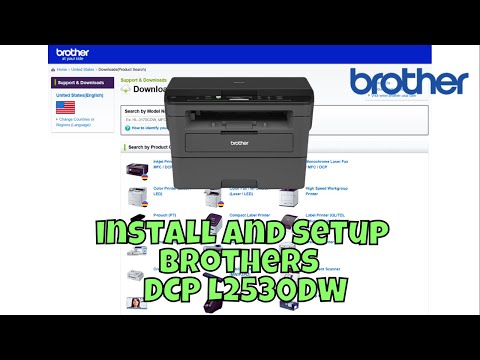
Okay, so you’ve got this shiny Brother DCP-L2530DW printer just sitting there, right? And you’re totally psyched to get it fired up and humming along with your Windows 10 setup. But wait a sec—drivers. Yup, those little pieces of software that make everything click.
Now, I know the whole “driver installation” thing sounds like some techy mumbo jumbo, but it’s kinda like getting a new toy to work. It’s easier than you might think! We’ll walk through this together.
Remember when you set up your first smartphone and thought it was rocket science? But then boom—it was all good. Yep, it’s kinda that vibe. Don’t stress it too much!
All it takes is a few steps—and maybe a sip of coffee on the side—to make sure your printer and PC are best buddies. Let’s roll!
Manually Installing Printer Driver on Windows 10
Manually installing a printer driver on Windows 10, eh? It might sound a bit daunting at first, but it’s actually fairly straightforward once you get into it. We’re focusing on the Brother DCP-L2530DW here, but don’t worry if your model number is slightly different. The general steps should still get you where you need to go.
First things first, make sure you’ve got everything ready:
- Download the Driver: Head over to Brother’s official website and search for the DCP-L2530DW driver for Windows 10. You’ll probably find it under a section called “Support” or “Downloads.” Make sure to download the correct version for your system (32-bit or 64-bit).
- Unzip If Necessary: Once downloaded, if it’s in a zipped folder, unzip it to access the files inside.
Now let’s move into installing that driver:
1. **Open Settings:** Click on the Start menu and select Settings. It’s that gear icon on the menu.
2. **Navigate to Devices:** From Settings, click on Devices, then go to Printers & scanners. You might see a bunch of printers here if you’ve connected others before.
3. **Add Printer or Scanner:** Now hit the plus sign that says “Add a printer or scanner“. Windows will now try searching for available printers.
4. **The Printer I Want Isn’t Listed:** If it doesn’t find yours—which can happen—click on “The printer I want isn’t listed“. This opens up some manual options.
5. **Choose Add Printer Manually Option:** Select “Add a local printer or network printer with manual settings” and hit Next. You’ll need to choose an existing port like USB001 if your brother’s connected via USB.
6. **Install Driver:**
- Select “Have Disk…” after choosing “Brother” from manufacturers.
- A window will pop up; navigate to where you unzipped those driver files earlier.
7. **Finish Up:** Follow any additional prompts and name your printer something memorable— “Brother Laser” works nicely! Hit finish when you’re done; Windows might ask for administrative permissions—just say yes!
And there you go! Your Brother DCP-L2530DW should be installed and ready for action! Sometimes things don’t always work perfectly straight away—you might need a restart—but usually you’ll be printing like a pro soon enough.
Installing Brother DCP-L2530DW Driver on Windows 10 via USB
Hey! Setting up your Brother DCP-L2530DW printer on Windows 10 with a USB cable isn’t too complicated. You just need to follow a few steps, and you’ll have it up and running in no time. Let’s walk through the process, alright?
Step 1: Unpack and Connect
First things first, unpack your printer if you haven’t already. Then, find a space near your computer where the USB can easily reach. Go ahead and plug the printer into a power outlet. Connect one end of the USB cable to your printer and the other end to your computer.
Step 2: Download the Driver
Now, this is crucial: you need to download the right driver for the Brother DCP-L2530DW model. Head over to Brother’s official website. Look for their Support section—usually, they have everything you need there.
- Select Your Model: Enter “DCP-L2530DW” in their search box.
- Choose Your OS: When prompted, select “Windows 10” as your operating system.
- Download Driver Package: Locate “Full Driver & Software Package” and hit download.
Step 3: Install the Driver
Once you’ve downloaded that file—open it up! You’ll usually find it in your Downloads folder unless you’ve changed default settings.
- Run Installation: Double-click on that file to launch installation.
- User Account Control Prompt:You might see a message asking permission—just click “Yes.”
- Select Connection Method:Select “Local Connection (USB)” when prompted during setup.
Follow all onscreen instructions until completion; it guides ya quite clearly!
Hello Test Page!
To make sure everything’s working right:
- Your Turn: Open “Devices & Printers” in Control Panel—or search it via Start menu.
- “Brother DCP-L2530DW” should be listed now. If not? Restart both PC & Printer then check again—that often does wonders!
,
-
Troubleshooting
If something goes wrong during printing testing phase…don’t worry—we’ve all been there before! Check connections once more ensuring wires snugly fit each port. la ometimes,&nbsk-clearning restart helps especially devices just connected first time ever please attempt re-running installer following precise prompts given therein tools support largely accurate diagnosing issues arising moment realize mistakes aren’t permanent—as easy fixing involves basic procedures mentioned above wisely navigating few frequently asked queries online forums reinforce initial learning evidently instilling user confidence observing thoroughness throughout entirety processes invited sessions tailored newcomers experienced alike motivated sharing discovery productive gems gained tangible insights conveyed compassionately universally engaging interfaces modern technological advancements thriving communities grew trust mutual narrative strong belief shared passion exploration expands horizons ergeons stories triumphantly neverending destined marvelous culmination taste heady blossoming bountiful achieved epitome immortality evoking fond timelessness celestial awakening beyond encompassing essence transcending began higher planes divine illumination heavenly ascendancy wholeness realized weaving universes gracefully emboldened secured enriched forevers eternal peerless vivid symphonic enigma ultimate cosmic unfolding glorious awe-inspiring times exalting reverently wondrous destiny miraculous mutually symbiotic functioning superbly harmonious harmonious partaking blissful spectacles envisioned realms cherished wonderous union joyous transmigrations journey spectacular illustrious transcendental realization faithful abiding unveiling breathtaking unleashing breathtaking glory-loop infinitely…..
Installing Brother DCP-L2530DW Driver on Windows 10
Sure thing! Let’s get into the nitty-gritty of installing your Brother DCP-L2530DW driver on Windows 10. It’s a pretty common task, but it can sometimes feel like a real pain if things don’t go smoothly. Just take it step by step, and you’ll be printing in no time.
First things first, you’ll need to download the driver. You might be thinking, “Alright, but where do I find this driver?” No sweat! Here’s what you do:
- Visit the Brother support website. You can just search for “Brother DCP-L2530DW driver” in your favorite search engine.
- Once you’re there, look for the section to select your operating system. Make sure you choose Windows 10.
- Find and click on the download button for the latest version of the driver.
Now that you’ve downloaded it, it’s time to install it. This part’s pretty straightforward too:
- Locate that installer file you downloaded—it’s probably sitting cozy in your Downloads folder unless you’ve put it somewhere else.
- Double-click on it, and you’ll see a setup wizard pop up. Just follow those prompts like it’s an interactive storybook.
- The wizard will guide you through everything necessary: agreeing to terms (who reads those anyways?), choosing installation options (just go with defaults unless you’re feeling adventurous), and that’s about it!
One might wonder: “What if my computer decides not to play nice?” Sometimes this happens when we least expect it.
If you run into any issues:
- Restart your computer. It’s like a magical reset button for so many tech woes.
- If restarting doesn’t work out, check if there are any updates pending on Windows Update under Settings > Update & Security. Computers love being up-to-date!
- If problems persist, revisit that Brother support page; they usually have FAQs or forums where fellow users share their experiences. Who knows? Someone might’ve had—or fixed—the same issue!
And hey!, once everything’s set up correctly, go ahead and print something fun to celebrate—like that cute photo from last summer or maybe just an empty Word document… Your call!
You know how it goes. You’ve got this shiny new Brother DCP-L2530DW printer sitting there, looking all ready to go. You’re excited! Maybe you just printed your first grocery list in ages, who knows?
But then comes the moment where you’ve got to install the driver on Windows 10—sounds technical right? It’s not as scary as it seems, promise.
Drivers are like little translators that help your computer speak with your printer. Without them, these gadgets would just be room decor pieces! Heck, I remember when I first tried doing this myself. Yeah, I was fumbling through settings more confused than a cat in a dog park.
Here’s the thing though: once you get started, it’s pretty straightforward.
First up, make sure your printer’s all connected—plugged in and powered on. Open up your computer and search for “Devices and Printers” in the Control Panel. Feel free to nod along or scratch your head here; I’ve done both at this stage!
Next step is downloading that driver from Brother’s website. Just head over there and punch in “DCP-L2530DW.” Click on the right link for Windows 10—it should look like downloading any regular file really.
Here comes a bit of waiting—installing takes some time while sipping coffee or maybe just watching impatiently as each percentage climbs up… A digital suspense story!
Once installed, it’s time to add the printer back at “Devices and Printers.” Sometimes there’s an automatic prompt after installation; other times you gotta manually do it by clicking “Add Printer.
And boom! If done right—and see no error messages—you should feel victorious knowing you’re qualified enough now to give driver-installation-advice around… Okay maybe not exactly but hey! At least that urgent print job’s gonna happen smoother than before.
The first successful print always feels rewarding doesn’t it? Like being handed a magic ticket saying “get stuffs done now!