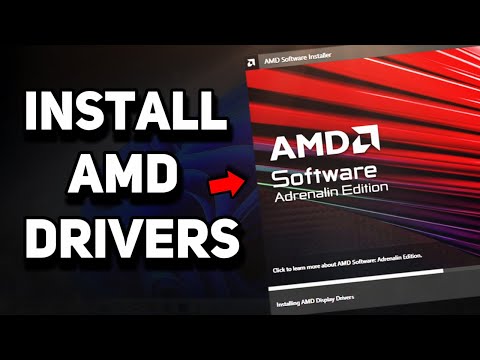
You ever had one of those days where nothing seems to work right? Well, let me tell you about mine. Just the other day, I was trying to install a driver for my RX 580 graphics card on Windows 10. Easy stuff, right? Wrong! It felt like wrestling with an octopus.
Anyway, there I was, excited about playing some new games with awesome graphics when boom—a big fat error message popped up on my screen. My excitement quickly turned into frustration. You know that feeling when you’re all set up for something great and then technology decides to play hard-to-get?
It’s like the universe enjoys throwing a wrench into plans sometimes. But hey, it’s not the end of the world! We’ll figure it out together and get those drivers sorted in no time. Got your cup of coffee ready? Let’s unravel this mess!
Windows 10 RX 580 Driver Installation Error
Oh, driver installation issues! They can be one of those “pull your hair out” kind of frustrations, right? Especially when you’re dealing with graphics cards like the RX 580 on Windows 10. Don’t worry; I’m here to help you sort this out.
So, you were in the middle of setting up your RX 580 and suddenly hit a snag with the drivers. Maybe the screen went funky or maybe it just refused to cooperate altogether. It happens more than you’d think! And usually, it’s just a couple of tweaks away from being solved.
Check Your Connections:
Let’s start simple: Ensure that your RX 580 is properly seated in its PCIe slot. Sometimes things can come loose during shipment or even if you’ve been doing some internal cleaning.
Get the Right Driver:
Visit AMD’s official website and download the latest driver for your GPU. Here’s a little insider secret: sometimes Windows’ own updates don’t have the freshest versions. Installing directly from AMD ensures you get all those shiny new features and fixes.
Disable Automatic Driver Updates:
- Go to “Control Panel” and search for “System.”
- Select “Advanced system settings” on the left side.
- This brings up “System Properties.” From there, click on “Hardware” tab.
- Select “Device Installation Settings.” A new window will pop up asking if you want Windows to download driver software automatically.
- Select No!
- This stops Windows from overwriting your manually downloaded drivers without asking first!
Create Restore Point:
Not sure why computers love to throw curveballs, but having a restore point is like having an undo button—it’s reassuring.
- You create this by going to System Protection under Control Panel.
- Select Create, give it a name (like “BeforeRXDriverInstall”), and save it for peace of mind.
Interestingly enough, I remember once I was helping my cousin fix his gaming rig with pretty much this same issue—not realizing that his room’s power was flaky. We spent hours only to find out later… Well! That’s another story!
If these steps don’t cut it—and hey, sometimes they don’t—you might wanna go into Safe Mode by hitting F8 during startup (this takes patience) and try installing there. This could avoid conflicts during installation caused by other active applications or updates running in standard mode.
Hope these suggestions guide ya smoothly towards getting that RX 580 up n running like never before!
Direct Delivery Unit Definition
Alright, let’s dig into this topic. You’re knee-deep in setting up your RX 580, and an installation error pops up on Windows 10. Frustrating, isn’t it? Let’s see if we can make sense of this and get you back on track.
Direct Delivery Unit (DDU) refers to a component involved in the DirectX graphics ecosystem. When you’re dealing with graphical installations like drivers for your graphics card—the RX 580 in this case—it often plays a crucial role behind the scenes.
Why Does DDU Matter?
- Error Prevention: If there’s a mix-up or outdated set of instructions during installation, you might run into errors.
- Performance Optimization: Ensures that everything runs smoothly without bottlenecks.
If you experience an installation error, there might be a couple of things happening:
- Driver Compatibility Issues: Check if your driver is the latest version compatible with Windows 10. Manufacturers often release updates fixing bugs or ensuring compatibility with newer components.
- Conflict with Old Drivers: Uninstall any previous versions of drivers that might interfere. You know how leftover files can sometimes mess things up!
Tackling the Installation Error
Here’s what you can do when facing this annoyance:
- *Download the Latest Driver Version*: Ensure it matches your system configuration—Windows 10 here—usually available on the manufacturer’s website.
- *Use Display Driver Uninstaller (DDU)*: This handy tool helps remove old files completely before fresh installation attempts.
- An anecdote: A friend once struggled for hours with an error only to find that DDU was their golden ticket!
- *Disable Antivirus Temporarily*: Sometimes antivirus programs can mistakenly block necessary processes during installations which prevents errors from showing up properly.
Remember, patience is key! Tracking down these little issues may seem tedious but solves potential larger problems later on down line. Hope this explanation helps clear things up!
Radeon RX 580 Driver Compatibility with Windows 11
When you’re dealing with the Radeon RX 580 and its driver compatibility with Windows 11, I totally get that it can be a bit of a head-scratcher. It’s like when you get a new gadget and suddenly realize your charging cable has mysteriously vanished! Anyway, let’s dive into this.
- Driver Compatibility: First things first: The Radeon RX 580 is supposed to work just fine with Windows 11. AMD has been updating their drivers to keep up with Microsoft’s latest operating system, so you shouldn’t run into many issues there.
- Download from Official Sources: Be sure you download drivers directly from AMD’s official website. It’s like getting your pizza fresh instead of reheated leftovers; it just works better! Here’s where you’ll find the most recent updates specifically tailored for your graphics card.
- Installation Tips: Trust me, sometimes simple things make all the difference: before installing new drivers, uninstall any old ones. This clears out any possible conflicts or lingering gremlins causing hiccups during installation.
I remember once I was helping a buddy who upgraded his system, only to face relentless errors due to residual software clutter. Coordinating his software became much easier once we tidied everything up!
- Error Encountered: If you’re having trouble on Windows 10 before moving up to Windows 11 (like installation errors), check for any remnants still kicking around from prior driver installations.
- Use Cleaner Tools:An app like DDU (Display Driver Uninstaller) can be quite handy when removing stubborn driver bits—think of it as sweeping under those tough-to-reach spots!
You might also want to look at some community forums if issues persist; tech enthusiasts love sharing their fixes after encountering similar problems themselves.
Keep an eye out too for any updates coming down via Windows Update—sometimes Microsoft releases additional patches aimed specifically at smoothing over compatibility wrinkles between OS versions and hardware devices.
In summary? Just ensure everything’s shipshape on both ends—driver version-wise—and hopefully soon enough gaming or editing will feel less daunting than untangling wires behind furniture again!
Oh, the good old RX 580 driver installation challenges on Windows 10! If you’ve ever found yourself wrestling with this, you’re not alone. It’s like trying to fit a square peg into a round hole sometimes, isn’t it? I remember when I first dealt with this issue… it felt like I’d accidentally opened Pandora’s box.
You’d think installing a graphics card driver would be straightforward — you just download and install, right? But sometimes Windows 10 seems to have other plans. Picture this: You’re all set to dive into your favorite game or get some serious work done with top-notch graphics, and bam! An error message pops up out of nowhere.
The thing is, these installation errors can be as varied as they are frustrating. Maybe it’s the infamous “Error 182” telling you that the installation failed because the installer couldn’t find compatible hardware—in spite of your RX 580 staring right at you from inside the PC case! Or perhaps you get that dreaded “Code 43” after a seemingly successful installation, where Windows decides it doesn’t want to cooperate any longer.
One trick I’ve learned is ensuring there aren’t any remnants of previous driver versions lurking around because they tend to mess things up. So sometimes using Display Driver Uninstaller (DDU) in safe mode does wonders! You know; it’s like giving your system a fresh start.
Then there’s making sure all those pesky Windows updates are in place. And yes—sometimes simply running Windows Update can fix what seems like an insurmountable problem.
It’s funny how something as simple as replugging your graphics card or updating your BIOS (Basic Input/Output System) ends up being the sourc of magic too. All said though—even amidst moments when technology seems intent on testing every bit of patience you have—getting through these hiccups brings its own sort satisfaction.
In my own journey solving RX 580 woes alongside countless others online willing share insights—it has become clear: persistence pays off eventually…even if it takes few facepalms along way!