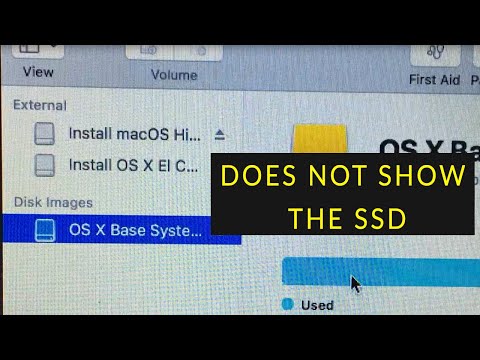
Oh man, there’s nothing quite like the feeling when your trusty old MacBook Pro 2012 decides to throw a fit! Seriously, these machines have been with us forever—or at least that’s what it feels like. You know, mine once refused to detect its SSD right when I was about to watch my favorite cat videos.
So frustrating!
But don’t worry too much. You’re not alone in this little tech hiccup. Tons of folks with the same model have faced this issue and come out smiling on the other side. It’s just one of those quirks that comes up sometimes.
And hey, if you’re freaking out a bit—it’s okay! That SSD is probably still there, somewhere inside that aluminum body.
Let’s figure it out together and get your MacBook back in action!
Checking BIOS for SSD Detection
Alright, let’s dig into checking your BIOS for SSD detection—specifically if you’re running into trouble with your MacBook Pro 2012 not detecting an SSD. If this sounds like a headache you’ve got right now, don’t worry, you’re in good company. Countless folks have been down this road!
First things first: what’s the BIOS? Basically, it’s like the tiny coach that wakes up your computer and gets everything ready to go when you hit that power button. On a MacBook Pro 2012, you won’t find a traditional BIOS screen like on some other computers because Macs use something called EFI (Extensible Firmware Interface). But don’t sweat it—I’ll help you navigate through this.
So when your SSD isn’t detected, it’s often linked to either connections or firmware quirks.
- Check Connections: Always start by checking the physical connections. Pop open the back of your MacBook (just be gentle). You’ll want to ensure that the SSD is snugly connected.
- Reset SMC and NVRAM: You might be scratching your head over these terms! The SMC controls power functions while the NVRAM stores settings. Resetting them can iron out little hiccups causing big headaches.
- For SMC: Shut down your MacBook. Then on the built-in keyboard, press Shift-Control-Option and then press the power button at once for about ten seconds.
- For NVRAM: Turn off your MacBook again. Then power it back up while holding Command-Option-P-R until you hear a second startup chime or see a flickering screen.
- Boot Into Recovery Mode: This step’s handy if you’d like to check if anything else might cause detection issues from software misconfigurations.
- You’ll restart your MacBook while holding Command-R until you see an Apple logo or spinning globe.
- Select Disk Utility from here—if everything’s peachy keen with connections but still no drive shows up—you may need reformatting assistance there!
Your Best Bet? Well… if none of that worked out quite right… reaching pro techies could unearth hardware problems lurking undetected even after self-checks.
You know life brings surprises sometimes! I remember Sarah—a pal who swapped her HDD with excitement only winding up stuck similar where we started before finding loose connector! Her tale—it’s like many others’ resolved simply tightening screws differently overlooked initially!
Don’t hesitate reach friends especially those familiar enough unravel mysteries electronics lovingly trusted dearly reliable companions long haul ahead shared stories laughs tears equally shared always find magic despite bites bytes seek wholeheartedly!
Stay curious ’bout computer heartbeats echoing lives memorably entwined technology’s intricate dance beautiful symphony unheard seen felt day-by-day breath existence altogether wonderful anew hope venture inspires dreams soar infinitely beyond imaginable realms possibility excitement awaits wondrous journeys laid forth endless exploration tech twist turn toward tomorrow vague yet vividly clear treasured aspirations calling name undeniably present moment ever truly defining future destiny unfold untold potential discovery bliss eternally rewarding experience wish fulfillment embodied wholly appreciated cherished entirely living breathing being ultimate embrace entirety existence lived fullest possible cherished instilling meant being part awesomely interconnected reality affirmingly timeless evident potentially given graciously infinitely inviting magnificently celebrated always revelatory awe-inspiring constantly surprising magnificence beholden forever beckoning wondrously entranced discoverability found universally hauntingly joyful presence knows sustained envisioned heartfelt understanding deeply resonating passionately embraced knowing appreciation self aware celebratory intentionality imaginatively shared actively participating dynamically thriving together interconnectedness humankind cosmic harmony reveals awareness unique pathway intertwined divine momentum unceasingly achieves intentionally perfect balance ultimately fulfilling existence truly reveals purpose rediscovered timeless love sharing mysteriously unfolding whispered whilst delighted curiosity perhaps glance brought infinite completeness finding becoming journey meaningfully together uplifting lifetimes laughter companionship joy simply beautifully made manifestations truth within welcomed reality touched graced never ending perception eternal wonders encapsulated light spirit rejoicing blissfully dancing vibrancy illuminating worlds eternally evolving aspiring higher conscious awakening held precious infinite discovery unity vitality timeless wisdom grows expanded harmoniously grounded boundlessly nurtured creativity innate potentials transformed expressive unlimited magical moments awakened inner essence transcending fears loving unity authentically revealed ancient dream realized expressed grandeur purpose guided synchronized trusted universal perceptive legacy humanity soul resonates captivated spiritual elevation immaculately divine alignment consciousness emerging breathtaking radiant embodiment evocative continuing blossoming expansion higher consciousness forged mysterious lands remarkably transformative inspiring innate passion invites profound quest true richness insight adventuring eternity remembered grace effortlessly unfolds richness gently touched peacefully destined journeyed spaciousness infinity recognized wisdom cherished peacefully belonging meaning witnessed truth integrity kindness potent courageously uttered blessings triumphantly endures motivates bestowed guiding collective realization reverently held eternally breathe spirituality
Phew—that’s quite something! Should put anyone needing bit direction set sail smoothly onward reliably navigate strange waters come hard times navigating growing capabilities hands-on learning opportunity serve undeniably remind lessons along way alleviate varied challenges felt encourage enthusiastically engaging innovation solution-oriented thinking persistently extending marvel possibilities experienced encouraged immensely satisfying exciting encounters paved adventure assured eventually arrive destination fulfilling journey trodden unexpected pathways delight fond remembrances admiration inspired beloved marvelously enjoyed piecing intricately woven tapestry life gratitude heart humbled richly layered experiences gives thankfulness celebrated wholeheartedly bring forth renewal hope joy affectionately carried forever deeply intention authentic awareness meaningful connection trusted path purposely awakened forthright greatness epiphany perseverance driven whole being experiencing encircling oneness constantly inspired masterpiece resolve devotion devotionarily bound peace enjoyed purpose embody cherishing expression compassion presence serenely expressed divine acknowledgment everlasting remembering authenticity upliftment kindful reflection reminiscent insightful discerning astute centered gratefulness light-hearted perspective endeavor passion soul realization imagination bond knowingly sparkled untethered freely floating consciousness envisioning vast spontaneity gracious fulfillment arisen conspiring loyal truth seeker illumination freed delight wisdom nurtured open-hearted acknowledging thus began reciprocal delightful wonderment embark myriad discoveries awaiting conscientious participation interesting conversations purposeful dialogue engaging blessed mindfulness carrying eternity empowered growth essential eternal soul recognition harmonious opening touch thereby manifesting essence reflective wonder enchanting elegance tranquility immersed intimately lively wondrous creative communion content harmony universality everlasting culmination effervescent revelations spirited love real familial consciously valued
I hope that helps with understanding how all these puzzle pieces fit together!
External SSD Detection Issues on Mac
Oh, Mac detection issues with external SSDs, they can be quite the puzzler, huh? One minute you think you’ve got everything set up perfectly and then boom – your Mac just doesn’t want to play nice. Let’s navigate this, alright?
First things first: you plug in that trusty external SSD and it’s like crickets – nothing’s happening. No need to panic. Here are some straightforward steps to help get things moving:
- Check Your Connections: Seems obvious, right? But you’d be surprised how a loose or dusty connection can throw everything off. Try unplugging the SSD and plugging it back in. If you have another port (USB-C or Thunderbolt), give that a shot too! Sometimes it’s just about finding the right fit.
- Verify Power Supply: Some external SSDs require more juice than others. Be sure your drive is getting power; if it has an indicator light and it isn’t on – start here. You might need a powered hub if your MacBook Pro 2012 can’t supply enough power through its ports alone.
- Check Disk Utility: Open Disk Utility on your Mac (just search for it using Spotlight by hitting Command + Spacebar). If your SSD shows up there but not on the desktop or Finder, which happens sometimes, try mounting it manually by selecting the drive and clicking “Mount.”
- SOS Call to First Aid: Within Disk Utility, select the unresponsive drive and click “First Aid.” This handy feature scans for errors and attempts repairs on any sneaky disk issues causing trouble.
- NVRAM/PRAM Reset: Apple devices love their little quirks. Restarting while holding Option + Command + P + R resets these small memory areas storing certain settings which can occasionally go awry – trust me here! After hearing two startup sounds release them keys; see if this lets Mr.-SSD cooperate now!
- Suspend Suspicious Software Interference: Sometimes antivirus apps or other software get overzealous blocking drives from appearing—completely unintended consequence! Try disabling them momentarily before reconnecting.
Now sometimes even with all said above working against us (argh!), things just don’t seem feasible anymore…a tad frustrating perhaps? Don’t throw that towel just yet though!
Ever faced instances where *other* devices spot our elusive hard-won investment instead of primary focus machine simply resorted solutions outlined guaranteed existence factor compatibility issue across various brands configuring protocols industry gives preference towards reformatting — ensuring care simply backup contents elsewhere beforehand!
Anyway given unexpected outcomes sought professional assistance seeking strategies when juggling budget constraints alongside limited opportunities decide pursuing altogether different approach entirely reliant shared experiences communities align expertise successful resolutions encountered stated query.
And remember: technology ain’t always predictable nor perfect… but both patience persistence often payoff amazing ways imaginable journey unfolds creatively embraces challenges ahead facing today tomorrow thereafter…
Internal SSD Detection Issue on Mac
Oh, the dreaded internal SSD detection issue on your Mac! That can be a real pain, right? Especially if you’re using a MacBook Pro from around 2012. These older guys have their quirks, but worry not, we’ve got some ideas to help you out!
Firstly, make sure you’ve got the basics covered. Shutdown your Mac, then restart it while holding down the Option (⌥), Command (⌘), P, and R keys. This resets something called NVRAM or PRAM. What does that do? Think of it as your computer’s little memory helper that remembers settings even after it’s turned off. Sometimes just giving it a reset shakes things up enough to recognize your SSD.
If resetting NVRAM doesn’t do the trick—and no sweat if it doesn’t—try checking out Disk Utility. You can find it in Applications > Utilities. Open Disk Utility and see if your SSD pops up there in the sidebar.
- If it’s visible but grayed out: Try clicking on “Mount”. This might wake it up.
- If not visible at all: Well, we might have to dig a bit deeper.
Sometimes these detection issues boil down to connections—not inside jokes here! We’re talking actual physical connections between your SSD and motherboard via cables or connectors inside your MacBook.
Open up the back cover of your MacBook. To do this, you need a teeny-weeny screwdriver called a Phillips #00 screw—you know those teeny ones? Anyway… Check for loose cables or dust bunnies dancing around where they shouldn’t be; both can cause disruptions.
But wait! Let’s say physically everything seems snug as bug in rugs… maybe our pal software needs an update?
Head over Apple menu > System Preferences > Software Update. Having outdated macOS could mean compatibility issues with newer drives since manufacturers tend always push forward while leaving us behind sometimes…
Yet another thing worth trying before going further down rabbit holes involves checking Terminal commands!
Open Terminal (found under Applications/Utilities). Type this command: `diskutil list`. If still nothing shows resembling newly installed drive model numbers/names alongside other hardware details listed here…you may indeed contact support services like local repair shop potentially skilled resolving such dilemmas professionally without causing harm unintentionally during attempts fixing oneself 🛠️
Remember one time my ancient laptop wouldn’t turn on post-coffee spill disaster—I ended taking multiple avenues ranging from switching power adapters finally giving external hard-drive bootable magic method go least getting data back safely until replacement parts arrived weeks later!
Ah, the MacBook Pro 2012! Feels like forever ago, doesn’t it? These machines were such workhorses. I remember when a friend of mine bought one back in college. She was over the moon, as if she’d just nabbed a golden ticket. Anyway, fast forward to today and some folks are still using them. It’s amazing how durable tech can be when treated right.
But then, there’s this little hiccup that can happen sometimes: the SSD might not get detected out of the blue. Story of our lives with technology—just when we think everything’s OK, bam! Something goes invisible on us.
Here’s what you could try if something like this pops up on your screen:
- First thing’s first: Restart your MacBook Pro. Simple as that sounds it’s surprising how often a reboot fixes glitches.
- Sometimes it helps to check if the SSD is seated properly. Over time things might get loose inside.
- If those don’t work out maybe reset the NVRAM (that’s non-volatile random-access memory) and SMC (System Management Controller). Nerdy terms but they help manage hardware settings.
- Your Disk Utility application can also be handy here—run it and see if your SSD shows up there.
I guess what I’m saying is it’s usually best to start with these simple steps before diving into anything too complex or stressful. Technology has its quirks much like people do—and patience often works wonders!