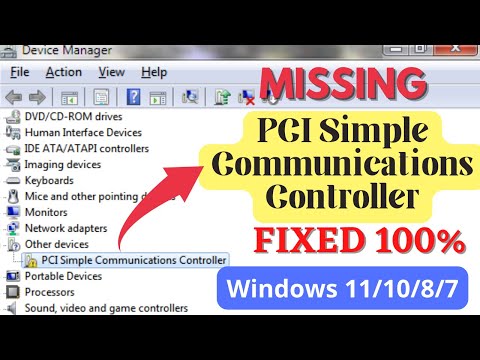
Alright, picture this: you’ve got a new gadget or maybe an upgraded part for your computer. It could be that shiny sound card or a snazzy graphics card. You’re all set to enjoy it, but then—bam! There’s something missing. A little piece of magic called the PCI Controller Driver needs to work its wonders on Windows 10, 64-bit style.
Now, I know what you’re thinking: “Another driver? Really?” But hey, these drivers are like the unsung heroes behind the scenes. They keep your tech running smoothly without any drama. Think of them as that super-organized friend who quietly ensures everything’s in its place.
Anyway, diving into installing these drivers can seem a bit daunting at first, right? Especially when you just want things to work, pronto! But not to worry… we’re here to walk through the process like we’re having coffee and chatting about weekend plans. You’ll have that driver installed quicker than you can say “Windows Update.” Or well… at least pretty quick!
Understanding PCI Controller Driver
Understanding the PCI Controller Driver can sometimes feel a bit confusing, especially if you’re not a tech guru. But don’t worry, we’re going to break it down in an easy, conversational way. Imagine explaining something important to a friend who might know next to nothing about computers and technology.
What is a PCI Controller?
Let’s start with basics. PCI stands for Peripheral Component Interconnect. It’s like this super important part of your computer that helps connect different hardware components, you know? Think graphics cards or sound cards talking to your computer’s main brain. The PCI Controller Driver acts as the translator in these conversations.
Why Do You Need It?
Without this driver, new hardware plugged into your computer might just sit there all confused and not work properly because they can’t communicate efficiently with the operating system. Makes sense, right?
Installing on Windows 10 64-Bit
Now, if you’re running Windows 10 64-bit—pretty common these days—getting the right driver installed is like making sure everyone speaks the same language at work.
- Find Out What You Need: Check Device Manager first! Yeah, just type “Device Manager” in the search bar and open it up.
- Look for Alerts:If there’s a yellow triangle next to any device under “Other devices” or something similar—it’s probably telling you there’s an issue.
- Select Your Device:You’ll want to right-click on each of those devices with alert icons and hit “Update driver”.
- Select Automatically Search:A window will pop up asking how you wish to search drivers—go ahead choose automatic search option unless having specific one downloaded already from manufacturer’s website!
You ever been too eager opening presents only finding instructions missing? Happens here too sometimes… Updated drivers ensure fewer hiccups during gaming sessions watching videos listening music etc., trust me!
But if things don’t go smooth – doesn’t mean disaster! Use reliable sources direct from manufacturers like Intel AMD Dell HP whatever make sure authentic downloads prevent malware quirks other nasties sneaking onto PCs causing headaches nobody wants them around either!!!
And hey much better safe secured stable setup running correctly thereafter than waiting last minute fixes major bottlenecks slowing things down frustration building unnecessarily!
Anyway hope along journey newfound knowledge empowers fearlessly handle own future installations upgrades comfortably confidently onwards upwards navigating tech adventures awaiting vast curious infinite digital possibilities beckoning!!!
Updating PCI Controller Drivers Steps
So you’re dealing with PCI controller drivers on your Windows 10 64-bit system, huh? Let’s untangle this task together. Updating these drivers might sound a bit technical, but trust me, it’s not rocket science. Like when I first tried to fix my grandma’s old computer and felt like I was trying to perform open-heart surgery on it—it’s simpler than you imagine once you dig in.
First off: Why is keeping these drivers updated crucial? Well, they help your computer communicate with attached hardware devices, like network cards or sound cards. An outdated driver might cause some headaches, leading to connectivity issues or device failures.
Right! On with the process:
- Check Device Manager: Open up that friendly tool by right-clicking the Start Menu button and selecting Device Manager. You’re looking for an entry named “PCI Simple Communications Controller”. If it’s there with a warning sign – bingo! That’s our guy needing attention.
- Search for Drivers Automatically: Inside Device Manager, right-click your PCI device and pick “Update driver“. Choose “Search automatically for updated driver software“. Your computer will then go online to find the latest marvels.
- If Magic Doesn’t Happen!: Sometimes this automatic fairy tale doesn’t quite work. No worries! You can snag the drivers manually by heading over to the motherboard manufacturer’s website or even straight from Intel’s site if we’re dealing with their controllers.
- Download and Install: Once you’ve got hold of that driver—should be an .exe file usually—run it. Follow along the onscreen instructions just like you’d do installing any other software.
- A Restart Is Your Friend: Give your PC a little stretch break by restarting it after installation completes. This lets new settings snugly fit into place without hiccups.
- The Device Reappeared Magically?: After rebooting check back in Device Manager under “Network Adapters”. Hopefully whatever issue there was has now vanished! Alternatively there may also be listings elsewhere concerning Sound Cards depending on what exactly connects through that slot as well — all fixes accomplished now (fingers crossed).
Consider keeping tabs regularly similar ways monthly maybe since updates tend rolling periodically preventing strange glitches occurring unexpectedly during those crucial working hours ahead otherwise…
Take care tinkering around inside device managers until next time things arise again needing sorting somehow somewhere eventually perhaps equally soon enough who knows anymore right??
PCI Simple Communications Controller Driver for Windows 10 64-Bit Compatibility
So, you’re dealing with the infamous PCI Simple Communications Controller Driver issue on Windows 10 64-bit, huh? Yeah, it happens to the best of us. It’s like your PC is speaking in code you can’t quite decipher. But fear not! We can tackle this together.
First off, let’s get cozy with what a PCI Simple Communications Controller actually does. You know those messages and data exchanges happening between your computer’s motherboard and one of its interface cards? That’s it! If there’s a hiccup here, things can get annoying real fast.
Why Do You Need This Driver?
Well, it’s crucial because your system needs the right driver to communicate effectively with hardware components. Without it, just imagine trying to have a conversation without understanding each other’s language. Not fun at all.
Alrighty! Now you might be wondering how we go about installing this thing on Windows 10 64-bit. Here are some steps to help guide you through:
- Identify the Device: Go to Device Manager. You’ll notice a yellow mark next to an unknown device when this driver is missing.
- Check for Updates: Sometimes simply updating Windows can do wonders! Go ahead and check for any available updates.
- Download Specific Drivers: Visit the manufacturer’s website (like Intel or AMD depending on your processor). They often have specific drivers you’ll need.
- manual Installation: If automatic updates don’t catch everything—not uncommon—you might need to download manually from trusted sources.
Let’s say you’ve tried these steps and something still feels off. Don’t panic just yet! Here’s another path: checking online forums or communities where folks share similar experiences is often useful. It may sound old-school but trust me—sometimes collective wisdom saves the day!
Now remember that anecdote I mentioned earlier? A friend of mine spent hours trying unsuccessfully until he realized his hardware was just…obsolete (ouch!). Turns out sometimes it’s not always a software issue after all.
And hey—I hope those pointers helped clarify things! Feel free explore each step further if needed; afterall everybody has their bagels differently toasted when it comes tech stuff right?
You ever have one of those days when you’re all set to install a new program or a fancy piece of hardware, and suddenly you hit a wall because of some driver issue? It’s like being ready for a road trip but realizing you’ve forgotten the keys. Yeah, it’s frustrating!
When it comes to handling these PCI Controller drivers on Windows 10 (64-bit), it can feel like navigating through a maze at times. But once you get the hang of it, it’s like riding a bike—only without the risk of falling off.
So let’s break down what we’re dealing with here. First off, what’s this PCI thing all about? Well, in simple terms, PCI stands for Peripheral Component Interconnect. Imagine it like this big ‘ol postal service inside your computer that helps various pieces talk to each other smoothly. Without the right driver—a sort of translator—these components might as well be speaking different languages.
The process usually starts down in “Device Manager.” That’s your command center for everything hardware-related on Windows 10. You pull up Device Manager and look for any little yellow exclamation marks—those are usually signs saying something’s not quite right.
Once you’ve found out where that pesky driver issue is coming from, you can grab the correct driver either from your motherboard’s website or by letting Windows search automatically online for one. It’s kind of like downloading an update on your phone; just hopefully quicker!
A tip: Before making these changes or installations, backing up important data is smart because technology can be unpredictable sometimes—you know? I recall once installing something without checking compatibility… let’s just say it was stress city until I got things sorted out.
And boom! After installing that elusive driver, give your computer a quick restart and cross those fingers—the goal is everything should work now as planned.
Working with drivers isn’t always straightforward initially—it really does get easier over time though! With each new hurdle overcome, you’re building up those tech skills like leveling up in a game; knowledge accumulates and confidence follows suit eventually leading to smoother experiences later down the line when dealing with similar technical challenges!.