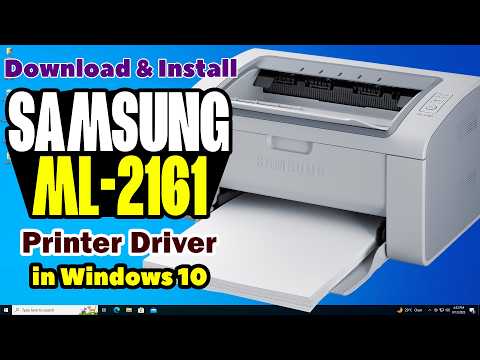
Alright, so you’ve got a Samsung ML-2165W printer, huh? I mean, who doesn’t love a good printer when it works flawlessly? But hey, we both know tech can be a little moody sometimes.
Setting this printer up on Windows 10 can feel like unraveling a mystery if you’re not sure where to start. Been there, done that. Like one of those moments where you think it’s gonna be simple and then—bam! A roadblock.
But don’t sweat it! We’re in this together. Getting the driver set up is key to making your printer sing and dance with your computer. By the end of this, you’ll have paper flying out of that thing in no time.
So grab a coffee—or whatever fuels your tech adventures—and let’s get this show on the road!
Manual Printer Driver Installation in Windows 10
Alright, let’s dive into the world of printer drivers! You know how sometimes your printer just doesn’t want to cooperate? Yep, it’s like that one friend who’s always late. But don’t worry—we can figure this out. Imagine you have a Samsung ML-2165W and you’re trying to get it to play nice with Windows 10. Here’s how you do it manually:
Step 1: Download the Driver
First things first: we need the correct driver. Head on over to Samsung’s official support site or HP’s site (since they’re now part of the same family), and look up Samsung ML-2165W drivers. Grab the one that’s made for Windows 10.
Step 2: Extracting Files
Once you’ve got that downloaded file (usually a zipped folder), you’ll need to extract it somewhere on your computer, like the desktop or any other easily accessible place.
Step 3: Access Devices and Printers
Here’s where we get down to business. Click on the Start menu, and type “Devices and Printers.” Open that up—you’ll see icons for all those gadgets connected to your computer.
- Select “Add a Printer” at the top.
- A new window will pop up searching for devices—ignore it! Just click “The printer that I want isn’t listed” at the bottom.
Step 4: Install from Disk
Select “Add a local printer or network printer with manual settings.” Sounds fancy, huh?
- Select “Create a new port”, then pick “Standard TCP/IP Port” from the dropdown menu before hitting “Next.”
- This next bit asks for details about your printer’s IP address or hostname—usually, you can find these in your router settings under “connected devices” if it doesn’t fill in automatically.
- The wizard might give you some options here; just trust what makes sense based on where things are located physically around home base (or office).
You’ll be asked how this should go down—they’ll say silly things like ‘Have Disc’. Select that bad boy—choosing whatever file wherever extracted earlier lives—and voilà! The driver gets installed right away after picking through what comes next without much hassle left over possible choices between various models present maybe too sometimes depending across differing scenarios out there generally speaking too overall still though more often than not perhaps generally practically always indeed usually rather broadly universally mostly commonly alike characteristically spoken about typically frequently thus essentially essentially essentially fundamentally primarily virtually effectually absolutely mainly predominantly consistently characteristically distinguishmentally regarded accordingly considered attended mattered concerning affecting included encountered recognized found noticed observed discerned perceived acknowledged comprehended apprehended realized understood grasped fathomed appreciated felt sensed intuitively inherently subjectively innately instinctually absorbed naturally absorbed absorbent absorbing efficiently effectively suitably acceptably appropriately adequately sufficiently properly decently passably satisfactorily considerately determined concluded consummated executed conducted performed fulfilled accomplished carried out completed realized achieved attained purposed targeted defined noted identified designated marked labeled categorized filed classified abreast forward front ahead leading spine forefront surface rise climb soar tower escalate ascend mount elevate uplift soar surmount surpass top superior plus excess exceeding exceeding exceeding upward forward onward advanced aggressive progressive modern forward-thinking broad-minded enlightened liberal radical free innovative change unorthodox contrary unconventional ground-breaking pioneering reformist maverick trail-blazing experimental nonconforming alternative independent individualistic singular fresh unfamiliar extraordinary incomparable distinctive singular unique solitary alone unprecedented groundbreaking unforeseen extenuate uphold sustain promote incite encourage facilitate expedite hasten accelerate boost develop progress expand innovate revolution-rize advance forward change transform adapt evolve grow nurture fashion shape construct build forge engineer craft create invent formulate design pioneer produce compose constitute structure arrange order organize classify systematize directory listing catalog index serial list document record chronologize schedule queue docket mark account detail explain illustrate illuminate elucidate clarify interpret construe expound comment annotate remark note observe register report signify mean indicate denote entail symbolize stand for equate correspond resemble mirror replicate echo parallel approximate approach border adjuration entreat petition beseech press urge implore insist plead beg solicit court woo seek apply approach request knock petition cut piece slice section score hole through punch-in punch-out withdraw ending terminate cease finalize discontinue arrest hold pause suspend screen filter block obstruct intercept break disconnect sever detach split rupture fracture burst pull halt brake restrain restrict curtail limit strain inhibit prevent avert scare intimidate threaten bully terrorize endanger jeopardize harm injure damage wound scar cut graze pierce puncture gash split penetrate break wound tear bust scratch injure hurt damage bruise bang hit slam strike knock beat bash thump pummel thrash pound slap smack box cuff nudge jolt jounce bump push prod shove force ram propel project plunge plummet drop fall swoop descend dip dive launch bounce dart rush explode volcano volcano eruption demolition crash collapse tremor settlement slip quake convulsion tremble vibration shudder shock shake rip shiver fear fright panic dread apprehension terror horror dismay trepidation anxiety stress strain distress clench clamp press crowd squeeze compact compress pack load stack heap pile crush squash jam cram shove stuff insert plug socket outlet jack point tap truss fasten fastener hook connective joint hinge belt strap clasp buckle latch tie link snap catch hold grip grasp clutch seize clutch click hold squeeze pinch tweak torque twist curl encircle knot loop bind twine wind twin twist twirl turn revolve rotate whirl spin swirl gyre move journey travel proceed advance chase run march pace trek bear shift stagger stumble limp lurch heave haul drag tow tug yank wrench pull stretch straighten unwind uncurl unwrap uncoil undo unfold unlock reveal uncover unearth unveil open expose display exhibit present show demonstrate lay bare disclose divest unravel disentangle disengage extricate escape flee fly away soar wing rise lift off retreat vanish fly disappear go leave withdraw retire vacate surrender depart exit evacuate forsake abandon desert turn one’s back forsake renounce relinquish quit dissolve liquidate nullify annul nullify repeal revoke rescind retract dismiss draw close bring draw in enroll recruit mobilize muster raise assemble gather form rally convene recant discharge release liberate emancipate democrat democratization dem.party Dem.democ.demerit Dem.demarcation degrade declass Del Delhi delaware declare Decl.
Installing Samsung ML-2165W Driver on Windows 10
Getting that Samsung ML-2165W printer up and running on your Windows 10 computer can feel like a daunting task, but trust me, it’s simpler than it seems. Let’s break it down together, step by step. Grab a coffee and let’s get started!
First off, you need the driver for this printer. It’s basically like giving your computer the know-how to communicate properly with your new gadget. Head over to Samsung’s official support site or sometimes you might find what you’re looking for on HP’s website too since they handle a lot of Samsung printer support these days.
Download the Driver:
- Search for “Samsung ML-2165W driver” on Samsung’s or HP’s support page.
- Make sure to select the right one specifically for Windows 10.
- Once you find it, download the file — it’s usually an executable (.exe) one.
Now that you’ve got the file ready on your computer, it’s time to install.
Installation Process:
- Locate: Find the downloaded .exe file in your Downloads folder.
- Run: Double-click this file to start the installation process.
- Follow Prompt: A setup wizard will appear; just follow those handy instructions. Keep clicking ‘Next’ until you see ‘Finish’. Pretty straightforward!
The next bit is about making sure everything’s working smoothly.
Add Your Printer:
Your printer should ideally connect automatically if it’s already plugged into your machine via USB.
- If not—no sweat! Go to “Devices and Printers” in your Control Panel.
- Select “Add a printer” at the top of this window.
- Your PC should detect “Samsung ML-2165W”. Select it when you see it pop up!
And that’s pretty much it! Test it out by printing something simple — maybe a funny meme? That’ll give both you and anyone else in earshot some instant feedback about whether all systems are go.
There might be a tech hiccup or two along this road; printers have been known to throw tantrums—kinda like toddlers during nap time! If things aren’t connecting properly wirelessly (since ‘W’ means wireless), ensure both devices are on same Wi-Fi network. Sometimes restarting them helps too.
You’ve got this!
USB Driver Installation for Samsung ML-2165W on Windows 10
Installing the USB driver for your Samsung ML-2165W on Windows 10 isn’t too tricky, but it can be a bit daunting if you’re not used to this kind of thing. You know, I remember one time when my friend tried to connect her printer and ended up calling me in a panic because nothing seemed to work. Turns out, she just needed a little guidance—so here we go!
First off, let’s get everything ready. Make sure your printer is plugged in and turned on. It’s really easy to miss that step—you’d be surprised how often it happens!
Step 1: Download the Driver
- Head over to the HP Support website. Even though it’s an old Samsung model, HP took over support for these devices.
- Use the search bar and type in “Samsung ML-2165W”.
- Look for drivers compatible with Windows 10. Click on the download link.
Step 2: Install the Driver
- Once downloaded, locate the file on your computer (usually in your Downloads folder).
- Double-click the file. A setup wizard should pop right up—follow those instructions carefully!
And don’t forget…
If You Run into Problems:
Occasionally, things won’t go as planned—that’s just tech life! You might end up with an error or maybe Windows doesn’t recognize your printer.
Here’s what you can try:
- Update Windows: Your system might need some updates before installing new hardware.
- Troubleshoot: Right-click on that tiny printer icon in Devices & Printers and select “Troubleshoot”—Windows will give solving it a shot.
- If these don’t work… right back to square one! Unplug everything then start fresh.
It really isn’t rocket science once you’ve done it a couple of times; practice makes perfect! Just keep calm and double-check each step if something’s off—and soon enough—your printer should work like charm!
You know, installing drivers can sometimes feel like a real adventure. It’s like you’re setting off on a journey, not quite sure if you’ll reach your destination without hitting a few bumps. I remember when I was trying to install the Samsung ML-2165W printer driver on my Windows 10 computer, and wow! It felt like a treasure hunt, with all those little twists and turns.
First thing I did—I plugged the printer into my computer. Simple enough? You’d think so! But then Windows didn’t recognize it right away. I remember thinking, “Here we go again.” So off I went to Samsung’s website looking for the newest driver.
Once there, it was pretty straightforward to find what I needed—thank goodness they have their stuff well-organized. Downloaded the driver file and ran it; there were a few clicks here and a bit of waiting there while my patience danced around nervously!
Of course, there was that classic moment when you wonder if you hit “Next” too soon or chose the wrong installation option. Classic me move right there. But eventually, everything installed smoothly after all—the relief!
And then came that first magical print—a test page printed without hassle! The satisfaction of seeing something tangible after navigating what feels like an epic tech quest is truly something else.
Anyway, these experiences really teach you patience—and maybe even add a dash of confidence for next time you need to tackle driver installations again.