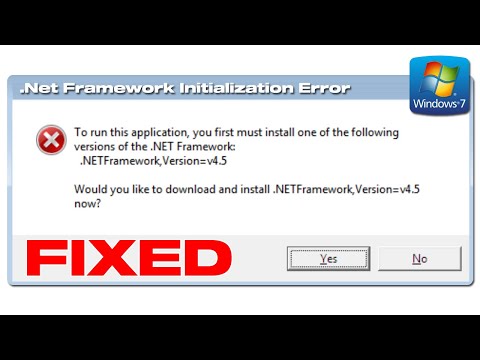
Hey, remember the time you tried to fix your grandma’s TV remote? You pressed all kinds of buttons and hoped for a miracle. Well, dealing with .NET Framework errors on Windows 7 kinda feels like that sometimes.
Anyway, if you’ve been getting those pesky error messages while trying to run certain applications, you’re not alone. They can pop up out of nowhere—like that surprise zit before prom night.
Now, let’s get this straight: these technical hiccups can be super annoying. But don’t worry, cuz we’re here to untangle this mess together. We’ll dive into what .NET Framework actually is—think of it as the secret sauce helping apps run smoothly—and tackle fixes step by step. Ready? Let’s make those errors a thing of the past!
.NET Framework Compatibility with Windows 7 64-bit
Oh, .NET Framework and Windows 7, what a pair! So here we are. If you’re dealing with compatibility issues there, let’s try to iron it out together.
.NET Framework Versions
.NET Framework acts like a toolbox sort of for developers. You know? It’s got all these nifty libraries and APIs that help them create applications. Now, Windows 7 64-bit usually plays nicely with versions from 2.0 through to 4.8. But sometimes it can be picky.
Windows 7 Settings
Okay, here’s something important: check your system settings first. Make sure you have Service Pack 1 (SP1) installed on Windows 7. It’s like putting on your favorite shoes before you go out—you really don’t want to miss it!
Common Errors
Got hiccups in installation? Common errors usually pop up around installation failures or updates not sticking right. Fun times! They’re often due to missing updates or corrupt files… ugh!
Troubleshooting Steps
- Update Your OS: Head into Windows Update and download all those patches waiting for you.
- Check Installed Versions: Open “Programs and Features” in Control Panel to see what’s already hanging out.
- Repair .NET Installation: Use the Microsoft .NET Framework Repair Tool—it’s free!
- Install Manually: Head over to Microsoft’s site if auto-updates kick up a fuss.
Look at an example: Say you’re trying to run an app needing .NET Framework 3.5 but hitting brick walls instead… just turn this feature on! Go through Control Panel > Programs > Turn Windows features on or off.
Error Messages?
You might see alerts like “0x800F0906” or “0x800F081F.” These guys mean something’s missing somewhere down the line during setup—try fixing via Windows Features as mentioned!
Feeling frustrated yet? Hah! We’ve all been there hassling our machines late at night hoping things take shape eventually—which they usually do after plenty of elbow grease (and maybe coffee).
If issues persist stubbornly despite chasing down everything above tightly—hunting around tech forums where folks share experiences could prove goldmine-like sometimes; wisdom hidden deep within community views shared openly online always helps untangle problems lingering unwelcome longer than hoped initially expected glances perhaps felt earlier fleeting moments passed fast unwillingly eventually resolved reassuring relief finally achieved satisfaction earned deserved smiled sense conclusion newfound clarity peace restored harmony regained wholeness embraced celebrated relieved delighted conclusion reached cherished remembered lasting forever young evermore eternally imprinted minds thankful hearts joyous serene contented happy satisfied alive living breathing…
Oops, went poetic there!
Windows 7 64-bit .NET Framework Repair Tool Compatibility
Alright, if you’ve ever tried to fix .NET Framework errors on Windows 7 64-bit, you might know it can feel like searching for a needle in a software haystack. Those little error messages can pop up and leave you scratching your head, wondering why nothing seems to work. I mean, I’ve been there myself and it’s definitely no picnic. So, let’s unravel some of the key things you need to know here.
First off, the .NET Framework Repair Tool is pretty much your go-to buddy when you’re dealing with these pesky errors. This tool is specifically designed to troubleshoot common .NET issues by scanning for problems and fixing them automatically. It’s kind of like having a mini mechanic exclusively for your .NET setup!
Now, when it comes down to compatibility on Windows 7 64-bit, there’s good news: this tool supports your system! Yep, what happens is that it detects which version of the .NET Framework you’ve installed—like whether it’s version 4 or even newer iterations—and addresses problems accordingly.
Here are some quick tidbits about using this tool:
- Download & Install: Grab it directly from Microsoft’s official site to avoid any fishy knockoffs making trouble on your PC.
- Running the Tool: Once installed, open it up and follow the instructions—usually as simple as clicking “Next.”
- Error Detection: It checks configurations and permissions—anything wonky gets highlighted.
- Automatic Repairs: Doesn’t just point out issues but fixes minor troubles as well.
Anecdote time!, once I helped my cousin who kept getting frustrating installation errors while trying to play his favorite game. Turns out her outdated .NET Framework was at fault. A quick run of this tool almost magically solved everything! It feels pretty satisfying once things start working again smoothly.
Anyway., keeping your system updated is crucial too since newer versions often come packed with critical fixes—that’s why running regular updates helps ward off future headaches.
Anything else you’re curious about? Always happy to share more. Remember: tech troubles may seem bewildering sometimes; yet most times there’s an answer waiting around the corner! You got this!
.NET Framework Repair Tool Usage
Dealing with .NET Framework errors on Windows 7 (64-bit) can feel like an uphill battle, right? One minute everything’s working fine, and then the app you’re trying to run throws a tantrum. Well, don’t worry! There’s a handy tool out there just for situations like this. I’m talking about the .NET Framework Repair Tool. It’s like getting a toolbox when your sink has sprung a leak.
First things first, you want to know what this tool does? It diagnoses and repairs common issues found in .NET Framework installations. Think of it as a detective and handyman rolled into one. It can fix stuck installations or broken system configurations that might be causing you all these headaches.
Here’s how you use it:
- Download the repair tool: Head over to Microsoft’s official website where they offer the download. You can trust this source—it’s their creation after all.
- Run the tool: Once downloaded, just double-click the file to run it. Make sure you’ve closed any other applications first; it’s always good practice.
- Follow the wizard: The tool will guide you through its process step by step. Each screen will explain what’s going on and what your options are.
- Select the repair option: You’ll likely see an option to apply suggested fixes—let it do its job!
- Restart if needed: Sometimes you’ll need to reboot your computer after repairs are applied so changes can take effect properly.
Now imagine: You’re halfway through watching an exciting episode of your favorite series when suddenly buffering strikes because some background app is hogging resources due to .NET issues! Fixing such problems quickly frees up system resources for smoother streaming – score!
A quick tip?: Always keep your Windows updates current; they often include patches for known .NET issues which help prevent future problems from cropping up again.
Remember though—not every error stems from obvious causes like misconfigured settings or corrupted files lurking around unnoticed until now—not sure if I’m explaining myself…
Knowing this simple solution exists brings peace-of-mind next time something unexpected goes awry during daily computing adventures… sounds good huh?
Ah, Windows 7. It’s like that comfy old pair of shoes you just can’t let go of, even though everyone else is getting all these shiny new ones. If you’re still rocking Windows 7 64-bit and bumping into .NET Framework errors, I get it—it can be a bit like trying to find an elusive library book that’s somehow always checked out when you need it.
Let’s chat a bit about this situation. The .NET Framework is kinda like the foundation of a house for many applications. They need it to function properly. When there’s an issue, apps can start misbehaving or throwing those pesky error messages at you.
Imagine back in the day when I first encountered such an error while gaming with friends online. That sinking feeling when all excitement turned into frustration because the game wouldn’t launch due to a missing .NET component… It’s wild how something so small can disrupt your whole evening!
If you’re seeing these errors pop up often, there are a few things you might want to consider doing to remedy this hiccup—like making sure you’re running the right version of the framework for your specific app or ensuring any recent Windows updates haven’t messed things up. Speaking of updates, it’s always a good idea to keep them current—even if it’s tempting not to rock the boat on older systems.
Sometimes, manually reinstalling or repairing the framework can work wonders too! These issues might seem intimidating at first glance but trust me, once you’ve tackled them once or twice, they start feeling more like stepping over pebbles rather than climbing mountains.
Remember: patience and persistence are key here—you’ve got this! And don’t forget: every tech glitch has its solution—it’s just waiting for you around the corner!