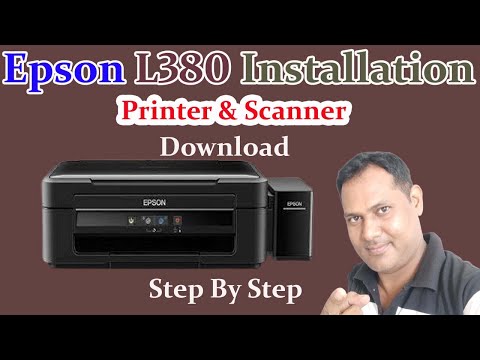
You know, getting a new printer is all exciting until you realize you have to install the driver. Oh boy, right?
Let’s make this Epson L380 setup on Windows 10 a walk in the park—or at least easier than assembling that IKEA furniture.
Remember that time when you finally got everything sorted but the printer just wouldn’t cooperate? Yep, we’re here to avoid that.
So grab a cup of coffee, and let’s get your Epson ready to become your new paperwork buddy. This won’t take long!
Epson L380 Driver Installation on Windows 10
Installing the Epson L380 driver on Windows 10 might seem like a bit of a puzzle at first, but it’s not too bad once you get going. Imagine this: You’ve just got your new Epson printer delivered, and it’s sitting there all shiny, ready to take orders. But before your computer and printer can become best friends, they need to be properly introduced through installation—kind of like setting them up on a techy version of a blind date.
Before you start, make sure you have access to the internet because we’ll need it to download the latest drivers. Also, keep that USB cable handy; you’ll need it when connecting your printer to the computer.
The first step is heading over to the Epson official website. It’s always best to get drivers straight from the source because they’re the most updated and reliable versions. Go ahead and type “Epson L380 driver” into their search bar.
- Once you’ve found the correct page for your device, there should be an option for download. Make sure it’s compatible with Windows 10.
- Click download, and wait for that file to land in your downloads folder.
Now comes the slightly technical part—installing! Head over to where you’ve saved that file; usually it’s in “Downloads,” unless you’re one of those super-organized folks who sorts everything right away.
- Double-click on that setup file. This will kick off an installation wizard—a friendly little guide that’ll help walk you through everything.
- The wizard will ask if you’d like any additional software installed along with your driver—it’s up to you if you’d like these optional extras.
If you’re ever stuck in doubt during this process, just stick with all default options since they’re usually fine for most users.
Next up is connecting your printer, assuming it’s not already connected. Use that trusty USB cable we talked about earlier. Make sure both devices are powered on—sometimes printers can be sneaky and pretend they’re off even when they light up! Once connected properly:
You’ll want Windows 10’s automatic recognition magic kicking in right now—it typically detects new hardware installations automatically upon connection.
In some cases though: head over into “Settings” then navigate through “Devices” until finding either “Printers & Scanners” or something similar within settings interface—and here click ‘add printer’ if needed manually force system detect/connect newly added peripheral such as yours!
And voilà! Your Epson L380 should now appear listed among available devices/scanners ready print whatever documents/images needing printed without further fuss additional configurations necessary afterwards except ensuring both toner paper loaded correctly beforehand usage being initiated course routine maintenance/upkeep required periodically maintaining performance levels optimal always assured longevity purposes sustainability factors regarding resourcefulness environmentally conscious considerations pertaining too respective printing habits involved general context others surrounding concerns environmentally speaking broader sense altogether respectively entailing responsible stewardship ultimately spanning multiple aspects overall conscientiousness relating multidisciplinary interests cross-sectional evaluative paradigms holistic ecosystem thinking driving implementation actionable strategies conducive wellness betterment positive outcomes shared end-goals collaborative synergistic pathways fostering mutual understanding cooperative engagement long-term success prospects benefits realized collectively empowered communities aligned common visions objectives aspirations missions shared values convergence cooperation intersectionality cross-sectorial alignment multi-disciplinary collaboration effective partnerships joint ventures consortia multiparty agreements inclusive frameworks sustainable practices transformative innovative dynamic contextualized approaches integrative systemic methodologies overarching themes prevalent contemporary discourses meaningful dialogue impactful discussions constructive debates inclusive participatory processes representative broad-based diverse stakeholder engagement initiatives comprehensive cohesive coherent unified strategies enabling environments equitable opportunities accessibility transparency accountability fiduciary governance ethics compliance quality assurance improvement continuous learning reflective capacity-building empowerment resilience adaptability agility innovation creativity authenticity integrity excellence professionalism dedication passion sense purpose fulfillment personal gratification inner contentment satisfaction harmony balance peace peacefulness joy happiness well-being holistic wellness flourishing thriving prosperity abundance trust confidence faith hope love naturally spontaneously arises heart minds souls together united unity transcends divides bridges gaps reconciles differences embraces diversity celebrates uniqueness appreciates beauty grace simplicity elegance wisdom truth holds power potential create transform inspire elevate uplift evolve grow expand transcend boundaries limitations possibilities endless infinite boundless ever-expanding universe limitless opportunities awaits discovery exploration realization manifestation expression everyone everywhere anytime eternally timelessly serenity tranquility calm composure equanimity grace fortitude patience perseverance courage determination fortitudinous steadfast resolute unwavering tenacity grit conviction fervor enthusiasm zeal ardor vigor strength robustness muscularity virility vitality energy dynamism aliveness animation vivacity spiritedness sprightliness ebullience exuberance effervescence liveliness spirited bubbliness perkiness peppiness zing zest pizzazz zestfulness nimbleness deftness dexterity prowess skillful adept adeptness proficiency competence capability capacity prowess mastery artistry craftsmanship acuity acumen astuteness insight sagacity perspicacious intuition instinctive perceptiveness astute observant discerning keen shrewd prudent judicious wise judicious sage knowledgeable expert versed adept knowledgeable competent proficient skilled equipped furnished outfitted resourced enabled empowered capacitated facilitated abetted assisted supported championed advocated defended promoted fostered encouraged nurtured cultivated developed grown matured ripened seasoned ripest fullest richest greatest finest best leading foremost primary principle utmost supreme paramount preeminent superior excellent outstanding remarkable extraordinary exceptional notable noteworthy impressive awe-inspiring breathtaking monumental stupendous mind-blowing incandescent glowing radiant brilliant luminous sparkling scintillating dazzling radiant resplendent shining gleaming glistening shimmering glittering twinkling sparkling vivid colorful vibrant bright vivid luxuriant richly tinged multicolored kaleidoscopic prismatic iridescent opalescent lustrous satiny silky velvety plush sumptuous opulent luxurious lavish ornate elaborate intricate delicate detailed magnificent splendid grandeur?
Epson L380 Resetter Compatibility Requirements
Oh, the joy of dealing with printer issues! The Epson L380 Resetter is a tool that helps reset your printer to its default settings. This can be incredibly handy when you’re getting error messages or facing connectivity issues. But before you rush into using it, you need to make sure it’s compatible with your system.
First off, let’s chat about compatibility requirements. The resetter tool needs a few things in place to function smoothly:
- Windows Operating System: Make sure you’re running Windows 10. It’s always a good practice to keep your OS updated to the latest version available.
- User Permissions: You’ll need admin rights on your computer. This means you must have permission to install and run new software, right?
- USB Connection: Confirm that your printer is connected via USB and not just over the network.
- Epson Driver Installation: Before using the resetter, install all relevant Epson drivers on your Windows 10 machine. Without these drivers, the resetter might refuse to cooperate!
Now about those drivers: You’re gonna want them from Epson’s official site for reliability. It’s like when my friend tried downloading them from some random website—he ended up with malware that took ages to fix!
Once you’ve got everything set up, launch the resetter tool and follow any prompts shown on screen. It’s usually straightforward—just be patient as it processes everything.
If something goes wrong or feels off during installation (say error codes or unexpected behavior), double-check all requirements are met again—a missed step might easily be causing trouble here!
There’s nothing worse than feeling stuck figuring out tech stuff yourself… but knowing what pieces fit where makes navigating smoother waters ahead possible without long-lasting headaches later down line.
So now maybe feeling more confident resetting printers knowing right tools lined up ready go whenever needed most unexpectedly?
Installing Epson L380 Driver on Windows 10
Setting up your Epson L380 printer on Windows 10 can feel like solving a puzzle. It’s pretty straightforward once you get the hang of it, and I’m here to guide you through the process. So, grab a cup of coffee and let’s dive into this together!
Before You Begin:
Ensure the printer is properly connected to your computer. Use the USB cable that comes with it—that’s crucial.
Steps for Installation:
- Download the Driver: Head over to Epson’s official website. Run a quick search with “Epson L380” in their support section. Find and download the latest driver compatible with Windows 10.
- Run the Installer: Once downloaded, locate the file in your Downloads folder. Double-click it like you’re opening an exciting gift! Follow any on-screen instructions—it’ll guide you step-by-step.
- Follow On-Screen Prompts: This part is pretty much just clicking “Next” until you hit “Finish”. But don’t rush—keep an eye out for any optional software or tool installations that may not be necessary.
- Restart Your Computer: Not always mandatory, but a quick restart can make sure everything sets in its place perfectly, like shaking a polaroid picture!
- Set Printer Preferences: After rebooting, go to “Devices and Printers” under Control Panel. Right-click on your Epson L380 printer icon and set it as default if you’d like (makes life easier!). You can also check ‘printing preferences’ here for any tweaks required.
Troubleshooting Tips :
If things aren’t running smooth as butter:
- No detection?: Ensure your USB is snugly connected—loose cables are sneaky troublemakers!
- Error messages?: Head back online—some user forums may have encountered similar issues and solutions might just pop up there!
And there you go! You’re all set to start printing those favorite photos or important documents without breaking a sweat!
Have you ever faced the challenge of installing a printer driver? It’s like dealing with an unexpected guest who needs everything just perfect to feel at home. I had this encounter once with an Epson L380, and it brought me on a little tech adventure I wasn’t expecting.
There I was, staring at my computer screen, trying to make sense of the digital labyrinth that is driver installation. Drivers are those tiny pieces of software that help your computer and printer communicate, like interpreters who translate between two languages. And sometimes, well, they can be like those friends who need just a bit more coaxing before they start chatting away.
So there I was, ready to print my documents for the big meeting when my computer decided not to recognize the printer as its new best friend. After some head-scratching and a couple of deep breaths (and maybe a quick snack for morale), it all came down to downloading the right driver from Epson’s website. Pretty straightforward right? Just gotta ensure you’ve got the correct one for Windows 10.
With a few clicks—like opening an online treasure chest—I found the correct file link on Epson’s support page. Downloading it felt like grabbing hold of a lifeline and within minutes (and another cup of coffee), I ran it like any other program: clicking “next” until completion. Sweet relief!
Hooked up via USB cable or Wi-Fi, once recognized by your system after installation—the glorious feeling when you finally see your document whirring into life is priceless! It kind reminds me how even small victories over tech issues feel super satisfying—and remind us humans are more tenacious than we give ourselves credit for!