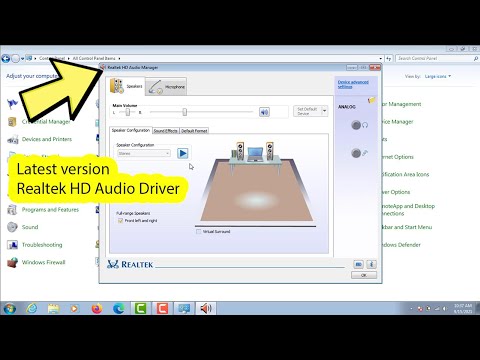
Oh, man, Windows 7! A classic, right? But sometimes, it likes to throw a little wrench in your plans. You know what I mean?
Let me guess. You’re trying to install that Realtek driver and boom! Error message right in your face. Crazy how it never happens when you’re ready for it!
It’s like the computer just decides to pull a prank on you. One minute everything’s fine, and then… surprise! Errors everywhere.
But hey, don’t sweat it too much. Lots of folks have been there—myself included—and there’s always a way out of this mess.
So sit back. Let’s figure this thing out together without pulling our hair out!
Reinstalling Realtek Audio Driver on Windows 7
Ever found yourself struggling with audio issues on your Windows 7 machine? Maybe you’re experiencing a nagging silence because the Realtek audio driver is giving you trouble. Let’s see how to fix this together.
First things first: You’ll want to uninstall the problematic driver. Here’s what you need to do:
- Go to the Start menu and open the Control Panel.
- Choose Device Manager. This is where all your hardware devices hide.
- Eexpand the section labeled “Sound, video and game controllers.”
- You’ll see Realtek High Definition Audio; right-click it and select “Uninstall.” Make sure to check “Delete the driver software for this device,” then click OK.
It might sound a little scary removing stuff, but don’t worry. We’re setting up for a fresh start here.
The fresh install:
- You need the right version of Realtek drivers. Head over to their official website or your computer manufacturer’s site. Download the latest one specifically for Windows 7.
- Once got it, find where you’ve saved that file—usually in downloads—and double-click it to start the installation process.
- A setup wizard will guide you through some basic steps—just follow along clicking “Next.”
- If required; Restart your computer after installation—it’s good practice anyway!
.
You know how sometimes technology just decides not to cooperate? Like when my old laptop refused any sound until I did these exact steps? It’s amazing how reinstalling can breathe life back into confused computers.
And there you have it! Your Realtek drivers are now freshly installed, and it’s time for that sweet music or podcast you’re missing out on! If by any chance you’re still having trouble, maybe there’s another issue at play – cables unplugged or even pesky system updates doing their dance.
Fixing Realtek Audio Driver Installation Errors
Oh, dealing with Realtek audio driver installation errors on Windows 7, aren’t we? It’s one of those things that can leave you scratching your head. But hey, let’s try to get this sorted out together, okay?
First off, before you start pulling your hair out or considering drastic measures, make sure you’re trying to install the **correct driver version**. Drivers can be picky like that! Double-check that you’re downloading the version specifically for Windows 7. You’d be surprised how often mismatches create hiccups.
If you’re confident about the driver version and still see issues popping up – like error messages or no sound coming out – here’s where we roll up our sleeves:
- Check the Device Manager: Open it by right-clicking on ‘My Computer’ and selecting ‘Manage’. Look for any yellow triangles next to audio devices. They’re not fashion statements; they’re warnings something’s up.
- Uninstall Previous Drivers: Sometimes Windows gets confused if it sees two similar drivers. In the Device Manager, find your Realtek audio device and uninstall it. Restart your computer afterward.
- Disable Audio Enhancements: Who doesn’t love enhancements? But in this case, they might be causing trouble. Go to Control Panel > Sound > Playback tab; select your speakers and click Properties. Under Enhancements tab, try checking ‘Disable all enhancements’.
- Run Windows Update: Missing updates could be another villain here! Head to Control Panel again and pick ‘Windows Update’. Make sure everything is up-to-date before attempting another installation.
Funny story from my friend: he once fixed his stubborn Realtek issue not by following some intricate tech mumbo-jumbo but simply by reseating his cables properly – turns out one was loose! So yeah… basic checks count too!
Lastly, if nothing works (and you’ve got patience left), consider using **System Restore** to roll back those recent changes just until things stabilize again.
Hope one of these does the trick for you! If a different solution ends up working or it’s still acting sneaky on you – feel free holler back here anytime!
Driver Problems in Windows 7
Ah, driver problems on Windows 7! That brings back memories of me and my friend spending hours trying to get his old printer to work. We finally cracked it after some trial and error, but boy, was it a journey.
Now, if you’re dealing with a Realtek driver installation error, don’t worry. You’re not alone. Let’s dive into this puzzling situation together and explore what you can do.
- Check Compatibility: Make sure the Realtek driver is compatible with Windows 7. Sometimes the driver might be designed for another version of Windows.
- Download from Official Source: Head over to Realtek’s official website or your computer manufacturer’s website for the latest drivers. Using trusted sources prevents getting outdated or corrupted files.
- Uninstall Previous Drivers: Go to “Device Manager” and find any existing Realtek drivers under “Sound, video and game controllers.” Right-click and select “Uninstall.” Don’t forget to check the box that says “Delete the driver software for this device” before confirming.
- Install in Compatibility Mode: If you have a newer version of the driver that’s not originally meant for Windows 7, try right-clicking on the installation file, selecting “Properties,” then go to “Compatibility” tab. Run it in compatibility mode for an older version of Windows.
- Run as Administrator: This one’s simple but effective. Right-click on your installation file and choose “Run as administrator.” Permissions can sometimes block installations when they’re not run at an elevated level.
Now let’s tackle some technical tidbits that might help:
Error Code Analysis: Often these errors spit out scary codes like ‘0xE0000246’. *What does that even mean?* Usually it’s indicating permission issues or conflicts with existing software. A quick Google search can sometimes translate those cryptic codes into actionable steps.
Troubleshoot Audio Issues: After trying all installation tricks, if you’re still experiencing audio problems—like no sound—check your speakers’ connections or try different output devices just in case something is physically misbehaving.
Painful Reboots: Sometimes restarting your computer (not just once!) helps finalize changes made during uninstalling old drivers or installing new ones.
Through these steps, you’ll likely solve most troubles related with Realtek drivers on Windows 7—or get closer than before! Don’t let this hiccup stress you out; treat it more like solving a mini mystery… there’s always satisfaction at unraveling tech puzzles!
By following these suggestions carefully – while we can’t cover every conceivable scenario – chances are high we’ll get things working smoothly again soon enough!
Ah, the classic Realtek driver installation error on Windows 7. This one’s a bit of a blast from the past, isn’t it? Takes me back to the days when everyone was still trying to figure out what all those random beeps and chimes meant on their PCs.
Now, if you’ve ever been there – staring at your screen with that pesky error message popping up – you know how frustrating it can be. You probably felt like you were stuck in some kind of techno twilight zone. I mean, here you are trying to update drivers for good sound quality or network connectivity, and: bam! An unexpected error decides to crash your party.
So what’s going on? Well, it’s often about compatibility. Windows 7 was amazing for its time but as tech evolves, some newer drivers just don’t play nice with older systems. Or maybe you’re dealing with a corrupted file that’s muddling things up during installation.
Here’s something kinda funny: I remember helping my friend Sarah not so long ago with this same issue. She was convinced her laptop never wanted her to enjoy online videos again! We ended up downloading the drivers directly from the Realtek website rather than relying on Windows updates which did wonders for her frustration levels.
A little patience does help here! Restarting your machine, ensuring you’ve got all essential updates sorted out first; they might seem like textbook suggestions but honestly? They often solve half these mysteries without needing anything fancier involved…
Getting into deeper troubleshooting means diving further into Device Manager or even working through safe mode – though normally getting stuff from official sources handles most cases neatly enough!
So if this is happening right now where win7 meets Realtek – breathe easy yeah?