You know when your screen just goes all funky and won’t show anything right? That’s VGA drivers for you, sometimes being a bit of a nuisance! You’re just chillin’, maybe watching some videos or working on something important, and bam! The display starts acting up. Super frustrating, right?
Happened to me once while I was binging my favorite series. Suddenly, the screen decided it wanted to join the party by going all weird on me—colors messed up, resolution went haywire. Like, seriously? All because of some driver acting up.
Honestly, it’s not even your fault—a lot of folks dealing with Windows 10 end up scratching their heads over this one. But hey! There’s always a way around it. Let’s see what’s going on with those drivers of yours and get that display back to behaving itself!
Adjust Display Resolution Settings
Oh, the frustrations of display issues, right? We’ve all been there. You’re happily clicking away on your computer when suddenly… things don’t look quite right. Let’s dive into adjusting display resolution settings on Windows 10, especially when that pesky VGA driver is causing trouble.
First up, what’s a display resolution? It’s basically the number of pixels shown on your screen. More pixels mean clearer images. When your display isn’t looking sharp or if things appear out of proportion, playing around with these settings might help.
Steps to Adjust Display Resolution:
- Open Settings: Click on the Start menu (that little window icon), then gear symbol for “Settings.”
- Select System: Within settings, find “System.” It’s usually right at the top.
- Go to Display: You’ll see a bunch of tabs—click on “Display.”
- Change Resolution: Scroll down until you spot “Display resolution”. Choose a setting from the dropdown menu; higher numbers mean more clarity.
Troubleshooting VGA Driver Issues:
Sometimes it’s not just about a simple change in settings. You might be facing VGA driver issues:
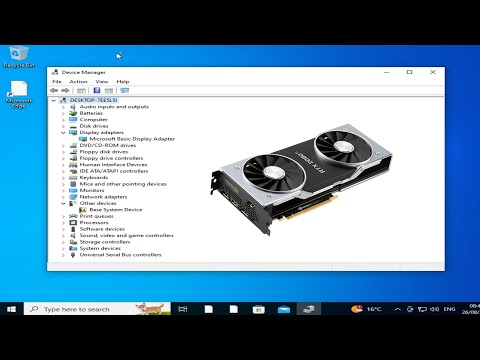
- Update Drivers: Outdated drivers can mess with your display. Try updating them! Head to the Device Manager—right-click Start button and choose “Device Manager.” Find “Display adapters,” right-click it and select “Update driver.”
- Roll Back Drivers: Sometimes new updates aren’t friendly! Go back to previous versions by selecting “Properties” in “Device Manager” then choosing “Roll Back Driver” under the Driver tab.
Remember my own ordeal when everything went blurry after an update? Yep, ended up squinting at screens for days until I realized an update had flipped my display settings without asking nicely.
And hey, if all else fails, hitting up Microsoft Support or checking forums can sometimes lead you straight to helpful solutions others found handy.
Keep those screens clear and happy browsing!
Windows 10 VGA Monitor Compatibility
You know, dealing with display issues on Windows 10 can be a bit frustrating. Imagine this: you just want to settle down for some work or gaming, but your monitor just won’t cooperate! Happens to us all at some point. If you’re using a VGA connection, and things aren’t displaying quite right, you might suspect the VGA driver could be causing the hiccup.
Understanding the Issue
Windows 10 is pretty versatile when it comes to handling different monitors and connections like HDMI, DisplayPort and good old VGA. However, older hardware sometimes has quirks that modern systems have trouble understanding.
Common Symptoms of Driver Problems
- Resolution Woes: Things may appear blurry or stretched because your system might not identify your monitor’s optimal resolution.
- No Signal Error: Sometimes you might see this message even when everything’s plugged in correctly.
- Flickering Display: The screen starts flickering anytime you open a new app or window.
Troubleshooting Tips
Your first step should always be checking and making sure all physical connections are secure. I mean, let’s not overlook the obvious!
Next up:
- Update Drivers: Head over to Device Manager (just search it in your start menu). Find “Display adapters,” right-click your graphics card and hit “Update driver.” It often fetches newer drivers which can solve many problems.
- Check Windows Update: Believe it or not, sometimes Microsoft bundles useful driver updates within general system updates.
Try going into Settings > Update & Security > Windows Update-and see if there’s anything available there. - Install OEM Monitor Driver: : Occasionally,. manufactures provide specific drivers which help identify their monitors better than General Plug-n-Play types
You can visit manufacturer website directly usually under “Support” . Download according model number – pretty handy
A Personal Tale!:
Once upon time…I had similar drama where my secondary monitor was practically being stubborn! Would refuse showing its usual resolutions after changing stations (groan)! Long drawn struggle was finally relieved reinstalling manufacturer-specific file; talk ’bout easy remedy overlooked till last minute huh?
Anyway remember patience’s key folks—getting perfect setup again takes few steps lots experimenting Learning process y’all!
Checking for Outdated Display Drivers
Checking for outdated display drivers, especially when your VGA driver starts acting up on Windows 10, can feel like you’re troubleshooting a mystery puzzle. You know? I’ve been there too—everything’s going great, and then suddenly, bam! Your screen flickers or goes dark out of nowhere. Annoying, right?
First things first, let’s talk about why this happens. Display drivers are like translators between your computer and monitor; if they’re not updated or compatible with your system’s updates, everything gets lost in translation. This miscommunication leads to display issues.
- Check for Driver Updates: The easiest way is to use the Device Manager. Access it by right-clicking the Start menu and choosing Device Manager. Once there, find Display Adapters, click that little arrow next to it.
- Right-click on your VGA Driver: Select Update Driver. A window will pop up with two options: choose Search automatically for updated driver software.
- If Windows finds an update, it’ll download and install it for you! But if not? Well dont worry—there’s more you can try.
If automatic updates leave you hanging dry without a solution, manually downloading drivers often helps. Head over to the manufacturer’s website of your graphics card—NVIDIA or AMD are common places folks visit—and search for their latest drivers compatible with Windows 10.
Anecdote time! I remember helping my friend Sarah last year when her laptop started showing all sorts of crazy colors during a presentation at work. She was mortified. Turned out her graphics card was using an ancient driver version!
- Create a Restore Point: Before installing any new software or updates just in case things go south—it happens sometimes! Type “Create restore point” into the search bar on taskbar (the strip at bottom) then click Create.
- Troubleshoot Compatibility Issues: Maybe old settings aren’t playing nice anymore with recent windows tweaks; try running compatibility troubleshooter by right clicking .exe file (setup file) selecting Properties > Compatibility tab > Run this program compatibility mode.
So yeah! Updating those pesky VGA drivers might seem daunting at first glance but believe me once done properly saves yourself loads headaches down road making computing experience much smoother sailing than facing random glitches during important tasks again just like dear old Sarah did wisely following through these steps!
Good luck fixing those display issues—I hope they become nothing more than faint memory soon enough!
You know, fiddling with computer displays can really test your patience. I remember one time a friend of mine was in the middle of prepping for an online presentation—nerves all jittery and everything. Suddenly, bam! The screen went haywire. The display was glitching like a disco ball on overdrive, with colors popping here and there.
Turns out it was the old VGA driver causing a ruckus on his Windows 10 PC. Who would’ve thought something so tiny could stir up such big trouble? But that’s technology for you—sometimes it’s like that double-edged sword we can’t live without yet secretly want to throw out the window when it misbehaves.
When you’re dealing with these display issues, it’s often a driver problem lurking beneath the surface. In simple terms, think of drivers as little pieces of software that tell your computer how to talk to its various parts. Sometimes these drivers just need an update or even a complete reinstallation to get back in sync.
Now back to my friend’s story: We scoured through settings like treasure hunters until we found the control panel for device management. There, we updated his VGA driver—it felt kind of like giving first aid to his PC! With some clicks and crossed fingers later, everything settled down smoothly.
If you ever find yourself wrapped up in such glitches just remember it’s usually not the end of the world—even if it feels like it at first! Updating or reinstalling graphics drivers can often do wonders and bring sanity back to your screen.
Next time your display decides to dance when you ain’t playing music just take a deep breath—you got this!