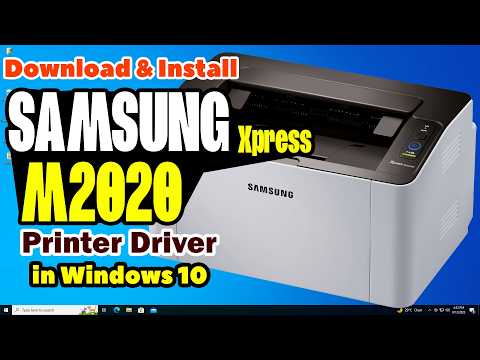
Oh man, printers, right? They can be a bit of a hassle sometimes. But don’t worry, I’ve got your back! If you’ve got a Samsung Xpress M2020 and need to get that driver installed, you’re in the right place.
It’s like when you’re trying to bake a cake without flour. You absolutely need it for everything to work smoothly! That’s what drivers are for printers—they’re the flour in our tech recipe. They’re what make your computer and printer handshake and say “Hello!”.
I remember one time when I was setting up my friend’s printer. We were just about ready to toss it out the window until we figured out what the problem was: no driver installed! Boy did we laugh after that small oversight.
So grab your favorite drink, put on some comfy music—let’s get this Samsung Xpress M2020 purring like a kitten. Trust me, it’s easier than it seems!
Samsung Xpress M2020 Driver Installation Steps
Installing the driver for your Samsung Xpress M2020 printer isn’t rocket science, but there are some steps you’ll want to follow carefully. Let’s get into it.
First off, make sure you’ve got your computer ready and connected to the internet. You’re gonna need that connection to download the driver.
1. Download the Driver:
Head over to Samsung’s official website—or HP’s, since they acquired Samsung’s printer business—and look for their support section. You’ll find a search bar there where you can type “Samsung Xpress M2020.” After selecting your correct model, locate the drivers section and click on “Download.”
2. Locate the File:
Once it’s downloaded, go to your downloads folder on your computer—people usually forget this step! You’ll see a file with an extension like .exe for Windows or .dmg for Mac users.
3. Start Installation:
- Windows Users: Double-click on that .exe file.
- Mac Users: Open the .dmg file and then double-click on any installer package inside.
4. Follow Instructions:
You’ll get some prompts popping up that guide you through the installation process. Make sure you’re clicking “Next” until you reach “Finish.” They’ll ask about installing some optional software too; it’s up to you if want those extra features.
5. Connect Your Printer:
If it’s not already connected, plug in that USB cable from your printer into your computer or follow the wireless setup instructions if you’re going wireless.
- You might see a prompt asking if you want to add this new device—click ‘Yes’.
- If not automatic, go into ‘Settings’ > ‘Devices’ > ‘Printers & Scanners’ and hit ‘Add a printer’. Look for ‘Samsung Xpress M2020’ in available devices.
- You’ll need go into ‘System Preferences’ > ‘Printers & Scanners.’
- Select ‘+’ sign at bottom left of window and pick out ‘Samsung Xpress M2020’ from nearby printers.
If these steps don’t work immediately don’t worry—you can always try restarting everything before giving it another shot! Technology sometimes needs encouragement… like my old toaster back home—it only works after talking nicely enough!
Once everything’s installed correctly you’ll be able print those documents smoothly without hiccups—that feels pretty great doesn’t it?
Samsung Xpress M2020 Driver Installation Guide
Alright, so you’re all set to get your Samsung Xpress M2020 printer up and running, huh? Don’t worry, it’s not as tricky as it might seem. Let’s get into it. First things first, make sure you’ve got everything in place—like your printer, cables, and a computer. You know how sometimes cables just disappear right when you need them? Yeah, check for that first.
Downloading the Driver
Before you can print anything, you need to download the driver—the software that helps your printer communicate with the computer. Think of it like a translator between two friends speaking different languages.
- Head over to the official HP support site. Even though it’s a Samsung printer, HP handles their support now.
- Search for “Samsung Xpress M2020 driver” in their search box.
- Select your operating system from the list—Windows or Mac—and download the appropriate file.
Installing the Driver
Now we’ll move on to installation. Honestly, this part’s pretty straightforward but does require some attention.
- Once downloaded, find the file in your ‘Downloads’ folder (in Windows) or ‘Downloads’ section (on Mac).
- Double click on the file to launch the installation process.
- A wizard will guide you through; just follow those prompts! It’s usually just clicking “Next”, but do read through if something looks odd.
Connecting Your Printer
After installing drivers comes hooking up your printer. Remember that big pile of USB cables? This one’s important!
- If you’re using a USB connection—plug one end into your printer and one into a free USB port on your computer.
- If it’s wireless—make sure both devices are connected to same WiFi network!
- (There might be some dust bunnies blocking easier connections…)
Testing It Out
Finally time for truth! Print something random like an image file or even this guide page itself if feeling fancy.
– Open any document on screen
– Hit “Ctrl + P” (or Command + P).
– Choose “Samsung Xpress M2020” from list of printers.
Feeling nervous? Happens everytime I try printing dinner recipes without burning them!
And there ya go—that covers getting driver installed so printing stuff isn’t nightmarish hunt anymore!
Samsung Xpress M2020 Driver Installation Steps
Getting your Samsung Xpress M2020 printer up and running, especially when it involves fiddling with driver installation, can feel a bit like magic at first. But it’s really not as complicated as it might seem. You just need a little guidance and you’ll have things printing in no time! Remember the first time you assembled something without looking at the manual? Yeah, this won’t be like that!
Step 1: Unbox and Connect
Before we dive into the driver’s realm, make sure your printer is unpacked and set up properly. Connect it to your computer with the provided USB cable. Pretty straightforward so far!
Step 2: Head Over to Samsung’s Support Page
Fire up your favorite web browser and go over to Samsung’s official support website. Simply type “Samsung Xpress M2020 driver” in the search bar there. It’s like hunting for treasure online but less dramatic.
Step 3: Select Your Operating System
Once you’re on the download page, choose your operating system (OS) from a dropdown menu if prompted. Whether you’re on Windows or macOS, there’ll be an option beckoning you.
- Windows Users: Usually, Windows 10 or later.
- macOS Users: Ensure you’ve got the right version—your Mac deserves only what fits!
Step 4: Download the Driver
After selecting your OS, there should be a shiny download button somewhere within arm’s reach—or mouse click range! Hit that button like you’re ringing someone’s doorbell for Halloween treats.
Step 5: Installation Wizard Time!
This is where things get interesting. Locate that downloaded file—usually chilling in your Downloads folder—and double-click it to start.
- A Window will Pop Up: Follow those prompts step by step.
- Sit Through Some Prompts: It guides you through something called an “installation wizard.”
- Example Link (Improve Understanding): Open those instruction manuals once upon a time felt triumphant.
Oddly enough these wizard names often remind us of fairy tales… except they actually solve problems here!
The Finishing Touches
If nothing explodes (just kidding), congratulations—your PC probably knows what kind of device invaded its space now!
Ah, printers. Those wonderful devices that only seem to misbehave when you’re in a hurry. Installing a printer driver isn’t most people’s idea of fun, but hey—it’s vital if you want your printer to do its job. And if you’ve got a Samsung Xpress M2020, you might be staring at it wondering what the next step is.
I remember helping my friend Sam with his new printer once. He was all excited—I mean, who doesn’t love the smell of fresh ink? But when it came time to install the driver, we hit a snag. It seemed like his computer and printer were speaking different languages!
Anyway, for those who aren’t familiar with this part of setting up a printer, let me break it down for you in friendly terms.
You start by visiting Samsung’s official website or wherever they keep their drivers online. Using the search function there can be handy—just type in “Xpress M2020 driver.” Once you find what you’re looking for, download the file. Always make sure to choose the right one for your operating system because Windows and macOS aren’t interchangeable in this scenario.
After saving that file on your computer go ahead and open it up—it’s often just about running an installer program that will guide you along step-by-step. Yeah sure sometimes there are some boring license agreements to agree with… but after clicking ‘Next’ a few times it should take care of itself.
There was this one time I forgot where I’d saved my downloaded file and had to download it again—that’s typical me—but guess what? You can probably find yours in your downloads folder or possibly even on your desktop if you’re anything like my uncle John who saves everything there!
Once installed rebooting never really hurts—and often makes things work better somehow—just like magic! After all that effort put into getting everything set up properly on both ends—that’s when seeing pages print flawlessly gives such satisfaction right?
Hope these nuggets help put Samsung Xpress M2020 installation woes behind quicker than expected!