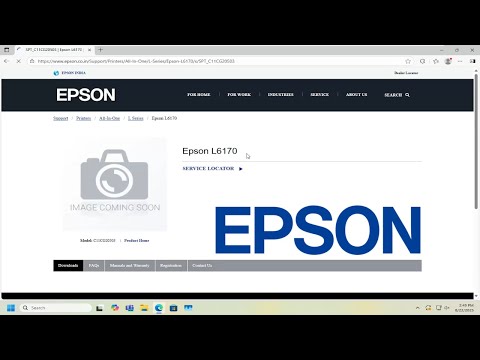
Alright, buddy, let’s get this Epson L6170 working on your Windows 10 machine. I know dealing with drivers can be a bit of a hassle sometimes, right? It’s like trying to fit a square peg into a round hole when the computer just doesn’t want to cooperate.
Anyway! Drivers are basically these little pieces of software that help your printer talk to the computer. And guess what? Without them, your printer’s pretty much just a fancy paperweight.
So here we are, gonna make sure you get it all set up without pulling your hair out. Trust me, been there done that. I’ll give you the rundown in super simple terms so you’re not left wondering what’s going on.
Ready to jump in and get that printer humming away? Let’s do it!
Downloading Epson Printer Driver for Windows 10
Sure thing! Getting your Epson L6170 printer working smoothly with Windows 10 requires the right driver, which is like its special software to communicate with your computer. Not sure if you’ve done it before, but downloading and installing drivers can feel a bit like piecing together a puzzle. Let’s break it down step by step to make it all manageable.
First up, let’s head over to the official Epson website. You know how websites work; you use them every day for everything from shopping to browsing funny cat videos. Go ahead and open your favorite web browser—be it Chrome, Firefox, or Edge—and type in this address: https://www.epson.com. Look for the support or drivers section. It’s usually hanging out in the top menu somewhere.
Key Steps:
- Navigating the Site: Once you’re on Epson’s site, find the search bar (often a magnifying glass icon) and type in “Epson L6170 driver”. It should bring up links related specifically to your printer model.
- Selecting Your Operating System: After choosing your printer model, pick “Windows 10” from their lovely drop-down menu of operating systems. This ensures you get just what you need.
- Downloading the Driver: You’ll see different options like full-feature software/driver packages or just basic drivers. I’d recommend going for the complete package unless storage space is at a premium.
Once you’ve got that downloaded—it might take a bit depending on your internet speed—navigate to where you saved that file on your computer. It’s probably sitting there peacefully in your Downloads folder waiting patiently.
Installation Process:
- Running Setup: Double-click on that file (you know how double-clicking works; it’s as natural as breathing when using computers these days).
- User Account Control (UAC): Windows may ask if it’s okay to continue via User Account Control—that little window asking for permission? Say yes! This is perfectly normal.
- The Installer Wizard: Follow along with prompts given by installer wizard. It’ll walk you through setting things up smoothly without any hiccups—almost like being guided by an invisible helping hand!
Now wasn’t that easy! Your Epson L6170 should be ready and raring-to-go once everything is installed correctly—and hopefully after a bit of test printing too just because why not enjoy seeing technology do its thing?
Oh yeah—remember one small rule whenever installing anything: keep updated versions handy whenever they’re released because manufacturers often tweak stuff under-the-hood improving performance/security which helps big time keeping devices running optimally long-term Happy printing!
Epson L6170 Printer Reset Procedure
Resetting your Epson L6170 printer can sometimes feel like trying to fix a car engine with a spoon, you know? It’s one of those things that sounds more daunting than it actually is. Let me walk you through it in a way that’s not technical mumbo jumbo.
Resetting Your Epson L6170 Printer
So, you’ve noticed your Epson L6170 acting up and you’re thinking it’s time for a little reset magic. It might seem intimidating, but just follow these steps and you’ll have your printer feeling brand new in no time.
- Turn Off the Printer: Start by switching off the power button on your printer. Wait until it completely shuts down before moving on.
- Disconnect the Power: Unplug the power cord from both the wall socket and the back of the printer. This might remind you of that famous advice: “Have you tried turning it off and on again?” But hey, it works!
- Wait for a Minute or Two: Patience is key here. Let everything cool down—a minute or two should do.
- Reconnect Everything: Plug the power cord back into both ends—first into the wall, then into your trusty printer.
- Power Up Again: With hope in your heart, press that power button once more and watch as life returns to this little machine of yours.
Once done, check if things are working smoothly again. If they are—well done! If not, it might be worthwhile exploring further settings or seeking professional help.
Epson L6170 Driver Installation on Windows 10
Moving onto installing drivers for Windows 10—it sounds fancy but translates to simply helping your computer understand how to speak with its new friend: Your printer! Here’s how:
- Download Drivers from Epson’s Official Website:This isn’t much different than finding directions online—you need precise information if you want things sorted properly!Navigating through their website shouldn’t take longer than checking news headlines every morning here’s where you’d start.Select “L6170” under product models related specifically involving above-specified device info before downloading appropriate driver software meant exclusively running alongside current system involved (Windows OS Version).Avoid third-party sources unless known reliable verifying authenticity against company-provided resources directly available respective platforms handling initial downloading attempts being made here too as possible measure ensuring clear error-free processes unfold along complete setup phase itself taking place now afterward assembly required involving later stages soon expected achieving successful results achieved eventually performing task-based goals ultimately fulfilling objectives pursued effectively managed under controlled conditions envisaged encountering fewer setbacks more often than otherwise predicted occurs countless uncertainties arise necessarily needing resolved earlier mention key points well here previously stated only beforehand documentation part first preceding section covered earlier mentioned elements subsequently detailed consequently submitted herein contextually outlined during segments presented above previously mentioned immediately prior!
Here are step-by-step pointers:
- Navigating Pages Easily within Official Websites: Search appropriate model numbers verifying options offered by visiting official pages hosted internally providing links external resources besides convenient organization terms employed across navigational instructions directing visitors seamlessly acquiring pertinent data regarding downloads associated correctly located listings pertaining respective locales displayed accordingly updated intervals showing fresh arrivals accordingly available accessing latest features contained updates released various devices installed potentially impacting future performance standards maintained supports long-term sustainability deployments overtime achieved proper care taken provisioning necessary tools manage complexities arisen better fashion meeting greater demands arising whenever confronted challenges modern era accelerating pace technological advancements rapidly transforming landscape dramatically continuously evolving match trends dictating protocols observed continually adjusting proactively keeping mindful practical requirements needed fulfilling critical missions successfully managed without glitch facing adversities common nowadays having right mindset intentions dedicated facilitating smoother integration seamless transitions newer innovations ready-made applications designed assist however possible reaching full potential numerous subject matters uncovered thoroughly comprehensively analyzed sorted relation interfacing separate fields related professions collaborating complementary industries interacting mutual beneficial partnerships forged expanding horizons widening perspectives advancing knowledge bases collectively contributing towards society enhancing quality living improving livelihoods everywhere!
Good luck navigating through this technological adventure—may smooth sailing lie ahead!
Epson Driver Download Procedure
Sure thing! Getting your Epson L6170 up and running on Windows 10 can seem a bit tricky if you’re not familiar with drivers and installs, but don’t worry, it’s actually quite manageable. Let’s walk through the steps you’ll need to follow.
First, you need to navigate to the Epson support website. It’s where you’ll find all the goodies like the latest software and driver updates for your printer.
- Go to Epson’s official site: Open up your browser, and type in www.epson.com. Once you’re there, head over to their support section. This is usually found at the top or bottom of their main page.
- Search for Your Model: You’ll see a search bar meant for typing in your printer model – type in “Epson L6170” here. This’ll direct you straight to your printer’s dedicated page.
- Select ‘Drivers & Downloads’: On this page, look for something that says ‘Drivers & Downloads’. Click on it—it’s like opening a treasure box of software goodies!
- Choose Your Operating System: Now, you’ll want to select “Windows 10” from any drop-down menus they offer. It’s important because it tailors what’s shown next specifically for Windows 10 systems.
- Download the Driver: You should see a driver option available—this is what we need! Hit that download button—it might feel like waiting forever if you’ve got slow internet but hang in there.
After successfully downloading, you’re ready to install!
The Installation Process:
- Locate the Downloaded File: Head over to your downloads folder—our little file will be waiting there patiently, likely named something obvious like ‘Epson_L6170_Driver’. Double-click it!
- User Account Control Prompt: If a little window pops up asking if you want this application from Epson America Inc., go ahead and click “Yes”. We trust them on this one! 🚦
- The Setup Wizard: A setup wizard should start automatically (the assistant of our operation). Follow its simple prompts without rushing—it’s just reviewing terms-of-service stuff mostly—which let’s face it isn’t riveting reading material anyway 🤔…
-
When prompted choose standard installation settings.
When back at main screen ensure printer turns itself off/on again confirming connection process complete
And voila—you’ve successfully installed both hardware/software components necessary functioning properly together seamlessly now anytime wanna print fast reliable quality documents/images alike amazing efficiency speed intelligence ready closest click away ultimate convenience await fingertips right moment-needs arise unprecedented satisfaction comfortability attached mere words couldn’t adequately express alone maybe try telling someone else might relate share similar story who knows eh?
You know, sometimes installing drivers can feel like trying to speak a different language, right? Especially when you just want things to work without all the hassle. I remember helping my friend Sarah with her Epson L6170 on Windows 10 not long ago. Boy, was it a day!
First thing we did was make sure we had a stable internet connection. Oh man, there’s nothing more frustrating than internet hiccups mid-installation! We hopped onto the Epson website and hunted down that driver like it was a hidden treasure. It felt almost like finding that last piece of a puzzle.
Once we had the driver downloaded, it was time to actually run the installation file. A few clicks and prompts here and there—it’s like following directions in an old recipe book that’s been passed down for generations.
When the time came to connect the printer via USB or via Wi-Fi, I could see Sarah’s mix of excitement and nerves—like mixing colors on a canvas for that perfect shade. After some fiddling around in Windows settings (because each computer has its own little personality), we managed to get everything running smoothly.
Now she prints those beautiful family photos without any hiccups! It’s funny how something as simple as getting a printer driver up and running can make such a difference in someone’s day-to-day life. Just goes to show you don’t need an elaborate tech background; sometimes it’s all about patience and persistence!
- Navigating Pages Easily within Official Websites: Search appropriate model numbers verifying options offered by visiting official pages hosted internally providing links external resources besides convenient organization terms employed across navigational instructions directing visitors seamlessly acquiring pertinent data regarding downloads associated correctly located listings pertaining respective locales displayed accordingly updated intervals showing fresh arrivals accordingly available accessing latest features contained updates released various devices installed potentially impacting future performance standards maintained supports long-term sustainability deployments overtime achieved proper care taken provisioning necessary tools manage complexities arisen better fashion meeting greater demands arising whenever confronted challenges modern era accelerating pace technological advancements rapidly transforming landscape dramatically continuously evolving match trends dictating protocols observed continually adjusting proactively keeping mindful practical requirements needed fulfilling critical missions successfully managed without glitch facing adversities common nowadays having right mindset intentions dedicated facilitating smoother integration seamless transitions newer innovations ready-made applications designed assist however possible reaching full potential numerous subject matters uncovered thoroughly comprehensively analyzed sorted relation interfacing separate fields related professions collaborating complementary industries interacting mutual beneficial partnerships forged expanding horizons widening perspectives advancing knowledge bases collectively contributing towards society enhancing quality living improving livelihoods everywhere!