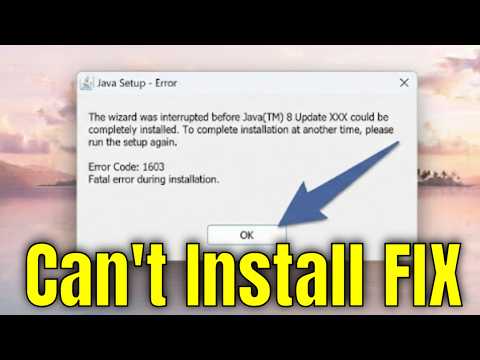
Oh boy, installing Java 8 on a Windows machine can sometimes feel like taming a wild beast, right? You know what I’m talking about. There you are, all set to work on your project or maybe just trying to run that one app that absolutely insists on Java 8. And then, bam! You hit a roadblock.
Now, don’t throw your computer out the window just yet! It’s not as scary as it sounds—promise. Even though those installation issues might seem like they’re written in alien code at first glance.
Let me tell you a little story. The first time I tried installing Java 8, I thought it would be smooth sailing. Spoiler alert: it wasn’t! Spending what felt like hours clicking buttons and scratching my head was not fun. But once I found some simple solutions, everything clicked into place like magic.
So if you’re feeling lost or just plain frustrated with this whole process, stick around and let’s make this easier together!
Java 8 Installation Failure Causes
Oh, I get it! Running into issues with installing Java 8 on Windows can be a bit of a headache, right? Let’s break down some reasons why this might be happening. You know, sometimes it’s the small things that trip us up.
First off, check if you’re running the correct version for your system. Imagine trying to fit a square peg in a round hole—it just won’t work. Windows comes in two versions: 32-bit and 64-bit. If you’re using a 64-bit system, make sure you’re downloading the 64-bit version of Java 8.
Now, let’s look at some other potential hiccups:
- Compatibility Issues: You’ve got to watch out for incompatible software that might already be on your machine. If you have an older version of Java installed, it could interfere with the installation process.
- User Permissions: Good old user permissions! They trip up many folks without them even realizing it. Ensure you have admin rights when installing software—it’s like having the key to access all areas.
- Lack of Disk Space: This one is sneaky because we sometimes forget about storage limits until it’s too late. Double-check that there’s enough space on your hard drive.
- Corrupted Installer Files: Download errors happen more often than you’d think. It’s annoying but try re-downloading the installer from Oracle’s official site if you suspect corruption.
- Sneaky Security Software: Antivirus programs can sometimes block installations they wrongly detect as harmful software—overprotective much?
And hey, don’t overlook those boring-but-important Windows Updates! Sometimes installations fail simply because your system isn’t as up-to-date as it should be.
In my experience at least once while helping someone tackle this problem we found their issue was due not only due updates needing attention but also lurking corner cases like background processes hogging resources—so keep task manager open to see what else is cooking!
Don’t let frustration win over; step back reassess each point calmly readying yourself armed-knowing eventual solution lies ahead after resolving these challenges efficiently together here today hope shared insights assist clearing way smooth sailing success-wise future endeavors debugging installs & beyond!
Java Installation Error Causes
Isn’t it frustrating when you’re ready to dive into a project, and bam! A Java installation error pops up? Let’s chat about some common reasons why installing Java 8 on a Windows 64-bit system might trip you up.
1. System Compatibility:
First off, your Windows must be 64-bit for the Java 8 64-bit installer. If you’re unsure whether your system fits the bill, here’s a quick way to check: Right-click on ‘This PC’ or ‘My Computer,’ then click ‘Properties.’ It should tell you if you’ve got a 32-bit or 64-bit system under ‘System type.’
2. Incomplete Download:
Ever had an internet hiccup leave downloads half-baked? This can definitely happen with Java installers. Ensuring that your download is complete is crucial. If you’re having trouble, try downloading it again from the official Oracle website.
3. Corrupt Installer File:
Sometimes files get corrupted during download or transfer—like that one time my cat stepped on my keyboard while I was downloading something important! Try redownloading the installer to make sure it’s intact.
4. Previous Versions Conflicts:
It can also be messy if there’s a jumble of old Java versions lingering around in your system like uninvited guests at a party! Clearing them out before trying to install the new version helps:
- Go to Control Panel.
- Select ‘Programs and Features.’
- Uninstall any previous versions of Java.
5. Environment Variables:
Here’s where things get slightly technical: Sometimes JAVA_HOME isn’t set properly, leading to errors. Head over to ‘Environment Variables’ by searching for this in your Start menu settings and ensure JAVA_HOME points correctly to where you’ve installed Java.
6. Administrator Privileges Needed:
You know how some installations act like they need special authorization? Here’s one case where running as an administrator can save headaches:
- Right-click, choose ‘Run as Administrator,’ and let it work its magic.
Don’t worry if these steps feel like quite a task—most of us have been there at some point! Letting patience guide through each step often unveils which part needs fixing, getting everything running smoothly again with peace restored once more across devices everywhere… phew!
If after all these attempts things still aren’t clicking into place or additional support feels necessary seek official resources provided directly from Oracle Support pages too—they have heaps catered specifically built towards safeguarding digital experience overall time round all whilst maximizing efficiency overall really speaking!
Java 8 64-bit Installation Issues on Windows
Oh, the joys of installing software! Sometimes it feels like a treasure hunt, doesn’t it? Let’s chat about tackling those pesky Java 8 64-bit installation issues on Windows. It can be a bit of a maze, but we’re in this together!
First things first: make sure your system is ready for it.
- Check your Windows version: You need to have a 64-bit version of Windows to install the Java 8 64-bit version. Sounds obvious, but you’d be surprised how often this gets overlooked. You can find this by right-clicking on ‘This PC’, choosing ‘Properties’, and checking under the “System type” section.
Once you’ve confirmed that you’re all set there, let’s move to downloading the right installer.
- Download from the official site: Head over to Oracle’s official website. They have all Java versions, and it’s vital you get the proper one: look for ‘Java SE Development Kit 8uXXX’. Choose the Windows x64 version. It’s crucial because getting it from somewhere else might lead to malware—yikes!
You’ve got the installer ready? Excellent! Now comes running it…
- Run as Administrator: This step sometimes saves a lot of hassle. Right-click on the downloaded installer file and select ‘Run as administrator’. This is like giving your computer permission to let Java do its thing without restrictions.
If everything goes smoothly, fantastic! But issues can pop up like unwanted ads. Here are common hiccups you might face:
- Error Messages: Maybe it’s saying something about missing environment variables? Don’t worry—it’s more straightforward than finding Waldo! You’ll want to set your JAVA_HOME environment variable manually. Head into Control Panel -> System and Security -> System -> Advanced system settings -> Environment Variables… And create/edit JAVA_HOME pointing at your JDK installation folder.
- No JVM Found: Sometimes apps will complain that they can’t find Java even when it’s installed! This might mean you need adjust PATH settings so Windows knows where look each time an app asks for some java-y goodness.This involves adding “;%JAVA_HOME%bin” (without quotes) after existing entries within PATH variables list.Well worth learning if intend using numerous command-line tools which need know where locate itself correctly!
- “Old Version Error:” : Think seeing message suggest newer already installed while trying get older one setup instead remember remove previous installations before attempting fresh action otherwise likely see repeats similar messages dare install downgrade over latest installation (eek!).
Oh, Java installations! It’s like a little rite of passage for anyone dealing with Windows and development. You know, you think it should be straightforward—download, click a couple of times, and voilà! But sometimes, oh boy, it turns into a bit of an adventure.
I remember this one time when I was trying to set up Java 8 on my old laptop. It was supposed to be simple. I’d done it dozens of times before. Then suddenly: bam! An error that sent me on a wild goose chase across forums and tech support sites.
So here’s the scoop: if you’re having trouble with the Java 8 64-bit installation on Windows, you’re definitely not alone. One common hiccup is mixing up the 32-bit and 64-bit versions. Your system needs to match what you’re installing—like a proper shoe fit! And then there’s the matter of setting those pesky environment variables correctly. It feels like you’re deciphering some ancient secret code sometimes.
I also discovered that having an older version already installed can cause all sorts of unexpected dramas—not exactly what you’d want when you’re just getting started with coding or running an application that depends on Java.
Let’s not even start on permissions issues because sometimes Windows just acts like it’s guarding state secrets or something!
Anyway, if anything goes wrong during installation, don’t panic. Just take a breath and double-check if every box is checked right: versions match up, environment variables are set properly, no remnants from past installs are sitting around waiting to trip you up—and fingers crossed everything works out smoothly this time!
These challenges remind me there’s always something new to learn—even from things we thought would go by without fussing over them at all!