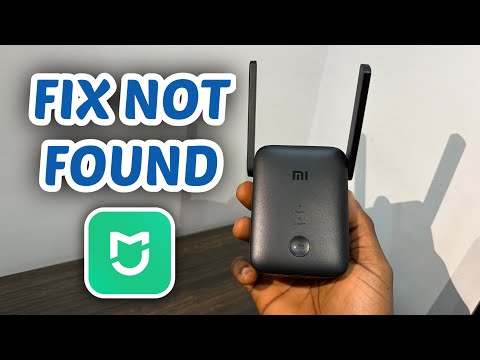
You know, the other day, I was in the middle of binge-watching my favorite series—just getting to the juicy bit—and then, bam! My WiFi decided to play hide and seek. Super annoying. Anyway, that’s when I thought of using a Xiaomi WiFi Extender Pro to fix this little mess.
But guess what? It didn’t connect to my network! Oh man, talk about frustration. Have you ever been there? You’d think setting it up would be easy-peasy, right? Apparently not.
We’re talking blinky lights and restarting everything in sight. Quite the adventure. It just wouldn’t hook up no matter what I tried! Like having a conversation with someone who refuses to respond. Yep, good times!
So that’s why we’re here—to figure this one out together and see what’s going on with this gizmo when it decides to throw a fit like mine did. Let’s crack this mystery open!
Xiaomi WiFi Extender Pro Connection Issues
Ah, the joys of technology! Sometimes your Xiaomi WiFi Extender Pro just doesn’t want to play nice, right? Let’s check out a few things that may be the culprit. Hey, it happens to the best of us, so no worries!
Check Your WiFi Name and Password:
First thing you want to do is make sure you’re entering the correct WiFi name and password. Sounds simple, but a single typo can cause chaos. Check spaces and character cases; they need to match exactly with what your router shows.
Device Placement:
Your extender deserves a comfy spot between your router and where you need better coverage. Don’t shove it in a corner behind the couch. Walls and other electronics can mess up signals big time!
- Avoid Large Obstacles: Keep it clear of walls or devices like microwaves.
- Halfway Spot: Ideally place it midway between your router and where you’re extending to.
The Right Frequency Band:
This gadget only works with 2.4 GHz networks—not with 5 GHz ones! Crazy how those little numbers make all the difference, huh?
Reset If Needed!
You won’t believe how often this works—give resetting a shot. Hit that reset button (tiny pen needed!) until you see lights do their dance, usually around five seconds.
Xiaomi Home App:
The Xiaomi Home app isn’t just there for looks—it’s super helpful for setting up connections too! Download from Google Play or Apple store if not done already.
– Open up that app
– Select “Add Device”
– Follow their step-by-step instructions
– You may even get some cool diagram visuals during setup
If after trying these steps nothing seems budged yet (annoying!), consider checking for any firmware updates under settings via its app interface itself; tech companies are always releasing tweaks behind-the-scenes aiming towards improving performance stability overall!
Remember—it’s part puzzle-solving attitude put alongside action-we’ve got faith things will soon be groovin’ smoothly once more on digital waves again in no-time fast at alll!!
Xiaomi WiFi Extender Pro iPhone Connectivity Issue
Ah, technology—sometimes it feels like it’s out to get us, right? So you’re having a hard time getting your Xiaomi WiFi Extender Pro to play nice with your iPhone. Ugh, that can seriously test one’s patience. Let’s try to make sense of this together.
First things first, you want to make sure the WiFi Extender Pro is set up properly. Sometimes it seems simpler than it is! Here’s what you should check:
- Placement: Ensure it’s placed within a good range of the router itself but not too far away from your phone either. Walls and furniture can be sneaky obstacles!
- Power On: This might sound obvious, but sometimes we forget to check if it’s actually plugged in and turned on. Happens more often than you think.
Next up, let’s work on the connectivity puzzle piece by piece:
1. Reset the WiFi Extender:
If your extender has been acting up lately—maybe a bit cranky—it’s worth doing a reset.
- This often involves pressing a small button on the device until you see some LED lights flashing in excitement.
- The process varies slightly across models, so peeking at its manual might help here.
2. Network Settings Check:
Give your iPhone’s network settings an examination as well:
- “Forget” and reconnect to existing networks. Sometimes devices just need fresh introductions!
- You can find this option by going into Settings > Wi-Fi > Tap on current networks with ease.
3. Firmware Update:
Keeping things current doesn’t just apply socially—it matters for devices too:
- An old firmware version could be tripping over new technological lingo; keep both router/extender updated through official support sites regularly!
Remember when I once spent an entire afternoon wrestling with my own extender? Turns out someone *cough – my cat* had pushed it behind furniture where it lost signal completely!
To wrap things up neatly like gift bows:
The Xiaomi device should connect without hassle once both ends have been tended carefully—just remember those potential signal blockers around home sweet home! If anything still misbehaves despite sharing valuable wisdom here today…patience will always prove important since after all—as tech remains unpredictable even at times loyal best friends suddenly go silent.
Hope these tips bring back speedy connections again soon enough—or at least cut down future confusion while navigating setups like pros ourselves!
Connection Timeout with Xiaomi WiFi Repeater Pro
Oh boy, the frustration of encountering a connection timeout with your Xiaomi WiFi Repeater Pro is, well, something else. It’s like you’re trying get comfortable in your favorite chair only to feel a spring poking you. Annoying, right? Let’s try figuring this out together.
First off, a connection timeout happens when the repeater can’t communicate properly with your main router. It’s like they’re giving each other the silent treatment! Here are some friendly pointers to help get things back on track:
- Check Signal Strength: Make sure the repeater is within range of your router. If it’s too far away, it might struggle to keep a strong connection. Bring it closer for better reception.
- Network Congestion: Your network could be crowded with devices fighting for attention. Sometimes restarting both your main router and the repeater can refresh connections and make everyone happier.
- Firmware Update: Outdated software on the repeater can cause hiccups. Heading over to Xiaomi’s site or app and checking for updates helps keep everything smooth.
- Password Issues: Make sure you’re using the correct WiFi password during setup or reconnection attempts—mistakes happen!
- Configuration Settings: Sometimes resetting those settings can do wonders. A factory reset helps start clean if things have gone awry.
If none of these steps solves it, maybe consider interference from other electronics? Microwaves and cordless phones love causing chaos with WiFi signals!
It’s important not let tech troubles ruin your day! Remember how that one time you fixed an issue and felt like an absolute genius afterward? Hang in there; you’ve got this!
Oh boy, the struggles with tech gadgets can be quite the adventure, right? Imagine you’ve just settled down to binge-watch your favorite show, but your WiFi signal is weak in that one spot on the couch you really like. You think you’ve got it all sorted by snapping up a Xiaomi WiFi Extender Pro. It’s supposed to solve everything! Except, it doesn’t connect to the network. Frustrating, huh?
You know how these things go; at times like this, patience is as valuable as gold. It’s a bit like trying to fit together mismatched puzzle pieces when setting up new devices. First thing I’d say—make sure it’s plugged in correctly and within range of your router’s signal. Sounds basic, but sometimes we miss the simple stuff when we’re in a tizzy.
Now here’s another thought: is it possible there’s interference from other devices around? Microwaves or cordless phones can mess with signals more than you’d imagine! Crazy how that works out.
And then there’s always the good old reset option—unplugging it for a few minutes before trying again could be just what you need. Feels almost magical when things just start working after a reboot.
If none of these quirks work out and you’re still stuck watching buffering circles instead of your show… well, checking if there’s any software updates for either your router or extender could be worth it too.
Technology has an odd way of testing our patience sometimes—but hey—it usually gets sorted out eventually! Good luck getting that extender connected soon; you’ll be back on your comfy couch spot enjoying high-speed internet before long!