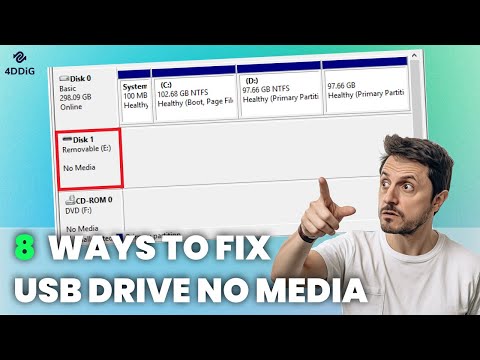
You plug in your USB drive, and then—wait for it—it says “No Media.” Gah! I mean, seriously? We’ve all been there. You start thinking of all those vacation photos and important files. Where did they just go?
I remember this one time I had a similar issue at a crucial moment. I was prepping for a presentation—my boss waiting—feeling the sweat roll down my back. Talk about bad timing!
But hey, let’s not panic. This could be something small or maybe just a hiccup on the computer end. Sometimes these things aren’t as complicated as they seem, you know?
Stick around and let’s see if we can tame that tricky tech beast together!
USB Drive Detected but No Media Detected
Alright, let’s dig into this quirky issue with USB drives. You plug in your trusty USB drive and, uh-oh, it says “No Media Detected.” Yet somehow it’s still being recognized. What gives?
Understanding the Basics
When your computer detects the USB but shows no media, it could be a sign of a deeper problem—like the drive’s file system being corrupted or even hardware issues on the stick itself. Sometimes, just like how we occasionally forget where we put our keys only to find them right in front of us, the operating system gets momentarily confused about what’s inside that little stick.
Potential Causes
Some common reasons are simple while others might need a bit more digging:
- Corrupted File System: Your USB might have errors that prevent proper detection.
- Faulty Connections: The port or cable might not be functioning well—like when a charger seems fine but doesn’t power up your device.
- Outdated Drivers: Old drivers can cause devices to act up.
- Power Supply Issues: Not enough juice can make detection wonky.
Troubleshooting Steps
Here are some friendly steps to try and get things back on track:
1. **Check Physical Connections:** Ensure the USB is properly seated in its port. Try another port if possible—it’s a bit like switching seats when you can’t see well at the theater.
2. **Update Drivers:** Head over to Device Manager and look for outdated drivers. Right-click on your device under ‘Disk Drives’ and select ‘Update Driver.’ It’s like giving your computer a fresh set of glasses!
3. **Use Disk Management:** Open Disk Management (press Windows + X). See if there’s an unallocated or raw partition that needs attention—that’s kinda like discovering an unread book with blank pages needing formatting.
4. **Test on Another Computer:** Pop it into another machine just to rule out issues with your current setup.
5. **Check Power Supply:** For larger drives needing more power, make sure they’re plugged directly into ports—not through hubs which may lack adequate power supply.
6. **Look for Errors Using CHKDSK Command:**
“`
chkdsk [USB drive letter]: /f
“`
This command checks and repairs errors—it’s such a handy trick!
A Personal Story…
Ahhh reminds me one time I almost lost years worth of family photos due to similar hitches until updating my driver saved them all! My heart sank ‘till relief washed over seeing those cherished memories appear again…
Alright then! Give these steps shot; sometimes small tweaks lead solution finding victory!
USB Device Not Recognized Error
Imagine you’re excited to transfer some photos, but your USB device just won’t cooperate. It’s like being ignored at a party! When you plug in that trusty USB and your computer responds with a dreaded “USB Device Not Recognized” error, it can really dampen the mood. But don’t worry, you’re not alone, and there’s usually a way to fix this!
First things first, let’s try the simplest steps. Sometimes just unplugging the device and plugging it back in can do wonders. It’s like giving it a little nudge to wake up! If that doesn’t help, try inserting it into another USB port on your computer. Trust me; different ports sometimes have different attitudes.
Still not working? Alright, let’s dig deeper together:
- Check Your USB Device: Is there any visible damage? Dangling wires or suspicious bends might be the culprit.
- Try Another Computer: If possible, plug your USB device into a friend’s computer or another machine in your home. If it works there, then we know it’s something with your original setup.
- Power Management for USB Ports: This is a bit more technical but bear with me! Go to “Device Manager” (you can search for it on Windows), find “Universal Serial Bus controllers,” right-click each item that says “USB Root Hub,” and click “Properties.” Then navigate to the “Power Management” tab and uncheck “Allow the computer to turn off this device to save power.” See if that little trick does the magic.
- Update Your Drivers: Sometimes drivers are like old maps – they need updates! In Device Manager again, find any yellow triangles which scream problems. Right-click those items and select “Update driver.”
- Create New Drive Volume (For ‘No Media’ Error): Now this one’s important if you’re seeing ‘No Media.’ Open Disk Management, locate your removable disk (it might say unallocated space), right-click on that space and choose “New Simple Volume.” Just follow along with what Windows suggests!
A little anecdote for you: I once had my own cherished flash drive go unrecognized right before an important presentation. A quick internet dive later—I found these tips myself—and voilà! I saved the day without even being late.
Remember: Out of all these steps one might be just what you needed—or maybe even trying them all will shed light on what’s happening with your elusive USB friend.
So take heart—you’ve got this!
USB Detected but Drive Not Visible
Have you ever plugged in a USB drive and, while your computer gives you that little chime saying it’s connected, the drive doesn’t show up? It’s like it suddenly decided to play hide and seek. Maybe the situation didn’t happen on a critical day, when you had some important stuff stored there. Here’s what might be going on and how you can try to sort it all out.
First things first: don’t panic! This is actually a pretty common hiccup, and there are various reasons behind it. It’s just about digging around a little bit.
Check Disk Management
A good place to start is by opening Disk Management to see if your computer is recognizing the device but not assigning it a drive letter. You can do this by right-clicking “This PC” or “My Computer,” then choosing “Manage.” In here, select “Disk Management.”
Now have a look: if you see your USB here without an assigned letter (like E: or F:), that’s probably why it’s not showing up where you’d expect.
- If You See the Drive Here: Right-click on it and choose “Change Drive Letter and Paths.” Assign any available letter.
- If It Says ‘No Media’: This usually means there’s no partition for data. Try reformatting the drive (but remember, this will erase all data).
USB Ports Can Be Tricky!
It’s worth trying other ports because sometimes they just don’t want to cooperate with certain devices. It’s like kids refusing broccoli! Also, try different computers if possible because that helps narrow down whether it’s the drive or your machine being difficult.
Outdated Drivers Might Be Messing Up
Drivers are software whispers between hardware and Windows. If they’re outdated or corrupted, confusion happens! Head over to “Device Manager,” expand “Universal Serial Bus controllers,” find your USB device name, right-click and choose “Update driver.”
And hey—sometimes simply uninstalling the driver helps too (don’t worry; plug back in afterward & it’ll reinstall).
The Mystical World of Hidden Devices
Sometimes devices get hidden due life’s weirdness I suppose! In Device Manager again navigate through “View” at top menu bar & enable ‘Show hidden devices.’ Then look at whether anything ‘ghostly’ comes up!
But always remember—make sure crucial files aren’t manually hidden within actual folder settings once visible again!
I hope one of these steps gets everything working smoothly again! But if things still aren’t looking up after exploring these options feel free reach out professionally evaluated assistance—they’ve seen cases even *cray-zier* than yours before… 😉
Enjoy reconnecting amidst potential digital chaos—or lack thereof actually would mean success~, wouldn’t ya say?
Alright, let’s talk about those pesky moments when you plug in your USB drive and get that dreaded “No Media” message. It’s like plugging your phone into a charger only to realize it’s not charging—frustrating, isn’t it?
I remember this one time at a family reunion when we were all set to relive some old memories with photos stored on our USB. Just as I was about to take everyone on a stroll down memory lane, bam! The computer couldn’t detect the media. I tell ya, it felt like the universe wanted me to do a stand-up comedy routine instead. We ended up playing charades, trying to recreate those pictures!
You know what usually causes these detection headaches? It could be something as simple as the USB port being a bit loose or dusty—like when you can’t find your keys and they’re right there under your nose—or maybe the drive itself has picked up some errors over time.
Here’s what usually works or what I’ve seen work around these issues: First off, unplug it and try another port or even another computer if you’ve got one handy. Sounds silly maybe, but sometimes this tech stuff is just like stubborn patio doors—you just gotta jiggle it differently.
And if you’re feeling adventurous (and kind of techy), whip out the Disk Management tool on Windows—it’s like peeking into your kitchen cabinets trying to find where that sneaky jar of peanut butter went; you’ll see if the drive shows up there at all.
Also, keep in mind: cables can be sneaky troublemakers too! If they’re frayed or bent oddly… let’s just say they’re not helping play nice with your computer either.
Now don’t get me wrong—I’m not suggesting you start buying spare parts willy-nilly. But having an extra cable around won’t hurt!
There’s always that chance though that things might have gone kaput inside the USB itself. Like when my old car’s engine would refuse start until we found out raccoons had nested underhood! Sometimes life throws quirks at us…
So next time this happens don’t panic yet—you might have more power than ya think tinkering away gently getting things back rolling… Before resorting drastic measures anyway!