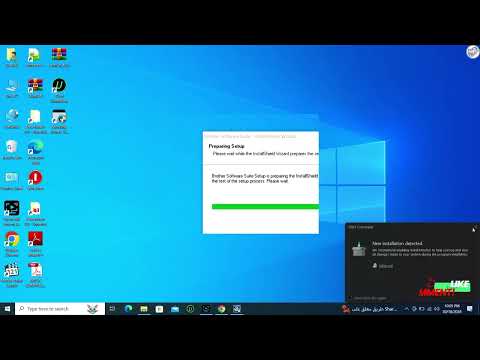
Oh man, those printer drivers, right? They can be such a headache sometimes. You’re just trying to get your Brother DCP-1610W set up and—bam!—you hit an installation error. It’s like the universe decided you didn’t need smooth sailing today.
I totally get it, been there done that. You just want your printer to work without all this hassle. But don’t worry too much, there’s usually a way out of these sticky situations.
You know how tech can just act up for no good reason? It’s not fun when you’re excited to print something cool or important, and then your plans come crashing down because of some driver glitch.
There’s always a light at the end of the tunnel. With a few tweaks here and there we can hopefully get you back on track with that device! So let’s see what might be going on with this quirky Brother model!
Troubleshooting Brother DCP 1610W Driver Error on Windows 11
Oh no, dealing with driver errors can feel like you’re spinning your wheels, right? The Brother DCP-1610W printer is a trusty piece of hardware for many folks. But encountering installation issues on Windows 11? That’s a bummer! Let’s tackle this step by step.
First off, make sure you’ve got the latest driver for the Brother DCP-1610W. Visit the Brother website and download it directly. This ensures compatibility with Windows 11—something our favorite old drivers might not handle too well.
- Check your USB connection: Sometimes it’s just a loose cable! Double-check that everything’s plugged in snugly.
- Disable firewall and antivirus software temporarily: These security tools might mistakenly block the installation process. Just remember to turn them back on afterward!
- Run Windows Update: An outdated system can cause hiccups. Ensure your OS has all its updates and patches applied.
- Use compatibility mode: Right-click on the driver setup file, choose ‘Properties,’ then ‘Compatibility.’ Select an older version of Windows if needed.
- Clean boot your PC: This minimizes startup programs that could interfere during installation. Type “msconfig” in the search box, hit Enter, and under Services tab check ‘Hide all Microsoft services’ then click ‘Disable all.’
If you still encounter issues:, uninstall any previous versions of the driver that’s half-installed or glitching out—a clean slate works wonders sometimes.
A little story to sprinkle some hope here: My friend Kevin once wrestled with a similar issue for hours until he discovered his malware software was silently blocking it without buzzing any alarms!
Troubleshooting tools exist for a reason:, so don’t hesitate to use Brother’s support page or forums where many have walked this techie path before you.
If things get really technical like error codes popping up (yikes!), jot them down—it helps to provide specific details if reaching out for more help later.
And there ya have it—these steps should guide you toward getting that printer humming again. And once you’re printing smoothly? Rejoice! You’ll be back to those crisp document pages in no time flat.
Driver Installation Error on Mac for Brother DCP-1610W
Oh no! So you’re trying to install the driver for your Brother DCP-1610W on a Mac and running into trouble? That can be super frustrating, right? No worries, let’s walk through this together.
First things first, ensure that your Mac is connected to the internet. Updating macOS can sometimes resolve compatibility issues with drivers. Go to the Apple menu and click on “System Preferences,” then “Software Update.”
If you’re still facing issues after updating, you might want to manually download the driver from Brother’s official website. Here’s how you can do it:
- Visit Brother’s Support Page: Navigate to their support page and search for “Brother DCP-1610W driver for Mac.” Download the latest version available.
- Open the Downloaded File: Once it’s downloaded, open the file from your Downloads folder. You might see a .dmg file which you need to double-click.
- Follow Installation Instructions: You’ll likely find an installer package inside—just follow the instructions it gives you.
If all goes well, that should install everything you need. However, weird things do happen… If there are still problems, try checking if any other printer software was left over from previous setups or installations—those could be confusing your system.
Sometimes removing previous installations helps:
- Go to Printers & Scanners: In “System Preferences,” select “Printers & Scanners.”
- Select & Remove Printer: Click on any old printers related to Brother that might be listed and hit that little minus button “-” below.
Another thing worth mentioning is permissions! At times macOS needs explicit permission settings adjusted so make sure printer permissions are in check under Security & Privacy preferences.
But hey look—I know all these steps sound like they belong in a puzzle game! When tech does not play nice—it gets on everyone’s nerves!
Now if nothing seems work even after these efforts (fingers crossed!), reaching out directly through either Apple Support or towards Brother Customer Service could be quite helpful too since they probably have dealt with similar situations before alright?
Hang tight because smoother print adventures surely await past this hiccup stage—you got this!
Windows 10 Driver Installation Error for Brother DCP-1610W
Oh boy, dealing with driver installation errors can feel like you’re stuck in a tech maze. Especially when you just want your Brother DCP-1610W printer up and running! Let’s break this down and make your life a tad easier, okay?
Understanding Driver Errors:
When we talk about drivers, think of them as translators between your computer and the hardware. The moment drivers act out? You end up with headaches instead of printouts.
The Culprit: Compatibility Issues
Sometimes the issue is as simple as an OS mismatch. If you’ve recently updated Windows 10 but the driver doesn’t keep up, they refuse to play nice together.
- Check Compatibility: Ensure the driver version matches your Windows version.
Troubleshooting Steps:
Got everything set but still no luck? Try these steps:
- Uninstall Old Drivers: Go to “Device Manager”, find your printer under “Printers,” right-click it there, select “Uninstall device”. Restart your computer afterwards.
- Download Latest Driver: Head over to Brother’s official site. Look for the latest Windows 10-compatible driver for DCP-1610W.
- Istall As Administrator: Once downloaded, right-click on the installer and choose “Run as administrator.” This can solve permission issues during installation.
- You know how kids sometimes don’t listen until you look them in their eyes? Running as admin is kind of similar!
Common Pitfalls To Avoid:
- Avoid using outdated CDs or software bundled with the printer box; those are often obsolete by now!
- If available, avoid third-party driver sites—stick to official sources to prevent malware risks.
An Anecdote for Relief:
I once spent hours reinstalling my printer’s software only to realize I’d never unplugged it correctly first time around! Hopefully sharing that relieves some pressure if this feels frustrating… we’re all human after all!
Remember patience is key when dealing these troubles so take breaks walk away reset come back fresh mindset progress happens eventually always does! Just have faith don’t give up hope nothing worth fighting ever came easy y’know?
Oh, the joys of printer drivers! You know, it’s funny how something like installing a driver can turn your day upside down. I remember a time when my friend was so ready to print out her thesis and then—boom!—that pesky “driver installation error” message popped up on her screen. Talk about timing, right?
So here’s the thing with the Brother DCP-1610W. It’s a decent piece of technology, but sometimes getting it to run smoothly on your computer feels like coaxing a cat into a bath. If you’ve ever seen that struggle, you’ll get what I mean!
What usually happens is there might be some compatibility issue with your operating system. Maybe you’re running an older or newer version than the driver supports. Computers can be finicky like that; they want things just right or else they won’t cooperate.
Here’s a little tip: start by making sure your software is updated to its latest version before downloading any drivers from the Brother website. Sometimes we overlook those updates, right? And if things are still acting up after that, consider uninstalling any previous versions of the driver and giving it another go.
What really helped my friend was reaching out to someone who knew their way around these tech obstacles. They suggested disabling some security settings temporarily during the installation process—those firewalls can sometimes act overprotective!
And hey, if all else fails? A quick call or chat with customer support might be just what’s needed to clear things up. Patience is key here but remember: even tech troubles have their end in sight… eventually.
Next time you face this hassle? Take a deep breath, grab your favorite beverage and calmly tackle one thing at a time—it’ll work itself out; just don’t let it get ya down too much!