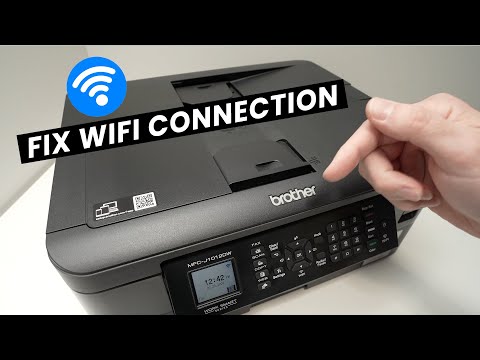
Oh, buddy, dealing with printer issues can be such a pain, right? You’ve got everything set up perfectly, you’re about to print out that important document, and bam—the connection goes haywire. It’s like your Brother printer decides to take a little nap just when you need it the most.
I totally get how frustrating this can be. I’ve been there too. Imagine this: you promise your kid you’ll print their science project ’cause the deadline’s tomorrow morning. You press “Print,” only for the darn thing to say it’s offline for no reason at all!
But hey, don’t sweat it—we’ve all had those head-scratching moments with tech. Sometimes our gadgets just need a little nudge in the right direction. Let’s try and make sense of this wireless network hiccup and hopefully get your trusty Brother printer back on track in no time! Sound good?
Brother Printer Offline Status Causes
Oh, printers. Sometimes they just decide to act up, don’t they? If you’re seeing your Brother printer showing as “offline” when you try to print, could be there’s a little hiccup in its connection to your wireless network. Let’s figure this out together.
First, think about the basics. Is the printer actually turned on? Seems too simple but it happens more often than you’d think! Now let’s get into some possible causes of that annoying offline status.
- Network Connectivity Issues: Your printer might’ve lost its connection to your Wi-Fi network. Check if other devices are connected properly. If they are, your printer might just need a little nudge.
- Signal Strength: You’d be surprised how much distance and obstacles like walls can mess with Wi-Fi signals. Make sure your printer isn’t too far from the router.
- Printer Drivers: Sometimes outdated or missing drivers cause trouble for printers connecting properly. Updating these can make a world of difference.
- IP Address Changes: Here’s one that gets overlooked: if the IP address for the printer changed (perhaps due to router settings), you’ll need to update it in your computer’s settings where the printer details are stored.
Alright, now imagine you’re hosting a small party and suddenly one guest can’t find their way back from the restroom because someone changed all signboards with directions! That’s what an IP change is like for your devices—utter confusion.
And here’s a relatable scenario: You’ve prepared coffee just right and sat down at your desk ready for work… only for technology not cooperating right when you needed it most! Frustrating isn’t it?
To bring things back online:
- Restart Devices: Just turning both computer and even router off then on again sometimes works wonders — it resets connections!
- Troubleshoot Network Settings: See if using steps from Brother utility tools helps by realigning network connections setup sometimes resolving conflicts effortlessly without much technical know-how required—woohoo!
If all else fails though maybe try contacting support—they may have insight specific towards situations like yours caused perhaps uniquely environment-dependent complexities unresolvable conventional means alone helplessly leaving us stumped scratching heads helplessly wondering ‘what now’ faced inscrutable technological mishap mysteries beyond control…
Keep calm always remember most problems truly solvable patience persistence approach perseverance way conquering digital dilemmas confronting frequently amidst evolving interconnected landscapes surrounding reliant society today journey together whenever obstacles arise face them boldly equipped knowledge gain wisdom experience emerge victorious always eventually finding light end tunnel!
Brother Printers and 5GHz Wi-Fi Compatibility
Oh, Brother printers! Aren’t they just fascinating little machines? I mean, when they’re working perfectly, it’s like having your own personal assistant. But sometimes, they can be a bit tricky, especially when it comes to connecting to your Wi-Fi network—specifically the 5GHz band. So let’s get into the nitty-gritty of it.
Firstly, here’s what you need to know: most Brother printers are not compatible with 5GHz Wi-Fi. Sounds a bit technical, right? No worries! Let’s break it down in simple terms.
- Wi-Fi Bands: Most Wi-Fi networks broadcast on two frequency bands: 2.4GHz and 5GHz. The 2.4GHz band has a longer range but slower speeds, while the 5GHz band offers faster speeds but a shorter range.
- Brother Printers: These devices typically connect to the 2.4GHz frequency only. So if you’re trying to hook it up to a fancy new router that’s using only the high-speed lane (aka 5GHz), it’s like trying to fit a square peg in a round hole—you follow me?
- Solve It: Make sure your router’s settings allow for both bands or specifically enable the 2.4GHz band and connect your printer there.
One day my friend Jamie called me all frustrated because his Brother printer just wouldn’t connect to his new sleek router—something about it refused flat out! Turned out he had enabled only the super-fast-but-not-printer-friendly 5GHz option.
Here’s an easy fix: look into your router settings; there’s usually an option somewhere that lets both bands broadcast at once (dual-band mode). Once you do that, you should see both networks available when connecting devices.
Now if you’re wondering how exactly where these “settings” are hiding… Well every router’s got its quirks but usually logging into its admin page through something like http://192.168.x.y does trick—check manufacturer instructions though!
So remember next time you set up WiFi connections for those trusty Brothers make adjustments as needed! Happy printing!
Brother Printer Wi-Fi Connectivity Problems
Oh, the dreaded printer connectivity issues! We’ve all been there, right? You’re ready to print that important document, and your Brother printer just doesn’t want to cooperate. It’s like it has a mind of its own sometimes. Let’s see if we can get this sorted out so you can get back to more important things—like printing out those adorable cat posters.
First things first: Is the Wi-Fi on? It might sound like a silly question, but you wouldn’t believe how many times that’s the problem. Ensure your Wi-Fi is enabled on both your printer and your router. Sometimes all it takes is flipping the right switch back on.
- Check for Interference: Routers share frequencies with various devices like microwaves or cordless phones which can disrupt connections.
- Distance Matters: If possible move your printer closer to the router. Too much distance can cause signal issues.
Next up is looking at network configurations. If you’ve recently changed any network settings—maybe a new password or even a new router—you’ll need to update those details in the printer as well.
Reconnecting Your Printer:
Always double-check that your Brother printer is connected to the same network as your computer or mobile device. It’s easy for them to drift onto different networks without even noticing!
Here are some steps:
- Use Wi-Fi Wizard: On many Brother printers, there’s a setup wizard in the menu under ‘Network settings’ to guide you for reconnecting.
- Password Care: Double-check you typed in your Wi-Fi password correctly—sometimes one wrong letter or number throws everything off!
Another thing worth mentioning is driver updates—they’re essential! Like an overdue haircut, outdated drivers make everything look (and work) worse than it should be.
Updating Drivers:
Head over to Brother’s official website and check if an updated driver version exists for your model.
- Nudge Nudge…: Having trouble finding drivers online? Use ‘Device Manager’ through Windows (just search using start menu). It helps manage almost every connected device.
Lastly, if after trying these ideas nothing seems improved—a quick reset might bring life back into stubborn machines!
Tried-and-True Methods Close To Heart:
- The famous Turn-it-off-&-on-again trick seriously never fails us.
- If exhausted with no luck elsewhere contact Brother support—they know their stuff better than anyone!
Truthfully? Getting electronics unstuck feels like conquering tiny mountains don’t ya think?! Hopefully firing up pages smoothly soon becomes reality…
Oh, those days when you just want to print something real quick, right? And your Brother printer decides to play hide and seek on the wireless network. It’s like it’s got its own mind! We’ve all been there, desperately trying to get that stubborn little device connected while the clock ticks away.
So, picture this. You’re about to head out for a meeting. You’ve got everything ready, but the printer just won’t connect. You’re frantically waving your arms around in disbelief. Sometimes it feels like if you could yell loud enough through the Wi-Fi waves, it’d somehow hear you.
But hey, before we get carried away with frustration here’s a simple thought: what can you do when your Brother printer plays hard to get? Firstly, make sure both your printer and computer are on the same network (sounds basic, right?). More often than not one’s sneaked onto the neighbor’s Wi-Fi or something—funny how that happens!
Another trick is giving it a fresh start by rebooting—oh yes! Printers need their beauty sleep too sometimes. Just unplugging and plugging them back in does wonders more often than you’d expect!
And if none of these work? Well maybe whisper sweet nothings to it…or better yet check for any firmware updates or connectivity settings within the printer menu itself ’cause maybe it’s been stuck in 2010-mode all this time.
At times though things might get tricky beyond these little home remedies so don’t hesitate reaching out for professional help if remembering passwords isn’t our strongest suit (*cough* everyone ever).