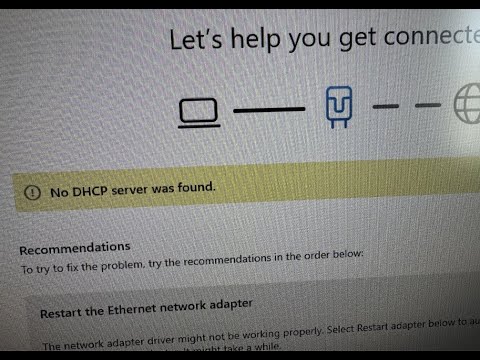
Picture this, you’re all set to connect or add a new device to your Windows network. You’ve got your coffee ready, you’re settled in. But wait… you hit a snag! The dreaded DHCP configuration issue pops up. Ugh, right?
Now, you’ve probably seen those three letters—DHCP—before and shrugged them off. And who wouldn’t? It sounds like some techy mumbo-jumbo. But it’s important because it keeps your network flowing smoothly by automatically assigning IP addresses to devices.
Anyway, when this stops working nice and neat, things can get a bit messy. Devices might not connect properly or at all!
So, how do you deal with it without pulling out your hair? Let’s go through it together and try crack the mystery of DHCP configuration issues on Windows networks.
Resetting DHCP on Windows
Alright, dealing with a DHCP issue on your Windows network can be a bit frustrating, right? But sometimes, you just gotta reset things to get them running smoothly again. DHCP, or Dynamic Host Configuration Protocol, is like the friendly little service that assigns IP addresses to devices on your network. And if it goes haywire, things can get pretty choppy.
Resetting DHCP might sound tricky, but it’s totally doable even if you’re not a tech wizard. Here’s the lowdown on how to go about it:
- Open Command Prompt as Administrator: First up, hit the Start button and type “cmd” in the search box. Right-click on “Command Prompt” and choose “Run as administrator.” This lets you make changes to your system.
- Release Your IP Address: In the Command Prompt window, type
ipconfig /release. Press Enter. What this does is basically tell your device to let go of its current IP address. Think of it like giving up your spot in line. - Renew Your IP Address: Next, type
ipconfig /renew. Hit Enter again. With this command, you’re asking for a new spot in line—or rather—requesting a fresh IP address from the network’s DHCP server. - Flush DNS Cache (Optional): Sometimes it’s helpful to clear out old DNS records too. Just type
ipconfig /flushdns, and press Enter. This clears any lingering domain name info that might be causing hiccups.
Sometimes after resetting DHCP settings with these steps you notice that everything feels back to normal when browsing or streaming videos.
Remember my uncle Joe’s story? He once thought his router was cursed because his internet connection dropped every few hours! You know what happened? A quick DHCP reset and boom—problem solved! Now he’s back sending adorable puppy gifs without interruptions.
And that’s really it! Resetting DHCP is not some sort of mystical process; it’s simply giving everything a fresh start so devices play nice together again on your home or office network setup.
Just ensure you have admin rights before starting since we need those permissions for changes here!
DHCP Configuration Troubleshooting on Windows Network
Ah, DHCP configuration. It’s like the unsung hero of your network, quietly making sure each device gets its own special address so they can all communicate without any hiccups. But when things go wrong, oh boy, it’s like trying to find a light switch in the dark!
You know how it is: you’re trying to set up a new device on your Windows network, and suddenly it just won’t connect. Well, that could be because of some DHCP configuration issue.
What is DHCP?
DHCP stands for Dynamic Host Configuration Protocol. It assigns IP addresses* automatically*, so you don’t have to do it manually every time a device connects to your network.
Here’s something funny: I once had a friend who spent hours assigning IP addresses manually—they didn’t realize their router had DHCP enabled! 😊
Steps to Troubleshoot
- Check the Physical Network. Make sure all cables are connected well and that routers and switches are powered on.
- Verify Network Adapter Settings. Head over to “Network and Sharing Center” on Windows. Click “Change adapter settings” and then right-click on the connection you use. Check “Properties” and ensure IPv4 settings are set to obtain an IP address automatically.
- No Duplicate IPs!Add this one to memory: Check for devices with similar hard-coded IPs—two kings can’t rule one kingdom! Use the command prompt with “ipconfig /all” command; compare outputs across devices if necessary.
- Restart Your Router or Modem. This trick works wonders more often than we admit—give them some rest by rebooting them.
- DCHP Server Settings:If those above tricks didn’t cut it—log into your router’s interface: ensure its DCHP function stays active correctly configured within respective ranges (look around LAN/DHCP settings).
If Problems Persist…
Sometimes things get complicated beyond typical fixes… Seeking help from someone familiar might become necessary due unchecked firewall rules or even compromised hardware.
Hope those tips bring resolution closer hands! If not don’t despair – countless fellow troubleshooters exist out there who’ve faced similar challenges too…sorta comforting huh’?
Windows 11 DHCP Configuration Error
Oh, the joys of technology! You’re working on your Windows 11 computer when you suddenly run into a DHCP configuration error. It’s like hitting a digital speed bump, isn’t it? But don’t worry—understanding and fixing this issue is simpler than it sounds.
First things first: DHCP stands for Dynamic Host Configuration Protocol. It’s like that friendly neighbor who assigns IP addresses to devices on your network. When there’s a DHCP error, it can feel like everyone’s at the door but no one’s getting inside.
So why does this happen in Windows 11? A DHCP configuration issue usually means your PC is having trouble connecting with the network’s IP address allocator—the router or server managing those addresses.
Here’s what you can do:
- Check Network Connections: Start by making sure all cables are snug and everything’s plugged in properly. Sometimes it’s as simple as a loose cable.
- Restart Devices: You know how sometimes a quick nap resets our brain? Well, tech gadgets love it too. Restart your router and computer to refresh their connection.
- Automatic IP Configuration: Ensure that your device is set to obtain an IP address automatically. Go to Settings > Network & Internet > Status > Change Adapter Options.
Right-click on your active network connection, choose Properties, then Internet Protocol Version 4 (TCP/IPv4), and hit Properties again.
Make sure “Obtain an IP address automatically” is ticked. - Update Network Drivers: Outdated drivers can cause hiccups.
Head over to Device Manager (you’ll find it by typing in the search box), look for Network adapters,
right-click on yours, and select Update Driver.
Have you ever had one of those days where you’re searching for sunglasses that are right up there on your head? Sometimes a simple solution eludes us because we’re overthinking. Believe me; I’ve had my fair share of “duh” moments!
But if you’re still stuck after trying these steps?
It might be time for some help from a friend who knows their way around networks or even contacting support for more guidance.
Remember: Technology might stumble occasionally but with patience—and sometimes just unplugging and plugging back in—you’ll get things running smoothly again!
Ah, DHCP configuration issues. Those can be such a headache, can’t they? I remember this one time when I was setting up my home office network. I had spent hours arranging cables and configuring devices. Everything seemed to be going smoothly until, suddenly, none of my devices could connect to the network anymore. Frustrating!
At first glance, it looked like a typical connection problem. But digging a little deeper revealed that the issue was with DHCP — you know, that magical thingamajig that hands out IP addresses to your devices so they can talk to each other and get on the internet.
Now, if you’re scratching your head at this point and thinking “DH-what?” don’t worry. It’s not as complicated as it sounds. DHCP stands for Dynamic Host Configuration Protocol. In simpler terms, it’s like having a friendly librarian in your network that hands out library cards (IP addresses) to all the visitors (devices) who walk in the door.
But sometimes our friendly librarian gets confused or overwhelmed and stops giving out those cards properly. That’s when things go haywire on a Windows network. Devices might not connect or they might get weird IP addresses that don’t play well together.
I learned this lesson while fiddling with my router settings for ages before realizing I’d messed up some DHCP settings during my “experimentations.” Oops! A quick fix was just resetting those settings back to their defaults—sort of like hitting an undo button—and then everything sprang back to life.
It taught me not only about patience but also how important it is to understand even basic networking concepts when dealing with tech issues—even at home! So yeah… always double-check those configurations if things aren’t quite right—or perhaps let someone more experienced give you hand sometimes!