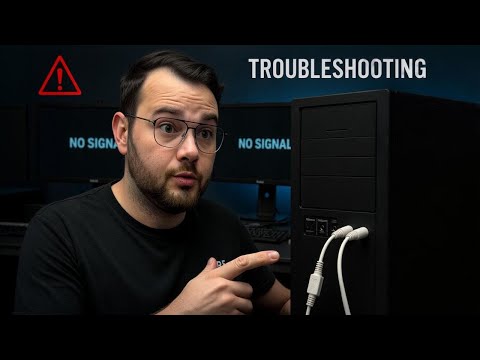
Oh man, have you ever had one of those days where your computer just refuses to cooperate? Like, you’re all set to get some work done or maybe dive into a game, and bam—no display on your monitor. Ugh, frustrating, right? Especially if you’re using something like the Biostar B85 motherboard. It’s like speaking a language you don’t understand.
Remember that time I tried to fix a similar issue with my buddy’s PC? We spent hours checking cables and fiddling around. Long story short—sometimes it’s the simplest thing that’s causing all the drama!
So look, let’s chat about what could be going on when your Biostar B85 decides that it doesn’t want to show anything on the screen. Hopefully, we can get this sorted out without too much more hair-pulling!
Monitor Powers On Without Display
Oh, the frustration when you power on your computer and your monitor stares back blankly! What’s going on here? Let’s dig into this situation with your Biostar B85 motherboard and see what gives.
Check the Cable Connections
First thing’s first: make sure all cables are snug. Sometimes, it’s just a loose cable causing that heart attack-inducing black screen.
- Power Cable: Double-check that the monitor’s power cable is connected properly and the outlet is working.
- Video Cable: Look at both ends of that HDMI, DisplayPort, or whichever connection you’re using; it could be slightly unplugged.
Inspect the Monitor
Hey, maybe it’s not the motherboard at all! Test by connecting it to another computer or a laptop to see if it shows anything. If not, you might have a monitor issue on your hands.
The RAM Check
Sometimes RAM sticks decide to stir up trouble. Power off your machine and reseat (or remove and reinsert) them one by one. If there’s more than one stick, try swapping them around or testing each individually.
The Graphics Card Situation
For systems with a dedicated graphics card, ensure it’s seated correctly in its slot. A slightly out-of-place card can disrupt everything!
- If there’s no display after reseating, try connecting directly with onboard graphics to rule out any GPU issues.
- If onboard works but GPU doesn’t… well, now we know who’s been naughty!
Cautious BIOS Updates
Sometimes outdated BIOS can be sneaky culprits too. Be cautious here: updating BIOS can solve compatibility issues, but it’s also risky if done wrong.
In case none of this resolves things for you… It might be time for professional assistance—because who needs more stress? Hopefully though something here brought light (literally) into what’s going on!
Motherboard Power Without Display Output
Hey there! Dealing with a stubborn motherboard that powers up but shows no display on your monitor? It can feel like quite the head-scratcher, especially if you have a Biostar B85 motherboard in the mix. Let’s dig into what might be causing this headache.
So, imagine you’ve just pressed the power button. You hear the fans whirring, see some lights flickering, yet your screen remains utterly lifeless. Frustrating, right? Here are some things you might want to consider:
- Check Connections: Make sure all cables are securely connected. This includes your monitor’s cable and power connections to your motherboard.
- Monitor Input Source: Sometimes it’s as simple as choosing the wrong input on your monitor by accident. Double-check that it’s set correctly.
- RAM Issues: If RAM isn’t seated properly, it can cause display issues. Gently reinsert it into its slot and see if this helps.
Now let’s get a bit deeper! If those initial checks didn’t get you anywhere, here’s what else could be going on:
- Graphics Card Trouble: If you’re using discrete graphics card (separate from onboard one), maybe try reseating it or switching to onboard graphics to see if that solves things temporarily.
- Bios Settings: Sometimes BIOS settings can get quirky! Resetting them might help—look for jumpers on your motherboard manual or a lovely little CMOS reset button.
Okay so failure isn’t always hardware related though like sometimes updating drivers or software patches do miracles too!
Remember my friend had something similar with his PC once – turns out he needed newest firmware for his BIOS version because old one wasn’t compatible anymore due recent updates pushed through OS upgrades – who knew?
Feeling more adventurous? You could try these steps afterwards just keep patience:
- A PSU Problem: Ensure that power supply unit (PSU) gives sufficient juice across board components – use multimeter carefully measure output voltages lines motherboards require stable current supply function properly without hiccups
And hey don’t stress over hiccups we all face technology hurdles every now again–patience fixes most woes given time space trial-error testing bit overtime yield desired results eventually!
No Display After BIOS Execution
Sure thing! When your computer powers up, and you hear it humming happily, but there’s nothing on the monitor—oh boy, that’s one frustrating situation! Let’s see what might be going on when a Biostar B85 motherboard gives you that cold shoulder after executing BIOS.
First off, check your connections. It sounds basic, but you’d be surprised how often a loose cable is the culprit. Make sure the monitor’s power is on and those cables are snug. If you’ve got a spare, try using a different HDMI or VGA cable to rule out any cable issues.
Another thing to consider is your graphics card. If you’ve recently installed or moved it around while dusting—yep, that happens too—it might not have settled comfortably in its slot. Here’s what you can do:
- Power down your system and unplug it.
- Open up the case (gently does it).
- Reseat the graphics card by removing and reinserting it.
Sometimes it’s just about giving those components a little nudge back into place!
Now let’s talk about your monitor settings. Monitors can sometimes be tricky little devices with their own input settings. So make sure it’s set to receive from the correct source—like HDMI if that’s what you’re using.
If you’re comfortable diving deeper—and only then—we could poke around within the BIOS itself (assuming you have some display to work with). CPUs with integrated graphics offer another layer of troubleshooting:
- You can enter BIOS by pressing Del/F2 at startup.
- Look for settings saying “Video” or “Display.”
- Switching primary graphics from PCIe to internal (or vice versa) might do wonders!
Lastly—but no less important—the trusty old RAM modules! Just reseating RAM sometimes magically resolves these riddles since unstable connections lead nowhere good!
In essence: check connections first; review cables and seating second; verify monitor input third; adjust within BIOS fourthly—or try starting fresh again by clearing CMOS should mysteries persist despite all efforts… But above all keep cool—you’ll crack this code yet!
Has my tale helped shed light? Let me know how things go!
Oh boy, the ol’ “no display on monitor” issue—it’s a classic, isn’t it? I remember when I was setting up my trusty desktop with a Biostar B85 motherboard, and everything seemed fine until bam! The monitor resolutely refused to show any signs of life. I had this weird moment of dread, like, did I just break something?
So here’s the thing about these display issues: they can be kinda frustrating. But often enough, it’s one of those simple things you might overlook. First off, have you checked if all the cables are snugly plugged in? It sounds silly, but we all know how sometimes that one tiny oversight can make you feel like tech’s out to get you.
Then there’s the possibility of a dormant RAM stick or maybe that sneaky loose GPU. A gentle reseat can sometimes work wonders here! You could almost think of it as giving your computer a little jiggle to remind it you’re still watching.
And if all else fails—or preferably before getting too deep into anything technical—try powering everything down and then back up again. I swear by that trick; it’s like resetting the world for your machine.
Really though, when dealing with tech hiccups like this one from Biostar B85, patience kind of becomes your best friend. Take a deep breath and tackle each possible cause one by one—you might end up learning something new in the process!
In any case remember: even if you’re stuck without display now things will eventually light up again.