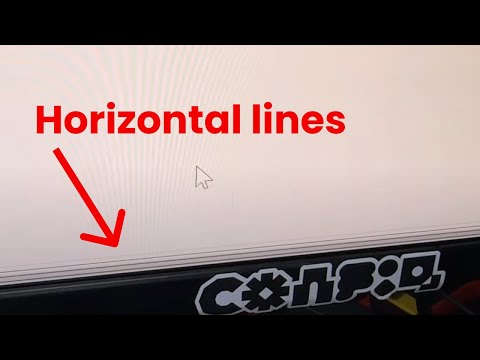
You know how it is. You’re all set to dive into your computer, maybe do a little work or catch up on that series everyone’s raving about. You press the power button, and bam! Your screen looks like it’s got a mind of its own—flickering, showing weird colors, or downright blank.
Ugh, right? That can be super frustrating. I mean, there was this one time when my screen decided to only show everything in shades of blue… It’s not fun squinting at a smurf-colored document!
Don’t worry though! Most display issues have pretty simple causes, and you won’t necessarily need to call in the cavalry just yet. Let’s chat about some tips and fixes that’ll hopefully get your PC screen back to behaving normally. So stick around! Let’s see if we can save the day together.
Screen Resolution Adjustment Steps
Hey there! Let’s chat about something that can be a bit of a head-scratcher: adjusting your screen resolution. Whether you’re squinting at tiny text or things just look a bit blurry, getting this right can make a really big difference.
First off, what’s screen resolution? It’s the number of pixels your monitor displays. More pixels mean clearer and sharper images. It’s kind of like comparing LEGO sets: more pieces usually mean more detail!
Okay, here’s how you can adjust it:
- Right-click on your desktop: You know how sometimes you click around and hope for the best? This time, do it on the desktop background!
- Select “Display settings”: A menu should pop up (like magic) with this option.
- Find the “Resolution” dropdown: Scroll around until you see it—it’s usually pretty prominent.
- Choose a resolution: Look for one that says “(Recommended)“. That’s usually your best bet unless you have specific needs.
A quick tip: If things appear too large or too small after changing the resolution, adjust again until it’s comfortable on your eyes.
And hey, if you’re using multiple monitors (lucky you!), just select each one individually from this same settings page to customize them separately.
You ever had one of those days where you wished there was an instruction manual for everything? We’ve all been there with computers! Don’t sweat it if it takes a few tries to get things just right—screens are fussy creatures sometimes.
Changing resolution isn’t just about looks either; if you’ve got specific programs that need certain settings (like graphic design software), you’ll notice performance differences too when it’s set correctly.
Think back to flipping through TV channels when we were kids—sometimes finding what works best involves trial and error! Adjust away till everything’s looking spot on. Good luck!
Display Resolution Adjustment on PC
You know, playing around with your computer’s display resolution can feel a bit like fumbling with those old TV antennas. Remember that? Picture this: you’re squinting at the screen, and everything looks just too big or too small. Frustrating, right? Let’s chat about getting that just-right clarity by adjusting your PC’s display resolution.
Why Adjust Your Display Resolution?
Most of us barely think about it until something goes wrong. Like when you’ve been staring at the same blurriness that makes reading text or viewing videos a pain. Sometimes changing your resolution can solve unexpected issues after connecting a new monitor or updating software.
Steps to Adjust Display Resolution:
It’s not as complicated as it might sound! Let’s break it down:
- Right-click on the Desktop: Start by giving your desktop a good old right-click. A menu pops up with various options.
- Select “Display Settings”: You’ll see this option among others like “Personalize” and “View.”
- Navigate to Resolution Section: Under “Scale and layout,” there’s a section for “Resolution.”
- Select Recommended Resolution: Usually marked as “Recommended.” This setting should fit most of our needs unless you have special requirements.
Troubleshooting Tips:
Sometimes things don’t go as planned—it happens! Maybe after a change, things still look off or icons appear weirdly stretched. If that’s the case:
- Restart Your System: Good old rebooting often works wonders.
- Check for Driver Updates: Outdated drivers might conflict with new settings.
Remember when Uncle Joe once tried fixing his TV by banging on its side? Yeah—don’t do that here! You might inadvertently click an option you shouldn’t.
A Little Bonus Info!:
Monitors come in all shapes and sizes these days, from standard HD to ultra-wide beauties! It helps knowing what yours supports so you’re not stuck wondering why things don’t look quite right.
Getting the hang of display resolutions is really just knowing where to click and being aware of what looks best on your monitor setup. And hey, if nothing works, reaching out for professional help isn’t admitting defeat—sometimes those folks are lifesavers!
So yeah—happy clicking and clearer screens ahead!
Resolving Display Issues on Windows 11
Alright, let’s talk about dealing with display issues on Windows 11. Computers, you know, can be a little tricky sometimes—like when your display suddenly decides to play tricks on you. Maybe it’s flickering, showing weird colors, or just not giving you any picture at all. Been there!
First things first, check those connections. Make sure the cables connecting your monitor to your PC are snug and secure. Sometimes they can wiggle loose without you even realizing it! If you’re using an HDMI or DisplayPort cable, try switching it out for another one to see if the cable is the culprit.
But what if everything’s plugged in perfectly and hey! The screen’s still acting funny? Well, let’s dive into some fixes you can try right on Windows 11:
- Update Your Graphics Drivers: Head to Device Manager. You can get there by right-clicking the Start button and selecting it from the list. Find Display adapters, click the arrow next to it, and then right-click your graphics card listed there. Choose Update driver, then select Search automatically for updated driver software.
- Tweak Resolution Settings: Right-click on your desktop and go for Display settings. Check that your resolution is set correctly; sometimes Windows might default to something odd.
- Check Power Settings: Head over to Settings > System > Power & battery. Ensure nothing here is affecting performance like power saving modes that might reduce display quality.
- Nudge Night Light Settings: Maybe night light settings have gone rogue! In Display settings again, find Night light settings and toggle it off if it’s acting up or adjust its schedule.
- Solve Scaling Issues: Navigate again through Display settings where you’ll see Scale & layout options. Play with scaling percentages if texts look fuzzy or icons too large/small.
Now imagine you’re gaming online when all of a sudden every color turns neon green—frustrating right? But a quick update like this could save the day!
Still seeing no improvement? It might be something deeper involving hardware glitches within either monitor or graphics card themselves—consult manufacturer support sites directly after doing these basic checks… just saying from personal experience here.
So yeah!, hopefully these steps give ya peace because nobody wants their screen working half-heartedly while venturing across virtual landscapes in vivid detail à la Windows glory days… don’t ya agree?!
Ah, the dreaded moment when your PC screen starts acting up. We’ve all been there. You sit down for a little computer time and bam!—the screen flickers like it’s throwing a mini party you weren’t invited to, or worse yet, stays black as if it’s holding some kind of silent protest.
One time, I remember getting ready to watch a movie after a long day. Popcorn in hand, I settled into my comfy chair only to find my screen flashing like a disco ball. My initial thought was, “Is this thing possessed?” Turns out it was just a loose cable somewhere behind that mess of wires on my desk.
The thing is, PC display issues can be surprisingly simple—or annoyingly complex—to fix. Sometimes it’s just about checking those pesky cables and connections first. They tend to wiggle their way loose over time… who knew wires were such adventurers?
And then there are times when your graphics driver just decides to take an unexpected holiday without notifying you first. In cases like these updating ’em could act as your savior.
Of course let’s not forget the classic restarting-the-whole-machine trick—we all know how computers seem afraid of losing any unsaved work by shutting down completely; good old restart seems less risky somehow!
But listen if none of these work-arounds do the trick maybe what you’re dealing with goes deeper…something internally within making everything appear blank or distorted on-screen has got its hands dirty – better calling someone who understands what they’re doing might be wise right there eh?
Resolving display issues boils down mostly between checking hardware stuffy bits before troubleshooting software adjustments then reaching out further as needed ultimately leading us toward peaceable coexistence once more alongside our trusty digital companions.