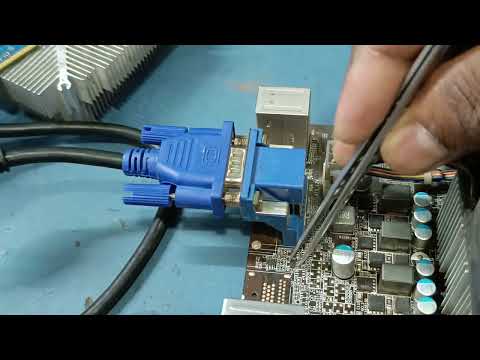
You know that feeling when you hit the power button, and nothing pops up on your screen? Ugh, right? It’s like a mini heart attack every time. Chances are, if you’re using a motherboard like the Z77 LGA 1155, you might have run into this “no display” issue.
I remember fiddling with cables, praying to the tech gods for a sign of life. Sometimes tech can be finnicky. We all know how frustrating it can be when technology doesn’t just do what it’s supposed to.
But don’t worry; everything can be fixed! Let’s walk through some easy peasy solutions together and get that screen glowing again. Grab a coffee, take a deep breath, and let’s tackle it step by step!
Motherboard Faults Leading to No Display
Oh, dealing with a no display issue on your motherboard, especially with the Z77 LGA 1155? That’s a real headache! It kind of feels like staring at a blank wall, doesn’t it? Let’s look into some common causes and fixes for this frustrating problem.
Power Connections:
It’s amazing how often the little things trip us up. Double-check that your power cables are connected securely to the motherboard. Sounds simple, but those tiny cables can make or break your setup. And don’t just focus on your 24-pin connector; make sure the 8-pin CPU cable is all set too.
Graphics Card Woes:
Have you made certain your graphics card is seated correctly? Take it out and put it back in carefully. Like putting together a puzzle, each piece has its place. If you’re using onboard graphics, ensure there’s no extra card plugged in—it might confuse things.
- Check PCIe Slots: Some folks overlook this but tested another slot if available; sometimes these slots act up.
- External GPU Test: It’s handy if you have another GPU lying around to test.
Memory Modules Misbehaving:
Memory issues can sneak up on you quietly. Remove all RAM sticks then try booting with only one stick at a time in different slots—magic happens here sometimes!
Bios Settings Reset:
Ever pressed reset on an old video game console? Similar idea here! Resetting BIOS settings back to default using either jumper method or removing/reinserting battery could bring life back into display troubles.
Cables Check:
Make sure every cable from monitor to PC is good as gold: HDMI/DVI/VGA cables must be tightly connected without damage marks (a common missed detail).
In case things don’t work out after trying these steps—or even before—you might want someone else checking hardware functionality thoroughly because two eyes can miss what four won’t! Hopefully these tips help resurrect that stubborn screen dilemma — they’ve saved my skin more than once too!
Z77 LGA 1155 No Display on Windows
Oh no! You’re staring at a blank screen and your Z77 LGA 1155 motherboard isn’t displaying anything on Windows. Frustrating, right? Let’s explore some things you might want to consider when facing this issue.
First off, don’t panic. There could be quite a few reasons for the display not showing up. It could be related to connections, hardware, or something else entirely. Let’s delve into some potential solutions.
- Check Your Connections: Make sure all cables are snugly connected. This includes the monitor cable being tightly fitted into both the computer and monitor ports.
- Inspect RAM Modules: Sometimes a loose or faulty RAM stick can cause no display. Try reseating them by taking them out and placing them back in firmly.
- Monitor Troubleshoot: Ensure your monitor is powered on and working with another device. Maybe it’s just the monitor acting up.
- Graphics Card Inside? If you’ve got one installed, check if it’s seated correctly in its slot. A little nudge might help secure it properly.
- Test Without Peripherals: Unplug any unnecessary peripherals like USB devices initially to see if one of them is the culprit.
Bios Settings Check:
Sometimes the solution sits quietly within BIOS settings. Restart your system and press (usually) Delete or F2 to enter BIOS mode.
- You can reset settings to default or look for any settings that might have changed unexpectedly.
And hey, let’s not overlook updates! An outdated BIOS can sometimes cause compatibility issues too.
Tried Everything Above?
Still stubbornly staring at that blank screen after trying these? It might be time for more advanced troubleshooting:
- Cmos Reset: Resetting CMOS by removing its battery momentarily could troubleshoot configuration glitches.
- If none of these work get someone from tech support involved perhaps even contacting the motherboard’s manufacturer if necessary!
Remember: These efforts help diagnose problems but won’t always fix deeper technical difficulties directly related internally within parts themselves! Nonetheless going through simple possibilities first rules out smaller compañionable conflicts potentially causing no-screen scenario ya know?
Hope this sheds light on solving Z77 LGA 1155 No Display Problem!‘; happy exploring around techy stuff again soonest possible yay!
Z77 LGA 1155 CPU Compatibility Check
Oh, this is such a common issue folks run into when building or upgrading their PCs. You’re all set to start gaming or diving into work, but nothing shows up on the screen. Let’s dig deep (without heavy tech jargon) into checking the CPU compatibility with your Z77 LGA 1155 motherboard and address that pesky display issue.
First things first, what are we looking at? The Z77 chipset and the LGA 1155 socket are part of Intel’s older generation hardware, supporting CPUs like those in the Intel’s 2nd and 3rd Gen Core series—think Sandy Bridge and Ivy Bridge processors.
- Step One: Confirm your CPU is supported. Not all CPUs fit all motherboards—even if they look like they do! First off, you wanna ensure that your processor is compatible with an LGA 1155 socket. Quick example? An i7-2600K or i5-3570K should match up nicely.
- Next Up: BIOS Version. Oh boy, this one’s sneaky. Sometimes you got a CPU that’s technically compatible but the motherboard’s BIOS isn’t up to date enough to support it. Simple fix though—check the manufacturer’s site for a BIOS update that patches support for your specific processor model.
Alrighty, let’s chat about that display issue if everything else checks out dandy:
- Double-check your cables: You’d be surprised how often cables aren’t seated properly—a loose HDMI can ruin your day.
- Identify RAM issues: Improperly seated memory sticks can cause no-display problems too—reseat ’em or try different slots!
- Troubleshoot GPU connections: If you’ve got a discrete graphics card, make sure it’s securely plugged in and its power connectors are attached correctly.
- Check onboard video settings:The BIOS might default to onboard graphics if no output from dedicated GPU is detected; reset those bios settings if need be.
Still nothing showing? It’s possible there’s hardware malfunction involved (or maybe magic gremlins?). But hey—it’s usually something pretty straightforward hiding right under our noses like a detective novel plot twist!
You remember last Sunday when I spent hours searching my entire place only find my glasses perched atop head… Feels just as silly finding out unplugged monitor cable was culprit.
Any weird experiences yourself with such mysterious issues—or found other solutions I missed here? Hit me Up!
Ah, the joys of technology! If you’ve ever dabbled with assembling or repairing computers, you probably know that nothing can make your heart race like booting up a new build for the first time. You hit that power button, and… nothing. No display. Just like watching a magician’s show where the rabbit doesn’t quite make it out of the hat.
Now, not too long ago, I was in a similar mess with my motherboard Z77 LGA 1155 and no display showing up. It felt like playing hide and seek with a particularly stubborn toddler. The thing is, these situations can be super frustrating but kind of rewarding when you finally crack the code.
First things first: check those cables! It sounds basic but trust me—I’ve spent hours troubleshooting only to find out later that a loose connection was holding everything back. Also, give your monitor a once-over just to see if it’s actually functioning properly.
Then there’s always the trusty “clear CMOS” trick. It’s almost magical how often resetting those settings can work wonders—actually stepping back in time to reset things just when they were simple!
Let’s not forget about RAM sticks because reseating them can often do the trick too. Who would’ve thought something as small as repositioning those memory modules could bring your screen back to life?
Finally—and this one’s crucial—make sure your graphics card is snuggly fit into its slot if you’re using one separate from onboard graphics.
When I finally got my setup running again, it felt like finding an old friend after years apart—you never really lost anything; it was there all along waiting for that perfect connection! Anyway figuring out these quirks bit by bit turns tedious tasks into tiny victories worth celebrating each time they happen successfully!