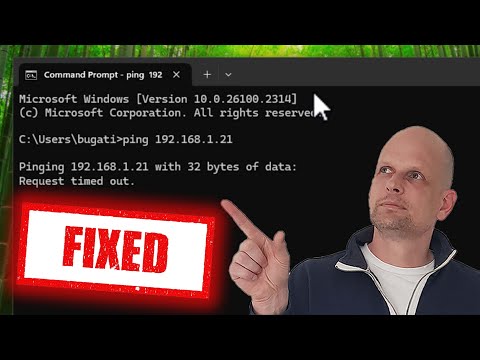
Hey there! Ever tried to load a website, but it just sits there doing nothing? Ugh, I know, right? That “Ping Request Timed Out” thing can be so frustrating.
It’s like when you’re calling someone and it just keeps ringing. Silence. Nada. You’re left wondering if the network’s taking a nap or something.
But look, don’t stress. We’re here to figure this out together. Grab a cup of coffee, get comfy, and let’s unravel this little puzzle to get your connection back on track!
Network Conditions Leading to Ping Timeout
Sometimes, when you’re online and everything’s smooth sailing, you suddenly get hit with this error: “Ping request timed out.” It can be super frustrating! It’s like trying to call someone and getting sent straight to voicemail all the time. But what causes this? Let me share some insights.
You’re sitting there, happily watching a cat video, and bam—your connection drops. The thing is, it might be because your network is kind of playing hide and seek with you.
- Physical Obstacles: Walls can mess with the Wi-Fi signal strength if you’re using wireless connections. Imagine trying to hear someone through a thick wall—same deal here.
- Crowded Networks: If everyone in your household streams videos at the same time, it might be too much for your router to handle. It’s like everyone’s shouting into one phone line!
- Configuration Issues: I’m not saying routers are moody machines but sometimes they need a reboot or their settings need checking. If the IP addresses aren’t lining up right due to static configurations or other reasons—you know how it goes.
- Interference: Electronic devices often butt heads over space on certain frequencies. Microwave ovens and cordless phones lurking nearby could interfere.
- Security Restrictions: Firewalls can be overly cautious like an overprotective guardian sometimes blocking genuine traffic thinking it’s up-to-no-good!
- Bottlenecks at ISPs: Once I had painfully slow internet because my ISP was having infrastructure upgrades without notifying users beforehand.
Picture yourself wandering around different Wi-Fi spots at home seeking better connectivity just as people shift from room-to-room during a house party unsure where their friends went—it happens!
To tackle these issues:
– Reduce obstacles between your device and the router.
– Limit simultaneous heavy bandwidth activities such as streaming UHD movies while gaming online; instead stagger usage amongst family members.
– Check for incorrect configuration settings within admin panel portals provided by ISPs.
– Keep an eye out for interference sources; try switching channels within wireless settings!
Remember though that temporary problems don’t necessarily require drastic solutions unless occurring frequently—they’re part of tech life quirks we face in many ways daily basis isn’t it?
Checking for Network Interference
Alright, let’s get into this. Ever felt like your internet’s playing hide and seek with you? One minute it’s there, the next—poof! Gone. You run a web ping test, and bam, “Request Timed Out.” Don’t sweat it; network interference might be behind this little mystery. And hey, we’ve all been there.
What exactly is network interference? Picture this: you’re trying to listen to your favorite song on the radio, but static keeps cutting in. Annoying, right? Network interference works a bit like that static. Other signals or devices can disrupt the smooth flow of data across your network.
- Check Your Wi-Fi Channels: Sometimes neighbors’ Wi-Fi networks use channels overlapped with yours causing interference. Dig into your router settings and try channel hopping!
- Inspect Physical Obstructions: Walls or furniture can mess up the signal too. If you can see your router from where you sit surfing—it’s probs better than hiding it behind a bookshelf.
- Avoid Electronic Gadgets: Devices like microwaves and cordless phones can interfere because they share frequency bands with Wi-Fi routers.
- Upgrade Your Router Firmware: Yeah I know—it sounds boring—but updates often come packed with fixes for these issues!
- Dodge Signal Over-Crowding: All those smart devices? They’re cool till they start fighting for bandwidth making it sluggish instead of smooth sailing.
Now imagine this: last summer my cousin lived in an apartment building basically built from concrete (the ‘80s loved their brutalism). His internet barely worked until he moved his router closer to his desk!
The Takeaway?: Just by tweaking some settings/shifting things around physically—you could solve that frustrating “Web Ping Request Timed Out”. Keep tweaking ’til peace returns between YOU…and YOUR NETWORK!
Network Troubleshooting for Ping Request Timed Out
Oh, network issues can be a real pain, can’t they? I remember once trying to work from home and suddenly losing connection. My ping requests just kept timing out. Frustrating! Anyway, let’s chat about how you can deal with this pesky problem.
When a ping request times out, it means your computer sent a message into the digital void and got nothing back. Let’s look at some steps you might take to figure out what’s going on.
- Check Your Connection: First things first—double-check if your device is connected to the internet. Sometimes it’s as simple as a loose cable or your Wi-Fi being out of range.
- Verify the Address: Make sure you’re pinging the right address. It’s like sending mail; if you have the wrong address, it won’t get there!
- Firewall Settings: Firewalls are great for protecting us but sometimes they block legitimate connections too. Peek into your firewall settings—see if something is blocking those pings.
- Network Devices: Restart your modem and router—kind of like giving them a coffee break! This can refresh their settings and resolve temporary glitches.
- Test Different Devices: Grab another gadget—a phone or tablet—and see if they have connection issues too. If all devices are struggling, it’s likely a network-wide issue.
If those steps don’t resolve the issue, you could dive into more technical fixes… but those often require more expertise!
You know how sometimes you just need someone else to take a look? Well, contacting your Internet Service Provider might reveal problems in their system that only they can fix. It’s not always ideal waiting on hold, but it could save everyone some time in the end.
I hope this helps get you back online smoothly! Nothing’s worse than tech troubles keeping us from what we want to do, right?
Ah, nothing like those three dreaded words: “Request Timed Out.” You’re trying to check if a website is reachable, and then bam! It’s like hitting a wall. If you’ve ever tried to ping a website and got that message, you know how frustrating that can be.
Let’s say you’re just casually surfing the web on a Sunday afternoon. The skies are blue, your coffee’s warm, and everything seems perfect until… it isn’t. You try to visit your favorite site, but the page doesn’t load. So naturally, you open up Command Prompt and send out a ping request—only for it to time out! What gives?
Now the thing is, when “request timed out” shows up during a ping test—it means your computer sent packets of data into the great abyss of the internet but didn’t get any back in time. It’s kinda like yelling into an empty canyon expecting an echo and getting silence instead.
There are several culprits here. Sometimes it’s just network congestion—that moment when everyone decides they also need some digital love from the internet at precisely the same second as you do! Then you’ve got firewalls which can block traffic thinking they’re doing some heroic deed.
Let me give you an example from my own life: I remember once trying endlessly to connect during an online shopping sale frenzy—yeah bad timing I know—and there I was cursing everything within reach because nothing was loading due to too many people (me included) logging simultaneously!
But how do we play detective? First off check your network connection; make sure everything’s plugged in right (believe me—a cable slightly pulled out has caused more panic than i’d care admit). Try restarting devices—yes turning things off and back on again works wonders sometimes!
Also consider temporarily disabling firewalls or antivirus software—but cautiously for troubleshooting purposes only okay? And have patience—sometimes servers take unexpected coffee breaks—they’re overloaded or down entirely which means even if your end looks perfect…that server ain’t listening right now.
Remember though sometimes these hiccups happen outside our control—it helps putting things perspective cause eventually most issues resolve themselves one way another . Just keep calm relax maybe catch break while connectivity returns equilibrium again…and enjoy rest day once tranquility restored!