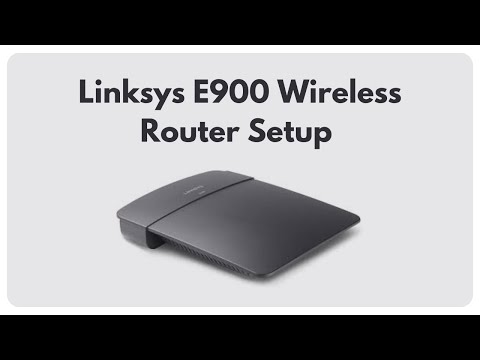
Okay, picture this. You just got yourself a Linksys E900 router and you’re all set to set it up, right? But then, suddenly you’re staring at the blinking lights and thinking… now what?
Oh, don’t fret! You’re definitely not alone in this. It’s like opening a box of chocolates—you kind of need to know where to begin so you don’t end up with the nutty one when you wanted caramel.
You see, setting up your router is actually simpler than assembling flat-pack furniture. With a little patience and some good vibes, we’ll have you online in no time. Excited? Let’s get rolling!
Linksys E900 Router Configuration Guide
Setting up your Linksys E900 router? Let’s make it a smooth experience. You know, it’s like having a fresh start with your internet! Here we go.
Getting Started
First things first, make sure you’ve got everything you need. You’ll need the Linksys E900 router itself, an Ethernet cable, and access to a computer or laptop.
Connect Your Hardware
- Plug the power adapter into the router and connect it to an outlet.
- Use an Ethernet cable to connect your modem to the router. Look for the Internet port—it’s usually the yellow one.
- Bypass wireless hiccups by connecting your computer directly to one of the LAN ports on the back of the router with another Ethernet cable.
Accessing Router Settings
Time for some clicks! Open up a web browser on your computer—Chrome, Firefox, whatever you fancy—and type in this address: 192.168.1.1. It should bring up a login screen.
Here comes a funny story—a friend once called me because she was stuck here for hours trying different passwords! Save yourself that trouble: leave both username and password blank or use “admin” as both if it’s being stubborn.
Basic Configuration Steps
Once you’re logged in:
- Naming Your Network: Click on “Wireless” -> “Basic Wireless Settings”. Give your network its own name (SSID) so you recognize it easily.
- Password Protection: Set up strong security under “Wireless Security.” Choose WPA2 Personal and throw in a unique password that mixes letters and numbers—something memorable but not too obvious!
- Saving Changes: Make sure to save any changes you make along way—click that save button!
Oh yeah—the thing about technology is sometimes we forget those little details like clicking save!
Tweaking Advanced Options (If Needed)
Okay so maybe you want even more control? Head over towards those advanced settings sections—but tread carefully!
- You can mess around with DHCP settings if desired (Automatic IP assignment).
- If there’s concern over devices hogging bandwidth—you can enable Quality of Service (QoS).
See all set now—in no time at all! Reconnect wirelessly after pulling out cables ‘n checking connectivity while enjoying smoother browsing experiences ahead! And there ya have it—that trusty old device transformed lightning fast connectivity partner within minutes flat—you won’t miss beats anymore anytime soon thanks solid configurations done patience ‘n few enthusiastic clicks here n’ there-you deserve applause buddy!
Linksys E900 Setup Software Download
Alright, let’s get you started with the Linksys E900 setup software download! Oh, what a feeling it is to finally set up your own network. Whether you’re gearing up for a new home office or just need reliable Wi-Fi, the Linksys E900 can be a handy little device.
First things first, before jumping into downloading anything, it’s key to check if you really need that software. Sometimes routers come pre-set with all they need to do their job right out of the box! If you’re just looking for basic internet access without many bells and whistles, the factory settings might already have your back.
But, if you’re ready to dive deeper into customization for something specific—like setting parental controls or creating a guest network—the software is where you’ll want to head next.
So here’s how you can download and set up the necessary software:
- Visit Linksys’s Official Website: You want to avoid random sites and go directly to where it’s safe. Find the ‘Support’ section on their site; it’s usually packed with useful resources.
- Select Your Product: Search for ‘E900’ in their product page search bar. This should pull up everything related to your router model.
- Download Documentation: Look for downloads labeled like “Setup Software” or “Firmware.” Typically these will be arranged by operating system like Windows or MacOS.
- Follow Instructions Carefully: Once downloaded, open up any included documentation (sometimes a PDF) which will guide you through installation steps—super helpful!
Remember, every time I’ve dealt with setting one up myself (and many times at that), there’s always something small—a loose cable here or wrong password there—that might trip things up initially…so double-check everything!
When installing new firmware especially make sure no power interruptions happen—it’s just asking trouble otherwise!
To wrap things off: while official instructions do great jobs providing guidance also hit forums; real-life users sometimes post gems advice troubleshooting odd quirks no manual seems cover completely—you feel me? Happy networking adventures ahead my friend!
Configuring Cisco Linksys E900 Router
Configuring your Cisco Linksys E900 router can seem like a daunting task, but trust me, it’s manageable with a little guidance. Imagine you’ve just settled into your new place, all set to get your Wi-Fi running. You might feel a touch overwhelmed with the blinking lights and cables—kinda like how I felt when I first tackled this. Let me walk you through setting up that trusty E900.
First things first, make sure you’ve got everything in place: the router, power cable, and an Ethernet cable. Now plug your router into a power outlet and connect it to your modem using the Ethernet cable.
- Connect to the network: Grab any computer or device with Wi-Fi capabilities. Look for your router’s network name—it usually says “Linksys” followed by some numbers—and connect to it.
- Access the setup page: Open a web browser. In the address bar, type
192.168.1.1. This magic number is like dialing up a friend who always knows how to help. - Enter login details: When prompted, for both username and password fields try entering “admin”. If it doesn’t work no biggie—refer to any instructions that came with your router for specific login info.
- Basic settings: Once inside look for “Setup” or something similar on top of page—basically where they keep basic options visible at-a-glance.
- Your Network Name (SSID): Change this from “Linksys” – trust me you’ll want friends connecting via YOUR distinctive name!
- Password protection: Always have WPA2 Personal selected—it’s stronger than WEP—which sounds technical but means safer from snoopers.
- SAVE changes!: Can’t stress enough saving steps before exiting each time; nothing’s more annoying than starting over because we forgot some clicks earlier… speaking from experience here!
At this point everything should be cooking up fine! To double-check connectivity simply reconnect devices using updated SSID/password combo—feels satisfying once those notifications start pinging successfully again!
In case anything doesn’t pan out smoothly feel free hitting “reset” button back-of-router resets whole process which takes few seconds—the good ol’ Ctrl + Alt + Delete trick but physical form if y’know what I mean? That way really stubborn connection wonkiness might bounce back normal without fuss too… so y’know happy configuring!
Remember the first time you tried to connect a router for the first time? Talk about a mix of excitement and confusion! I mean, you open the box, see all these wires and that small booklet with tiny letters, and think “Where do I even begin?”
Now, with a Linksys E900 router, it’s not really as daunting as it seems. It’s like one of those puzzles that looks complicated until you start putting the pieces together. To get things rolling, you’ll want to plug in your router—just find an available power outlet. Connect your modem to the router’s Internet port using an Ethernet cable. Look for Ethernet ports; they’re usually color-coded or labeled.
Next comes setting up your network on your computer or device by connecting to the router’s default Wi-Fi network. Usually something like ‘Linksys’ followed by numbers. You’ll find some default login details either on the bottom of the router or maybe in that tiny booklet mentioned earlier.
Once you’re connected, open up a web browser and type in something like 192.168.1.1—this is what they call an IP address; it’s kinda like dialing a phone number but for tech stuff! Entering this address gets you into the settings menu of your router where magic happens! Okay, not literal magic but where you can set passwords and name your Wi-Fi—anything from “My Happy Place” to “You Shall Not Pass”. Personalizing it is kinda fun!
Don’t forget exploring security settings while you’re in there; keeping things safe is super important these days—way too many digital mischief-makers out there!
Thinking back though: isn’t modern technology incredible? Just a few decades ago we were yelling at dial-up modems—and now this little box gives us wireless freedom all across our homes! It’s nice when technology plays nice; makes us feel kinda empowered to handle it ourselves… after maybe one or two more tries than we’d care admitting!