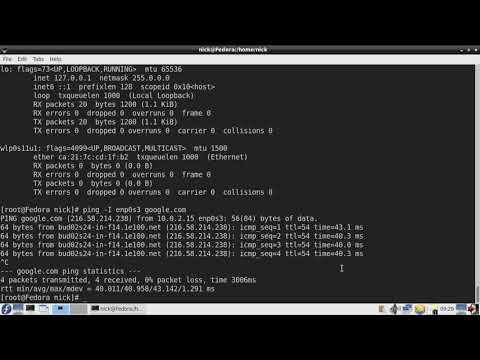
Alright, so you just dove into the world of Fedora, huh? That’s awesome! Now, if you’re like me when I first started, you’re probably wrestling a bit with configuring your network. It can be a maze of commands and options. But don’t sweat it!
Think about it like this: figuring out network commands is kinda like learning to drive on your own for the first time. A little daunting at first, right? But once you get a hang of those key commands—let’s say they’re your ignition keys—you’ll feel more confident cruising through that terminal.
Picture this: it’s late at night and your internet connection decides to play hide and seek. Annoying, isn’t it? Knowing some basic Fedora network commands can save the day or night! You’re not gonna need fancy tricks or magic spells; we’re only talking useful stuff here.
By the way, remember there’s no such thing as silly questions—or mistakes—everyone starts somewhere. We all mess up maybe trying a wrong command or pulling our hair out over something small. Hey, everyone’s been there!
So pour yourself a cup of coffee (or tea), and let’s chat about these nifty Fedora commands that’ll make networking a breeze for you. Ready to jump in?
Understanding Network Configuration Commands
Hey there! Let’s chat a bit about network configuration on Fedora. If you’ve every fiddled with this stuff, you know it can feel kinda overwhelming at first. But once you get to hang of it, it’s pretty straightforward. So here we go.
In Fedora, the terminals basically your best friend for network configs. You do a lot through that blinking cursor! Some commands might seem like magic spells or something like that, but once they’re demystified, they make a lot more sense.
The Essentials
- ifconfig: This is a grand-daddy command if you will. It’s often used to set up or troubleshoot network interfaces. While its use is kinda declining due to newer tools, it’s still handy for checking your current config.
ifconfig eth0(This shows status and details of the ‘eth0’ interface.) - ip: Think of this as the modern replacement for ‘ifconfig’. It’s super versatile and lets you do everything from checking IP addresses to configuring routing tables.
ip addr show(Displays all network interfaces and their details.) - dhclient: When you need an IP address from your DHCP server – usually automatic with most setups – this command does the trick manually.
dhclient eth0(Request an IP address for ‘eth0’.)
Imagine one evening you’re trying to set up internet on your new Fedora install. Nothing’s happening; no connection pop-up saying “Hello! You’re online.” Well in those moments, knowing how these commands work can turn frustration into feeling like a total wizard in control.
In addition there are others worth mentioning:
- route: Gives insight into how packets are routed plus changes routes when needed.
- /etc/resolv.conf: Text file where DNS configurations reside.
Configuring networks really boils down understanding what needs changing when things aren’t working quite right!! This stuff can save ya’ from plenty headaches along way 😃
Remember – having grasp essential commands helps ensure smooth sailing across digital seas even amidst tempestuous times! 🌊🚢💻✨
Feel free experiment around keep learning more every day – because who knows?
Fedora Network Configuration Command Examples
Oh man, Fedora! It’s like this reliable buddy in the world of Linux, right? When we’re fooling around with network configs on Fedora, it can seem a bit tricky at first. But once you get the hang of it, it’s like riding a bike.
Basic Network Commands: These are your bread and butter for getting around network configurations. And guess what? They’re pretty intuitive once you start using them.
- ifconfig: This one’s kind of old school but still handy for checking out your network interfaces. You just pop open a terminal and type
ifconfig. It displays all cool stuff like your IP address and more. - ip addr show: Now, if you’re rolling with something more up-to-date than ifconfig – which most people are – go for this command. Cruising through interfaces with their IPs is a breeze.
- nmcli: Network Manager is Fedora’s wingman to handle connectivity. Type
nmcli dto see device status ornmcli c show --activefor active connections.
Diving Deeper into configurations:
- Edit Connections: Want to tweak an existing connection? You can use
nmtui-edit. It’s semi-graphical and super friendly! Just navigate through options using arrow keys. - Add or Remove Connections: With nmcli again! Typing commands like
nmcli c add type ethernet con-name Wired1 ifname eth0 ip4 192.168.1.100/24 gw4 192.168.1.1. It’s setting up an Ethernet connection named Wired1. - Suspend Network Manager:: Sometimes you need it outta the way: A simple why not try:
systemctl stop NetworkManager.service, pauses the service; bringing it back online is similar—just swap ‘stop’ with ‘start’. See?
And honestly, exploring Fedora’s networking tools can be a neat adventure once things click together! Isn’t technology fun when it’s approachable? Anyway, happy configuring!
Fedora Network Configuration Commands for Ubuntu
Alright, let’s talk about configuring network settings. You know, Fedora and Ubuntu are both popular Linux distributions, but their network management can be a bit different. If you’re familiar with Fedora’s network configuration commands and need to apply similar settings on Ubuntu, here’s the scoop.
When managing networks on Ubuntu, you’ll often use a command-line tool called Netplan. It’s a bit different from Fedora’s NetworkManager, but once you get the hang of it, it’s quite straightforward.
- View Network Configurations: In Fedora, you might use `nmcli connection show`. On Ubuntu, though? You’ll want to check the Netplan config files located in `/etc/netplan/`. Simply run:
sudo cat /etc/netplan/*.yaml
This will list your current network setup.
- Edit Network Settings: With Netplan in Ubuntu, you’ll tweak `.yaml` files directly. But first make sure your syntax is correct! Open your config file:
sudo nano /etc/netplan/01-netcfg.yaml
- Applying Changes: Once you’ve made those adjustments on the file similar to what you’d do with ``nmcli` modify>` in Fedora for immediate changes. You’ll commit them using:
sudo netplan apply
It’s like magic—your new settings go live immediately.
- Status Check:You wanna see if it worked out okay? Run:
ip addr show
This is akin to `nmcli device status` or `ip route show` that you’d use in Fedora.
- Troubleshooting:If things go haywire just don’t panic! Revert by modifying back that .yaml file or consult system logs with:
journalctl -u systemd-networkd.service
Logs are incredibly useful here just as they would be when inspecting NetworkManager logs with `journalctl -xe` on Fedora.
Remember how frustrating it was when trying these things out for the first time? Not finding what you needed used to drive me up a wall! But since becoming comfortable doing this stuff makes everything significantly easier eventually. Once set up correctly you’ll have stable connections which definitely save headaches later down line!
You get stuck yet again—or feel unsure—poke around at resources online or friendly forums where people absolutely love sharing insight giving helpful suggestions too! Happy networking there now—you got this sorted for sure!
Ah, Fedora! It’s one of those Linux distributions that I kind of have a soft spot for. You know how some folks have fond memories of their first bike or their favorite book? For me, fiddling with Fedora was like that—my introduction to the big wide world of Linux.
Now if you’ve ever played around with Fedora’s network settings, you probably noticed it’s both powerful and sometimes a tad bewildering. There’s nothing quite like the sense of achievement when you finally figure out why your network’s acting funny. Like that time my connection kept dropping and I spent an afternoon chasing down the culprit (spoiler: it was a misconfigured DNS setting).
Anyway, when you’re faced with configuring networks on Fedora, you’ll quickly find there are several commands you’ll end up using over and over again. One that’s practically etched in my brain is `nmcli`. It’s short for NetworkManager Command Line Interface—kind of a mouthful right? But it’s super handy because it lets you control all things network-related from the terminal.
An example that’s seared into my memory is running something like `nmcli d`. This lists all the devices on your system. If you’re anything like me, you’d appreciate seeing everything laid out clearly when troubleshooting something mysterious.
Then there’s `ip`. Often used along with options to display and configure routes, IP addresses, link status—you name it! Once upon a late night binge configuring virtual machines for practice, these commands became invaluable in ensuring each had its own IP without stepping on another’s toes.
Let’s not forget `ifconfig`, though it’s getting replaced by `ip` these days. Still some muscle memory there from back in older systems where I’d bring interfaces up or down using it.
But here’s something about working with networks: it’s as much about intuition and guessing as knowing exact commands sometimes! And that’s okay—in fact half the fun is problem-solving creatively when things go wonky.
Oh boy! Thinking back on all those hours spent delving into manuals or forums conjures nostalgia tinged moments where confusion gave way to clarity—a success that felt tangible even if no one else saw immediate results but yourself staring at that blinking cursor returning expected output after hours muddling through syntax errors galore!
So if anyone tells me they’re diving into configuring networks under Fedora—or any other distro—I say embrace every hiccup along learning journey because solving them feels pretty darn rewarding once lights blink just right signaling: Hell yeah—you did it!