Okay, ever had that moment when you fire up your laptop and something’s just… off? Yeah, I’m talking about that slightly panicky feeling. You hit the power button, Windows 10 does its thing, but oh wait—something’s missing. Surprise! It’s those pesky Toshiba drivers.
You see the error messages popping up like they’re going out of style. And really, who needs that kind of drama in their lives? Not me—and definitely not you.
But hey, don’t sweat it. I’ve been there too. It’s like your trusty laptop is suddenly speaking a different language. But no worries! Stick around and I’ll share some ways to sort this out without breaking a sweat—or a laptop. Sound good?
Toshiba Hard Drive Detection Issue on Windows 10
Oh no, having trouble with your Toshiba hard drive not being detected on Windows 10? That’s frustrating, isn’t it? But let’s take a closer look and try to get it sorted out.
First things first, let’s make sure we’re working with the obvious. Have you checked if all the cables are plugged in correctly? Sometimes, those pesky cables manage to sneak just a bit out of their sockets, you know what I mean?
Okay, next up: Windows might be missing some drivers for the Toshiba hard drive. Drivers are basically little helpers that tell your computer how to use the different parts connected to it. Without them, well, things don’t work as they should.
So here’s a quick way to tackle this:
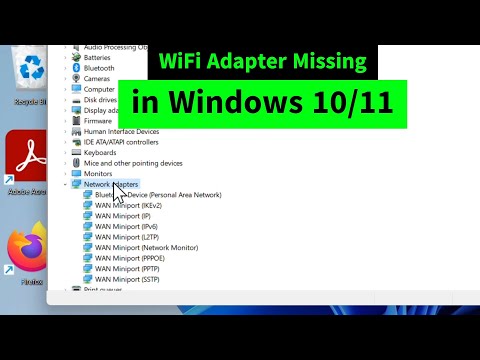
- Check Device Manager: Type “Device Manager” in the Windows search bar and open it up.
- Look for your Toshiba hard drive under “Disk drives”. If there’s an exclamation mark or something like “unknown device”, there’s probably a driver issue.
You might need an update. Head over to Toshiba’s official support site and hunt down any available drivers for your specific model. Downloading and installing them can sometimes nudge Windows into recognizing that stubborn hard drive.
Something else worth trying is updating through Device Manager itself:
- In Device Manager, right-click on your problematic device.
- Select “Update driver” then choose “Search automatically for updated driver software”.
Now, occasionally even Windows needs a little push. Restarting might do wonders here too! A classic move but worth its weight in gold when things start going haywire.
If none of this seems to help much (argh!), it could be time for some tech wizardry like checking BIOS settings or testing with another computer. It sounds complicated but don’t worry—sometimes just seeing how the drive behaves elsewhere can offer clues about what’s really going on.
I remember having my own share of technical headaches trying everything under the sun before realizing my trusty laptop needed only one magical thing—a simple restart! Yikes!
Hang in there; I hope these steps lead you closer towards getting that important data back within reach where it belongs!
Resolving Missing Toshiba Drivers on Windows 10
So, missing Toshiba drivers on your Windows 10? Ah, that can be quite frustrating! But don’t worry, we can fix this with just a bit of patience and know-how. Imagine you’re trying to print something essential—like that quirky family photo from last year’s reunion—and suddenly the printer won’t work because, uh-oh, driver issues. It’s one of those small hiccups in life that throws a wrench into your plans.
What are drivers? They’re like the translators between your hardware and software. If they aren’t working right or are missing altogether, it’s like trying to communicate with someone who doesn’t speak your language. Awkward!
Let’s break down what you can do about it:
- Identify Missing Drivers: First thing’s first—check which ones are causing trouble. Head over to “Device Manager” (just type it in the search bar) and look for any device with a yellow triangle icon. That’s like its way of waving a red flag at you.
- Download from Toshiba Support: Next step is visiting Toshiba’s support website. You’ll find drivers listed there organized by model numbers. Just type yours in—or use their cool tool if available—to snag what you need.
- Install Drivers Manually: Now you’ve got the driver file downloaded? Double-click it to start installation! Follow prompts—it shouldn’t be too tricky—but if things seem off or confusing take pause; read any guidance on-screen carefully.
- Use Windows Update: Sometimes Windows likes doing extra work for us (yay!). Go into system settings under “Update & Security,” hit “Check for updates,” and let Windows do its thing searching online databases for drives automatically…
- Troubleshoot via Devices Utility: Did manual install struggle? Try using “Troubleshoot” option under devices utility where Microsoft threw an auto-fix button (kind-of like when Netflix skips commercials).
Avoid Sketchy Software: Be wary though—not all third-party apps promising easy fixes are trustworthy; stick mainly within official realms unless you really know what you’re dealing with.
Finally don’t forget regular backups important files right before diving directly repairing systems hardware-related components… Just prevents future headaches potential crashes drive replacement worst-case scenarios understand slightly exaggerated fears here!
And there we have it—that should get everything back up running smoothly smooth operator style once more since tech gremlins tend pay sudden visits least expected moments ever noticed weird knack causing chaos unpredictable timing sighs relief crisis tends delayed solutions help ease kinds worries next time occur similar sceneries proven proactive preparations interventions sense comfort readiness anyway good luck hope succeeds smoothly happy computing adventures ahead always pleasant surprise across digital journeys!
Fixing Missing Toshiba Drivers on Windows 10
Oh, we’ve all been there—you just want everything to work smoothly, but your Toshiba drivers are throwing a tantrum on Windows 10! Let’s break down how you can get things running like clockwork again.
So, first off, what’s the deal with these missing drivers? Drivers are little programs that help your hardware talk to your software. If they’re missing or out of date, it’s like trying to have a conversation without speaking the same language.
Step 1: Check Device Manager
Head over to Device Manager. You can find it by right-clicking the Start button and selecting it from the menu. Once you’re in there:
- Look for any yellow exclamation points—those are troublemakers.
- If you see one next to any Toshiba device, that’s probably where things are going wrong.
Step 2: Update Drivers Automatically
You know what they say… let Windows do some of the heavy lifting.
- Right-click on any problematic device.
- Select “Update driver”, then choose “Search automatically for updated driver software”.
- This might take a minute—grab a coffee while you wait!
Step 3: Visit Toshiba’s Support Website
If automatic updates didn’t cut it, it’s time for plan B.
- Go to Toshiba’s official support site.
- Punch in your model number—it should be on a sticker somewhere underneath your laptop.
- You can then manually download and install the necessary drivers.
Step 4: Compatibility Mode (if needed)
If you’re still having issues after installing directly from Toshiba:
- Right-click the driver setup file you downloaded and select “Properties”.
- Tweak settings under the Compatibility tab—sometimes pretending it’s an older version works wonders!
I’ve been there myself trying this last one when my old printer refused to cooperate with Windows updates. A little finagling here and there can go a long way!
Hopefully by giving these steps a shot you’ll have everything ticking along smoothly once more. Remember that keeping those drivers up-to-date is key not only for functionality but also security. Happy troubleshooting!
You know, dealing with missing drivers can feel like trying to find a needle in a haystack, especially when it’s your Toshiba device giving you the runaround on Windows 10. I remember once, I had just gotten my new laptop, and everything seemed to be running smoothly—or so I thought. That was until I realized that some of the devices weren’t working properly. Turns out, they needed specific drivers that were nowhere to be found!
So here’s the deal with drivers: they’re like the little translators that help your computer talk to its various pieces—like printers or external mouse. Without them, well, things just don’t work as they should. If your Toshiba’s acting up due to missing drivers on Windows 10, here’s a friendly guide to get you back on track.
First thing you’ll want to check is Device Manager. Sounds fancy, right? It’s this neat tool in Windows where you see all your connected devices listed out. You’d be surprised at how often you’ll spot a little yellow triangle alerting you about missing or outdated drivers.
And then there’s always heading over directly to Toshiba’s official website—bless the folks who keep it updated! Once there, just punch in your model number and look for driver updates compatible with Windows 10. It’s almost like going shopping but for software updates.
Another solid trick is letting Windows do some of the heavy lifting for you. There’s an option called “Update Driver” when you right-click those pesky triangles in Device Manager—worth giving it a shot before venturing into more manual installations.
In any case finding and installing the correct driver could take some patience—and maybe a couple of restarts too—but trust me it’ll pay off when everything’s running smoothly again! And then maybe reward yourself with a nice cup of coffee, because technology can sometimes feel like you’re solving riddles from an ancient text! You follow me?