Oh no, the screen is black! You sit down ready to start your day, your coffee steaming next to you, and then… nothing. We’ve all been there at one point or another. Doesn’t it just make you want to pull your hair out? But hey, don’t panic just yet.
Sometimes technology decides it’s not going to cooperate, right when we really need it. I had this happen last week when I was about to jump on a video call—heart pounding, I tell ya! Before calling in the cavalry or tossing that monitor out the window (please don’t do that), let’s see if we can figure things out together.
Honestly, it’s often a quick fix hiding in plain sight. From cables playing hide-and-seek under your desk to settings getting mischievously changed—there’s plenty of ground to cover. Ready to play detective with me?
Checking Monitor Power Connection
Oh, you’ve got a stubborn monitor, huh? That’s never fun. You’re there, all set to jump into some work or maybe binge-watch your favorite series, and the screen just refuses to cooperate. Annoying! But don’t worry; it’s usually something fixable.
The first thing to tackle is the power connection. You would be surprised how often a simple loose cord causes these kinds of issues. Here’s what you can do:
- Check if the monitor’s plugged in: Sounds basic, right? But trust me, sometimes it’s just not fully inserted into the wall socket or power strip. Give it a little push to make sure it’s snug.
- Inspect the power cable: Look for any visible damage like cuts or frays on the cable itself. A damaged cable might need replacing.
- Power button test: Press that power button! Make sure your monitor’s actually switched on. Sometimes they’re sneaky and turn off with no hint.
- Try another outlet: If possible, plug it into a different wall socket or use another power strip you know is working fine. It’s always good to rule out an electrical fault.
- Status light checks:If your monitor has an LED power indicator (like most do), see if it lights up when you hit that button. It can give you clues whether it’s receiving any juice at all.
Remember once when my buddy Tom freaked out because his screen went black during an important video call? Turns out his cat had stepped on the surge protector switch – oh man! We laughed about it later.
So yeah – remember these things are deceptively simple sometimes! Check everything over before deciding that your monitor’s given up entirely.
Hang in there! Most of these situations sort themselves out with just some patience and careful checking around cables and sockets… without panic attacks over broken tech gadgets!
Let me know how it goes!
Primary Sources of Display Problems
You know, having display issues is a real headache. Imagine sitting down to watch your favorite movie or finish that report, and the screen just won’t cooperate. Frustrating, right? There are a few common culprits behind these display problems. Let’s chat about them!
- Loose or Damaged Cables: One of the first things to check is the connection between your computer and monitor. Sometimes cables get loose, frayed, or even damaged over time. Give them a quick look-see and make sure they’re snug and in good condition.
- Graphics Card Issues: The graphics card is like the brain for your display visuals. If it’s acting up or not seated properly in its slot, you may notice flickering screens or no display at all! Try reseating it or testing with another card if you can.
- Monitor Settings: At times, changes in settings can cause hiccups too. Make sure the input source on your monitor matches what you’ve plugged in—it’s easy to overlook but super important.
- Driver Problems: Drivers are like translators for software and hardware communication; they ensure everything works smoothly together. Outdated or faulty drivers can mess with displays big-time! Check for updates regularly.
- Power Supply Malfunctions: Without proper power supply functionality nothing works right? Ensure both PC and monitor have stable power connections before moving onto other solutions.
- Error Messages & Beep Codes:If something’s wrong inside that quirky machine of yours there might be error messages displayed onscreen (or beep codes from within PC). Pay attention: these little hints help solve issues quickly!
See how many areas affect your display? It seems complicated but don’t worry too much—they’re usually fixable once identified correctly!
And hey remember: patience goes along way when troubleshooting—especially during those pesky tech mishaps!
Diagnosing Monitor Display Issues on Windows 10
Oh boy, when your monitor decides to go on strike, it can be like the worst timing ever, right? Especially if you’re staring at a blank screen when you’ve got things to do. So here’s a bit of help diagnosing those pesky display issues with your Windows 10 PC.
Check the Basics First
Before diving into anything too techy, let’s start with some basics:
- Make sure the monitor is turned on.
- Double-check that all cables are securely connected. A loose cable can make it seem like there’s a disaster when it’s really just a simple fix!
- Verify that your monitor is set to the correct input source. You know, sometimes it’s these little things.
Isolate the Problem
Sometimes it’s not you—it’s me…uhm…the computer. Try connecting your monitor to another computer if you’ve got one hanging around.
- If the monitor works there, then it’s probably not at fault. Which means we need to look deeper into your current setup.
- If it doesn’t work anywhere else either, maybe consider talking to a professional about getting that fixed or replaced.
Diving Into Software Settings
Alright! Assuming all physical connections are good and dandy…
- Update Your Graphics Drivers: Head over to Device Manager (just type it in the search bar). Find Display Adapters and update those drivers! Outdated drivers can mess up how everything gets displayed.
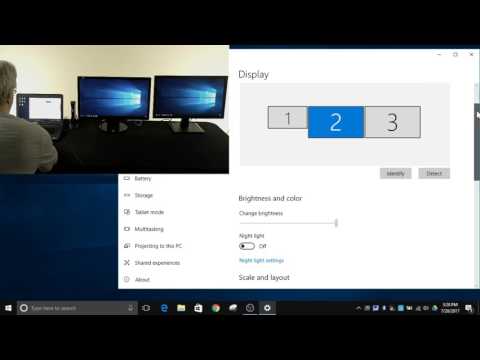
- Tweak Display Settings: Go for Settings -> System -> Display. Check if messing around here helps; sometimes changing resolutions or rearranging displays does wonders!
- Check Safe Mode:, Boot into Safe Mode by restarting and pressing F8 during startup. Here troubleshooting becomes simpler since only essential functions run.
You know what happened once? My friend thought her laptop was dead because her screen was black until she realized she accidentally switched off projection mode! So yeah…
The Starting Path
If nothing turns up after trying these:
Ah, the moment when your monitor decides to take an unexpected break. Like, one minute you’re in the middle of a gripping video game or wrapping up that all-important report, and bam! The screen just goes dark. Kind of feels like you’re suddenly cut off from your digital world, right? Don’t worry though; it’s not the end of the world.
First things first—check the basics. I remember once I was sure my monitor had bitten the dust only to find out it was just unplugged! So silly, I know. Make sure all cables are snugly connected. Those little rascals can wriggle loose without you noticing.
Then there’s this classic trick: try turning the monitor off and on again. Seriously—it works more often than you’d think. Like magic for electronics!
Now if that doesn’t do it, see if there’s power going to your monitor. Is there a little light somewhere? If not, maybe try plugging it into another outlet or using a different power cable altogether.
Still no luck? Alright then, maybe it’s time to swap out cables entirely or even connect to another computer just in case there’s something funky going on with yours.
Sometimes settings on your keyboard can mess things up too—like when you press some combo accidentally and unknowingly send everything into oblivion… been there.
And hey, while you’re at it, why not give those ports a gentle dusting? They do collect grime over time which might be messing with connections too… who knew?
Don’t forget about checking display settings through Windows (or Mac) either—they can decide randomly they prefer two screens instead of one sometimes! Just navigating through those settings could shed light on what’s misbehaving.
Last resort: hardware issues might be steering this ship astray—that could call for professional help if replacing things isn’t under DIY territory for ya!
Honestly though—isn’t technology supposed help us rather than cause all these headaches?! Anyway hang tight—you’ll get this sorted out soon enough!