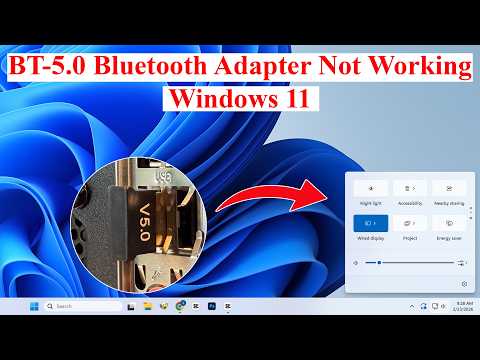
Okay, picture this. You just got a shiny new CSR Bluetooth device, and you’re all excited to try it out with your Windows 11 PC, right? But then… nothing happens. No recognition, no connection—it’s like trying to tune an old radio, and all you get is static.
Yeah, I’ve been there too. It’s frustrating when technology doesn’t play nice. Sometimes I wonder if these gadgets have minds of their own. You just want things to work smoothly without all the headaches!
But hey, don’t sweat it! We can totally figure this out together. Just imagine that awesome moment when your device finally connects and you can get on with enjoying what you love—music, calls, or whatever it is.
Let’s unwrap what’s going on here and find that magic touch to have your Bluetooth device up and running in no time!
Bluetooth Pairing Compatibility in Windows 11
Imagine this: you’re excited to use your new Bluetooth speaker, but it just won’t connect to your Windows 11 computer. Frustrating, right? This kind of hiccup can happen, especially with CSR Bluetooth devices. But don’t worry! You’re not alone in this.
Let’s dive into why some CSR Bluetooth devices might not play nice with Windows 11. It’s often a matter of compatibility—Windows 11 loves new things, and sometimes older drivers or firmware versions get left behind in the dust.
Now, here’s what you can do:
Check Drivers
- First thing’s first: make sure that all your drivers are up to date. Like gadgets that need the latest fashion trends; they won’t work nicely unless dressed right.
- You can head over to Windows Update in Settings and see if there’s anything there. Sometimes it surprises you with a much-needed drive update.
Bluetooth Support Services
- Make sure Bluetooth services are running on your computer. Sounds simple, but you’d be amazed how often they decide to take a day off!
- To check this out: Press Win + R then type ‘services.msc’. Find ‘Bluetooth Support Service’, double-click it and ensure it’s started.
Remove Conflicting Devices
- If you’ve got several old pairs showing up under Bluetooth devices list, try removing them—is like too many chefs spoiling the broth!
Install Third-party Drivers
- If default Windows drivers aren’t cutting it for ya’, downloading official CSR Harmony drivers from the manufacturer’s site may just do the magic trick!
Remember Ron? I once chatted with him about his beloved wireless headphones that refused pairing after a system update. He almost gave up until he stumbled upon updated drivers—I was his hero for pointing him there!
Hope these tips bring back harmony between those stubborn CSR devices & mighty Windows 11! And hey… soon enough you’ll be jamming again without glitches no hassle involved!
CSR Bluetooth Devices Not Recognized on Windows 11
Trying to connect your CSR Bluetooth devices on Windows 11 and hitting a wall? Ah, technology can be pesky sometimes! Let’s see if we can figure out what’s going on.
So you’ve got your CSR Bluetooth device, and you were so excited to use it. But now it’s not recognized by Windows 11. Bummer, right? No worries; we’ll get through this.
- Check the Drivers: Missing or outdated drivers can sometimes cause this issue. You know all those little bits of software that help hardware talk to each other? Yep, they’re vital. Head over to Device Manager by searching for it in the Start menu and look for any yellow exclamation marks next to Bluetooth devices.
- Windows Update: Make sure your system is up-to-date. System updates often include important fixes for connectivity issues like these.
- Bluetooth Support Service: This service needs to be running properly for Bluetooth devices to work.
To check it:- Press the Windows key + R, type “services.msc”, and hit Enter.
- Find “Bluetooth Support Service” in the list.
- If its status isn’t “Running”, right-click on it and select “Start”.
- Troubleshoot Bluetooth: Windows has built-in troubleshooting tools which are pretty handy occasionally. Go to Settings > System > Troubleshoot > Other troubleshooters and find the one for Bluetooth.
- Your Device’s Compatibility: Some older CSR devices might just have compatibility issues with the latest systems like Windows 11. It’s kind of like trying to play a cassette on an iPod—you get me?
A friend of mine once spent hours scratching their head over a similar issue—turned out they just needed a tiny driver update! Yeah, technology works wonders when everything clicks together (pun intended). Hopefully one of these tips gets your device back up and running!
If none of this helps, you might want t check official support forums or reach out directly for more personalized assistance.
USB Compatibility for CSR Bluetooth Devices on Windows 11
Hey, let’s chat about CSR Bluetooth devices and their USB compatibility on Windows 11. Sometimes, you might plug in a CSR Bluetooth dongle, and bam!—it just doesn’t get recognized by your system. Annoying, right? But don’t worry too much, it’s a pretty common issue that can be tackled with a bit of troubleshooting.
Understanding the Issue
You know how sometimes things seem like they should just work? You plug in your Bluetooth device and expect Windows 11 to instantly recognize it. But then…nothing happens. This could be due to compatibility hiccups between the CSR chipset in your device and the newness of Windows 11 itself.
Possible Causes
- Outdated Drivers: Often, the drivers for CSR Bluetooth devices aren’t updated automatically. Without current drivers, Windows 11 might not talk properly with your gadget.
- Incorrect Settings: Sometimes, it’s simply a matter of some settings within Windows getting in the way.
- USB Port Issues: Believe it or not, sometimes switching USB ports can do wonders because certain ports may not have enough power supply.
Troubleshooting Steps
So what do you do when faced with this? Let me walk you through some possible solutions:
1. **Update Your Drivers**:
– Head over to Device Manager (you can find it by typing “Device Manager” into your Start menu).
– Look for “Bluetooth” and check if there’s an exclamation mark next to any listed devices.
– Right-click on your CSR device (if listed) and choose “Update driver.”
2. **Check Compatibility Mode**:
– Sometimes older drivers need a little nudge by running them in compatibility mode.
3. **Enable/Disable Settings**:
– Toggle Bluetooth off then back on from Windows settings.
– Make sure airplane mode is off if you’re using a laptop.
4. **Try Different Ports**:
– Some front-panel USB ports don’t have enough juice for certain devices—try switching to one of those trusty rear-panel ports.
5. **Restart Your Computer**:
– As cliché as it sounds—just turning everything off then back again tends fix mysterious tech problems more than you’d think!
And there you have it! A quick run-through about why those pesky CSR Bluetooth devices sometimes don’t want to cooperate with our beloved new OS—and what steps might help resolve things if they aren’t playing nice right outta’ box! If nothing works after trying all these steps though —maybe consider seeking help from another savvy friend who has dealt with similar issues before—or even reaching out directly via forums where people share their experiences regularly!
No need stressing—you’ll get this sorted soon enough!
Ah, CSR Bluetooth devices and Windows 11—they sometimes don’t get along as well as we’d hope, right? If you’ve ever found yourself scratching your head over why your trusty CSR Bluetooth dongle isn’t quite connecting the dots on your sleek new Windows 11 machine, you’re definitely not alone.
I remember this one time I spent an entire afternoon just trying to figure out why my wireless headphones wouldn’t pair. I mean, they worked perfectly fine on my old computer! But there I was, clicking through endless settings with no luck. It’s kind of like when you misplace your keys and find them in the most obvious place later—frustrating yet oddly satisfying once it’s sorted out.
So, what’s going on when Windows 11 doesn’t recognize the device? Well, it could be a couple of things. Sometimes it’s a driver issue—these little bits of software that help devices communicate with each other can sometimes go haywire. So you’ll want to check if there are updates available for that shiny new operating system or maybe get your hands on a specific driver for that Bluetooth device.
Another thing to look into is whether the Bluetooth service is even running! It sounds simple, but you know how tricky technology can be. Go into your services settings and see if something’s off. If everything else fails, reinstalling those drivers might do the trick—even though it feels like starting from scratch.
There’s often a moment where you take a deep breath and give it one more try before considering drastic measures like calling tech support or throwing in the towel completely (we’ve all been there). And more often than not—after some fiddling—the stars align, and voila! Your dear device springs back to life as if nothing was ever wrong.
So yeah…hang in there! With a bit of patience—you’ve got this—and might even learn some nifty tech tricks along way too!