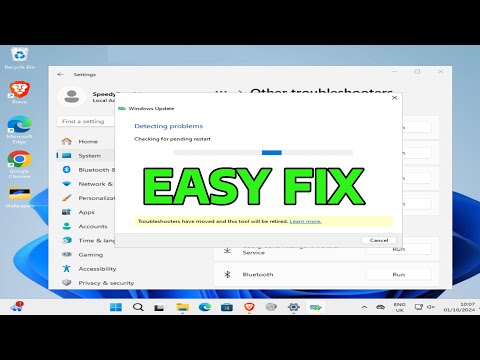
Oh man, tech issues can really be a pain, right? One day you’re just chilling, then bam! Your Windows 11 update gets stuck. Frustrating doesn’t even begin to cover it.
I’ve been there too. Picture this: It was late at night—quiet house, everyone asleep—and what do I decide to do? Update my laptop. Next thing I know, I’m staring at an update screen that won’t budge.
It’s like watching paint dry. Seriously though, if you’re facing this issue, don’t worry. There’s light at the end of the tunnel!
Let’s dive into some easy fixes and get your Windows 11 back on track. Ready? Let’s go fix this thing together!
Resolving Windows 11 Update Stuck Issues
Updating to Windows 11 can be a bit like trying to catch a greased pig—sometimes it’s just slippery and stubborn! If you find yourself staring at an update that’s stuck and won’t budge, it can be frustrating. But don’t worry, there are some things you can try to kickstart the process.
First thing’s first, take a deep breath. Sometimes, updates seem stuck, but they’re silently working behind the scenes. If you’ve been waiting for more than 30 minutes with no sign of progress at all, it’s time to step in.
Check Your Internet Connection:
Unreliable internet is often like having a car without gas—it just won’t go anywhere. Make sure your connection is stable and strong:
- Try restarting your router if things look slow.
- If you’re on Wi-Fi, switching to a wired connection might help.
Restart Your Computer:
Sometimes the old “turn it off and on again” trick works wonders! Hit that restart button:
- This can clear temporary files or glitches causing the hold-up.
Free Up Disk Space:
Updates need space like we need air.
- Delete unnecessary files or apps clogging up your drive.
Use Windows Troubleshooter:
Built into Windows 11 is this neat tool that acts like Sherlock Holmes for update problems:
- Go to Settings > System > Troubleshoot > Other troubleshooters.
- Select Windows Update, then hit Run.
Manually Download Updates:
If automatic updates are stubbornly sitting there doing nothing:
- You can get specific updates directly from the Microsoft Update Catalog website.
- This way you’re grabbing exactly what you need without waiting for Windows’ mood swings!
There was this one guy I knew – Trevor – who got so fed up with an update that he baked a whole loaf of bread while waiting! Luckily he followed these steps and found his way out of update limbo.
Remember though: Always keep backups before diving deep into technical waters! This way you’ve got peace of mind should things not go as planned.
If after all these efforts your device still refuses to update properly—it might require more specialized attention or professional help.
Well there you have it!
Resolving Windows 11 Update Stuck Issues
Ah, getting stuck on a Windows 11 update! Been there. It’s like you’re just trying to go about your day, and boom, your computer decides it’s taking a break. Let’s chat about how you can, you know, get things back on track.
First things first, patience is key. Sometimes updates take a while, but if it feels like forever, here’s what you can do:
- Restart your PC: Sounds simple but restarting can work wonders. Just head to the Start menu and select “Restart.” You never know—it might just do the trick!
- Check your internet connection: A stable internet connection is super important for updates. Make sure you’re connected properly by checking if other online services work fine.
- Run Windows Update Troubleshooter: Windows has this handy tool that helps identify and resolve update issues automatically. Go to Settings > System > Troubleshoot > Other troubleshooters and run the ‘Windows Update’ troubleshooter.
- Free up space: Updates need space! If your hard drive’s packed full of cat videos (no judgment!) or important files—try freeing up some room. Go to Settings > Storage and see what’s eating up all your space.
- Disable antivirus temporarily: Some antivirus software doesn’t play nice with updates. Try pausing it temporarily while updating—but remember to turn it back on afterward for security!
- Use Safe Mode: Booting into Safe Mode gives Windows a chance to load only essential files which helps finish stuck updates sometimes. Restart holding Shift—select “Troubleshoot,” then “Advanced options,” followed by “Startup Settings”—and click Restart.
Now let’s say none of these worked (ugh!). Don’t throw in the towel yet!
You might wanna try updating manually. Microsoft offers an update catalog online where you download specific update packages directly onto yer system from their official site! It’s worth giving shot browsing through them finding those needed installs for fixing whatever ain’t budging during regular cycles.
And remember: computers are kinda like puzzle boxes packed tightly new-fangled trickeries beyond imagination!! Sometimes they put us through wringers only turn shine brighter later when issues resolved finally hurray!!
Keep going—you’ll get there eventually (fingers crossed)!
Windows 11 Update Download Progress Stalled
Oh no, your Windows 11 update has decided to take a holiday and got stuck! That’s annoying. But you’re at the right spot for some friendly advice to help you get things rolling again. Pull up a chair and grab a cup of coffee, let’s walk through this.
First things first, let’s check if the basics are covered:
- Stable Internet Connection: Make sure your internet connection is stable. Sometimes updates can trip over a sketchy connection—like trying to cross stepping stones that just vanish.
- Enough Disk Space: Ensure there’s enough room on your hard drive. Windows updates can be picky little creatures that won’t budge without ample space.
- Restart the PC: Sounds simple, right? Restarting might nudge your stuck update into moving again. It’s like giving it a gentle push!
If those don’t do the trick, let’s take it up a notch with these steps:
- Run Windows Update Troubleshooter: This is kind of like calling in an expert friend who knows their way around Windows hiccups. Just type “Troubleshoot” in the Start menu, select it from the list, and pick Windows Update.
- Clear the Software Distribution Folder: Okay, this might sound techy but hang with me! Open Command Prompt as an administrator (search “cmd,” right-click it, and choose “Run as administrator”). Type the following commands one by one:
net stop wuauservnet stop bits
Head over to C:WindowsSoftwareDistribution in File Explorer and delete everything inside (don’t worry—it’s safe). Then go back to Command Prompt:
net start wuauservnet start bits
If still nothing seems to shake loose that update progress…
For more persistent cases:
- You could try using the Media Creation Tool from Microsoft’s site since it’s like restarting from scratch without losing data (think of it like resetting LEGO pieces).
- If all else fails contact Microsoft support—they’re pros at sorting out these things that leave us stumped sometimes! Chatting with them feels almost magical when they untangle knots of computer chaos.
Nothing beats hearing about someone else tackling something similar—you never know when they’ll share just what helps everything click back together again… kinda like finding lost socks under couch cushions where frankly they shouldn’t even fit!
So here we are with hopes renewed! These suggestions oughta have ya seeing download bars dancing toward completion soon enough instead being endlessly stalled—fingers crossed lovely updates await beyond finish line once normalcy gets restored now hey?
Oh, getting stuck on a Windows 11 update—what a headache! We’ve all been there, twiddling our thumbs while that blue screen seems to be mocking us with its endless spinning wheel. I remember one time, during an important meeting, my computer decided it was the perfect moment to freeze mid-update. Just perfect timing, right?
First thing first: patience. I know it’s hard when you’re in a hurry or have work to do but give it some time. Sometimes those updates take longer than expected due to their complex nature. It’s like watching paint dry—but digital.
If your patience runs out—which happens—it might be time for a friendly restart. Press that power button and hope for the best! Restarting can sometimes kick things back into gear and get the update rolling again.
Another approach? Check if your internet connection is solid. A hiccup there can pause things indefinitely too—like when you’re streaming your favorite show and suddenly hit buffering central!
Also, you might want to free up some space on your device because updates are quite hungry when it comes to storage needs.
And of course, never hesitate to jump into the support forums online or even call in tech-savvy friend who’d love nothing more than to throw some jargon around while magically fixing everything.
Let’s keep fingers crossed that before long you’ll just hear that sweet chime from Windows signaling everything’s right as rain once again.