You know that feeling when your phone is acting up? It’s like, why are you doing this to me, right? We’ve all been there. Sometimes it’s sluggish, or apps are crashing left and right. It’s just a big “ugh” moment.
Now, resetting your Samsung phone might sound scary at first—like you’re hitting a big red button that says “do not touch.” But trust me, it’s not that bad!
Think of it as giving your phone a fresh start. Just like when you need to hit the reset button after a long week, your device could sometimes use one too. And guess what? It’s really not as complicated as it seems.
Let’s get into how this is done easily and without fuss. You got this!
Samsung Device Reset Without a PC
If you’re trying to give your Samsung device a fresh start without using a PC, you’re in luck! It might feel like a daunting task, but resetting your device can be quite straightforward. Let’s walk through that together, shall we?
Resetting Through Settings:
- Navigate to Settings: First things first, you’ll want to head over to your Settings app. That’s where all the magic begins on any Android device.
- Select General Management: Scroll down until you find the option that says “General Management”. Got it? Tap on it!
- Tap Reset: Here you’ll find various reset options. Don’t get overwhelmed; we’re just looking for something called “Reset”. Tap it!
- Select Factory Data Reset: You’ll see several different reset options but go for “Factory data reset”. This one clears out everything.
- Confirm and Reset: Your device will prompt you to confirm the decision by tapping on “Reset” again. After a moment of suspense—like waiting for bread in a toaster—it’ll start wiping all data and restoring factory settings.
Simpler Method Using Buttons:
Sometimes, you might have issues accessing the settings due to software glitches or an unresponsive screen. In such cases, using hardware buttons is the way:
- Power Off Your Device: Hold down the power button until you’re prompted with an option that allows you to turn off your phone.
- Pretend You’re Playing A Game: Once it’s off, press and hold Volume Up, Bixby, and Power &nbssp; buttons simultaneously.
Hello Recovery Mode:
As soon as you see any weird logo pop up (like Samsung’s), let go of those buttons! You did it right once recovery mode appears.
- >
- Power Off: First things first—turn off your Samsung device.
- Button Combo: Hold the Volume Up and Power buttons simultaneously until you see the Samsung logo.
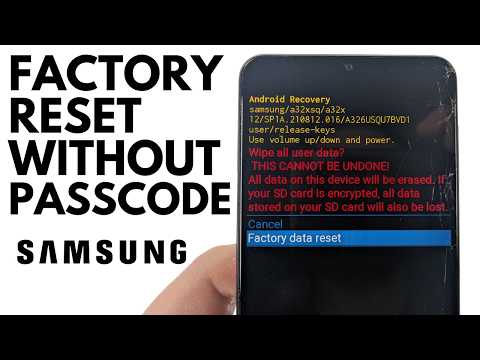
- Access Recovery Mode: Once in recovery mode (fancy way of saying special menu), use the volume buttons to scroll and select “Wipe data/factory reset.” Use the Power button to confirm—like pressing “Enter” on an old-school computer.
- Select Yes: When prompted for confirmation, scroll down to “Yes” using volume buttons; hit that Power button again! There your device will probably take a few minutes while showing some geeky lines of code—but don’t worry!
- Reboot System Now: Finally choose “Reboot system now.” Your phone will restart as if nothing ever happened!
- Power off your Samsung device: Hold onto that power button until the screen goes dark.
- Next, boot into recovery mode. Press and hold the Volume Up and Bixby buttons (if you’ve got one) at the same time as you press Power.
- The Samsung logo should appear now! Once it does, let go of all buttons.
- You’ll then see a blue screen or an Android mascot pop up—don’t freak out—it’s totally normal!
- Navigating in Recovery Mode: Use those volume buttons to scroll up and down. You’ll want “Wipe data/factory reset.” Hit the power button to select it.
- The device will ask for confirmation (sure thing!). Scroll down using Volume Down to highlight “Yes,” then tap Power again.
<LI>The Prize Of Navigation: Use Volume Keys: &Nbsp;The volume keys here work as navigation tools—you know? Like old-school arcade games! Move around until ‘Wipe Data/Factory Reset’ is highlighted (unfortunately there are no prizes).&Nbsp;
lgi. code{Press Power Key }{%The power key seals all decisions here—so don’t miss-click.]
And voila! The process starts running wild after one confirmation tap.
This whole ordeal usually takes only minutes before hitting success—that wonderful feeling when things finally cooperate.
Factory Reset Samsung Without Password
Oh, the good ol’ factory reset. It can really feel like a life-saver sometimes, right? Imagine your Samsung phone acting all wonky, maybe it’s sluggish or just plain unresponsive. There’s this feature called a factory reset that can basically whip it back into shape. But what if you’re locked out and you don’t remember the password? Well, hang tight because I’ll walk you through it.
Why Factory Reset?
You might be thinking, “Why on earth would I need to factory reset my phone?” Sometimes it’s just to start fresh. Maybe you’re selling it or giving it away. Or like in our case, you’ve been locked out.
Steps to Factory Reset Without Password
This is where things get interesting! Now remember, a factory reset will wipe everything—so backup anything you might wanna keep.
Anecdotal Moment: I once had this friend whose cat decided her smartphone made for some exciting toy—it ended up under her couch with god knows how many accidental button pushes resulting in an unknowingly activated passcode lock! We ended up having no other choice but performing these very steps together – suffice it say we were both relieved once things went back normal!
So soon enough should soon be squeaky clean like when freshly unboxed from store shelf ready offering another chance organize chaos anew…or uh playing Candy Crush guilt-free!
Hope all goes smoothly on same journey too.
Factory Reset Samsung Device Without Password
Hey there! So, let’s say you’ve got a Samsung device, and you can’t get past the password. Kind of like hitting a brick wall, right? Don’t worry, I’ve got your back. It’s actually possible to reset your device to factory settings even if you’re locked out. Just follow me through these steps.
First up, it’s important to *understand* what a factory reset does. It wipes all your data and settings on the phone—kinda like giving it a brand-new start altogether.
Once it’s done wiping everything clean—you know—it’ll take you back into the main menu of recovery mode where you’ll see “reboot system now.” Go ahead and select that option with the power button.
And voilà! Your Samsung should start fresh without needing that pesky old password anymore!
Now remember: This will remove all data saved on this phone—including apps while music photos—and everything else stored internally (sorry ‘bout those unforgettable selfies). So make sure anything crucial was backed up before diving headfirst into resetting land!
If things aren’t working out exactly as planned or if any unexpected errors crop up along th.e way just drop me line—or maybe give support hotline whirl—they’re always happy lend hand too!
Alright, let’s chat about resetting your Samsung device. You know, sometimes your phone starts acting like it’s got a mind of its own—sluggish apps, random crashes, that sort of thing. It’s kinda like when you wake up feeling groggy and realize you need a good restart with a cup of coffee. Our phones need something similar every now and then too.
I remember the time my cousin Sarah was freaking out because her Samsung phone kept freezing during our video call. She was trying to show off her new puppy but all I got on my screen was her frozen excited face! We ended up doing a quick reset after I guided her through it over the phone.
Anyway, to reset your Samsung device and get things back in working order there’s actually two ways you can do it: a soft reset and a factory reset. It’s always best to start with the soft option first ’cause it’s just like restarting without losing any data. Kind’a like switching your computer off and on again. For this one, merely hold down the power button until you see the option to restart pop up.
Now if things are still wonky afterwards or you’ve decided to pass on an old device to someone else—well that’s when you might wanna go for the factory setting version. Heads-up though: this will delete everything on the device coming back fresh as new! Seriously backup anything important before you go down this road.
To do that for most Samsungs these days is pretty straightforward as well; head into settings (represented by that little gear icon), scroll down till you spot “General Management,” tap “Reset” from there ‘n’ then choose “Factory Data Reset”. It’ll even give ya an overview reminding what’s gonna be erased—notice-worthy just so no surprises pop up later!
Remembering Sarah’s relief when her smartphone returned looking shiny (not literally!) taught me how therapeutic technology resolutions can be! Whether handling micro-tasks or keeping cherished memories in digital form—being armed with simple fixes empowers us whenever tech tantrums strike unexpectedly… wouldn’t ya agree?