Hey, have you ever tried connecting a new Bluetooth gadget to your computer and then, bam, it won’t work? Yeah, been there, done that. It’s like your computer suddenly forgot how to speak “Bluetoothish.”
Picture this: you’ve got this shiny new wireless headset ready to rock and roll. You’re excited, maybe even imagining yourself dancing around without cables tying you down. And then… You see the dreaded “Bluetooth Peripheral Device Has No Driver Installed” alert.
I mean seriously? It’s annoying when tech just doesn’t play ball with us. But don’t sweat it—this is a little hiccup that happens more often than you’d think.
Stick around and we’ll figure out this mess together! We’ll get that device humming along in no time. And hey, maybe learn a thing or two about drivers on the way!
Downloading Bluetooth Peripheral Device Driver
Oh, you’ve run into the “Bluetooth Peripheral Device Has No Driver Installed” issue? That can be a real head-scratcher! This is often what happens when your computer’s Bluetooth device isn’t recognized properly. But guess what? You’re not alone, and it’s usually something that can be fixed with a bit of patience.
What Are Bluetooth Peripheral Device Drivers?
Bluetooth drivers are kind of like translators. They help your computer communicate with your Bluetooth devices—like headphones or mice. Without these drivers, it’s like you’re speaking English to someone who only understands French!
Why Do You Get This Error?
When you see this message, it means your computer tried to connect to something via Bluetooth but couldn’t find the right driver. It usually pops up after you pair a new device but can happen anytime there’s an update or glitch.
Steps to Fix the Issue:
- Check for Windows Updates: Sometimes, the solution is just waiting patiently for Windows to roll out updates that include necessary drivers or patches.
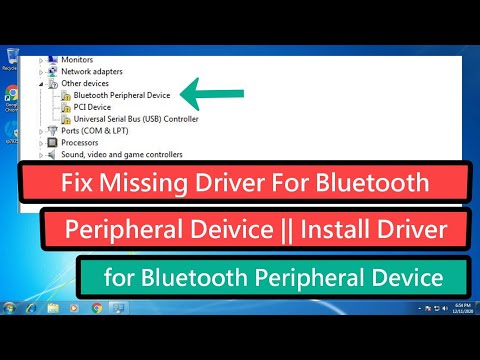
- Device Manager Magic: Open the Device Manager (you know this tool that’s hidden deep in your Control Panel). Look for ‘Bluetooth’ and check if there are any yellow exclamation marks next to devices—these indicate driver issues.
- Automatic Driver Update: Right-click on the problematic device and select ‘Update driver.’ Choose ‘Search automatically for updated driver software.’ It might take a while, so grab a coffee while you’re at it!
- Manual Driver Installation:
If automatic updates don’t cut it, you might need some manual labor:
- Nail down the model number: Check your device’s back panel or manual for model details.
- Snoop around manufacturer websites: Head over to their support sections and look up drivers based on model numbers. Manufacturers often release specific drivers optimized just for their gadgets.
- The ol’ install party: Download those files and follow installation instructions step-by-step—trust me on this one!
Remember when my old laptop couldn’t connect my wireless mouse no matter what hoops I jumped through? Manually installing its specific branded driver saved me so much hair-pulling frustration!
Troubleshoot With Third-Party Tools (Optional):
There’re third-party software options available which claim they’ll find or repair missing/outdated ones automatically—but use them cautiously! Always consider checking reviews before downloading anything from such programs online ’cause security matters too.
A Few Final Tips:
- >Restart Your Computer: It’s surprising how many tech glitches melt away with just one simple reboot.
Driver Requirements for Peripherals
When you’re working with peripherals like a Bluetooth mouse or a drawing tablet, you might run into a little hiccup when it comes to drivers. Oh, those pesky drivers! They’re those invisible bridges that allow your computer and your peripheral devices to communicate smoothly. Without them, it’s like they’re speaking different languages.
Why Drivers Matter
Imagine you’re trying to watch a foreign film without subtitles. That’s kind of what using peripherals without the right drivers is like. Drivers ensure compatibility, making sure everything runs smoothly.
The Basics of Driver Requirements
Not all devices come with built-in support on your computer. When it mentions “Bluetooth Peripheral Device Has No Driver Installed,” here’s what it means:
- Device Recognition: Your system sees the device but doesn’t know how to interact with it properly.
- No Pre-Installed Driver: Some devices need specific software to be downloaded before they work correctly.
Installing Drivers: A Simple Guide
So, you’re set up with this new Bluetooth headset or keyboard, right? Now what?
- Check the Manufacturer’s Website: Always a good starting point! They often have the latest drivers available for download. It’s usually listed under “Support” or “Downloads.”
- Use Device Manager: On Windows systems, head to Device Manager (you can type this in the search bar). Look for any little yellow exclamation marks because these often indicate driver issues.
- Select the device.
- Select ‘Update driver.’
- Select ‘Search automatically…’ for updated driver software.
Handy tip: Sometimes it’s easier than expected—just plug and play!
Troubleshooting Tips
Alright, sometimes things don’t go as planned…
- Restart Your Device: Sounds basic? It is! But restarting can refresh connections and solve small glitches.
Do you remember when unplugging and plugging back again fixed things? Same principle here!
Just one more tiny thing:
If you’ve installed something fishy in your PC; consider uninstalling and reinstalling – fresh starts can work magic.Of course there are instances when even these don’t quite cut it—in which case seek help from tech forums could be just what you need.
And there you have it—a crash course on navigating through tricky waters of peripheral device driver requirements made simple!
Bluetooth Peripheral Driver Missing on Windows 11
Hey, imagine you’re trying to connect a Bluetooth device to your Windows 11 PC, and bam! A message pops up saying, “Bluetooth Peripheral Device Has No Driver Installed.” Frustrating, right? But don’t worry; it’s more common than you might think. Here’s how you can tackle it so you can get your Bluetooth headphones or whatever working smoothly.
First off, let’s break this down. What’s happening here is that Windows isn’t finding a compatible driver for your Bluetooth device. A driver is like a little translator that helps the hardware and software talk to each other. Without it, they can’t communicate properly.
Here are some steps to resolve this:
- Update Drivers Automatically: Go into Device Manager. You know how to get there? Just type “Device Manager” in the search bar at the bottom of your screen and hit enter. When you’re inside, look for any devices with a little exclamation mark next to them. Right-click on these and select “Update driver.” Choose “Search automatically for updated driver software” and see if it finds anything.
- Create a Restore Point: Before making any changes, create a restore point. It’s like having an undo button on standby just in case something goes wrong. Type “create restore point” in the search bar, open it, and just follow the prompts.
- Troubleshoot from Settings: Go into Your Settings, then head over to ‘Troubleshoot>
. Look for ‘Additional troubleshooters’ and find Bluetooth there. Run the troubleshooter; sometimes it finds things we miss.
- Add Manually if Needed:: If all else fails manually install drivers from the manufacturer’s website of your Bluetooth device or motherboard—it has saved many people I know (including myself) from pulling out their hair when nothing else works!
A bit of real-life reassurance:, One time I was helping my uncle who couldn’t understand why his brand-new wireless mouse wouldn’t connect despite being so tech-savvy otherwise! It turned out he just needed these simple steps mentioned above—his relief was priceless seeing everything click together after doing them!
Hearing about similar stories reminds us all that technical hiccups happen even savvy folks face such stuff occasionally! Hope these practical steps help solve yours effortlessly—good luck connecting without hassles anymore!
Ah, Bluetooth! The magic that lets our devices talk to each other without any pesky cables. But you know, it’s not always smooth sailing—sometimes you hit a bump like the infamous “Bluetooth Peripheral Device Has No Driver Installed” message. It’s like getting an unreadable note passed to you in class; frustrating when you’re trying to pair something cool like your wireless headphones or a new gadget.
I remember this one time with my friend’s shiny new wireless speaker. We were all pumped up for some tunes, but guess what? A stubborn error message popped up saying the driver was missing. It felt like hitting a tech wall at full speed! These drivers are kind of like translators, making sure your devices speak the same language.
Anyway, what’s often happening is that your computer’s got no clue about this device because it’s missing its essential piece—the driver software. Head to the manufacturer’s website; it’s your secret weapon here.
And just a little heads-up: sometimes Windows Update does the job for you if you’re lucky enough. That’s when technology feels more like magic than hassle!
So yeah, smooth sailing with Bluetooth isn’t always guaranteed but with a bit of tinkering and patience—and perhaps double-checking online forums—you’ll get those tunes playing or whatever gadget ticking in no time! Remember how satisfying it feels when everything finally clicks and plays together?