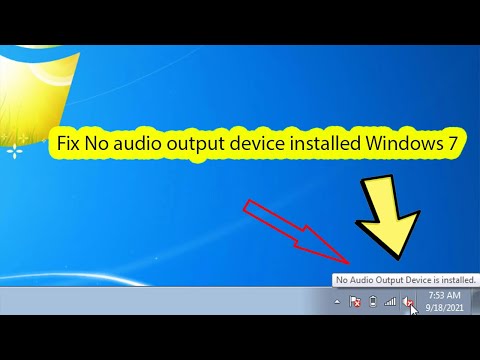
Oh man, have you been there? You’re all set to listen to your favorite tunes, or maybe join an online meeting, and boom – your computer hits you with a “no audio device detected” notice. It’s like, seriously, what now?
I’ve totally been in that spot. Picture this: I’m about to start a movie night with friends, popcorn ready and everything. But Windows 7 decides there’s no sound. Talk about frustrating!
Don’t worry though! We’ve all had those tech hiccups. It’s just one of those quirks we run into now and then. Let’s dive into sorting this out together, shall we?
Checking Audio Device Configuration on Windows 7
Hey there! Dealing with audio issues in Windows 7 can be a bit of a pain, right? Sometimes the computer just acts like your speakers or headphones don’t exist. But hang on, let’s take a closer look at how you can check and tweak your audio device settings.
Why Your Audio Device Might Not Be Detected:
You know those moments when you’re all set to enjoy some music or stream a show, and then… silence? This usually happens due to incorrect configurations or outdated drivers. Don’t worry, though; that’s fixable!
Steps to Check Your Audio Device Configuration:
- Accessing Sound Settings: First things first, click on the Start menu. Go to the Control Panel. Look for the Hardware and Sound option. Once you’re there, click on Sound. Simple enough!
- Selecting Correct Playback Device: In the Sound window, you’ll see several devices listed under the Playback tab. Make sure your preferred device is set as default by right-clicking on it and selecting “Set as Default Device”. If it’s not showing up, try unplugging and re-plugging in your audio device.
- Troubleshooting Driver Issues: Sometimes Windows doesn’t play nice with drivers. To update them, head back to the Control Panel, but this time hit up Device Manager. Find “Sound, video and game controllers”, right-click on your sound card’s name (usually something like Realtek High Definition Audio), then choose “Update Driver Software.” Easy peasy!
- Sneaky Disabled Devices:: In that same Sound window under Playback tab? Right-click anywhere in that blank space & choose “Show Disabled Devices.” If any devices pop up grayed out—right-click upon them–choose enable—bam! They come back.
- Cable Connections Matter Too:: Check if cords are snuggly fit–no loose ends allowed here!
Windows 7 Audio Device Compatibility with Windows 10
Thinking about upgrading from Windows 7 to Windows 10? Awesome choice, but you might hit a little snag when it comes to audio devices. If you’ve ever seen the dreaded “Audio Device Not Detected” message, you’re not alone. Let’s dive into what’s going on here and how you can smooth out the issues.
Why Compatibility Matters
Upgrading operating systems is like switching cars—everything works a bit differently under the hood. Windows 10 may not always jive with hardware made for older systems like Windows 7, especially if the manufacturer’s drivers haven’t kept pace.Is Your Audio Device Compatible?
The first thing you want to do is check if your audio device is compatible with Windows 10. You can usually find this info on the manufacturer’s website. They often have lists or charts showing which devices work seamlessly.- Check for Drivers: An updated driver is your best friend here. Go to the manufacturer’s site and look for a driver that supports both your audio device and Windows 10.
- Look in Device Manager: Sometimes, your computer knows more than it lets on! Access this by right-clicking the Start button and selecting ‘Device Manager.’ Check under ‘Sound, video and game controllers’. Any yellow exclamation marks mean there’s an issue.
Troubleshooting Steps
If you’ve checked compatibility and everything’s supposed to be hunky-dory but you’re still seeing issues, try these:
- Restart Your PC: This might sound too simple, but restarting can resolve many temporary glitches.
- Update Drivers Automatically: In ‘Device Manager,’ right-click your audio device name and select ‘Update driver’. Choose ‘Search automatically for updated driver software.’
- Tweak Sound Settings: Navigate to Control Panel > Hardware and Sound > Sound. Set your default playback devices correctly.
If Nothing Works!
Sometimes despite trying everything above, you’re still stuck with no sound. Consider purchasing an external USB sound card as a workaround until you find a permanent solution or get support from professionals.
Personal anecdote! My aunt upgraded her old desktop from Windows 7 to Windows 10 last summer—with my help of course—and lo and behold her speakers stopped working! After fiddling around forever we discovered she just needed a $20 USB sound card because her ancient internal one was not feeling cooperative with modern updates.
Hope this helps get those tunes back up running smoothly! If you ponder another tech puzzle drop me line anytime—I’m riddle solver away!
No Audio Output Device Installed Error in Windows 7
Ah, audio issues on Windows 7—those can be a real headache! If you’ve ever faced the dreaded “No Audio Output Device Installed” error, you’re not alone. I’ve been there too, scratching my head, wondering why the sound suddenly vanished. But worry not; we can tackle this together!
First things first: let’s get some basics out of the way. The error usually pops up either because your system isn’t recognizing your audio device or something’s off with the drivers.
- Double-check Connections: Make sure all audio cables and devices are properly connected to your computer. It sounds simple, but you know… sometimes we overlook the obvious.
- Check Device Manager: Go to your Start menu and type in “Device Manager.” Once you’re there, look under “Sound, video and game controllers.” Is there anything suspicious like a yellow exclamation mark? That usually indicates driver issues.
- Driver Update or Reinstallation:
Now we’re getting into driver territory. Drivers act as translators between Windows and your audio hardware.
1. **Update**: Try updating them via Device Manager by right-clicking on your audio device name and selecting “Update Driver Software.”
2. **Reinstall**: If updating doesn’t work or if the device appears as unknown (a bit scary), uninstall it! Restarting will prompt Windows to attempt a fresh install of those drivers.
- Windows Update: Ensure that Windows Update is running smoothly because it might find a new driver version.
- Bios Settings Check: Strange but true—sometimes it’s about enabling onboard sound in BIOS settings. Restart your PC and enter BIOS/UEFI settings (F2, Delete key are common) and make sure audio controllers are enabled.
- Troubleshoot Potential Hardware Issues:
While software fixes often do the trick sometimes it’s hardware that’s giving you grief!
– **Test Different Speakers/Headphones:** Try using different speakers or headphones to ensure they aren’t the problem themselves.
– **Physical Damage Inspection:** Carefully inspect ports for any physical damage; clean them gently if needed.
And listen although these steps help many folks out there—sometimes stubborn problems persist despite best efforts! Don’t hesitate reaching out for professional advice when nothing else seems effective anymore… You deserve hassle-free sound enjoyment after all!
And voilà—you’ve got several routes mapped out towards reclaiming crystal-clear tunes once more without feeling overwhelmed by tech jargon!
Ah, the joys of troubleshooting audio issues on Windows 7! If you’ve ever been there, you know how it feels. Picture this: you’re all set to watch your favorite movie or maybe get lost in some tunes, and bam! No sound. The dreaded “Audio Device Not Detected” message pops up. It’s enough to make anyone sigh in frustration.
I remember when it happened to me once. I was getting ready for a virtual party with friends—a rarity back then—and planned an awesome playlist to share. But guess what? My speakers decided that was the perfect moment to go silent on me. Felt like they were throwing a tantrum or something!
So what’s the first step when faced with this silent treatment from your computer? Check those cables and connections; you’d be surprised how many times something is just not plugged in properly. Maybe it’s a loose headphone jack or an innocent kink in the speaker wire messing things up.
Next, it’s worth diving into device manager—sounds fancier than it is! Hit Start and type “Device Manager”, then look for anything unusual under “Sound, video and game controllers.” If there’s a little yellow triangle next to any item, that’s a hint: something’s not right there.
Drivers could also be playing games with you if they’re out-of-date or corrupted. Sometimes just updating them can fix things; or rolling back if a recent update is causing havoc.
And although restarting seems cliché, it works wonders sometimes—like giving your system a quick nap so it wakes up fresh.
Of course, let’s not forget about sound settings under Control Panel’s “Sound” section either; ensure your default playback device is correctly selected.
A few tries here and there usually gets things humming again—or blasting if that’s your style! Even though tinkering with tech can be frustrating at times yet figuring out these quirks makes us all a bit more tech-savvy along the way—I suppose every cloud has its silver lining?