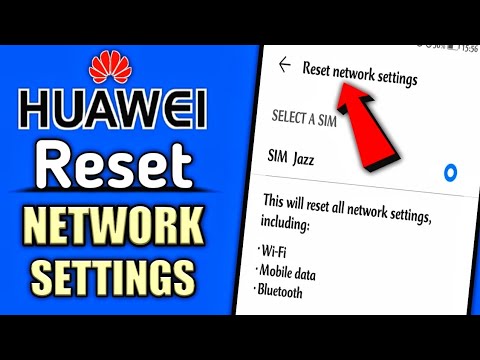
Hey, ever had one of those days when your Huawei just won’t connect to Wi-Fi, no matter what you do? Oh man, I sure have—super frustrating, right? You’re not alone!
I remember once spending hours trying to figure out why my phone was playing hard-to-get with the internet. Turns out it just needed a little network reset. Who knew something so small could solve my big headache?
So if you’re stuck in this tech jam too, don’t worry! It’s easier than you’d think to reset the network settings. Let me guide you—it’s kinda like giving your device a fresh start without losing anything else. Ready? Let’s rescue that connection!
Network Settings Force Reset Procedure
Alright, so you’re looking to reset the network settings on your Huawei device. Sometimes, these gadgets can act a bit stubborn, right? It’s as if they have a mind of their own! Let’s see how you can tackle this.
First things first, it’s important to know what a network reset is. Resetting network settings wipes out all the saved data for Wi-Fi networks, Bluetooth connections, and any VPN configurations you’ve set up. It kinda feels like giving your device a fresh start when it comes to connectivity.
Here’s how you do it:
- Unlock your phone: Of course, step one’s gotta be getting into the thing!
- Navigate to Settings: You know that gear icon somewhere on your home screen or app drawer? Tap on it.
- Select “System & updates”: This is where Huawei stashes all its important stuff.
- Trouble finding options? Use the search bar at the top and type “Reset”. Makes life easier!
- Tap “Reset” or “Reset Network Settings”: Different models might have slightly different wording.
- Acknowledge warnings or prompts:You may get a heads-up about losing saved Wi-Fi passwords and such.
- Tapping “Reset Network Settings”:This is where the magic happens! Just give it time.
After resetting, you’ll need to re-enter all those Wi-Fi passwords for networks you use regularly. It’s like getting reacquainted with old friends!
Now let me share something personal. I once had my phone stuck in airplane mode after flying—it was beyond frustrating! Resetting those network settings was a total lifesaver.
And don’t worry too much about doing this process—it’s not going mess up other stuff on your device like photos or apps; it’s purely focused on connectivity issues.
So go ahead and try resetting if you’re facing unusual connection problems—could solve more than just one hiccup instantly!
Effects of Resetting All Settings on Huawei Devices
Have you ever felt like your Huawei device just isn’t cooperating? Maybe it’s running slow, acting a bit buggy, or you’re having trouble with Wi-Fi connections. We’ve all been there, and sometimes hitting that magical “Reset All Settings” button can feel like the way to go. So what actually happens when you reset all settings on your Huawei device? Let’s chat about it.
Resetting All Settings: This option on your Huawei phone is pretty handy when things get out of hand. It’s not as drastic as a factory reset since it doesn’t delete your personal data like photos or apps. Instead, it restores system settings to their defaults without touching your files. Kind of like giving your phone a good shake and setting things straight again! Here are some key changes:
- Network Settings: Your Wi-Fi passwords vanish! Gone are saved networks and paired Bluetooth devices. It’s like introducing your phone to the world anew.
- Display & Sound: Say goodbye to custom ringtones and screen timeouts you’ve grown fond of—you’re back to the original setup.
- Password & Security: If you’ve set up any fingerprint IDs or patterns, those will need redoing.
One time I reset my network settings at my nephew’s house because my internet was crawling slower than a snail through peanut butter—turned out I’d messed up my Wi-Fi password ages ago!
The Impact on Daily Use:
Reseting all settings won’t kick any apps off your device, phew! But those handy shortcuts and widgets? Yep, they’re going back to square one each time you do this kind of reset.
Benefits and Drawbacks:
Let’s say you’re planning for this little digital spring cleaning session.
- Smooth Performance: Often fixes annoying glitches slowing down operations.
- Easier Troubleshooting: When specific issues arise but you’re not even sure which part stonewalled progress!
- A Little Tedious: Great afterward needing additional effort if restoring personalized configs matters (aka hunting down passwords).
It feels both liberating but slightly daunting clearing everything tailored painstakingly over months only restart afresh; however doing so often breathes new life onto gadgets otherwise feeling suffocating under clutter accumulated unintentionally along life’s course moments procrastination became habit-forming perhaps permissible excuse occasional relief achieved thereby gaining perspective simplify creating balance technology reliance moderation daily living harmony result mindfulness intentionality present actions shaping longer-term outcomes unbeknown future inevitable unforeseen circumstances prevent adaptability second chance granted embracing change positivity flexibility opportunity growth resilience continues today tomorrow together hopefulness marks paths forward happily ever after…
Huawei P30 Pro Network Settings Reset Procedure
Resetting network settings can be a lifesaver when you’re having trouble with your internet or Bluetooth connections. I remember the time my buddy couldn’t connect their Huawei P30 Pro to their home Wi-Fi. They tried everything—turning it off and on again, checking the router—but nothing worked. Then, they gave resetting the network settings a shot, and voila! Internet bliss was restored.
If you find yourself stuck in a similar situation, here’s how you can go about resetting the network settings on your Huawei P30 Pro:
Step-by-step Method:
- Start by accessing Settings: Find and tap on the Settings app on your phone’s home screen.
- Dive into System & Updates: Once you’re inside Settings, scroll down until you see System & Updates. Tap that to move forward.
- Select Reset: Within System & Updates, there’s an option called Reset. Go ahead and give it a tap.
- Poke at Reset Network Settings: Now you’ll spot several reset options. What we’re interested in is right there—Reset Network Settings.
- Tread carefully here!: You’ll be warned that this will clear all network configurations including Wi-Fi passwords and paired Bluetooth devices. If you’re cool with that, hit the confirm button to proceed.
It’s like clearing out all those cobwebs in an attic you hadn’t visited for years; fresh air comes rushing through! After performing these steps, your device should start accepting new configurations afresh. Don’t forget to punch in any saved Wi-Fi passwords afterwards.
A little reminder: If you’ve never reset network settings before, you might feel nervous pressing that option. Trust me though; it’s designed not harm other data such as your apps or photos stored away safely elsewhere on our phone.
Sometimes technology feels daunting but remembering small things like this makes life just so much easier – imagine being able enjoy uninterrupted connectivity without calling tech support every other day!
You know, resetting network settings on a Huawei device can feel like hitting the reset button on your internet life. It’s not something most of us think about every day, right? But then you have those moments when Wi-Fi just won’t connect or mobile data seems to be playing hide-and-seek. It’s kind of like when you’re trying to find that one mysterious sock that always vanishes in the laundry—frustrating and puzzling!
I remember once, my friend Lina was having one of those days. She couldn’t figure out why her phone wasn’t connecting to Wi-Fi, even though everything seemed fine. After a few attempts at toggling airplane mode and muttering a few choice words, she finally decided it was time for a network reset. It felt like magic afterward! Suddenly, everything clicked back into place.
When you reset network settings on your Huawei device, it’s basically giving it a fresh start without losing personal data or apps. All the saved Wi-Fi networks and Bluetooth connections are wiped clean—like clearing away the clutter in your mind after a long week. It’s simple but sometimes we just need that little nudge to do it.
Doing this doesn’t mean all problems will magically vanish forever (if only!), but it’s often a quick fix for those pesky connection glitches many run into from time to time. Just remember though: you’ll need to re-enter Wi-Fi passwords afterward…which might be annoying if they’re as complicated as some people’s email passwords!