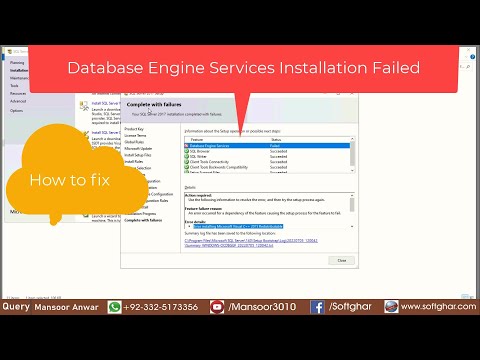
Oh boy, database errors are the worst, right? You’re all set to get SQL Server 2017 up and running, maybe thinking how nice it’ll be to finally have everything in place. But bam! An error message pops up out of nowhere and now it’s like, why me?
I’ve been there too! I remember once trying to install a version of SQL Server for a project deadline. Everything seemed perfect until—boom—a cryptic error message stalled everything. It’s like a rude surprise at the end of a long day.
Before you start pulling your hair out, take a deep breath. Turns out, these hiccups can often be sorted with just a few tweaks here and there. Together we’ll figure it out—I promise!
Resolving SQL Server 2017 Setup Errors on Windows
Hey, struggling with setting up SQL Server 2017 on Windows? You’re not alone! It can be pretty tricky sometimes, especially when you run into those pesky errors. But let’s break it down together and see if we can get things figured out.
Common Setup Errors
When you’re installing SQL Server 2017, there are a few common issues that might pop up. Here’s a quick rundown of what to watch for:
- Missing System Requirements: Make sure your machine meets the basic requirements like RAM, disk space, and processor power. These are little things but super important!
- Windows Updates: You know how Windows loves its updates? Yep, keeping your system updated can surprisingly solve a lot of setup glitches.
- User Permissions: Running the setup as an administrator is crucial; otherwise, you might not have enough rights to complete the installation.
Troubleshooting Steps
Oh boy, troubleshooting! It’s both an art and a science. Here’s how you could approach solving some of these installation headaches:
- Error Logs: First thing’s first—check those logs! They often give clues about what’s going wrong. You can find them in the “Setup Bootstrap” folder under “Program Files” on your C drive.
- .NET Framework Issues: SQL Server needs certain versions of .NET Framework. Double-check that you’ve got at least version 3.5 or later installed.
- Avoid Conflicts: Turn off antivirus software during installation if possible. Sometimes they get overly cautious and block certain processes.
If All Else Fails…
Sometimes no matter what you try; things still aren’t working out smoothly. Here’s where our good buddy Google comes in handy—look up specific error codes to get targeted help.
Also consider seeking community advice on forums like Stack Overflow or Microsoft Community forums where experts share their experiences (and solutions!). You’d be surprised at how many folks have been through this rodeo before!
Remember patience is key here… Installing complex software is very detail-oriented work so any small misstep then messes everything up—and we’ve all been there trust me!
Resolving SQL Server 2017 Setup Failures
Hey, let’s dig into resolving SQL Server 2017 setup failures. I’ve seen folks get stuck with this, so you’re definitely not alone. It can be a bit frustrating when you’re all set to install and then—wham!—error messages pop up. But no worries, we’ll work through it together.
Common Installation Errors
You might see errors like “Rule ‘Windows Firewall’ failed” or something about the .NET Framework missing. One common culprit is insufficient permissions or prerequisites not being met.
- Check Permissions: Ensure the account running the setup has administrative privileges. Without proper permissions, things won’t run smoothly.
- .NET Framework: SQL Server 2017 requires certain .NET versions to be installed first. Check if they’re installed by searching in your Control Panel under Programs and Features.
Windows Firewall and Antivirus Software
Firewalls and antivirus software are like our computers’ bodyguards—but sometimes they’re a little too protective!
- Temporarily Disable Them: If you trust the source of your installation media, try disabling these security features temporarily during installation.
I remember a time I was helping a friend set up SQL Server. We were scratching our heads until we realized their antivirus was stopping some vital components from being installed!
Troubleshooting the Rule Check Phase
During the setup process, SQL Server does this nifty thing called rule checks to ensure everything’s A-OK before proceeding.
- Consult Log Files: The log files generated during installation contain valuable clues about what’s going wrong. Look for them typically under `C:Program FilesMicrosoft SQL ServerSetup BootstrapLog`.
- Error Codes:: Search for specific codes online—they often lead to widely-visited forums with possible solutions.
Avoiding Configuration Mistakes
The setup wizard gives plenty of options, which is great—but also a bit of a trap if you’re unsure what each option does.
- Select Correct Instance Type:: Decide whether you need a default or named instance based on your environment needs.
- An Instruction Manual: : Follow Microsoft’s documentation closely—it might seem tedious but it saves hassle down the line!
Isn’t it funny how technology makes life easier until it doesn’t? But once you’ve got everything set up perfectly, it’s totally worth it!
Anyway if any issue persists after checking these points maybe consider reaching out in tech forums—the collective wisdom there is huge! Happy installing!
SQL Server Database Engine Recovery Handle Issue
You know, setting up a SQL Server can sometimes feel like you’re trying to solve a complex puzzle. And one of the tricky pieces that people bump into is the Database Engine Recovery Handle Issue. This often pops up when you’re installing MSSQL 2017, and boy, can it be frustrating!
Here’s what usually happens. You’ve got everything in place, you’ve followed all steps diligently but then BAM! A setup failure message smacks you in the face. It’s like being super excited about baking your favorite cake and then realizing halfway through that you missed an ingredient.
So what’s causing this? Well, one of the main reasons is typically something going a bit awry with how your system handles permissions or existing services.
- Check Permissions: First thing’s first, ensure that the account you are using to install SQL Server has administrative privileges. Think of it like needing keys to get into certain rooms—permissions act as those keys.
- Existing Installations: Make sure there are no remnants of previous SQL installations hanging around. Lingering files or registry entries can trip things up.
- Windows Services: Sometimes it’s a Windows service that didn’t start correctly during installation that’s given you grief.
Now let’s talk solutions because nobody likes problems lingering around.
1. **Fix Permissions:**
Ensure your user account has full control over the folders necessary for SQL installation—especially where you’re planning to install SQL Server and keep your temp files.
2. **Clean Up:**
If you’ve tried this before and stumbled across issues, clear out any previous attempts. Use tools like ‘Add or Remove Programs’ to uninstall any partial installs and restart your machine afterward.
3. **Service Issues:**
Head over to ‘services.msc’ on your computer (just type it into that little search bar) and look for related services such as ‘SQL Server VSS Writer’. Sometimes simply stopping then restarting them does wonders!
Still having trouble? It might just need a bit more digging specific to your exact setup or an extra pair of tech-savvy eyes from someone who’s tackled similar hurdles before.
It’s totally normal to feel puzzled initially; tech stuff comes with its quirks! Just take it step by step; you’ll soon enough have those databases running smoothly without these hiccups along way!
Oh boy, dealing with a SQL Server installation error can be quite the adventure, can’t it? I remember this one time when I was setting up MSSQL 2017. Everything seemed fine at first—I’d done this many times before, but then bam! An error popped up. Like an unexpected roadblock on what I thought was a smooth path.
So, here’s the deal: these errors often have to do with missing prerequisites or permissions that aren’t quite right. You know how it goes when you’re just starting to feel like you’re in control and then realize you missed some tiny detail? That’s what happened here. It can be frustrating.
First things first, though—when faced with such an issue, checking the error logs is key. It sounds complicated, but really it’s just about finding where things went off track. The logs give you clues about what’s gone wrong and help in pointing towards a solution.
Then there are those system requirements or software updates that sometimes sneak by unnoticed. Oh man, I’ve definitely had moments where a simple update would’ve saved me hours of head-scratching! Ensuring your system meets all requirements before jumping into the installation can truly save some headaches.
Permissions are another biggie. SQL Server loves its permissions set up perfectly—like getting all the pieces of a puzzle perfectly aligned so everything fits snugly together. If the user account lacks admin privileges on your machine? Yeah, that’s like trying to open a lock without the right key.
And let’s not forget conflicts with existing installations or corrupted files lingering around causing mischief! I’ve had cases where uninstalling past versions or running repair tools cleared things right up.
Honestly though, once you get through it and see that setup complete successfully message? That relief and satisfaction make all those hurdles worth it! Plus every challenge faced is another notch on your belt—proof you’ve tackled yet another tech quandary head-on!