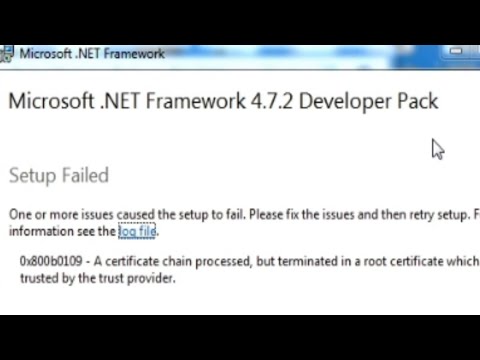
Oh man, those error messages! They can be such a pain, right? Imagine you’re sitting there, all ready to install .NET Framework 4.7.2 on your trusty Windows 7 machine, and bam! An error pops up out of nowhere. Ugh.
I know it’s like hitting a wall when you’re just trying to get things done. It feels like your computer is conspiring against you or something. You’ve got plans—maybe it’s some cool app you wanna try—but now you’re staring at this cryptic message with no clue what to do next.
No worries, I’m here for you! Let’s see if we can make sense of this together and get that thing running smoothly again. Just remember: technology loves drama occasionally, but we’ve got this!
Windows 7 Compatibility with .NET Framework 4.7.2
Hey, have you been running into some roadblocks trying to install the .NET Framework 4.7.2 on your trusty old Windows 7 machine? You’re not alone! Sometimes technology can just throw a curveball your way, huh?
Alright, let’s roll up our sleeves and dive into this. First off, it’s good to know that .NET Framework 4.7.2 is indeed compatible with Windows 7 Service Pack 1 (SP1). However, there might be a couple of reasons why you’re facing errors during installation. Let’s unpack this a bit.
Possible Reasons for Installation Errors:
- Lack of SP1: Make sure your Windows 7 has Service Pack 1 installed. If not, you’ll want to update it first because the .NET Framework requires SP1.
- Patching Up: Even if you have SP1, your system needs to be fully updated with all the latest patches from Microsoft Update.
- Malfunctioning updates: Sometimes updates go sideways and leave system files in a dodgy state. A “System File Check” could save the day there!
- .NET Predecessors Acting Up: Prior versions of .NET may need repair or removal due to conflicts.
- User Permissions: Running installations as an administrator helps sidestep annoying permission issues that can arise otherwise!
This one time my buddy Jeff had trouble installing something similar on his old PC too; it turned out he’d completely forgotten about pending updates that needed installing before moving forward with the framework update! Easy mistake really.
If you’ve checked all these points off and are still wrestling with .NET deployment nightmares look at Event Viewer logs for error codes—those details help spot any obscure kinks tripping things up behind-the-scenes!
Windows 7 Installation Error Causes
Installing .NET Framework 4.7.2 on Windows 7 might seem straightforward at first, but there can be quite a few bumps along the way. Picture this: you’re all set to run your favorite application, and boom! You’re hit with an installation error. Frustrating, isn’t it? Let’s unravel some common causes and what you can do about them.
Compatibility Issues:
Before diving into the nitty-gritty, check if your version of Windows 7 is compatible with .NET Framework 4.7.2. Sometimes, certain updates or service packs are prerequisites that need to be in place before the installation can proceed smoothly.
- Lack of Updates: Ensure your Windows Update is running fine and you’ve got all necessary updates installed. Heck I’ve seen people struggle only to find a missed update was causing all their trouble.
- Corrupted System Files: Sometimes system files play dirty games! Running
sfc /scannowin the Command Prompt as an administrator helps in diagnosing any corrupted files that might cause issues. - .NET Framework Already Installed: A previous or incomplete installation of .NET could interfere with newer versions trying to make their home on your PC.
- User Account Control (UAC): This feature prevents harmful changes but could sometimes block installations if permissions aren’t right—so check that setting too!
Error Messages And Solutions:
While installing, you might encounter error codes like “0x800F0922”. These codes provide clues about what’s going wrong behind the scenes.
- If it’s related to insufficient disk space or partition errors, try freeing up space on your system drive (usually C: drive). You know how those old downloads and unused programs hog up space!
- If antivirus software thinks it’s guarding Fort Knox instead of your PC, briefly disabling it while installing could help.
Troubleshooting Tools:
Try using Microsoft’s own troubleshooting tools designed for fixing Windows Update issues as these often overlap with .NET installation problems.
Remember, encountering these hiccups doesn’t reflect anything wrong you’re doing—sometimes technology just has a mind of its own! Relax take a breath and tackle one thing at time—you’ll get there eventually!
If things remain stubbornly problematic even after these suggestions consider reaching out for professional support who knows—they may spot something that’s just slipping under radar right now…
Compatibility of .NET Framework 4.7.2 with Windows 7 32-Bit
Alright, let’s break down this topic a bit! .NET Framework 4.7.2 is like a special toolbox for your apps, and sometimes getting it to work on Windows 7 32-bit can feel like trying to fit a square peg in a round hole.
First thing’s first, the good news is that .NET Framework 4.7.2 is indeed compatible with Windows 7 32-bit. But, there’s usually more beneath the surface if you’re running into install errors.
- Ensure Your System Is Updated: Before anything else, check if your Windows Update service has all the latest patches installed. Sometimes an update that you think is insignificant might be crucial for installing certain software.
- Check for Missing Components: The .NET Framework depends on specific components within Windows itself, like certain versions of DirectX or Visual C++ Redistributables. Missing these can throw a wrench in the works.
- Administrator Privileges Are Key: If you’re not logged in as an administrator or don’t have proper rights set up on your account, you’ll likely encounter some roadblocks during installation.
- Error Messages Hold Clues: These aren’t just annoying pop-ups—they’re often telling you what exactly went wrong! Note those error codes or messages and search online; tons of folks have probably faced and solved them.
- .NET Repair Tool Might Save the Day: Microsoft provides a .NET repair tool designed to fix these hiccups specifically!
A friend once had this exact issue—her Windows kept spitting out cryptic error codes every time she tried installing .NET Framework 4.7.2 on her beloved old laptop running Windows 7. Turns out she was missing an essential update from Microsoft which was blocking everything else from working properly! After manually seeking out and installing those updates…voilà! Problem solved.
So there’s hope yet even when things feel gloomy with tech issues; it’s about patience and persistence (maybe some coffee too). You’ve got this!
Ah, the notorious .NET Framework 4.7.2 installation error on Windows 7. Believe me, it’s like a rite of passage for anyone who’s been navigating the world of slightly older operating systems—and trust me, I’ve been there. Picture this: you’re all set to install some new application or game—you’re excited, ready to dive into whatever magic it offers—and suddenly, boom! That pesky error message just pops up like an unwanted guest at your party.
Why does this happen? Often it’s because, well, Windows updates might’ve not been up-to-date. You see, our trusty Windows 7 occasionally needs a little TLC with its updates to make sure everything plays nice together. And let’s not forget those little conflicts that can happen if other software is already using something similar from .NET Framework—you know?
Now let me share a little story… Once upon a time, I was asked by a friend—you know how that goes—to help install software on their computer running good old Windows 7. Everything seemed just perfect until we hit this bump with .NET Framework 4.7.2 refusing to set foot in the system no matter how nicely we asked it! After quite some head scratching and cursing at the blinking screen—a few deep breaths later—we stumbled upon the mighty wisdom of checking for pending Windows updates; yep.
Remembering merely updated Windows resolved most issues can be strangely satisfying too! It’s almost like discovering you’ve had the answer in front of you all along but blinders were up from lack-of-coffee syndrome or something.
Sometimes even uninstalling older versions breathing down our necks—like uninvited relatives at holiday dinner tables—works wonders too by freeing space for new things (adventures).
So anyway here goes: next time find yourself tangled amidst misfiring installations thanks .NET framework errors haunting machines make sure tick off updating windows first thing file down mental toolbox checklist hidden under murky depths frustration storm clouds overhead—light might shine through ease journey further manageable hurdles await future endeavors computers entailed destined unfold…phew!