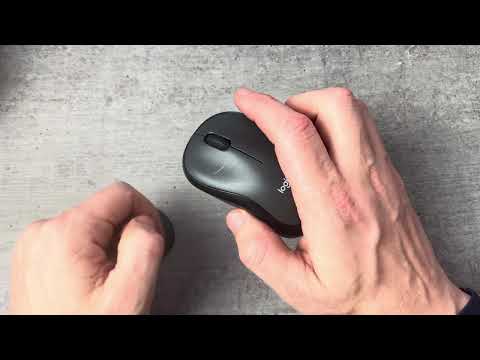
You ever have one of those days where your wireless mouse just decides, nope, not today? It’s sitting there all smug on your desk, and you’re waving it around like a magic wand but nothing happens. Frustrating as anything!
I remember last Tuesday. I was in the middle of an epic online chess game. My pawn was juuust about to be crowned Queen when bam! The mouse stopped moving. You can imagine my panic.
Anyway, if that kind of mess rings a bell, you’re in the right place. Let’s see what’s messing with your point-and-click buddy and get it back on track—no sweat!
Wireless Mouse Connected but Not Responding
Hey there! Wireless mice are super handy, right? No cords to tangle up or trip over. But every now and then, you might find that your trusty wireless mouse is connected but just not responding. Frustrating, huh? Here’s how you can tackle this issue.
First things first: Let’s check those batteries. Seems obvious, I know, but you’d be surprised how often this is the culprit. Try popping in a new set of batteries and see if that gets things moving.
- Check the USB receiver: This tiny piece can sometimes move slightly out of its port. Give it a little wiggle to ensure it’s snugly connected.
- Interference Issues: Did you know that other wireless devices might mess with your mouse signal? It’s true! Keep your mouse and receiver away from other gadgets like routers or cordless phones.
- Driver Update: Sometimes the software your mouse runs on (called a driver) might need an update to behave properly. Go to the manufacturer’s website or use Windows Update to check for new drivers.
- Troubleshoot in Device Manager:
Here’s where you can see if Windows knows something’s wrong:- Open Device Manager by typing “Device Manager” into the Start Menu search bar.
- Find “Mice and other pointing devices” on the list.
- If you spot any warning signs (like a yellow triangle), try updating or reinstalling those drivers.
- Dust and Dirt: I’ve had times when just cleaning my mouse got it back in action! Use a dry cloth to gently wipe around commonly used parts like buttons and sensors.
- Troubleshoot with another computer: See if it works elsewhere—in some cases it’s not really broken; maybe there’s something specific going on with just your current setup at home!
And remember: patience is key here!
Wireless Mouse Battery Check
Hey there! If your wireless mouse isn’t moving, it can be really frustrating, right? But don’t worry too much. One common culprit is often the battery. Let’s check that out together!
Step 1: Check the Battery Level
You know how sometimes you’re watching TV, and suddenly the remote just stops working? Your wireless mouse can have a similar moment. A lot of mice have a small LED light that blinks or changes color when the battery is low. If your mouse isn’t showing any signs of life, it might be time to check those batteries!
- Locate the battery compartment: Look underneath or behind your mouse; there should be a panel you can slide open.
- Inspect for corrosion: Once open, make sure there’s no strange rust-like stuff around where the batteries sit. That could mess things up.
Step 2: Replace or Recharge Batteries
If everything looks good but still no movement, give replacing or recharging (for rechargeable ones) a try.
- If they’re standard: Swap in fresh AA or AAA batteries. Maybe grab them from another device just to test quickly!
- If they’re rechargeable: Plug it in for a bit. Even letting them charge while you take a break can do wonders.
Step 3: Reconnect Your Mouse
After dealing with the batteries, sometimes you gotta “wake up” your computer connection too.
- USB receiver check: If you have one of those tiny USB sticks plugged into your computer for the mouse, remove it and put it back—it’s like refreshing its memory.
- Bluetooh reconnection:: Go into settings on your computer and see if reconnecting like initially helps bring things back to life.
Hey! Pretty straightforward so far? Sometimes these little adjustments make tech behave like magic again. Remember that tech issues are common with all gadgets people use daily—you’re not alone here!
Wireless Mouse Reset Button Location
Okay, wireless mouse troubles? We’ve all been there. You know that moment when the cursor just stays put no matter how much you shake your mouse around? It can be super annoying! And sometimes, all it needs is a little reset.
Finding the Reset Button
It’s kind of like finding a secret switch. Wireless mice usually have a reset button. It’s often small and easily overlooked. Where could it be hiding?
- Bottom of the Mouse: Most commonly, you’ll find it on the underside of the mouse. Flip it over and look for a tiny button—some brands even label it as “reset.”
- Battery Compartment: Some models hide their buttons under the battery cover. Take off this cover gently and peek inside.
- Near Power Switch: Occasionally, you might spot it near an on/off switch if there is one.
No Reset Button?
Not every wireless mouse has this feature! If you’re searching in vain and no button’s popping up, don’t worry, you can try to reset by removing its power source:
- Batteries Out: Remove them completely for about ten seconds—just to power down everything fully.
- Reinsert Batteries: After waiting those grueling few seconds (it feels long when tech isn’t working!), pop them back in with fingers crossed.
The Receiver Check
If resetting doesn’t solve things right away… maybe there’s something with that tiny device plugged into your computer—the receiver!
- Unplug & Replug: b>You’ve heard people say “did ya try turning it off then on again?” Unplugging works magic too! li >
Different Port: b > Sometimes using another USB port gives better results—computers are quirky like that.See what happens after these steps? Keeping fingers crossed here! 😊 If nothing helps still—you might want company-specific details depending on who made your rodent pal… also browsing online forums never hurts!
Anyway good luck—I feel ya frustration but hopefully things move along smoothly now (literally!).
Ah, the classic dilemma of a wireless mouse that just won’t move! Isn’t it just one of those moments where you sit down, ready to dive into some work or, hey, maybe even a game? And suddenly, your trusty little mouse seems to have taken a day off. Frustrating? Absolutely!
We’ve all been there. I remember this one time when I was deep into editing a document for hours. My wireless mouse decided to freeze. Initially, I thought it was just a temporary hiccup—but no, it was stubbornly uncooperative.
So what can you do when your wireless mouse decides not to cooperate? First off, check if it’s just being dramatic about its battery life. Sometimes they run out without much warning. Replace them and see if there’s any spark of life.
If batteries aren’t the hero here, take a peek at the USB receiver—those tiny things can sometimes get nudged out of place or need re-inserting. And while you’re at it, give your surface a look too; these mice can be picky about where they glide.
Don’t forget software updates either! Occasionally our machines love having everything current before functioning correctly. Updating drivers might make all the difference in getting back on track.
And after all this tinkering around—if your mouse is still not budging—it might be time for some professional help or perhaps consider seeking an alternative device temporarily.
It’s amazing how such small gadgets become so vital—and yet demand their own whims be catered to! But hey—when they work seamlessly with us navigating through tasks smoothly—it feels like magic again!