You know those times when you have something cool on your computer, and you’re like, “How do I share this with my buddy without emailing?” That’s where network drives come in handy. They’re like a magic road to your stuff from someone else’s computer. Spoiler: it’s not that hard!
Ever heard of ‘net use’? It’s a bit geeky. Like the secret handshake for connecting your Windows to another drive using FTP. FTP what? Oh, just a way computers send files over the Internet. Fancy name, huh?
One time, my pal needed access to some photos for a project. We used ‘net use’ and bam! He could see everything right on his computer, like it was his own drive or something. Ah-mazing!
Want to know how to do it yourself? Let’s see how this unfolds step by step, no stress included!
Using net use for FTP in Windows 11
Hey! Ever been curious about getting around Windows 11 when it comes to connecting network drives? You might have bumped into the net use command if you’ve been dabbling with networks. Now, you’d think it’s just handy for this task, but people sometimes try to use net use for FTP connections too. Interesting, huh?
Firstly, let’s get one thing straight: the net use command is primarily meant for mapping network drives and managing shared resources on your local network. Think of it as your go-to tool when you need to connect to shared folders or printers over a LAN.
- No Direct FTP Magic: The catch is—“net use”, by itself, doesn’t support direct FTP connections. So if you’re dreaming about mapping an FTP site just like a local drive via net use, it won’t work.
- SFTP or WebDAV?: If you’re looking to access remote files securely (with encryption and all), SFTP is usually the way forward. Alternatively, WebDAV could be another protocol choice if you’re aiming for something closer in feel to working with shared folders.
You see, Windows isn’t set up out of the box to treat FTP servers as network drives directly through this command. But hey—don’t be disappointed just yet! There are ways around this limitation.
A Useful Detour: For actual integration between your computer and an FTP server that feels like native drive mounting:
1. **Third-Party Tools**: Programs like Cyberduck or WinSCP provide GUI alternatives tailored specifically for handling FTP/SFTP connections.
2. **Map as Network Location**: Another nifty approach within Windows itself involves using “Map Network Drive” features via File Explorer and plugging in details manually (though limited without added software help).
Remember your own experiences fumbling around tech as a beginner? Getting confused can happen easily—it happened once while trying something similar back in college days (let me recall it), taking hours deciphering simple instructions—but patience helped me learn bit by bit.
It’s key here not only conquering challenges involving networking commands specifically those tied down solely depending upon accustomed methods alone without exploring other avenues whenever needed after discovering constraints present initially facing hurdles met head-on resulting ultimately further discovery benefiting everyone involved long-term exponentially important nonetheless allowing breakthroughs overall maintaining steady progress maintaining secure data exchange reliably across diverse platforms worldwide today synchronously collectively visible seamless functionalities continually evolving basis naturally adapting accordingly necessary changes immediately appropriately required instantaneously keeping pace ever-changing digital environment infinitely all-inclusive utilization meanwhile simultaneously enhancing proficiency surpassings skills cumulatively attained through consistent persistence practice diligence steadfastly perserverance noteworthy indeed!
In short? Keep learning—and rock whatever tech paths you cross 🎸! And remember—even tech headaches can turn into learning adventures!
Configuring FTP with Net Use for Windows Network Drives
Alright, let’s chat about configuring FTP with “net use” for Windows network drives. It might sound, you know, a bit technical at first, but no worries—we’ll go through it step by step. Here’s the thing: if you’re looking to map an FTP as a network drive on your Windows machine, it’s all about creating a connection that lets you access remote files like they’re sitting right there on your PC.
First off, why do this? Imagine you’re working on files stored on a server far away. By setting up an FTP as a network drive, you’re able to access those files as if they’re just another folder on your computer. Pretty neat!
Now let’s get into setting it up:
- Open Command Prompt: To start off, you’ve got to open the Command Prompt with administrative privileges. This is where you’ll type in commands.
- Use “net use”: The command you’ll be using is “net use.” Think of this as telling Windows what you want it to do with that FTP address.
- Format Your Command: Here’s how you might structure the command:
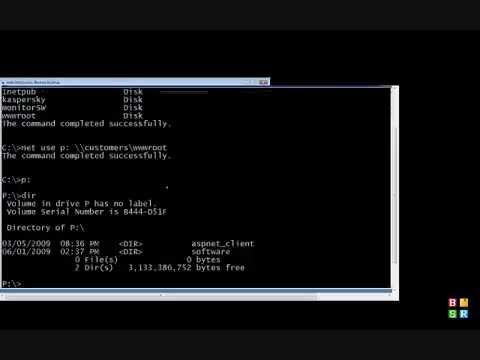
net use * [your-ftp-server-address] /user:[username] [password]Replace [your-ftp-server-address], [username], and [password] with your actual server address and credentials.
- Specify Drive Letter: If you want a specific drive letter rather than letting Windows choose one for you—like “Z:” for instance—you can specify it straight up instead of using “*”. Example:
net use Z: [your-ftp-server-address] /user:[username] [password]
Troubleshooting Tips: If something goes wrong—and trust me, tech has its moods—check the following:
- Connectivity Issues: Ensure your network connection is solid.
- User Permissions: Sometimes it’s about having the right access rights on that server.
Trying something practical sometimes helps more than any manual or guide could explain! Give it a spin; mess around (safely!) until things click into place.
In conclusion—it all comes down to setting things properly in that command line interface Microsoft blesses us with… or perhaps occasionally frustrates us?
You see? That’s pretty much all there is when working directly via ‘FTP’ and ‘Net Use’. Go ahead try connecting!
Using ‘net use’ with FTP in Windows 10
Exploring the world of Windows can be quite an adventure, right? One interesting area is using the ‘net use’ command, especially when you’re dealing with network drives. You might think about using it with FTP, which is a File Transfer Protocol, in Windows 10. It’s kind of like trying to fit a square peg into a round hole—doesn’t quite work as you’d expect.
Understanding ‘net use’: This command in Windows is primarily designed for mapping network drives. It’s super handy when connecting to shared folders over a network. Imagine you have a folder on another computer that you want direct access to without having to navigate through different menus each time. That’s where ‘net use’ becomes your buddy.
Now, if you’re thinking of using ‘net use’ directly with FTP servers… well, that’s where it gets tricky. The command isn’t built for FTP connections directly because an FTP server works differently than how ‘net use’ connects to network file shares.
Here’s why it doesn’t fit:
- Protocol Difference: FTP involves different protocols than those used by ‘net use’, which looks at SMB protocol for Microsoft-based networks.
- Direct Mapping Limitations: You can’t map an FTP server as a regular drive letter using ‘net use’ because the protocols don’t align.
Still intrigued? There are other ways! If accessing an FTP server frequently seems appealing, consider these options:
- Third-party Software: Tools like WinSCP or FileZilla can make FTP access smooth and user-friendly by providing graphical interfaces that create easy pathways to your files.
- Add Network Location: In Windows Explorer, you can add an FTP site as a network location which simplifies accessing files without needing any commands.
Remember my experience when I first tried connecting everything perfectly? Oh boy! Connecting forms and files felt like teaching my cat how fetch works—not impossible but needed different tricks! Understanding each tool in its rightful context saves loads of headscratching moments!
So stick around whenever you’re exploring these realms again—it’s always nice having some knowledge tucked away for curiosity’s sake!
Hey there, I remember years ago, when I first got my hands on Windows networking, “net use” was like that old secret tool that not everyone knew about. You know? Using ‘net use’ to map network drives felt like magic back then. It’s a command-line utility on Windows that’s super handy for connecting to shared resources like a pro.
Imagine this: You’re sitting at your desk, maybe still in your pajamas, sipping coffee. Your task is to connect a bunch of computers to one central file location. Instead of the endless clicking through menus and windows (which can be sooo tiresome), you type in a couple of lines in Command Prompt. Voilà! Just like that, you mapped an entire network drive.
Now, using ‘net use ftp’ specifically involves linking an FTP site as if it were just another folder on your computer. It’s pretty cool when you think about it—accessing files from an FTP server with the ease of a local drive!
Anyway, it’s not just about typing commands; it’s about making things simpler and faster in your daily routine. Of course, this kind of utility brings its own challenges too—permissions issues or dealing with different user credentials can sometimes be tricky business. And don’t even get me started on remembering the same credentials for different networks!
Oh, and don’t forget security. These days you’d always want to keep passwords safe and ensure connections are secure—never leave sensitive data exposed.
In the end though? Having such tools at our disposal makes bridging local work with remote resources feel so seamless—and maybe even a bit fun—if you’re into that sort of thing!