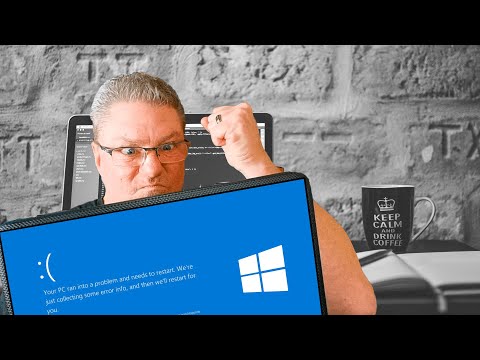
Oh man, that dreaded blue screen. It’s like the computer’s way of saying, “I’m having a bad day!” You know what I mean? You power on your PC, hoping for another smooth start, and bam—blue screen. It’s almost as if your computer is giving you the cold shoulder or something.
And the messages it flashes? They might as well be hieroglyphics! They’re like those cryptic texts from a friend that makes you go “Huh?” But really, it’s a cry for help from your computer.
I had this happen once, when I was just minding my business trying to finish an important project. Out of nowhere—blue screen! My heart practically stopped. It’s one of those tech moments where you’re convinced all is lost.
But hey, don’t panic yet. Sometimes these things have simple fixes. You’re not alone in this; we’ve all been there. Let’s see what’s up with that stubborn machine of yours.
Causes of PC Blue Screen on Startup
Oh, the dreaded blue screen! We’ve all been there. Your PC starts up, you’re ready to dive into your tasks, and bam! A blue screen appears with some cryptic message. It’s frustrating, right? Let’s break down why this happens.
Hardware Issues: Sometimes your computer’s physical components can cause a blue screen on startup.
- Faulty RAM: If your RAM isn’t working properly, it might send the system into a tizzy.
- Hard Drive Problems: When your hard drive is failing or has errors, it can lead to a crash.
- Overheating Components: If any part of your PC gets too hot—it could just call it quits and show you a blue screen.
Software and Driver Issues: Just as pesky as hardware problems are issues with software and drivers.
- Outdated Drivers: Think of drivers like translators between Windows and hardware; if they’re not updated, they mess everything up.
- Corrupt System Files: These files are like pieces of a puzzle. If any are missing or broken—you guessed it—blue screen!
Windows Update Glitches: Let’s be honest—sometimes updates from Windows bring more trouble than solutions. They could introduce conflicts that lead to crashes.
Malware Infections: Imagine sneaky bugs crawling into your system. Some malware can really wreak havoc on startup operations by corrupting files or stealing resources.
Here’s an example: I remember once my computer kept showing the blue screen every time I booted up. Turns out it was just some outdated GPU driver causing all the fuss! Updating it fixed everything smooth as butter.
Anyway—if you’re facing this issue regularly—at least now you know what might be going on behind those mysterious screens. And at least there’s usually something that can be done about it!
Bad RAM and Blue Screen Errors
Hey, you ever had that heart-sinking moment when your PC decides to greet you not with the usual desktop but a dreaded blue screen? Yeah, that infamous “Blue Screen of Death” or BSOD. Don’t worry—it’s a pretty common issue and usually fixable.
Now, one of the main culprits behind this is bad RAM. Let’s break it down here.
- What Causes Bad RAM?
- How Does RAM Cause Blue Screen Errors?
- Signs Your RAM Might Be Going Bad:
- How To Check If It’s Your RAM:
Sometimes, RAM just goes rogue because it’s faulty or worn out. You know how sometimes your car needs new parts ’cause they wear out? It’s kind of like that. Or maybe it was never really good before—it could happen during manufacturing.
Well, you see, **RAM is like the computer’s short-term memory**. It stores stuff temporarily while you’re multitasking—like holding multiple tabs open in your browser while listening to music and typing a doc. If it’s damaged or corrupted, things can’t be stored correctly which causes crashes, leading to—you guessed it—the BSOD.
Your computer may start behaving erratically. Random reboots? Programs freezing up more than usual? And then there’s the ultimate telltale sign: frequent blue screens popping up without any apparent reason.
Okay so here’s what you can do: use Windows’ built-in Memory Diagnostic Tool—pretty handy! Just type “Windows Memory Diagnostic” into your search bar and run it when prompted after restarting. It’ll check for errors while rebooting.
Example: if an error shows up referencing memory problems after running diagnostics… Well then buddy—it might just indeed be bad RAM causing those blue screens!
Anyway! If after diagnosis you’ve found out bad RAM’s playing tricks on ya’, don’t sweat it too much ’cause replacing some sticks usually solves everything right back up again!
Is the Blue Screen of Death Critical?
We’ve all been there, right? You’re ready to start your day, you hit that power button on your PC, and boom—there it is—the Blue Screen of Death (BSOD). It’s like the computer’s version of the silent treatment. Let’s unpack what this all means and how you might deal with it.
First off, let’s kind of demystify the appearance of that dreaded blue screen. The Blue Screen of Death is basically Windows’ way of telling you something went haywire. It could be hardware-related or even software messing with your mojo. It’s primarily a stop error designed to protect your computer from further damage.
Now, if you’re seeing this blue screen at startup—that can feel even more critical! You haven’t even had a chance to log in or open anything up!
Here are a few key things you might want to consider:
- Check Recent Changes: Did you install new hardware or software right before this happened? Sometimes new installations can clash with existing systems.
- Error Codes: When faced with BSOD, Windows usually flashes an error code. Jot it down! It helps pinpoint what exactly caused the hiccup.
- Safe Mode: Try booting into Safe Mode. This basic state allows troubleshooting by temporarily disabling non-essential drivers and startup programs.
- System Updates: Ensure your OS is up-to-date once you’re back in business. Updates help patch problems and improve stability.
Let me share a little story—my friend once experienced an endless loop of BSOD just before project deadlines (because these things never happen at convenient times!). He switched his PC into Safe Mode and found out his graphic card driver had gone rogue after a faulty update.
This thing does feel critical mainly because it’s unpredictable—like popping popcorn without a lid! But take solace in knowing that often these issues are fixable with some patience and detective work.
Remember: while the BSOD can hint at major issues lurking beneath those circuits, it’s also essential for preventing long-term damage by shutting things down when they go awry. If you’re feeling stuck trying different fixes yet nothing resolves it—it may be worthwhile getting professional help—they have wider toolkits than most folks at home—and they’ll get down into those geeky bits quicker.
Keeping cool heads during tech mishaps is easier said than done—I get that entirely—but hey sometimes technical issues offer unplanned coffee breaks too right? Anyway hang in there—you know I’m rooting for ya!
Ah, the dreaded blue screen! It’s like you’re all set to start your day, maybe with a cup of coffee in one hand, optimism in the other, and then—bam!—your computer greets you with that ominous blue hue. It’s as if your machine decided to give you a digital slap on the wrist for something it thought went wrong.
Your PC showing a blue screen on startup is kind of like waking up with a flat tire on a road trip—the timing couldn’t be worse. It usually feels overwhelming because everything seems fine one moment, and the next you’re dealing with an issue straight out of nowhere. I’ve been there too!
Alright, imagine this: You push the power button and wait for that familiar whirr. But instead of your happy desktop popping up, you see an error message against that bright blue backdrop. It’s officially called the Blue Screen of Death (BSOD), but let’s not get too dramatic about it. This technical hiccup is actually your computer’s way of waving its hands frantically saying “Help! Something’s up!”
More often than not, these errors are related to hardware or driver problems. Picture these drivers as tiny translators helping different parts of your computer understand each other—they’re pretty important! When something goes haywire there or when hardware doesn’t behave itself, you’ll probably get a BSOD.
So what can you do? First things first: don’t panic! Calm heads prevail in technology messes like these.
Here’s something simple to try: Restart your machine and hope it’s just having an off day (yes computers have those too). If that doesn’t work its magic try booting into “Safe Mode.” That’s like giving your PC some time-out space so you can figure out what’s going wrong without extra pressure.
Once inside Safe Mode poke around recent installations—you know any software updates or new tidbits you’ve added recently might be causing this ruckus?
At times though even sincere efforts need backup support; getting assistance from tech-savvy friends or professionals can sometimes bring quicker relief!
Remember patience combined with curiosity often leads us towards solutions—and maybe even learning experiences which aren’t necessarily bad ones now are they?
In this journey through technological quirks may we always find ways back onto smoother pathways…with fewer colorful interruptions along them hopefully!