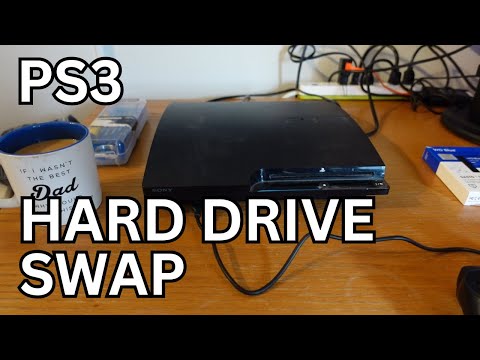
Oh man, remember the days when your PS3 was your ultimate buddy for gaming nights? I sure do. That little guy was a powerhouse of endless hours of fun. But, you know, as much as we love our trusty PS3s, they’ve got their quirks.
Like one time when I tried plugging in an external hard drive to free up some space – chaos! My PS3 just stared at me blankly saying “Nope!” Have you been there too? It’s like arguing with a stubborn friend who just won’t budge.
Anyway, before you start pulling out your hair trying to figure it out, let’s dive into what might be happening when those pesky compatibility issues rear their ugly heads. Trust me—it’s totally fixable!
PS3 External Hard Drive Compatibility
Sure thing, let’s dive right into the world of PS3 external hard drive compatibility! You’re looking to expand your PS3 storage, right? Well, there can be some challenges when it comes to getting that external drive up and running on your console. But don’t worry, we’ve got this!
When you’re thinking about connecting an external hard drive to your PS3, there’s one crucial detail: the PlayStation 3 supports only FAT32 formatted drives. You see, it’s a bit of an older file system but it’s what we have to work with.
- Formatting: If you’ve tried plugging in a new drive and it’s not detected by your PS3, it might be because it’s formatted to NTFS or exFAT—formats that the PS3 simply can’t understand. Picture trying to read a book in a language you’ve never learned!
- Partition Size: Another thing is size limitations with FAT32. Although technically FAT32 can handle drives up to 2TB, you’ll want each partition under 32GB. Some tools out there might help you split larger drives into manageable chunks.
- Don’t Forget Power Supply: Your external drive needs power too! In most cases, if you’re using anything over 1TB, you might need one with its own power adapter. It’s always good when gadgets play nice together.
- Cables and Ports: A USB cable that’s too long or damaged could also cause headaches—keep them short and sweet for the best performance!
Once you’ve got all these elements sorted out—proper format and power supply—your PS3 should recognize that new storage space without much fuss.
Oh! Here’s something from my friend Tom’s experience; he had his college days filled with frustrations over incompatible devices till he realized he’d been trying to connect his old NTFS-formatted backup disk all along… We sure laughed once he figured that out!
Feel free if anything feels unclear—I’m here for you!
PS3 External Hard Drive Compatibility
Oh, dealing with external hard drives on a PS3, it can be a bit of a journey. I remember the first time I tried connecting an external drive to my old PS3—there were some hiccups! Let’s chat about what you should know.
First things first, if you’re looking to use an external hard drive with your PS3, the drive needs to be in the FAT32 format. PS3 doesn’t get along with NTFS or exFAT, which can be a little annoying because most big drives come formatted differently by default. So if your device isn’t playing nice, this might be why.
Converting your hard drive format is not too tricky. You can use tools on your computer for that magic switch. Just remember that formatting wipes everything off the disk, so back up anything important! When you’re ready:
- On Windows: Use software like EaseUS Partition Master or even just CMD commands.
- On Mac: Disk Utility should do the trick.
Once you’ve got that sorted out, plug it into one of the USB ports on your PlayStation. Keep in mind that sometimes not all USB ports act the same way—funniest thing ever—and switching them around can solve unexpected issues.
When it’s all connected and recognized by your console:
- Navigate to “Music,” “Video,” or “Photo” menus depending on what you’re accessing.
- If nothing shows: press triangle and choose “Display All.”
And there you go! If this doesn’t work initially—it happens—you might want to check if files are placed correctly within folders like MUSIC or VIDEO ’cause organization matters!
Hopefully these tips help you out as much as they’ve helped me in times past; those early gaming setups did teach us patience huh? Don’t hesitate trying different solutions if needed till things click perfectly between your gear!
PS3 External Hard Drive Size Limit
Let’s chat about using external hard drives with a PS3. It’s a little tricky, but don’t worry, I’ve got you covered.
First off, the PlayStation 3 is a bit picky when it comes to what kind of external hard drive you can use. You know how some folks are really particular about their coffee? The PS3 is like that with its drives.
Drive Size Limit: The PS3 can only read external hard drives that are formatted in the FAT32 file system. Here’s where it gets interesting: FAT32 has a maximum partition size of 2TB. So if you’re thinking of upgrading to more than that, it won’t work with the PS3.
Compatibility Issues: Not all hard drives will work right out of the box with your console:
- FAT32 Format: You may need to reformat your drive if it’s in NTFS or exFAT since those aren’t supported by the PS3.
- Drive Type: It’s best to go for USB-powered drives rather than those needing an additional power source.
Let me tell you something from my own experience: I once bought a fancy new 4TB drive thinking I had hit the jackpot on storage space for movies and music. Only to realize later that my trusty old PS3 just stared blankly at me without recognizing it!
To make sure you’re on track:
Formatting Steps:
1. Connect your external drive to your computer.
2. Use a partition tool (like Windows’ Disk Management) and select FAT32 as your file system.
3. Remember, our friend here (the PS3) likes partitions up to 2TB!
Once formatted correctly, plug it back into your console. With any luck, you’ll have no issues accessing files right away.
In short? Keep everything under 2TB and formatted in good ol’ FAT32! Trust me; your PlayStation will appreciate playing nice with compatible devices!
You know, I remember the first time I tried connecting an external hard drive to my PS3. It was a mix of excitement and frustration. I mean, who doesn’t want more storage space for all those amazing games and movies? But, oh boy, did it give me a run for my money!
So here’s what happens with the PS3 – it only plays nice with specific types of external hard drives. You see, the console wants your drive to be formatted in FAT32. Sounds technical? Basically, it’s just a kind of organization system for data on your drive. It’s like arranging your clothes by color in your closet – makes it easier for the PS3 to find what it’s looking for.
Here’s where things can get tricky: most modern drives come pre-formatted as NTFS or exFAT which are different styles of organization systems that the PS3 just won’t read. Imagine trying to wear shoes on the wrong foot — awkward and not really gonna work.
Once you get past that hurdle and format to FAT32 (which you do on your computer), there’s another little twist: the file size limitations! You can’t have individual files over 4GB with FAT32—quite a drag if you’re dealing with large files.
I remember doing this late-night search online, trying desperately to figure out why my shiny new hard drive wasn’t showing up on screen. After some trial-and-error (and maybe a few frustrated sighs), formatting it correctly finally worked wonders.
Isn’t technology fun sometimes? If you’re facing this issue too—just know you’re definitely not alone!