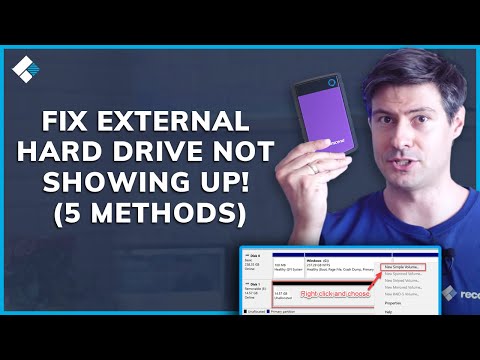
Alright, picture this. You just got a shiny new SSD external hard drive, right? You’re all excited. Plug it into your computer and… nothing. Zilch. Nada. The computer acts like you didn’t just hand it a treasure chest of gigabytes.
It’s frustrating, for sure. Like when you’re craving coffee and realize you’re out of creamer right after you brewed the perfect cup. And you’re thinking, “Come on! What’s going on?”
I get it; it can feel like the universe is conspiring against your digital storage plans! But before you chuck that drive out the window in defeat, let’s take a breath and look at what might be happening here.
You ready to dive into this puzzle? Let’s figure out why your trusty computer is not saying hello to your awesome new gadget!
External SSD Detection Issues
Oh, external SSDs, right? They’re like those tiny powerhouses packed with loads of data. But what if they suddenly decide not to show up on your computer? Frustrating, huh?
Let’s get to the bottom of it, starting with some basics. Picture this: you eagerly plug in that sleek SSD to your laptop, expecting all your files to appear like magic. But nada! First things first: check the USB connection. Sometimes a loose cable is the simplest issue.
- Check Your Connections: Unplug and then reconnect. Try a different USB port or cable if needed.
- Power Requirements: Ensure your SSD doesn’t need extra power. Some older models actually do.
Alright, now let’s say everything seems connected but still no dice. You might want to see if the drive shows up in Disk Management (on Windows) or Disk Utility (on Mac).
If it’s there but without a drive letter assigned, assigning one could resolve the issue.
Excited faces all around when we solve that one!
But hey—none of these worked? I’ve been there too! Let’s explore drivers next:
Troubleshoot Drivers:
- Update Drivers: Go to Device Manager and find your SSD under disk drives. Right-click and update driver software.
- Roll Back Drivers: Sometimes new updates cause mischief—roll back to an earlier driver version.
Ever considered file system incompatibilities? If you’re switching between machines (like Mac and PC), it’s worth checking how your SSD is formatted.
Lastly—and this one’s a bit rare—but remember firmware updates! Updating the firmware can sometimes change the game completely.
And honestly—sometimes computers just need a restart too!
Hope this helps bring some joy back into using external SSDs!
PC Not Detecting SSD
Oh, the frustration of connecting your shiny new SSD external hard drive, and bam—your computer just gives you the silent treatment. It’s like calling a friend who doesn’t pick up. This can be pretty annoying, right? But don’t worry, some common reasons might be causing your PC to act up like this.
First things first. Let’s check if there’s a problem with, you know, physical connections. Is the USB cable securely plugged into both your SSD and computer’s ports? Sometimes these sneaky cables might appear to be in all the way but aren’t really making good contact.
If that doesn’t work, it could be a compatibility issue with the port you’re using. Try switching USB ports just in case one of them is faulty or incompatible with your device. This kind of thing happens more often than you’d think!
Okay now—drivers can sometimes be an unsung villain here too. Are they installed properly? You can check this by going to “Device Manager.” That’s where you’ll see all devices currently connected to your system listed out nicely.
- If there’s a little yellow exclamation mark next to anything under “Disk Drives,” click on it.
- Select “Update Driver” from its options.
Sometimes simply updating or reinstalling drivers sorts everything out! Isn’t technology fun?
Still stuck? Take a detour into ‘Disk Management.’ It’s like mission control for all disks attached—internal or external—to see if maybe what we have is an uninitialized disk.
- Right-click on “This PC” and hit “Manage.”
- Navigate down through ”Storage” then finally select ”Disk Management”. Voila!
If there’s an unallocated area present instead of proper partition data:
- Right-click inside that space.
- Select “New Simple Volume” following any prompts shown until completion.
But let me tell ya—it wouldn’t hurt checking file system formats either! For instance with Mac OS Extended-formatted drives having problems when accessed from Windows computers unless specially configured beforehand…
Can’t forget power issues now—SSD drives do draw power through those same USB connections mentioned earlier; Some motherboards might not provide enough juice via single connectors alone forcing us towards additional adapters/hubs potentially solving low-power woes entirely!
In rare cases even BIOS settings sometimes manage getting themselves tangled leading rogue configurations preventing recognition altogether (weirdly intriguing scenarios). Delving deeper around bios menu conducting simple sanity checks ensures everything remains kosher aspect-wise:
Well hopefully after these steps amicable solutions are found restoring seamless harmony between beloved SSDs along trusty old PCs again!
Forcing Computer Recognition of External Hard Drive
Have you ever plugged in your shiny new SSD external hard drive, only for your computer to act like it’s not even there? Frustrating, right? But no worries. Let’s explore some ways to persuade that stubborn machine to acknowledge the presence of your dear hard drive.
First things first, check the basics. It might sound too simple, but ensure everything is connected properly. An improperly seated USB connection could be the sneaky culprit here. Also, try switching between ports—sometimes one port may just not be as cooperative as the others.
Next up, let’s see if that drive shows up at all:
- On a Windows computer, hit “Windows + X”, then choose “Disk Management.” This little tool is like a backstage pass to all your drives.
- If you’re on macOS, open “Disk Utility,” ’cause that’s where mac folks party with their drives.
If it appears there and not in “This PC” or “Finder,” you just might need to assign or mount the drive properly.
Now, if it’s still playing hide and seek:
Update drivers: Outdated drivers could be acting like those old maps that don’t lead anywhere. Jump into “Device Manager” on Windows (another press of “Windows + X”) and hunt down any yellow triangles around USB controllers or disk drives. Update if needed.
For Mac users, generally updating OS takes care of driver updates automatically since Apple likes keeping things neat and tidy without needing extra instructions from you.
File system formats: Here’s something people overlook—your SSD’s format. Is it talking the same language as your OS? If your aim is cross-operational chatter between Mac and PC systems across NTFS or HFS+, using something like ExFAT ensures compatibility without excessive drama on either side!
One anecdotal nugget for ya! I remember trying every trick in the book after my brother’s system didn’t recognize his brand-new SSD during a video editing project due next day (cue panic!). Turned out incompatible format was causing havoc—something easily solved by formatting correctly through Disk Management tools!
Finally: Sometimes stuff breaks despite our best intentions—a faulty cable perhaps or even dead-on-arrival SSDs exist too sadly! Testing with another device rules these possibilities out quickly saving loads time trouble chasing wrong ghosts en-route resolution merry-go-round afterwards!
Alright, let’s jump right into this. You’ve got this shiny SSD external hard drive, and oh boy, it’s a dream when it works: faster speeds, reliable storage, and all that jazz. But then—wham!—you plug it in one day, and your computer decides to play hide-and-seek. It doesn’t show up anywhere. Ugh.
Isn’t it just frustrating when you hit those tech bumps? I remember this one time I was all set to binge some old movies I’d saved on my external drive. I’d made popcorn and everything! And then… nothing. Like a ghost town on my desktop where the drive icon usually lived.
Okay, so what could be going on? There could be a bunch of reasons the computer’s not seeing the drive at all.
First off, check if your USB port’s playing nice. You know how sometimes things just don’t connect right? Try another port or even another cable if you’ve got one handy.
Another thing to think about: Does your computer pick up other devices okay? Sometimes it’s more about the computer acting up rather than blaming poor ol’ SSD straight away.
Now let’s pop open ‘Disk Management’. It’s like peeking under the hood in Windows land; see if your drive is lurking there uninitialized or maybe without a letter assigned—drives need identities too!
And maybe you’ve got one of those drives that needs an extra power boost from another USB cable (those Y-cables). Just something to consider.
For Mac users out there: hop into ‘Disk Utility’. Similar idea here; you might have to mount that tricky little guy manually so he shows his face properly again!
But hey—in some cases—it can be something quirky with format compatibility between different systems or even drivers being outdated… yeahhhh new updates are important even though they seem annoying sometimes (I always forget them myself!).
Man alive—the amount I’ve learned figuring things out trial-by-fire style over years is crazy… Every time technology throws curveballs like these at us though—we become savvier—and somehow manage coming back victorious only adding stories worth sharing along life’s journey too till next problem arises down road again someday soon enough!