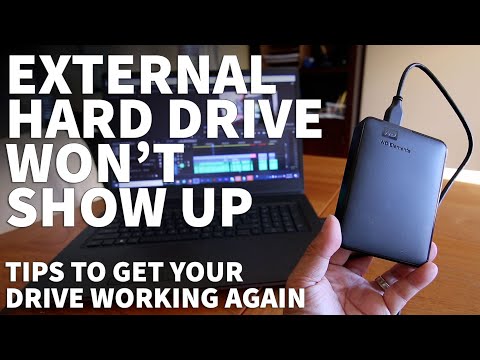
Oh man, dealing with a Seagate external hard drive not being recognized by your computer can be, like, super frustrating, right? I mean, there you are all set to dive into your files or back up some important stuff, and boom! The computer’s acting like the drive doesn’t even exist.
Now that’s enough to make anyone go nuts. It’s like when you’re all ready to binge-watch your favorite show and poof—the internet goes out! Seriously?!
But hey, don’t throw in the towel just yet. There are a couple of things we can figure out together for why this might be happening. It could be something as simple as a loose cable or maybe something a bit more tricky under the hood of your tech gear.
No worries. We’ll get through this and have that drive up and running in no time!
Checking Seagate Hard Drive Detection Issues
Oh, the drama of technology, right? One moment things are working smoothly, and then suddenly, your beloved Seagate external hard drive decides to play hide-and-seek with your computer. If you’re dealing with this little hiccup—trust me—you’re not alone!
Let’s dig into some reasons your Seagate drive might go unnoticed:
- Connection Issues: It might sound basic, but let’s start here. Check if the USB cable is securely connected to both the hard drive and your computer. You wouldn’t believe how often cables are just a bit loose!
- USB Port Problems: Sometimes the port itself can be a bit cranky. Try plugging into a different USB port. Maybe it’s just that simple.
- Power Supply: Some external drives need more power than the USB ports can provide on their own. If yours comes with an adapter, make sure it’s plugged in too.
Okay, so what happens if you’ve checked all that and still got nothing? Time to explore deeper waters.
Dive into these steps next:
- Device Manager Check: On Windows, open Device Manager by typing “Device Manager” in the search bar and hit Enter. Look under “Disk Drives” or “Universal Serial Bus controllers.” Your Seagate should appear there.
- If it does show up, but isn’t recognized elsewhere—update or reinstall the drivers by right-clicking it and selecting “Update driver.”
- If it doesn’t show up, there might be a bigger issue at hand—could involve updating BIOS firmware or taking a closer look at possible hardware failure.
- Tweak Disk Management Settings: Sometimes Windows recognizes a drive but doesn’t assign it a letter, which keeps you from accessing it easily. Search for “Disk Management” via Start Menu; locate your drive—it might say “unallocated” or something like that—and right-click to assign/change its letter.
And hey—as much as we loathe saying this stuff aloud—data corruption or physical failure could also be to blame if none of these fixes work out! Keeping backups really is key here folks—and keeping calm amidst juggling tech glitches helps too!
Seagate Drive Not Detected on Windows 11
Oh, no! Your Seagate drive isn’t showing up on your Windows 11 computer. That’s frustrating, right? It happens more often than you’d think, and it can be a real head-scratcher. But don’t worry—let’s see how to get that pesky drive recognized again.
First things first, check the basics:
You know, sometimes the simplest steps solve even the biggest problems. Make sure your drive is properly connected. Did you plug it into a working USB port? I once spent an hour trying to fix my friend’s problem only to realize the cable was loosely fitted!
Try another USB port:
This might sound dumb but trust me; ports can be a little moody sometimes. Just switch to another one and see if anything changes.
Check Disk Management:
Open Disk Management by right-clicking on the Start button. From there, select “Disk Management.” You know what? You might just find your Seagate there. If it’s appearing as unallocated or not initialized, you’ll need to fix that.
- If uninitialized, right-click on your disk number and select “Initialize Disk.” Follow those cute little prompts.
- If unallocated, right-click on the unallocated space and choose “New Simple Volume.” This will guide you through setting it up.
Driver issues?
Manually updating or reinstalling drivers can help too! Here’s how you do it:
- Device Manager: Right-click on Start again (it’s like our go-to spot!) and pick “Device Manager.”
- Find Your Drive: Look for any yellow warnings next to storage devices.
- Update Driver: Right-click on your Seagate drive and choose “Update driver.”
Use Windows’ troubleshooter: Just type in “troubleshoot” in the search bar near the Start menu—another good helper! Select “Additional troubleshooters,” then look for hardware troubleshooter options.
Maybe it’s powered off: Some external drives have their own power sources or buttons; make sure everything’s turned on correctly!
Still nothing? There could be deeper issues at play—faulty cables, an outdated system that’s being stubborn—or honestly just a defective hard drive (it happens!).
Anyway before panic hits full throttle consider giving customer support at Seagate a call—they’ve dealt with this stuff millions of times before probably—and who knows? They might soon give YOU tips worth sharing among friends next time someone feels stuck!
Seagate Drive Compatibility with Windows 10
Ah, external hard drives—those trusty companions for all our storage woes! But, you know, sometimes they can be a bit tricky. Let’s dig into the whole Seagate drive compatibility thing with Windows 10.
First off, there’s nothing more frustrating than plugging in your Seagate drive and not seeing it pop up on your computer. It’s like it just vanished! If this sounds familiar, don’t sweat it. Here’s what you might want to check out.
- Connection Check: Make sure that the USB cable is plugged in snugly. I’ve had moments where everything was fine just by pushing the cable in a tad more.
- USB Port Trial: Sometimes it’s just a quirky port problem. Give other USB ports on your computer a try.
Now let’s say you’ve ruled out those basics and still nothing. Could be you’re looking at driver issues or partition problems.
Update Your Drivers: Windows 10 usually gets these things right automatically but doesn’t hurt to double-check.
- Troubleshooting Tool: Let Windows lend you a hand with its built-in troubleshooter. Head over to Settings > Update & Security > Troubleshoot and see if there are any suggestions under “Hardware and Devices.”
- Device Manager Guide: Open up Device Manager (just search for it—really!). Then look under “Disk Drives” or maybe “Universal Serial Bus controllers” for anything odd—a yellow triangle might mean trouble! Right-click and go for “Update driver.”
And if still no luck? Well, partitions could be playing hide-and-seek with your files.
Diving into Disk Management:
- You might find that the drive isn’t being assigned a letter. Right-click on the drive (if visible without one) in Disk Management and choose “Change Drive Letter and Paths.”
- If it’s unallocated space you’re seeing – time to format it or initialize the disk if not yet done!
Cheers to figuring this out together! Sometimes these little hiccups teach us something new about our techy friends, don’t they? If you’ve ever been deep into Device Manager at 2 AM trying to fix things like me, you probably get it too!
I hope those tips clear things up—happy computing!
Oh man, dealing with a Seagate External Hard Drive that’s not being recognized by your computer can really give you a headache, right? I totally get it—I’ve been there myself. You plug in the drive expecting to access all those important files, photos, or music you’ve stored away and… nothing happens. It’s like your computer is giving you the cold shoulder!
So, what’s going on here? Sometimes the simplest things can throw everything off track. It might be as straightforward as a loose USB cable connection or maybe even trying another USB port could make a difference. You know how cables can get finicky over time—I’ve had my share of charging cables that mysteriously quit on me.
Then again, if you’ve tried switching ports and checking connections with no luck, it could be something fishier like driver issues. Computers need these special bits of software called drivers to understand what in the world is connected to them. Sometimes they get out of date or go missing entirely. That’s when you might have to dive into updating those drivers through your device manager.
One time I found myself wrestling with this issue for hours only to realize that my drive needed reformatting because the file system wasn’t compatible with my OS anymore! Funny enough—but quite annoying at that moment—I’d switched from a Mac back to Windows and forgot about needing different formats for each system.
And hey, let’s not forget about power issues either! Some drives need more power than others—you’ll want to double-check whether yours needs an external power source or works fine off USB alone.
Anyway if you’re knee-deep in this mess right now don’t lose hope just yet; there’s always some kind of solution lurking around the corner when it comes down technical glitches like these! Good luck getting everything sorted out—you’ve got this!