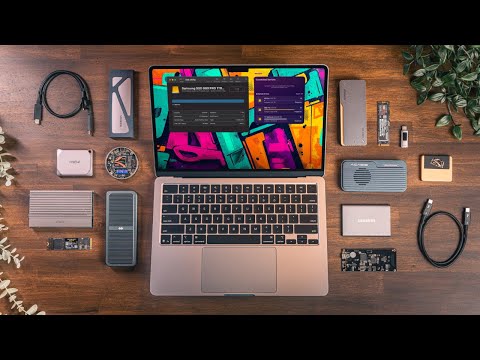
You know how laptops can be awesome, right? They’re portable, sleek, and—let’s face it—pretty darn useful. But every now and then, you hit a wall. Storage problems! It’s like trying to stuff your closet with way too many clothes; things just won’t fit.
There was this one time I was working on a project. Tons of photos and videos. Suddenly, my laptop started yelling at me: No space available! It’s funny now… wasn’t at the time!
External memory can be your trusty sidekick here. Imagine that—a tiny device saving the day when your laptop’s struggling to keep up! You just plug it in and bam, you’ve got space again.
It’s kinda like having an extra backpack for all those extra things you need to carry around, but tech-style. Anyway, if you’ve ever found yourself juggling files or deleting things you’d rather not, stick around.
We’ll dive into sneaky little tools that could just change everything for you—you follow me?
External Memory Options for Laptops
If we think about laptops, one of the first things that comes to mind is how compact and portable they are. But this convenience sometimes comes at a cost: limited internal storage. Once you’ve filled up that shiny new laptop with games, photos, and all those hefty work files, you might find yourself running out of space pretty quickly!
So what can you do when you’re staring at a “disk full” alert? That’s where external memory options come in handy.
- External Hard Drives: These are probably the most common choice for extra storage. They connect via USB and can store anywhere from a few hundred gigabytes to several terabytes! Imagine carrying around a tiny box that holds your entire digital life. They’re not just for storage; you can also back up important files here.
- USB Flash Drives: You’ve seen these little guys everywhere—they’re pocket-sized and super easy to use. While they don’t offer as much capacity as external hard drives, they’re perfect for transferring files between devices or keeping documents handy when you’re traveling.
- SD Cards: If your laptop has an SD card slot, these can be a neat option too! They’re especially convenient if you’re into photography or videography and need quick access to lots of data without fumbling around with cables.
- SATA/SSD Enclosures: Now this one’s pretty cool—you take an internal SSD or HDD, pop it into an enclosure, and voila! You’ve got yourself an external drive! This option is ideal if you have spare drives lying around or want something more customizable.
- Network-Attached Storage (NAS): If you’re feeling extra tech-savvy (and ambitious), setting up a NAS gives you remote access to your data from any device connected to the network. It’s like having your own personal cloud service!
- The Cloud: Speaking of clouds—services like Dropbox or Google Drive offer online storage solutions so long as you have an internet connection (which isn’t always reliable when traveling in remote areas).
Let me share something: I once thought my old laptop was on its last legs because I kept seeing “low disk space” warnings every other day. Was it time for goodbye? Nah! I got myself a decent external hard drive—not only did those alerts vanish—but I felt like I’d unburdened my little machine too!
Choosing the right option really depends on what fits best into how—and where—you plan on using them: Do some research before shopping because prices range widely depending on capacity & brand preference—and believe me—it’ll save money down-the-road if chosen wisely now!
External SSD Compatibility with Laptops
You’re thinking about getting an external SSD for your laptop, huh? Well, you’re in for a treat! These little devices are fantastic for storing extra data and making life a bit easier. Let’s dive into why they’re such a good fit for laptops.
First things first, why would you even need an external SSD? Imagine this: you’re working on your laptop, and everything is running smoothly until you notice you’ve almost run out of storage. That’s where an external SSD comes in handy. It’s like adding more room to your wardrobe when clothes are spilling out everywhere – except in this case, it’s files and data.
External SSDs offer a whole bunch of benefits. They’re pretty fast compared to traditional hard drives because they don’t have any moving parts. This means you’ll spend less time waiting around when transferring or accessing files.
Compatibility is another biggie here! You might be wondering if these work with every laptop. In general, yes, but you’ll want to check whether your laptop has USB-C or USB-A ports since most modern SSDs use them. Some even come with adapters just in case!
- Portability: They’re light as a feather – well, not actually, but close enough! Easy to carry around wherever you go.
- User-Friendliness: Plug it in and voila! Files can be dragged and dropped just like on your computer’s internal drive.
- Durability: Their solid-state nature makes them more rugged compared to spinning hard disks.
Now let’s talk about choosing one that’s right for *you*. It all boils down to needs: if it’s all about speed because you’re handling massive video files or complex software programs regularly then focusing on transfer rates would be wise.
For instance: A friend once needed quick access times while editing videos during travels; opting for higher read/write speeds did wonders!
And then there’s the question of size – meaning capacity this time (not physical size). If backing up tons of stuff sounds like something up your alley or maybe working across different devices then having ample space becomes super important too.
Don’t fret over brands unless specific features appeal directly toward individual preferences—usually sticking among well-known names ensures reliability along trusted performance boundaries without much fuss—you get what I’m saying?
Finally remember compatibility isn’t simply limited between models; software also plays its part when using tools requiring certain system versions ensuring smooth sailing throughout usage processes no matter where & how frequently both home-office spaces *are* utilized respectively… Makes sense now? I hope things are clearer regarding external memory solutions suitable effectively within each respective area discussed!
Happy storing!
Transferring Data to an External Hard Drive
Transferring data to an external hard drive can feel like a walk down memory lane – remember those family photo albums? Well, with an external drive, you’re kind of building your digital version. Here’s how you can do it simply and effectively.
Why Use an External Hard Drive?
External hard drives are like magical treasure chests for your laptop. They help you store all the things you need, without cramming them into your computer’s limited space. Whether it’s photos, videos, documents or software backups – they got you covered! And guess what? They keep things safe and sound outside of the usual laptop hustle.
Choosing the Right External Hard Drive
The first step is finding the right match for your needs. Some might say size matters, others think speed is key! Here’s some critical stuff to mull over:
- Storage Capacity: Are you storing a few documents or every episode of that show you’ve loved since high school?
- Speed: Faster drives make transferring big files way quicker (nobody wants long waits).
- Port Compatibility: Think USB-C or USB-A – just like fitting square pegs in round holes; compatibility is crucial!
The Data Transfer Process
1. Connect Your Hard Drive:
Plug it in using the right cable (USB usually does nicely). Your computer should recognize it pretty swiftly.
2. Select and Drag Files:
Open both your external drive’s window and where your files are stored on the laptop. No fancy magic here – dragging files from one window into another IS literally called drag-and-drop!
3. Name Properly & Stay Organized:
Keep folders tidy by naming them intuitively – later-you will thank current-you when searching for ‘Family Trip photos’ isn’t hunting through ‘Misc batch #3’.
4. Eject Safely Before Disconnecting:
This bit’s important! Eject discs safely as it’ll save data headaches due unexpected disconnections harming what was transferred.
An Emotional Note
I remember this one time… I was working late on my college project stored only on my laptop (a rookie mistake). Then suddenly: blue screen! My heart stopped because everything disappeared like smoke—years of work gone cold turkey! Thank heavens I’d learned about backing up ages ago… So whenever life tries giving tech lemons remember: let external drives be your trusty lemonade-makers—they come through during cloudy days.
If these steps have moved even an inch closer towards creating peace-of-mind-anchors against odds…
You know, I’ve always found the idea of expanding a laptop’s memory kind of like magic. One moment you’re struggling to store that last batch of vacation photos, and the next, voila! With external memory solutions, your laptop suddenly feels as spacious as a mansion.
It reminds me of a time when I was on a trip and my trusty old laptop just couldn’t handle any more pictures or videos. It felt like hitting a wall during an exciting road trip—a real momentum killer. That’s when someone suggested an external hard drive. And, boy, what a difference it made! It was as if my laptop breathed a sigh of relief.
There are quite a few options out there for external memory—external hard drives and SSDs are pretty popular. And flash drives! They’re super handy if you need to move stuff around quickly. Each has its own perks, really.
External hard drives usually offer tons of storage space at a reasonable cost, though they’re not the fastest guys on the block. Then you’ve got SSDs which are quick but might burn a bigger hole in your pocket for less space.
Flash drives? They’re those tiny lifesavers that can slip right into your pocket—even if they don’t offer nearly as much space as the other two options.
And let’s not forget about cloud storage because it’s pretty much everywhere now. While it’s really convenient to access files from anywhere with internet access (and that’s huge!), sometimes you just want or need something concrete in hand—or maybe avoid those pesky monthly fees!
Thinking back to that moment when I first plugged in my shiny new external drive still brings me peace of mind today—which is worth every penny spent on it. You know? Sometimes simplicity is key; just knowing you have room for all those memories makes life feel less cramped—both virtually and literally!