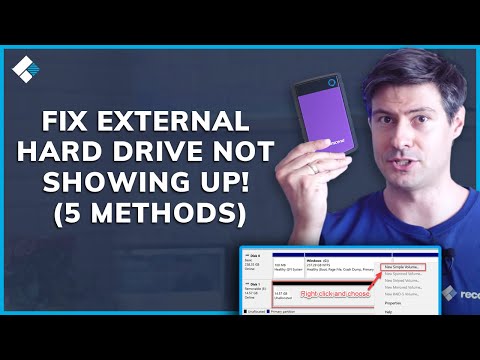
Imagine this. You’ve got a Samsung external hard drive with all those important files. Photos, music, work stuff—everything.
Now you’re trying to access it on your Windows computer and… nothing happens! Like, zip! Nada!
I know right? It’s beyond frustrating. Seriously.
We’ve all been there, friend. That moment when technology decides to be stubborn at the worst possible time.
But don’t worry too much yet! There might be some simple ways to get things back on track.
Grab a coffee (or tea) and let’s crack this mystery together, shall we?
Samsung Hard Drive Not Detected by Windows
If your Samsung external hard drive isn’t showing up on your Windows computer, you might be feeling a bit stressed. I mean, who wouldn’t be? All those important files and memories just out of reach. But before you panic, let’s sort things out together.
First things first. Connect your drive to another USB port on your computer. **Sometimes** that simple swap can do the trick. If it’s still not recognized, try it on a different computer if possible, just to rule out that something’s not quite right with the USB ports or the cable itself.
Next step: Check Disk Management in Windows. Here’s how:
- Right-click the Start button.
- Select Disk Management.
Here’s where you start sleuthing: look for your Samsung drive listed here. It’s possible it doesn’t have a letter assigned to it, which makes it invisible to File Explorer.
To fix this:
- Right-click on the drive.
- Select Change Drive Letter and Paths…
- If there’s no letter assigned, click on Add.
Now if you’re seeing the drive but it’s marked as “unallocated,” well, that’s telling us something too. That usually means you’d need to format before use but hey! don’t do that if there’s valuable data you want saved. Data recovery software might help in that scenario—you get them specifically designed for such mishaps.
But what happens when none of these steps work? That’s when we look into updating drivers because **antiquated drivers** could be at fault—yeah, even in our modern tech world!
- Open Device Manager (right-click Start and find it).
- Find “Universal Serial Bus controllers.”
- Your Samsung should appear here as an unrecognized device.
.This will refresh things by getting your system recognized with any updates from manufacturers available online today..”>>.) this allows updates which help ensure maximum compatibility between operating systems & hardware devices like yours—so much simpler than risking future issues arising due storage limitations damaging data long-term loss due inevitably leading down dead ends without real solutions unless someone else knows better…like me!
Samsung External Hard Drive Not Detected on Windows 10
Oh wow, dealing with a Samsung external hard drive that doesn’t want to show up on Windows 10 can be frustrating. I’ve been there myself, frantically plugging and unplugging, hoping for a miracle. Let’s roll up our sleeves and try to fix this.
First off, you gotta make sure the issue isn’t something simple. Check if the USB cable is firmly connected—both to your hard drive and your computer. And hey, look at that: sometimes cables go bad! It might be worth using another one just in case.
Next stop: trying a different USB port. Trust me, not all ports are created equal. A port on the back of a desktop PC usually handles power better than front ports or those on laptops. Give it a whirl!
Once we’re past that, here’s where things get slightly more technical (but seriously not too techy). We’ll check what’s happening in Windows:
- Open Disk Management. You can do this by right-clicking the Start button and selecting “Disk Management.” Look for your external drive there.
- If you see it listed but without a letter (like E:), bingo! You might need to assign it one.
- Right-click on the drive and choose “Change Drive Letter and Paths…“. Assign a letter that’s free; your system will suggest some.
Did it work? Fingers crossed! If not showing up at all, here’s what you could try next:
Check out the Device Manager:
- You get there by right-clicking that trusty Start button again. Select “Device Manager.”
- You’ll see “Universal Serial Bus controllers” – expand that section.
- If you spot anything with an exclamation mark or saying “unknown device,” update its driver by right-clicking and selecting “Update driver.” Seriously though, updating drivers can do wonders!
And sometimes it’s just about power settings—your computer deciding it’s way too efficient for its own good!
- Dive into Control Panel > Hardware and Sound > Power Options.
- Beneath your selected plan click “Change plan settings” then “Change advanced power settings.”
- Under USB settings > USB selective suspend setting set both options as Disabled!
Anyway if none of these tricks help maybe look into whether there’s any OS updates you’ve missed (I know… they seem endless!).
But before anything drastic like replacing or returning I would **back stuff up** elsewhere just incase — especially if precious memories reside inside.
Hope everything lights up again soon!
SSD T7 Detection Issues in Windows 11
Oh, the joy of connecting a new gadget to your computer—until it doesn’t work! It’s kind of like when you’re all set to binge-watch your favorite show, and bam, no internet. When it comes to your Samsung SSD T7 not being recognized by Windows 11, I feel for you. But hey, let’s get this sorted out.
Check Your Connection. Sometimes it’s as simple as making sure everything’s plugged in right. Double-check both the cable and port. Maybe try another one if you have a spare lying around.
- Try Different Ports: Your computer’s USB port might be acting moody or playing hard-to-get.
- Test with a Different Cable: Cables can be sneaky villains when they decide to stop working. A quick switch can save the day.
Update Drivers. Outdated or missing drivers can lead to these headaches. It’s like trying to read an old map.
- Go to Device Manager: You find it by typing “Device Manager” into that handy search bar at the bottom left of your screen.
- Select Your Disk Drives: Look for any yellow exclamation marks or question marks next to anything related to disks or USB controllers.
- Select “Update Driver”: Right-click on them and select “Update driver.”
Tinker in Disk Management.
- If Windows sees something but won’t display it properly—like recognizing an acquaintance but forgetting their name—it might need a little push.
- If prompted with ‘Initialize Disk,’ give it a go (just don’t format anything unless you’ve backed up your data)!
- If you’re more cautious than curious, right-click on the drive label near where it says ‘Unallocated’ and explore available options without leaping right off that formatting cliff just yet!
The BIOS Checkpoint Transformation Process (BCTP)..Okay,I,ll admit BIOS sounds scary..But don’t worry about getting transformed into toast! Restart&press Del,F2 times varying per brand…Feeling fierce?’These settings matter!!
Finally,a firm reminder remains:things rarely go utterly awry anymore precisely because most issues resolve via seasoned persistence already renowned across tech domains today!!
You know, technology hiccups can be quite the nuisance sometimes. Imagine this: you plug in your Samsung external hard drive to your Windows laptop, ready to access those precious family photos or important work files, and… nothing happens. It’s like having a stack of books you can’t open!
Now, I’ve been there myself. A couple of months back, I had my own run-in with an uncooperative external hard drive while getting ready for a presentation. Talk about stress! The clock was ticking, and there I was frantically trying different USB ports as if they’d magically fix the problem by themselves.
When a Samsung external hard drive isn’t recognized by Windows, it can be due to several reasons. Sometimes it’s something as small as a loose cable connection or perhaps the USB port isn’t delivering enough power (yep, that’s a thing). Other times, it might have to do with drivers—those little pieces of software that help different parts of your computer talk to each other. You might want to peek into Device Manager where these drivers reside and see if they need an update or reinstalling.
And let’s not forget the mystery of formatting issues! If the hard drive’s format isn’t compatible with Windows or has some sort of file system error, well… Houston, we might have found our problem.
What really saved me during that presentation crunch was having backups (not just on one device), but also learning how to stay calm and tackle problems one step at a time. You slowly learn that each tech issue is just another puzzle waiting for someone like you to solve it—or call in a friend who’s good at figuring out these things!
So next time something like this happens—and it probably will—you’ll hopefully feel better prepared. Remember not just those solutions or steps needed but also how ‘not recognizing’ sometimes leads us somewhere unexpected yet insightful in our tech journeys!