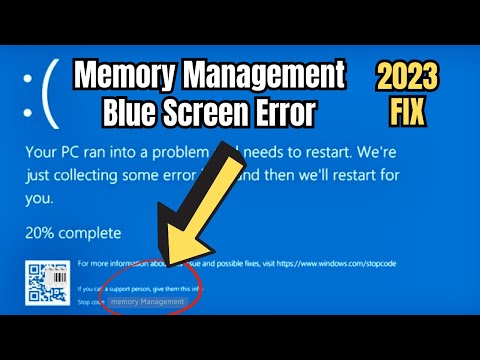
Oh, man! You ever been in the middle of something, and bam, your screen turns that dreaded shade of blue? We’re talking about the infamous Windows 11 blue screen here. Yeah, it’s annoying.
This particular one screams “Memory Management Error,” and it’s like trying to deal with a surprise pop quiz when you’re least expecting it. It’s frustrating. Totally throws you off!
You might feel like you just want to chuck your computer out the window (pun totally intended). But hey, before you panic, there’s light at the end of this tunnel. Trust me, we’re gonna figure it out together.
And remember, we’ve all been there—sitting there with the laptop thinking “why now?”. So let’s roll up our sleeves and tackle this tech hiccup step by step!
Bad RAM Leading to Memory Management BSOD
You know, dealing with a Blue Screen of Death (BSOD) can be quite the unnerving experience, right? Especially when Windows 11 throws a “Memory Management” error in your face. But don’t worry. Let’s take a stroll through what might be causing it, and dive into how faulty RAM could be the culprit.
Understanding the Memory Management Error
While you’re happily using your computer, everything suddenly stops and you get that infamous blue screen. The message often includes something like “Memory Management.” This typically hints at an issue with, you guessed it, how your system is managing memory.
The Role of RAM
Random Access Memory (RAM) is like that trusty assistant holding all kinds of information while your computer works. When it’s working fine, great! Everything runs smoothly and faster. But if there’s a hiccup—like bad RAM—it can lead to errors since your system isn’t able to access or manage info effectively.
Why Bad RAM Causes Issues:
- Errors in data storage: Imagine trying to read from a crumpled page.
- Failure in reading or writing: Information doesn’t get processed correctly.
- Sudden freezes: Your assistant takes too long on coffee breaks!
Steps to Diagnose Bad RAM
Now let’s say you’ve got this nagging feeling that faulty RAM might be the problem. How do you check?
You can try:
- MemTest86+: A handy tool that’s been around forever to test memory for errors.
- Windows Memory Diagnostic Tool: Built into Windows 11—restart and let it run!
After running these tests, you’ll usually see any issues highlighted or identified if they’re present.
Troubleshooting Bad RAM
If you confirm there’s bad RAM involved (which happens more than you’d think), replacing those faulty sticks is essential. Often folks start by just reseating them first; sometimes they shift during transport or cleaning. No luck? Then it’s time to swap out for new ones.
Remember this story from my pal Joe—had his PC crashing every other day till he figured out one tiny ram stick was acting up… replaced it… never looked back!
In essence look at this as just another step on life’s little tech journey—not some insurmountable wall! Happy computing!
Memory Management Error Causes in Windows 11
It can be quite frustrating when you’re happily using your computer, and suddenly, the screen turns blue. It’s known as the Blue Screen of Death (BSOD). Sounds dramatic, right? One of the common messages you might see is “Memory Management Error.” Let’s try to make sense of it.
This error usually points to a problem with how your computer manages its memory. Imagine it as a librarian keeping track of books, but well, sometimes things get misplaced or go missing!
Common Causes:
- Faulty RAM: Just like any device, your RAM can go bad over time. It’s like that creaky old chair that finally gives way one day.
- Outdated Drivers: You know how software needs updates? Drivers are the bridge between your hardware and software, and if they’re not current…well…expect chaos!
- Corrupted System Files: Sometimes files on your system get corrupt—it can happen due to improper shutdowns or malware.
- Disk Errors: Your hard drive might have issues. Imagine trying to read from a book that’s missing pages.
Troubleshooting Steps:
- Run Memory Diagnostics Tool: Use Windows’ built-in tool or MemTest86 for checking RAM health. It’s like taking your car for a checkup at the mechanic!
- Check for Driver Updates:. Updating drivers can solve compatibility problems causing memory issues.
- SFC /scannow in Command Prompt:. This scans for corrupted system files and repairs them—like bringing in a professional organizer to sort out that messy bookshelf!
- Error Checking in Drive Properties:. Run error checking on your drives through File Explorer.
Now once upon a time, I was knee-deep into an important project when bam! Blue Screen popped up with that ominous message—I was terrified! But after running some checks and replacing faulty RAM, my PC was back on track.
Hopefully this sheds some light on what’s happening. By checking these areas you’ll increase chances of solving it swiftly!
Memory Management Error Causes in Windows 11
Oh, those “Memory Management Error” messages on Windows 11… They can be a real headache, right? You’re doing your work or watching a movie, and suddenly—bam!—blue screen. It’s frustrating. Let’s see what causes this pesky issue.
1. Faulty RAM
Your computer’s random access memory (RAM) does a lot of heavy lifting. If there’s a problem there, things can get messy. A malfunctioning RAM stick might not store or retrieve data correctly, leading the system to crash with that dreaded error.
2. Outdated Drivers
Drivers are the little pieces of software that help your hardware communicate with Windows 11. If they’re not up-to-date, it could confuse your system—kind of like reading an old map to navigate new streets!
3. Software Conflicts
You know how sometimes your TV remote starts acting weird when the batteries are low? Something similar happens with software conflicts in Windows 11. When two programs don’t like sharing resources or interfere somehow, they might cause errors.
4. Overclocking Issues
Overclocking can boost performance by making components run faster than normal speeds—but at a risk! It’s like revving an engine too hard; it might push your hardware into overdrive until something breaks down.
5. Corrupted System Files
Windows relies on its system files working perfectly together—but if one gets corrupted (think: snagged thread in fabric), other operations trip over themselves trying to continue without it!
Anyway… here are some tips:
- Check Your RAM: Use tools like Memtest86 to test for faulty memory sticks.
- Update Drivers: Open Device Manager and search each device for updates regularly.
- Avoid Program Clashes:: Uninstall or reinstall applications causing trouble often resolves the conflict.
- Please Cool Down Overclocked Components:: Monitor temperatures carefully while adjusting frequency settings lower if needed during gaming tasks.
In short–knowing what lies behind those cryptic errors empowers us all towards smoother computing experiences—and fewer blue screens disrupting our day-to-day lives!
Ah, the dreaded Windows Blue Screen of Death (BSOD). Anyone who’s used a computer for a while knows just how heart-stopping it can be when that blue screen suddenly flashes up. You’re in the middle of something important, maybe an intense game or finishing up a last-minute project, and boom – everything grinds to a halt. And not just any BSOD, but one related to memory management. That one can be tricky.
Memory management errors are like those pesky little gremlins lurking in your system, causing chaos seemingly without warning. Now, if your device is throwing out this specific error on Windows 11, it usually relates to issues with how your system handles its memory. You know? Think of it like being stuck on a rollercoaster where you never quite know when you’ll plummet back down into tech chaos.
I remember helping my friend who was ready to toss their laptop out the window after encountering this error repeatedly during a virtual meeting! (Not the best time for such dramas.) But here’s what generally happens: it’s often tied to faulty RAM or some software conflict – sometimes even outdated drivers play their part in this mess.
Start with checking for software updates first. It’s surprising how updating things can magically resolve issues. Also run your Windows Memory Diagnostic tool; it’s like asking your computer’s brain where it’s been misbehaving lately.
And hey, if hardware isn’t really warm coffee—the kind that makes you feel cozy—there’s no harm in calling upon someone who enjoys tinkering inside computers if you’re unsure about messing with RAM sticks yourself.
It’s quite fascinating how technology gives us so much power yet throws us challenges occasionally just to keep things interesting! Keeping calm and knowing these hiccups are fairly common can save you from unnecessary frustration… hopefully preventing any gadget-throwing tendencies!