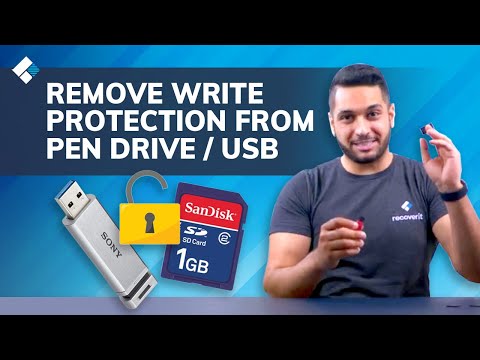
You know, there’s always that one tech problem that drives you up the wall, right? Picture this: you’re all set to save your work or maybe share some files with a friend. But then your drive decides to be moody. It flashes that dreaded message—“write-protected.” Gosh, could it be more frustrating?
I remember once trying to backup some holiday photos, and bam! The error popped up. All my excitement turned into a puzzled frown in seconds. Why does this even happen? Isn’t it just weird when tech acts up with these cryptic messages?
Don’t worry though, it’s not the end of the world. There are reasons why this happens, and guess what? We can fix it too! So grab a coffee—or tea if that’s your thing—and let’s see what’s going on with these write-protection quirks and how we can give them the boot!
Causes of Write Protection
You’re sitting by your computer, trying to save a crucial document, and bang! You get hit with that dreaded “Write-Protected” error message. Frustrating, right? It’s like your drive has suddenly decided to play hard-to-get. But let’s dive into what might be causing this issue.
Physical Write Protection: Some drives have a tiny switch on their side—like SD cards or some USB drives. If it’s set to lock, you can’t write or modify files on it. It’s like that mysterious switch on toy cars that turns the sound off and on—fascinates kids for hours.
Drive Corruption: Sometimes drives misbehave due to corruption within their filesystem. Imagine part of it getting scrambled like a TV showing static; it can’t process commands properly, leading to errors.
Virus or Malware: Yeah, those pesky digital bugs again! They’re the uninvited guests of the computer world who can change settings and block access without knocking first.
User Permissions: Sometimes certain accounts don’t have permission to write data onto a disk. It’s kind of like being at home but not having access to all rooms because you didn’t ask before entering.
- Registry Policies: Your computer’s registry might have policies set up that restrict writing permissions. Ever read complicated legal terms? Yeah, kinda like that.
- Scripting Errors: If there’s malicious scripting involved or incorrect settings from software—they can prompt write-protection unnecessarily.
Now you know why your drive might be acting all tough about receiving new files. Hope understanding these reasons helps lessen those frustrations!
Disabling Write Protection on a Drive
Oh boy, let’s chat about when your drive throws a little tantrum and shows that dreaded “Write-Protected” error. It’s like your drive saying, “Nope, not writing anything here!” But don’t worry, it’s something we can deal with together.
The first thing to do is check if there’s a physical switch. Some USB drives and SD cards come with a tiny slider switch to lock data—sort of like putting a “Do Not Touch” sign on your work desk. So if everything’s been locked down, flick that switch back to the open position.
Now, if you’re still in trouble after checking the switch or didn’t find one, time to roll up our sleeves and take a peek into the computer settings. Do you know how some settings sometimes decide to take control? Here’s where we might find some culprits.
- Disk Permissions: Windows sometimes likes playing bossy pants with permissions settings. You can adjust them by right-clicking on the drive in File Explorer and selecting Properties > Security tab. From there you’ll see options for changing permissions.
- Registry Fix: If editing registries sounds scary—hey don’t panic! It sounds super techy but it’s doable…when done carefully! Open “Run” using Windows+R keys then type “regedit”—yes like magic words—and navigate through HKEY_LOCAL_MACHINE > System > CurrentControlSet > Control along with StorageDevicePolicies folder (If it doesn’t exist? You’ll have created from scratch). Set WriteProtect key value as zero (0).
- Command Prompt: This one involves typing some stuff but also kinda feels badass—I mean isn’t hacking something computers do in movies all cool-like? Right-click Start button then pick “Command Prompt (Admin),” type this exact thing without even blinking: DISKPART—you’ll enter Diskpart utility; run commands below sequentially—LIST DISK (find number of yours), SELECT DISK X [replace X], ATTRIBUTES DISK CLEAR READONLY.
In rare cases there maybe deeper issues at play—something obsolete firmware related most often needing updates; or defects within storage device itself nobody likes hearing diagnoses involving corruption causing function issues beyond recovery attempts made earlier above.
Understanding Write Protection Error Causes in Windows 10
Oh, the frustration of staring at your screen and seeing that dreaded “Write-Protected” error in Windows 10! It’s like wanting to dive into a good book, only to realize you can’t turn another page. Let’s chat through what causes this pesky issue and how you can sort it out, step by step.
What Causes the Write-Protected Error?
You might be wondering why this happens. In simple terms, think of write protection as a safeguard that prevents changes to the content on a drive. This is useful when we want to keep data safe from accidental deletions or changes.
- Physical Switch: Some USB drives or SD cards have a tiny physical switch on them. If that’s flipped to the “lock” position, it’ll prevent write access.
- Drive Attributes: Sometimes the disk can have attributes set by software that make them read-only.
- Registry Settings: Occasionally, registry settings in Windows itself manage these permissions and might accidentally get altered.
- Group Policy Restrictions: Particularly if you’re using a work computer, certain policies might restrict writing capabilities for security reasons.
- Drive Errors: It could even be as simple as an error on the drive itself—a small glitch messing things up!
Tackling the Error
Let’s talk solutions. Fixing this isn’t rocket science; it just takes knowing where to look.
- If there’s a physical lock, start by checking for one. Flicking that tiny switch back should do wonders if it’s simply locked.
- If not, head over to your command prompt:
- Press Win + X and choose “Command Prompt (Admin)“.
- Type: `
diskpart` and hit Enter. li >
When it’s ready enter: `list disk code >` li >
Find your pen drive or hard disk then input: ` select memory num ` (replace `memory num code >` with your number!). li >
Use our final command: ` attributes disk clear readonly `. il >
ol >
This reverses any read-only attributes!Another fix is looking through registry settings:
Directly open Regedit (`Win + R`, typing regedit) locating pathway:
`HKEY_LOCAL_MACHINESYSTEMCurrentControlSetControlStorageDevicePolicies` ⏎ p >
If “WriteProtect” manifests there ␣ adjust zero-variable then restart regions change takes place. b >
Remember SD cards aren’t always wrong⍰ Known problematic drives may necessitate formatting entire regions rectangular clearing sector blockages reinsert corrections—try aforementioned earlier loss prevention protocols beforehand!
Sometimes challenge makes overcoming more satisfying doesn’ t it? They won’t show resistance long enough—errors no longer haunt getting sorted all now enlighten vanished presence errors yet perplex remaining fortunate brings solution together⒤ Have cherished fixes updating exploring new boundaries continue forge forward!
Oh, the dreaded "write-protected" error! It's one of those pesky things that can catch you off guard when you're just trying to save a file or make some changes on your USB drive or external hard disk. Ever been there? It’s like when you’re all set to jot down a note, but your pen decides it’s out of ink. Quite frustrating.
So what’s going on when this message pops up? Well, in layman’s terms, the drive is basically saying: "Hands off! You can't write anything here!" This protective mechanism is pretty much a security feature. Imagine it as a little lock on your mailbox to keep unwanted stuff out—or in this case, keeping files from being changed or deleted accidentally.
Now, let’s imagine you’re at a friend's house and suddenly the TV remote decides not to work because someone hit the pesky 'lock' button by accident. That's kind of what's happening with your drive—it might be a literal switch or a software setting causing it. Some USB drives have tiny physical switches; if it's flipped, there's no writing allowed. So yeah, first thing: check for any small slider switch on the side.
And then there's another sneaky culprit—malware! Sometimes malicious software worms its way into devices and messes around with settings just to create chaos (ugh!). Other times it might just be some random glitch in the file system itself—kind of like when your phone randomly decides one app should crash for no apparent reason.
The good news? You can tackle these issues without breaking much of a sweat. You could try switching ports or plugging into another computer just to see if maybe it's an issue with that specific connection. Or try scanning for malware using reliable antivirus software—that usually helps cleanse any nasty bugs out hanging around.
If none of those quick fixes do tricks though—well—you may need some technical mojo by checking something called 'disk attributes' using command prompts (sounds fancier than it really is). Look up tutorials online—they’ll walk through each step patiently so even tech novices can follow along!
In life we've all hit roadblocks every now and then—even our trusty gadgets aren’t immune from occasional hiccups—but hey fixing them makes us feel like savvy problem solvers doesn’t it? Happy tinkering!