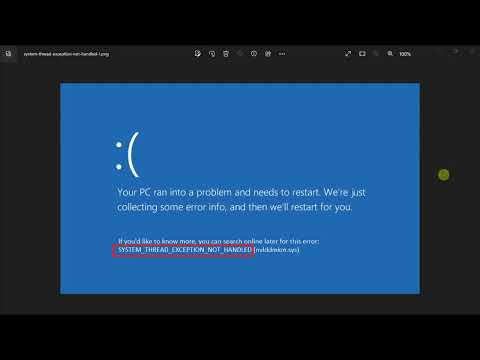
Oh man, nothing like the dreaded blue screen to ruin your day, right? You’re just minding your own business, maybe typing a report or watching a funny cat video, when BAM! Your computer decides it’s time for an unannounced break. Yep, we’re chatting about that infamous “System Thread Exception Not Handled” error. Sounds fancy? Maybe even a little intimidating?
Don’t sweat it; you’re not alone in this techy rollercoaster. Think of it like your computer saying “Oops!” Sometimes our lovely gadgets get tangled up in their own wires and need a bit of guidance. It’s kind of like rebooting ourselves after sleep—which I’m sure you’d agree is super refreshing!
Let’s say when you’ve been down this road more times than you’d care to admit, it starts feeling less scary. It’s just about understanding the “why” behind the drama and figuring out the easy-peasy steps to put things back on track. Trust me; we’ll sort this out together with zero techie babble.
Ready to tackle it?
SYSTEM_THREAD_EXCEPTION_NOT_HANDLED Error Explanation
Hey! You ever been using your computer just minding your own business, and then bam – a blue screen pops up out of nowhere? Yep, that’s what we call the Blue Screen of Death (BSOD). It’s scary at first, right? But hang in there. One common error you might see is the “SYSTEM_THREAD_EXCEPTION_NOT_HANDLED” error. Let’s break that down a bit.
This error usually shows up when drivers on your system misbehave. Think of drivers like little translators for your hardware, helping everything talk to each other properly. If one goes rogue or gets outdated, it can cause all kinds of chaos!
Now let me give you some typical reasons for this error:
- Outdated Drivers: Sometimes the little translator scripts need an update to keep things smooth.
- Incompatible Hardware: Maybe some part of your hardware just doesn’t gel with the rest anymore.
- Corrupt Files: Our computers juggle a lot! Occasionally something crashes and burns in memory or disk space.
So what happens when this strikes? First off take it easy! Your computer hasn’t exploded or anything. Let’s walk through a few friendly fixes.
1. Restart Your Computer: Switch it off! Honestly—it often works wonders.
2. Try Safe Mode: Restarting in Safe Mode means starting up with only essential drivers running — which can help isolate problems.
3. Use Windows Update: Keeping those updates rolling makes sure compatibility issues are less likely down the road; plus new features galore!
4. (And don’t forget), if possible try restoring from an earlier point before errors started cropping up—you know—in times when life was good…
Long story short: with some patience—and maybe even learning moments along grudgingly accepted road—to fix these hassles…
System Thread Exception Not Handled in Windows 11
Oh no, the dreaded System Thread Exception Not Handled error! Look, if you’ve ever felt the sudden drop in your heart when your screen goes blue, you’re not alone. It’s called a Blue Screen of Death (BSOD), and while it sounds dramatic, trust me—it’s fixable. Let’s chat about what this error means and how you can deal with it.
First off, if you’re seeing this message in Windows 11, it’s basically the system saying something went wrong while handling threads. Threads? Picture them like those invisible lines that let different parts of programs talk to each other smoothly. When one of these conversations doesn’t happen as expected… boom! You get this error.
Reasons Behind This Error:
- Outdated Drivers: Your computer might be using old or incompatible drivers which can’t handle certain processes.
- Corrupt System Files: Sometimes the files that make your operating system tick get messed up.
- Third-Party Software Conflicts: External programs doing weird stuff behind the scenes can cause issues.
Now, how do you tackle it? It’s not as daunting as it seems:
Troubleshooting Steps:
1. Update Your Drivers:
Most problems arise because of outdated or mismatched drivers. Try updating them:
– Press Windows Key + X and select “Device Manager”.
– Look for devices with a yellow exclamation mark.
– Right-click on them and choose “Update driver”.
2. Use Safe Mode:
Sometimes entering Safe Mode can help you troubleshoot without interference from unnecessary third-party software.
– Restart your computer and keep pressing F8 (or Shift + Restart).
– Select “Troubleshoot” then go to “Advanced options” and choose “Startup Settings”.
– Pick “Safe Mode”.
3. SFC and DISM Scans:
Your system has built-in tools to check and repair files.
“`html
Open Command Prompt (as an Administrator) by typing ‘cmd’ in search.
Type `sfc /scannow` to scan for missing or corrupted files.
If issues persist try `DISM /Online /Cleanup-Image /RestoreHealth`.
“`
4. Uninstall Problematic Software:
If you noticed errors after installing new software, try uninstalling it:
– Go to Settings > Apps > Apps & Features.
– Find the program on the list and click ‘Uninstall’.
You may have heard a million tips from friends about restarting or ‘giving it a tap,’ but honestly, following these steps should set you straight most times.
Still having trouble? It might be time to ask for professional help before gritting teeth through another BSOD episode!
Errors like these remind me once when my dear ol’ laptop decided it’d be fun to crash right during an online meeting! Anyway let’s hope your issue gets sorted quicker than mine did back then… Good luck!
System Thread Exception Not Handled Error
Oh, the dreaded blue screen. We’ve all been there, right? You’re working away, and suddenly your screen turns blue with an error message that can send you into a mini panic. One such message is the “System Thread Exception Not Handled” error. Let’s talk about this in plain language.
First up, what is this error? Well, imagine your computer trying to juggle many tasks at once—sometimes it drops the ball. The “System Thread Exception Not Handled” happens when a system thread generates an exception—a problem—that Windows doesn’t know how to handle.
Why does this happen?
- Outdated drivers: Think of drivers as translators between your hardware and software. If they’re outdated, they might miscommunicate.
- Corrupted driver files: Sometimes files get damaged—could be due to malware or improper installations.
- Incompatible hardware: Maybe you added new hardware that isn’t quite getting along with your current system setup.
Picture this: my friend Tim was updating his graphics card driver—everything seemed smooth until bam! Blue screen appeared with our infamous error message.
Solve it by doing these things:
- Boot into safe mode: Restart your computer and press F8 during startup. Safe mode loads only essential drivers—a good way to troubleshoot what’s causing issues.
- Update or reinstall drivers: Once in safe mode, go to ‘Device Manager’ (type it into the search bar), find devices with yellow exclamation marks (they’re like red flags), update their drivers online or uninstall then reinstall them.
- Error details in event viewer: Type “Event Viewer” in search bar after booting normally; look under “Windows Logs” > “System” for errors noted around crash times—they provide clues!
But if computers could talk! They might just say: “Help! I can’t handle what’s thrown at me!” Sort of feels like life sometimes, right?
In case you’re puzzled still—or if things seem more stubborn than expected—it’s okay; technical support or forums are always options worth exploring.
Now go ahead: face those tech gremlins fearlessly armed with knowledge—you’ve got this! Remember: every challenge makes us savvier users—and gives good stories for posterity too!
Ah, the infamous Blue Screen of Death! You know, just saying the name can send shivers down anyone’s spine who’s experienced it. It’s like that unexpected visit from a relative who always brings chaos. One moment you’re happily working on something important or maybe even watching a funny cat video, and then—bam! Your screen flashes blue with cryptic white text that reads “System Thread Exception Not Handled.” Ugh!
Now let’s break this down into something more digestible. Imagine your computer running like a finely tuned orchestra. Every part plays in harmony, creating a beautiful symphony of operations. Then out of nowhere, one instrument hits the wrong note—the tuba blasts when it should’ve been silent—and everything falls apart. That stray note? That’s your system thread exception.
What’s causing it? Oh boy, there could be several mischief-makers at play here. Faulty drivers are often prime suspects. Imagine them as the sheet music for your orchestra; if they’re off-key or outdated, nothing sounds right. Sometimes it’s even incompatible hardware or software making things go haywire.
I remember this one time I was preparing an important presentation for work—it was really nerve-wracking already—and suddenly my screen went blue with this error! I felt my heart sink faster than a stone in water because I’d forgotten to save my latest edits… Talk about panic!
To fix this hiccup, you might want to check if there are updates available for your device drivers or maybe uninstall recent ones that could be causing trouble. And don’t forget running some diagnostics through Windows’ built-in tools; they are surprisingly handy.
This whole ordeal reminds us of how reliant we’ve become on these machines and how crucial regular maintenance is—kind of like taking care of your car so it doesn’t give up on you halfway through a road trip (which happened once too).
In any case though dealing with these errors can be frustrating it’s comforting knowing most times there’s light at tunnel’s end once we’ve tackled underlying issues head-on albeit sometimes requiring expert assistance.
Hope next time technology decides to throw curveballs our way again whether work-related or just our personal use—we’re better prepared preemptively saving data double-checking compatibility ensuring smooth digital sailing ahead without unexpected turbulence!